How caregivers clock in and out
What your caregivers see on their phone: today’s visits, the clock-in window, Start Visit with GPS and the client’s check, and the visit while it is running.
6 parts · 2 minVisitsFor the office
The lesson plays on a sample agency, so nothing you do in it changes anything. Open any item in the lesson's panel to read about it, and press See how to watch it done.
What this lesson covers
Everything the lesson says, part by part.
- 1
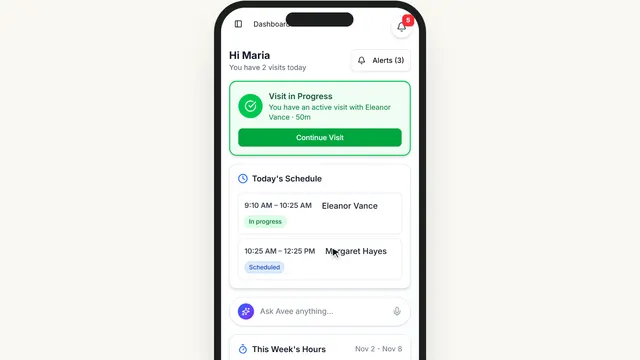
On the way: This is the caregiver’s phone, signed in as Maria.
The caregiver’s home screen
Today’s visits, the one they are on now, and their hours this week. Everything starts from a visit.
The AveeCare app on the caregiver’s phone, or app.aveecare.com in their browser.
On this page
Today’s visitsIn order, with the time
Each visit today, with the client and the time. Press one to see everything about it.
See how jumps ahead to part 2: Before the visit.
Read the guideThe visit they are onContinue Visit
While they are clocked in, the visit stays at the top until they end it.
See how shows:
- Visit in Progress Continue Visit takes them back to it.
Their hours this weekThis Week’s Hours
Hours worked so far this week, against what they are scheduled for.
See how shows:
- This Week’s Hours Worked so far, against the week.
Picking up extra shiftsOpen Shifts
Visits you offered to everyone show up here, and the first to accept gets the visit.
Read the guideSee how shows:
- Open Shifts Visits waiting for someone to take them.
- 2
Before the visit
Margaret Hayes, later today. The address, the client’s emergency contacts, the tasks and when clock-in opens.
The caregiver’s phone: press a visit.
On this page
When they can clock inVisit Timing Policy
Clock-in opens a little before the start. After the late time the visit is marked late, and after the no-show time the office gets an alert. You set these times in Settings.
Read the guideSee how shows:
- Visit Timing Policy When clock-in opens, and when it counts as late.
Clock inStart Visit
Start Visit records the time and where they are, and asks the client to confirm the caregiver is there.
See how jumps ahead to part 3: Start Visit.
Read the guideGetting thereGet Directions
Opens the address in their maps app.
See how shows:
- Get Directions Opens their maps app.
Can’t make itRequest Swap
Asks the office to give the visit to someone else. You approve or deny it.
Read the guideSee how shows:
- Request Swap The office decides who covers.
- 3
Start Visit
Clocking in. Their location is recorded once, now, and the client confirms the caregiver is there. Nothing is started in this lesson.
Clocking in records the time and where they are, once, and the client confirms the caregiver is there.
The visit, then Start Visit.
On this page
Their locationAt clock-in and clock-out only
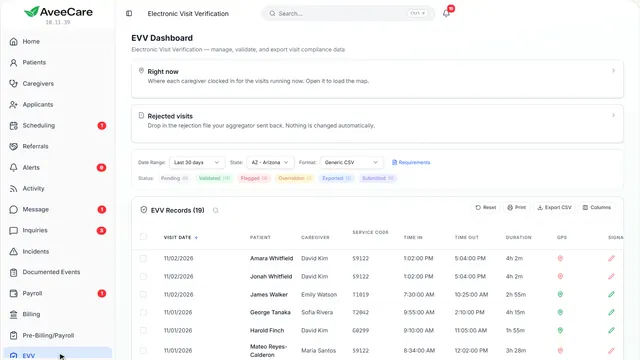
GPS is recorded when they clock in and when they clock out, for EVV. It is not tracked in between.
Read the guideSee how shows:
- Location captured Only at clock-in and clock-out.
The client confirmsMember Verification
Most states require the client or a family member to confirm the visit: a signature, a PIN or a voice recording.
See how plays the lesson EVV for your state.
Read the guideClock inStart Visit
The visit starts and shows on your calendar as in progress. Not pressed here.
See how shows:
- Start Visit Starts the visit. Not pressed here.
- 4
On the way: Back to their list of visits.
My Visits
Every visit they have: upcoming, the one in progress and the ones they finished, with a weekly summary.
The caregiver’s phone, under My Visits.
On this page
Confirm they are comingConfirm or Not today
When you ask caregivers to confirm visits, they answer here, and you see who has not.
Read the guideSee how shows:
- Needs Confirmation Confirm, or Not today.
Past and futureUpcoming, Active, Completed
Their upcoming visits, the one running and every visit they have finished.
See how shows:
- Completed Every visit they finished.
The visit in progressContinue Visit
Back to the visit they are on, to check off tasks or end it.
See how jumps ahead to part 5: During the visit.
- 5
During the visit
Eleanor Vance’s visit, in progress. The checklist shows what is left before they can end it.
My Visits, then Continue Visit.
On this page
What is left to doToday’s visit checklist
Tasks, required forms and notes. Anything marked Blocks check-out must be done before they can end the visit.
Read the guideSee how shows:
- Visit forms Required forms must be done before ending.
Staying longerRequest Extension
They ask for more time and say why. You approve or deny it.
See how jumps ahead to part 6: Request Shift Extension.
Read the guideClock outEnd Visit
Ending the visit walks them through what is left, both signatures and the clock-out.
See how plays the lesson Finish a visit.
Read the guide - 6
Request Shift Extension
How much longer and why. The office is told and must approve it.
The visit in progress, then Request Extension.
On this page
How much longer30 minutes to 2 hours
Pick a length, or type any number of minutes up to the most your agency allows.
See how shows:
- 30 min, 1 hr, 1.5 hrs, 2 hrs Or type the minutes.
WhyReason
A reason is required, so the office can decide.
See how shows:
- Reason Required.
What the office seesExtensions, on Scheduling
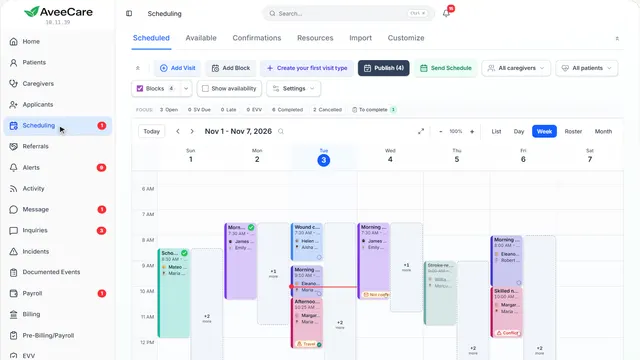
The request waits under Extensions on your Scheduling page until someone approves or denies it. The lesson Approve a shift extension shows that side.
Read the guideSee how shows:
- Sent to the office It waits under Extensions on Scheduling.
At the end
Now you know how caregivers clock in and out
Watch next