My Visits is the caregiver-side list and calendar of every visit assigned to you. It opens to Upcoming by default, with Active, Completed, and a Weekly Summary tab on the same row. A list-versus-calendar toggle in the top right switches the whole page between a sortable table and a week calendar.
Quick answer
Sign in as a caregiver and pick My Visits in the sidebar. The four tabs across the top filter by status: Upcoming, Active, Completed, and Weekly Summary. The icon pair in the top right of the page header toggles between list and calendar views.
1. Open My Visits from the Caregiver sidebar
Click My Visits in the Caregiver Portal sidebar.
The page header reads My Visits with the subtitle View and manage your assigned visits. Counts in parentheses on each tab tell you how many visits sit in that bucket right now.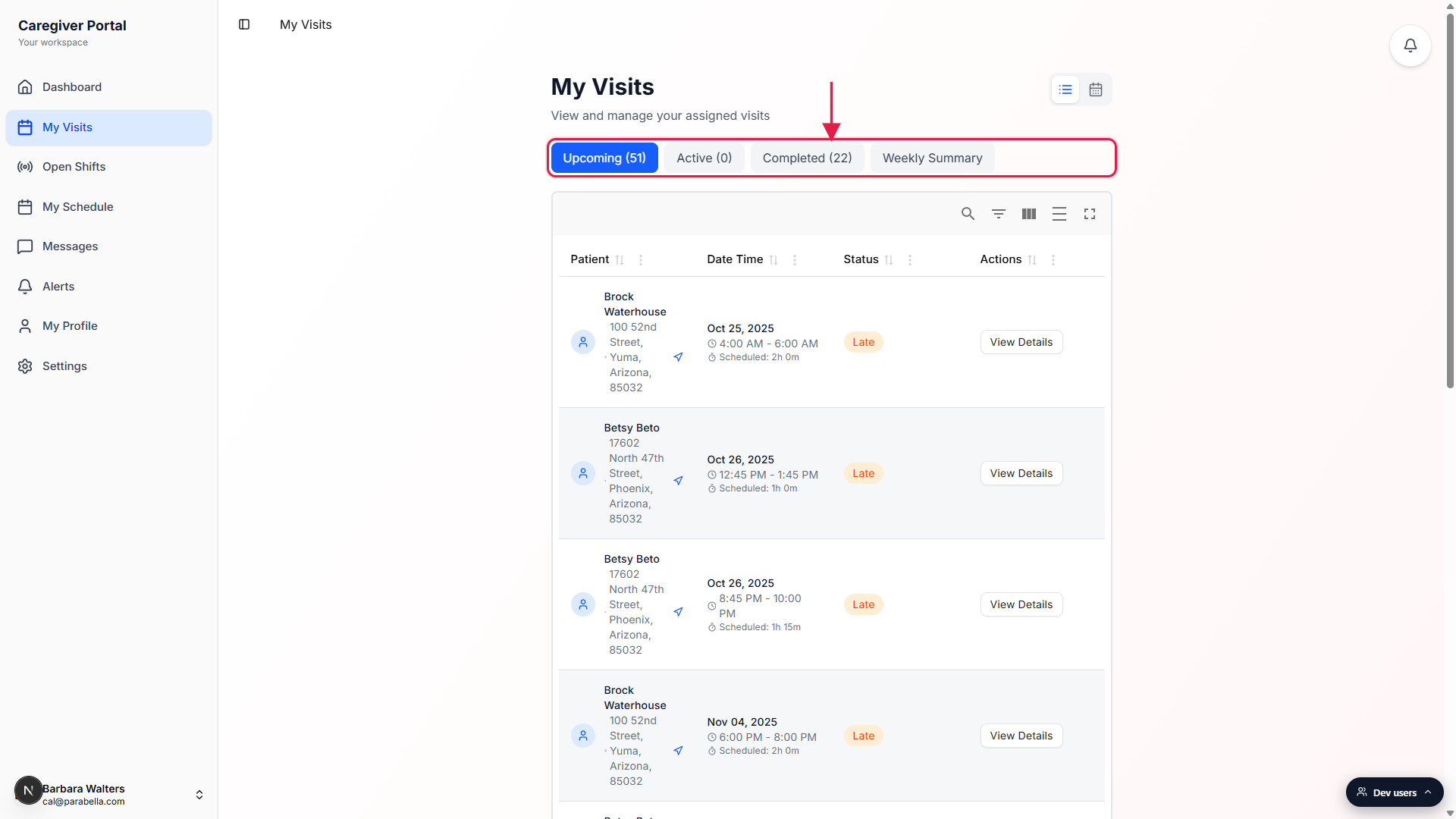
2. Switch between the four status tabs
Upcoming shows scheduled visits that have not started yet.
Rows are sorted by start time, soonest first. Visits past their scheduled start that have not been clocked into still show here with a Late status chip so you do not miss them.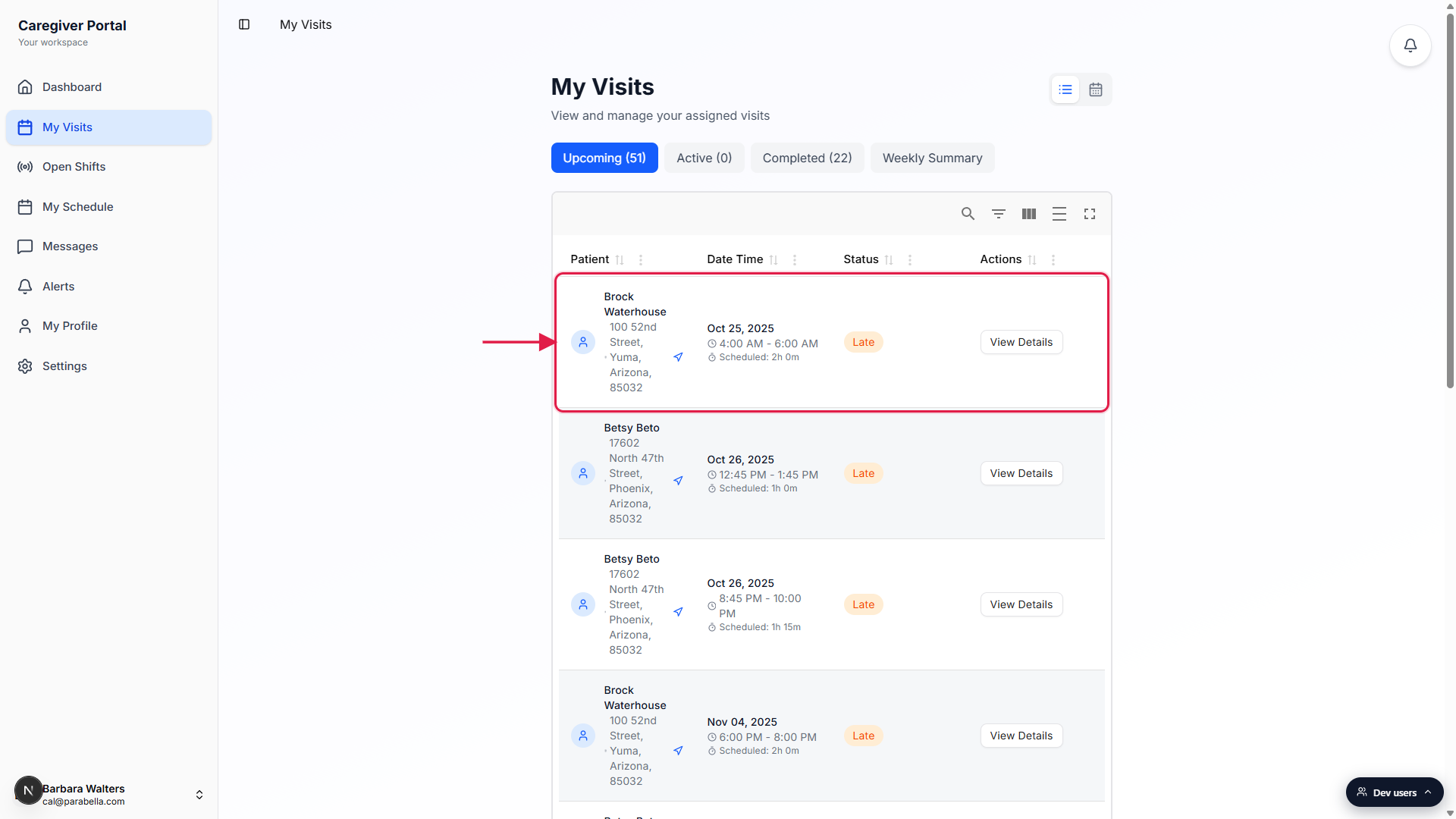
Active shows visits you are currently clocked into.
If you are clocked in to a visit, it appears here with an In Progress status and a Continue button. The green Visit in Progress banner above the tabs is the fastest way back to that visit. If the count reads Active (0), you are not clocked into anything.Completed shows visits with a final status.
Completed, Incomplete, and Cancelled visits all land here once their scheduled start is in the past. Each row carries a Paid or Pending pay chip so you can see at a glance which past visits payroll has already processed.
3. Toggle between list view and calendar view
Click the calendar icon in the top right to switch views.
The pair of icons next to the page heading flips the whole surface from list to calendar. List view shows a sortable table for whichever tab is active. Calendar view shows a week, day, or month grid of every visit assigned to you, color-coded by status.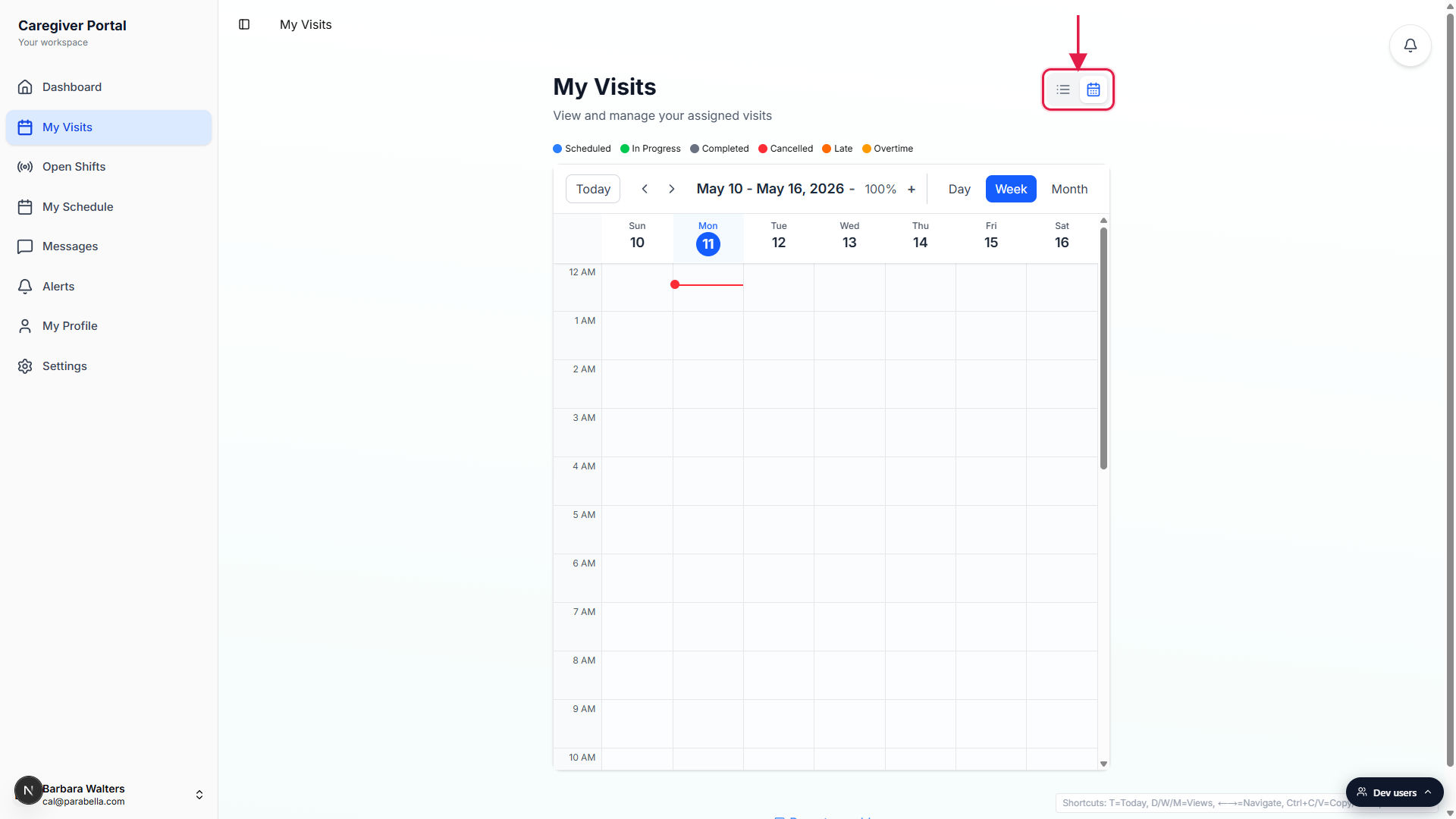
In calendar view, pick Day, Week, or Month.
The Day / Week / Month buttons sit above the grid next to a Today shortcut and date arrows. The legend across the top maps colors to status: blue for Scheduled, green for In Progress, gray for Completed, red for Cancelled or Incomplete, orange for Late, amber for Overtime. Click any visit block to open its visit detail page.
4. Check the Weekly Summary for hours and pay
Click the Weekly Summary tab to see the current week at a glance.
The week header at the top of the panel shows the Monday through Sunday window the summary is counting, with a running total in hours. Arrow buttons step backward or forward up to four weeks, and a Back to current week link returns to today.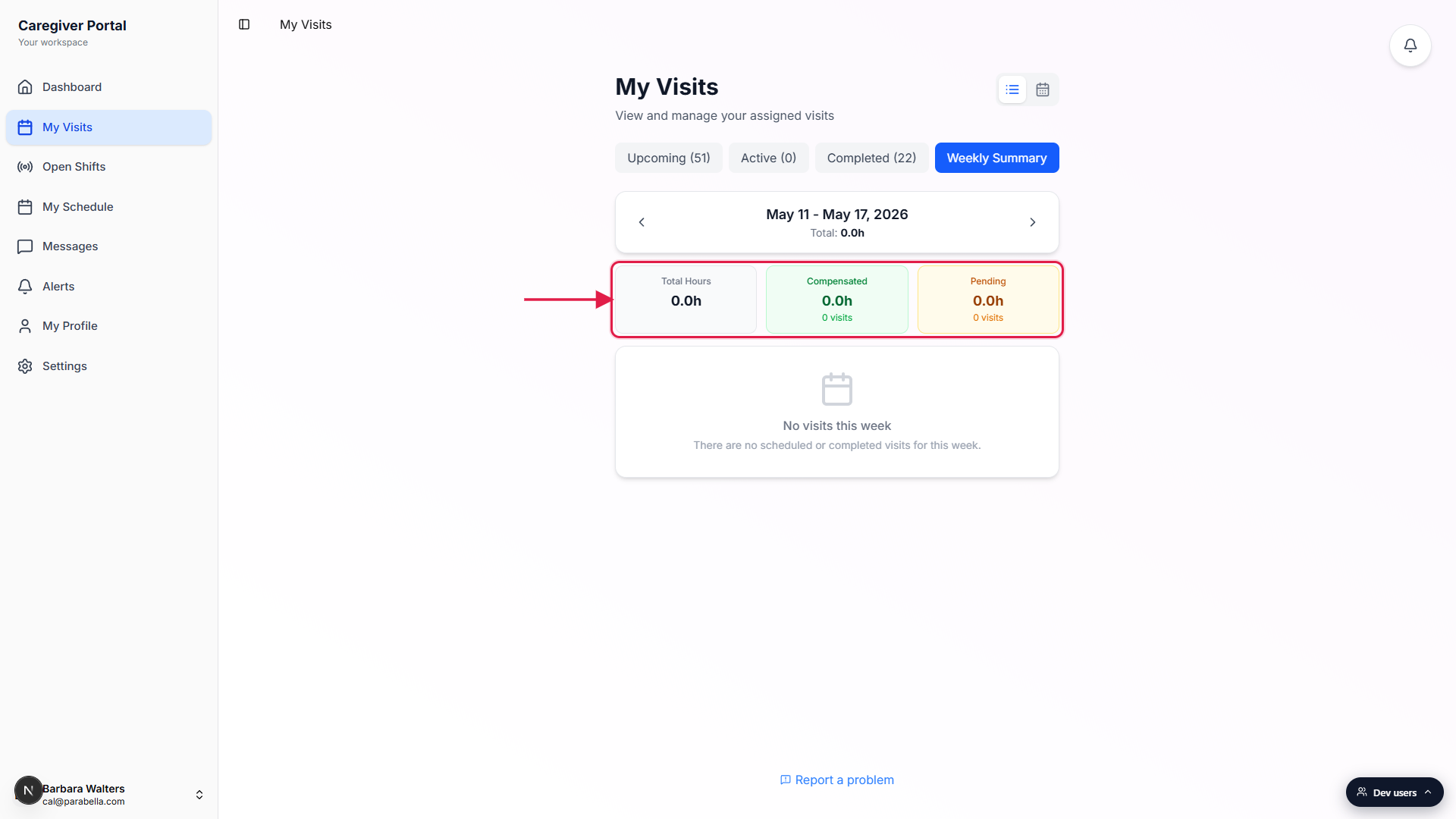
Read the Total Hours, Compensated, and Pending tiles.
Total Hours is the sum of every non-cancelled visit in the week. Compensated is the slice payroll has already paid out. Pending is everything that is done or in progress but not paid out yet. A fourth Scheduled tile appears when you still have hours on the books for later this week.Tap any day card to drill into that visit.
Below the tiles, the panel breaks the week down by day with hours and a visit count per day. Each visit row is clickable and opens that visit detail directly.
Common pitfalls
- Late status on Upcoming. A scheduled visit whose start time has already passed flips to a Late chip but stays in the Upcoming tab until you clock in. That is intentional. If you missed a start, open the visit and start it, or contact your office for a no-show resolution.
- Active (0) when you expected to see a visit. Active only counts visits you are clocked into, not visits scheduled for right now. Open Upcoming, tap the row, and press Start Visit when you arrive. The clock-in window opens 30 minutes before the scheduled start by default.
- Cancelled visits look paid. Cancelled visits do not contribute to any hours bucket in Weekly Summary, including Total Hours. They appear on the calendar with a red chip on the relevant day, and in the Completed tab with a Cancelled status.
- Calendar shows visits the list does not. Calendar view is not filtered by the tabs. It always shows every visit with a start time across statuses, color-coded. List view respects the active tab. Switching to calendar is the fastest way to see the whole week without flipping tabs.
- Weekly Summary uses your browser time zone. Week boundaries (Mon-Sun) are computed from your browser, not your agency's configured time zone. If you travel across time zones, visits near a week boundary can land in a different week than the office sees. The displayed date range under the tile row always tells you which window the summary is counting.