The caregiver visit detail page is where you work a shift from inside AveeCare. It carries the patient name, the in-progress timer, and a tab strip that keeps the long list of per-visit information out of the way until you need it.
Quick answer
From My Visits open a visit. You will see a header with the patient name, the visit status, and the End Visit button. Below the header is a tab strip: Overview, Patient History, Care Plan, Notes, and Progress. Overview holds the timer and the ADL checklist while a visit is in progress. The other tabs hold the patient's clinical context, the care plan task list, your written notes, and a short progress assessment.
Tabs you will see
Tabs are gated by the visit status. A scheduled visit more than 24 hours away only shows the Overview tab. Once the visit is close to its start time, or while it is in progress, all five tabs render:
- Overview. Visit timing policy when scheduled, a live Elapsed Time block when in progress, the ADL checklist, an Additional Activities Performed input, and the Incident Reports section.
- Patient History. Key Medical Information (DOB, gender, primary diagnosis, fall risk, DNR, advanced directive), Allergies, Current Medications, Recent Visit Notes, and Office Notes.
- Care Plan. Goals, ADL tasks, medication tasks, and custom tasks pulled from the active care plan. Tasks tick complete while the visit is in progress, with an optional note per task.
- Notes. Vitals, Mood, Pain, Activity, and General one-tap templates, a free-text input, this visit's notes, and previous-visit notes for context.
- Progress. A short list of questions tied to care plan goals. Rate each one Improved, Same, Declined, or N/A. Only renders on active visits.
1. Open a visit and read the Overview tab
From My Visits, press View Details on a row, or Continue Visit on the green banner.
The detail page opens on the Overview tab. The header carries the patient name, the visit date and time, the address with a Get Directions link, the Status pill, and an End Visit button when the visit is in progress.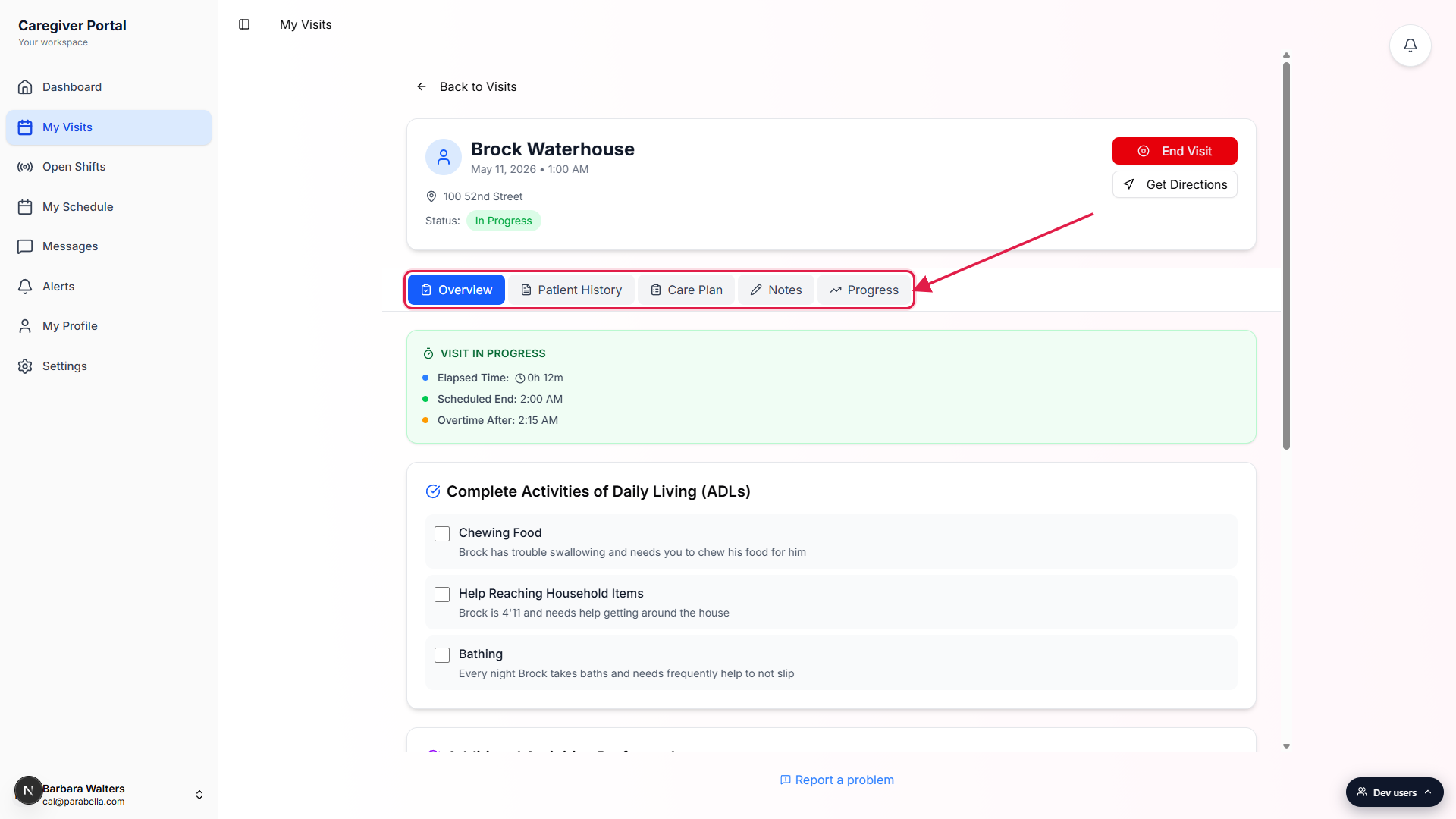
Read the Visit In Progress card and tick ADLs as you complete them.
The green card shows Elapsed Time, Scheduled End, and Overtime After. Below it is the Complete Activities of Daily Living checklist pulled from the patient's profile, an Additional Activities Performed input for anything off-list, and the Incident Reports section.
2. Switch tabs to find the right information
Tap Patient History to see the clinical context.
Patient History pulls together DOB and age, primary diagnosis, fall risk and DNR badges if set, allergies, current medications, recent visit notes from prior shifts, and office notes. It is where you look before starting hands-on care so you do not miss something the office has flagged.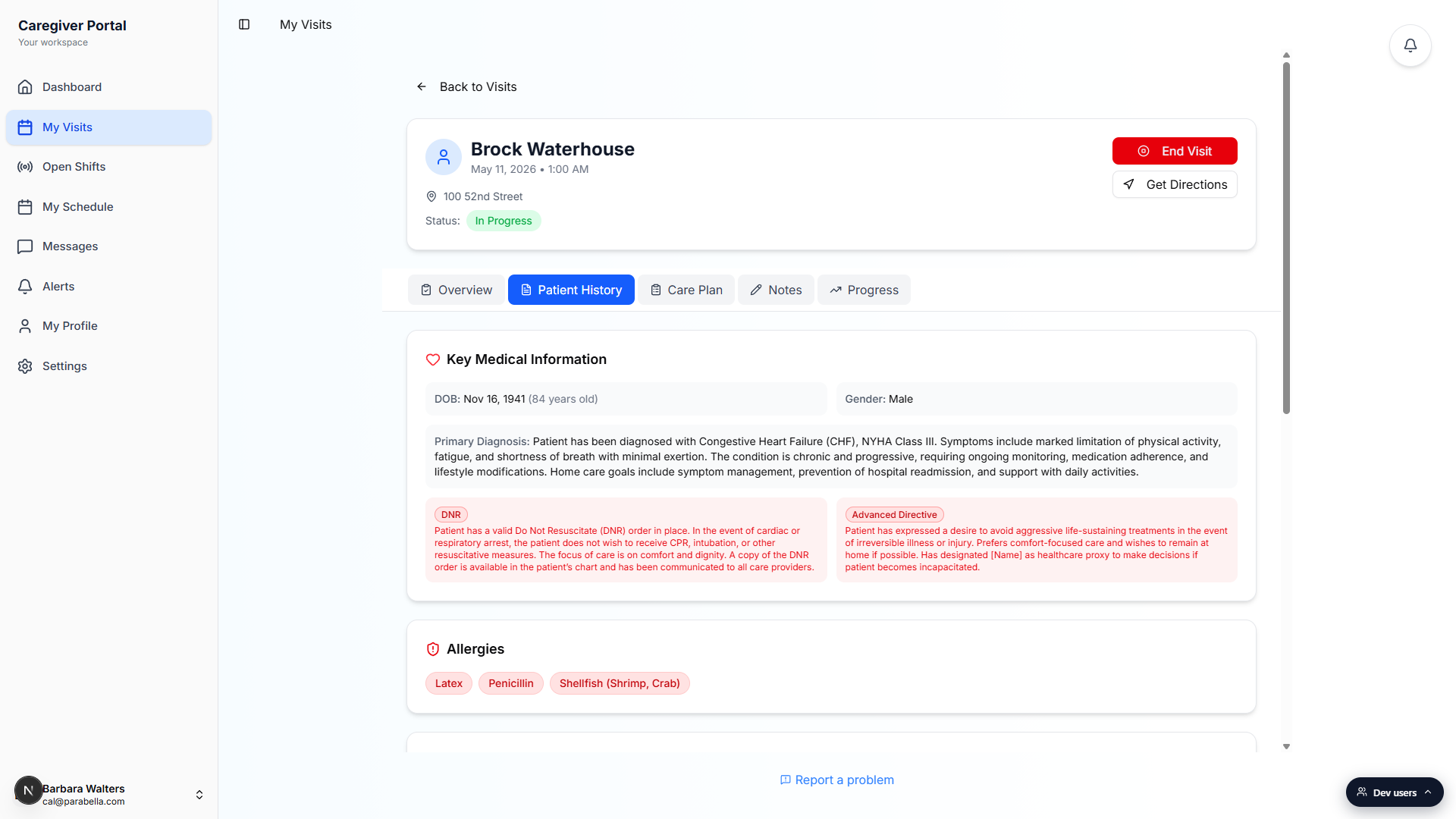
Tap Care Plan for the patient's active care plan and the task checklist.
The Care Plan tab shows the plan title, Goals, and three task lists: ADL Tasks, Medication Tasks, and Custom Tasks. While the visit is in progress each task gets a checkbox and a small inline notes field so you can record what you did. If the patient has no active care plan, the tab shows a quiet placeholder.
3. Capture notes and a progress check-in
Tap Notes and use the Vitals, Mood, Pain, Activity, and General template chips.
Each chip drops a short prefix into the note field so you do not have to remember the structure. Type the rest, then press the send icon to post. The note is timestamped against the visit and shows up under This Visit's Notes. Previous-visit notes live below for quick context.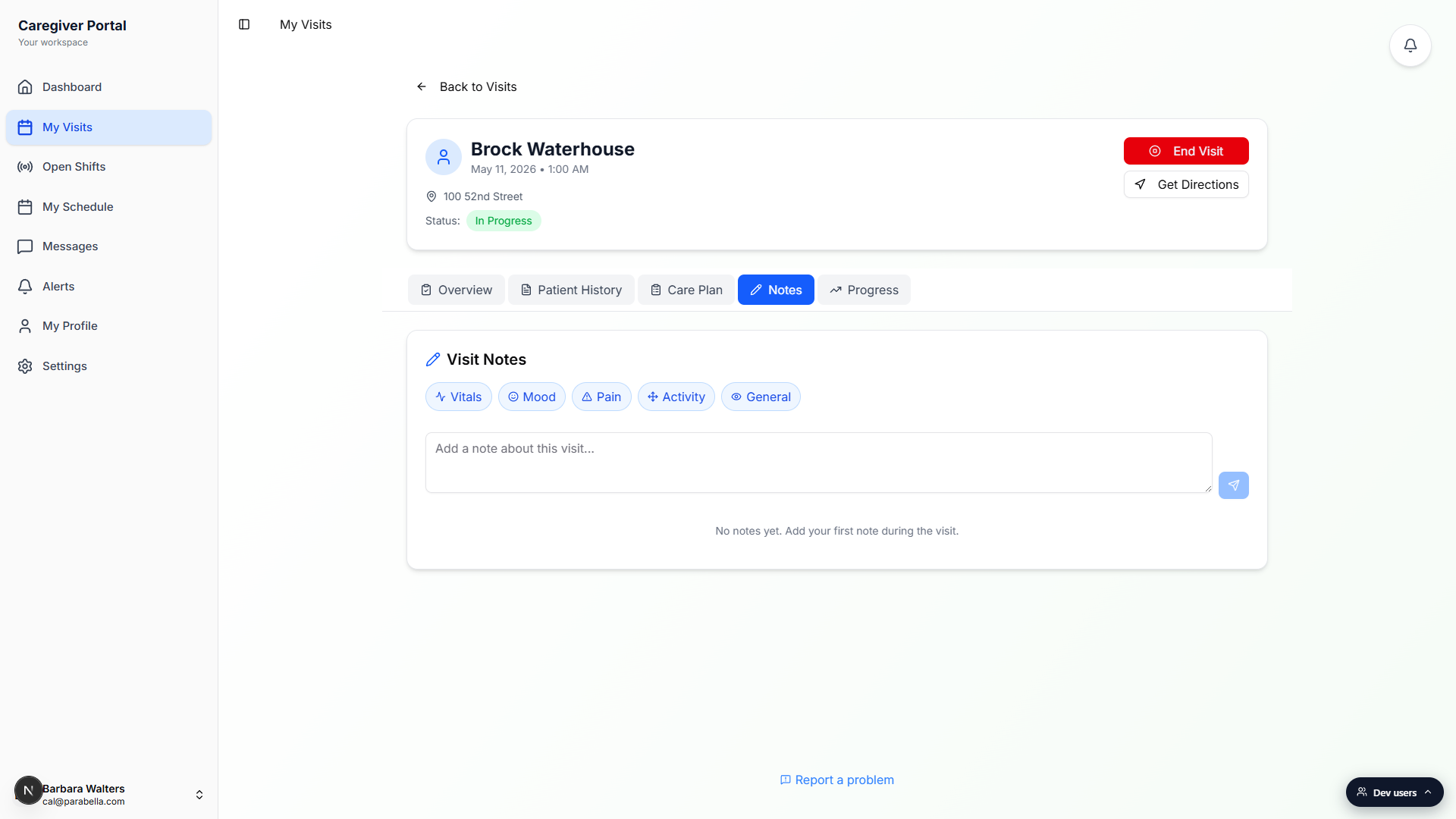
Tap Progress to record a quick clinical check-in for active visits.
Press Load Progress Questions to pull a short list tied to the care plan goals (or a standard fallback when AI is unavailable). Each question takes a one-tap rating of Improved, Same, Declined, or N/A, with an optional notes field. Press Save Progress Note when done. Completed visits show the most recent progress note instead of the form.
4. End the visit when the shift is done
Press the red End Visit button in the visit header.
End Visit opens the EVV checkout wizard, where you confirm the completed ADLs, any additional activities, the care plan tasks you ticked, and capture the patient's signature or other verification method. Once the wizard saves, the visit flips to Completed and the page switches into read-only mode for that shift.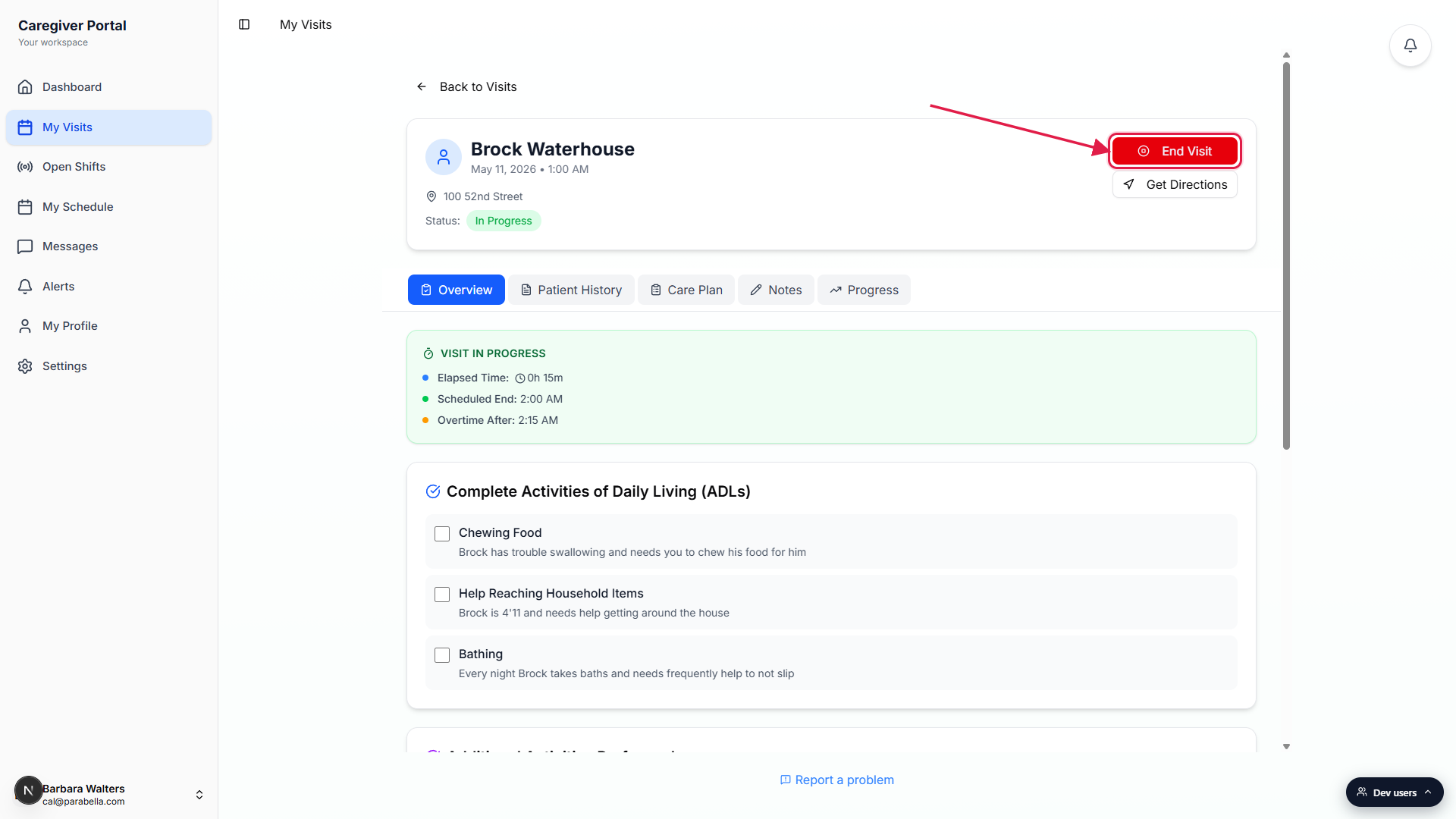
If you need more time, press Request Extension within 30 minutes of the scheduled end.
Request Extension appears next to End Visit when the visit is close to its scheduled end. Pick a duration, type a short reason, and submit. Your office must approve before the new end time takes effect, and the Overview tab will show a Pending, Approved, or Denied banner with the office reply.
Common pitfalls
- Looking for ADLs as a tab. ADLs are not a separate tab. The in-progress ADL checklist sits on the Overview tab, and care plan ADL tasks live on the Care Plan tab. Use whichever matches what the office set up for the patient.
- Looking for Incidents as a tab. Incidents are not a tab either. Scroll the Overview tab to the Incident Reports section and press Add Incident Report. Use it for significant events like falls, medication errors, or injuries, not for routine observations.
- Tabs missing on a scheduled visit. Patient History, Care Plan, Notes, and Progress only render once the visit is close to its start time or already in progress. A scheduled visit more than 24 hours away only shows Overview. Wait until the day of, or open the visit detail through Continue Visit during the shift.
- Editing notes past the 24-hour window. The Notes tab locks for the caregiver 24 hours after the visit ends. If you spot a mistake later, message the office and ask them to make the correction from the admin side.
- Forgetting to tap Save Progress Note. The Progress tab does not autosave the rating answers like the note draft does. Press Save Progress Note before you switch tabs or end the visit, or the answers go away.
- Care Plan tab is empty. If the tab reads “No active care plan for this patient,” the office has not built a care plan yet, or the active plan is paused. Use the Notes tab to document the visit and message the office to get the plan set up.