Care notes templates are five one-tap chips on the visit Notes tab that drop a structured snippet into your note draft. Tap Vitals to insert a blanks-filled vitals line, tap Mood for a behavior prefix, and so on. They save a few seconds of typing and keep your notes consistent shift to shift.
Quick answer
Open an in-progress visit from My Visits and tap the Notes tab. Above the note input you will see a row of five chips: Vitals, Mood, Pain, Activity, General. Tap one to drop its template into the note body, fill in the blanks, and press the send icon to post.
The five templates
The chip row inserts these exact snippets:
- Vitals. Vitals Check - BP: ___/___ HR: ___ Temp: ___ O2 Sat: ___% Pain: ___/10. Fill each blank with a reading.
- Mood. Patient mood/behavior: . Type a short description after the colon.
- Pain. Pain assessment - Level: ___/10 Location: ___ Type: ___ . Useful when the patient reports new or changed pain.
- Activity. Activities completed: . List ambulation, ROM exercises, transfers, or whatever was performed.
- General. Observation: . Catch-all prefix for anything that does not fit the other four.
1. Open the Notes tab on an active visit
From My Visits, press Continue Visit on the green in-progress banner.
The visit detail page opens. Across the tab strip you will see Overview, Patient History, Care Plan, Notes, and Progress. Tap Notes to switch to the Visit Notes panel.Confirm the template chip row is visible above the note input.
Five chips sit above the Add a note about this visit textarea: Vitals, Mood, Pain, Activity, General. The chips scroll horizontally on narrow screens so all five stay reachable.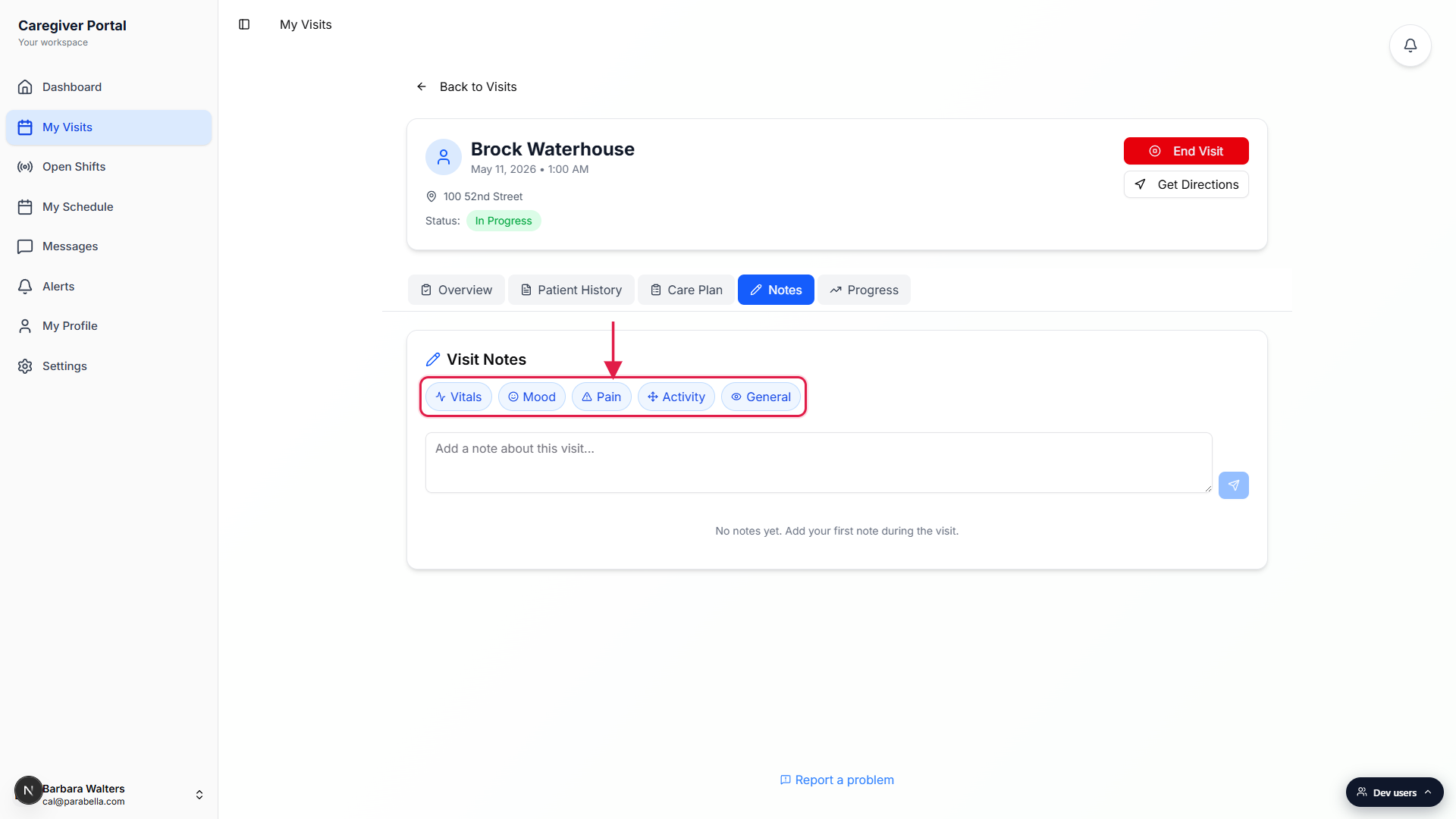
2. Tap a template chip to insert a snippet
Tap the chip whose template matches what you are documenting.
The matching snippet drops straight into the note body. If the textarea already has content, the template appends on a new line, so you can stack Vitals plus a Mood note in the same entry without losing what you typed.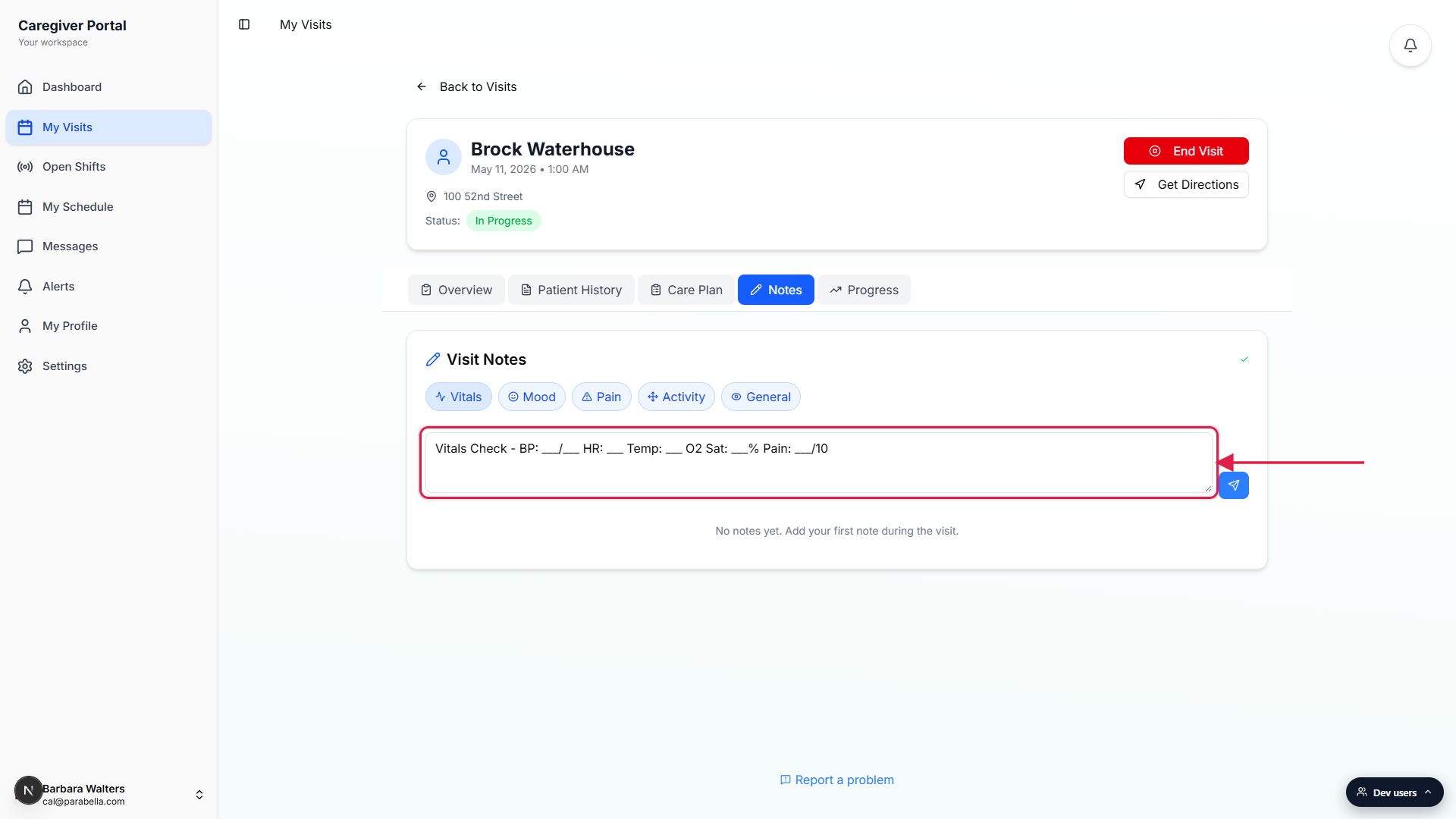
Tap a second chip if you want to stack templates.
Stacking is handy when one visit covers several observation types. Each tap of a chip appends its snippet on a new line. The chips never replace what is already there.
3. Fill in the blanks and post the note
Type values over the three-underscore placeholders.
The blanks like BP: ___/___ are just placeholder text in the textarea. Tap into the field and type your readings directly over them. The template is a starting point, not a form, so edit freely.Press the blue send icon to the right of the input.
The note is timestamped against the visit and appears under This Visit's Notes once it posts. The draft autosaves to your device every second while you type, so a tab switch or accidental reload does not lose what you wrote.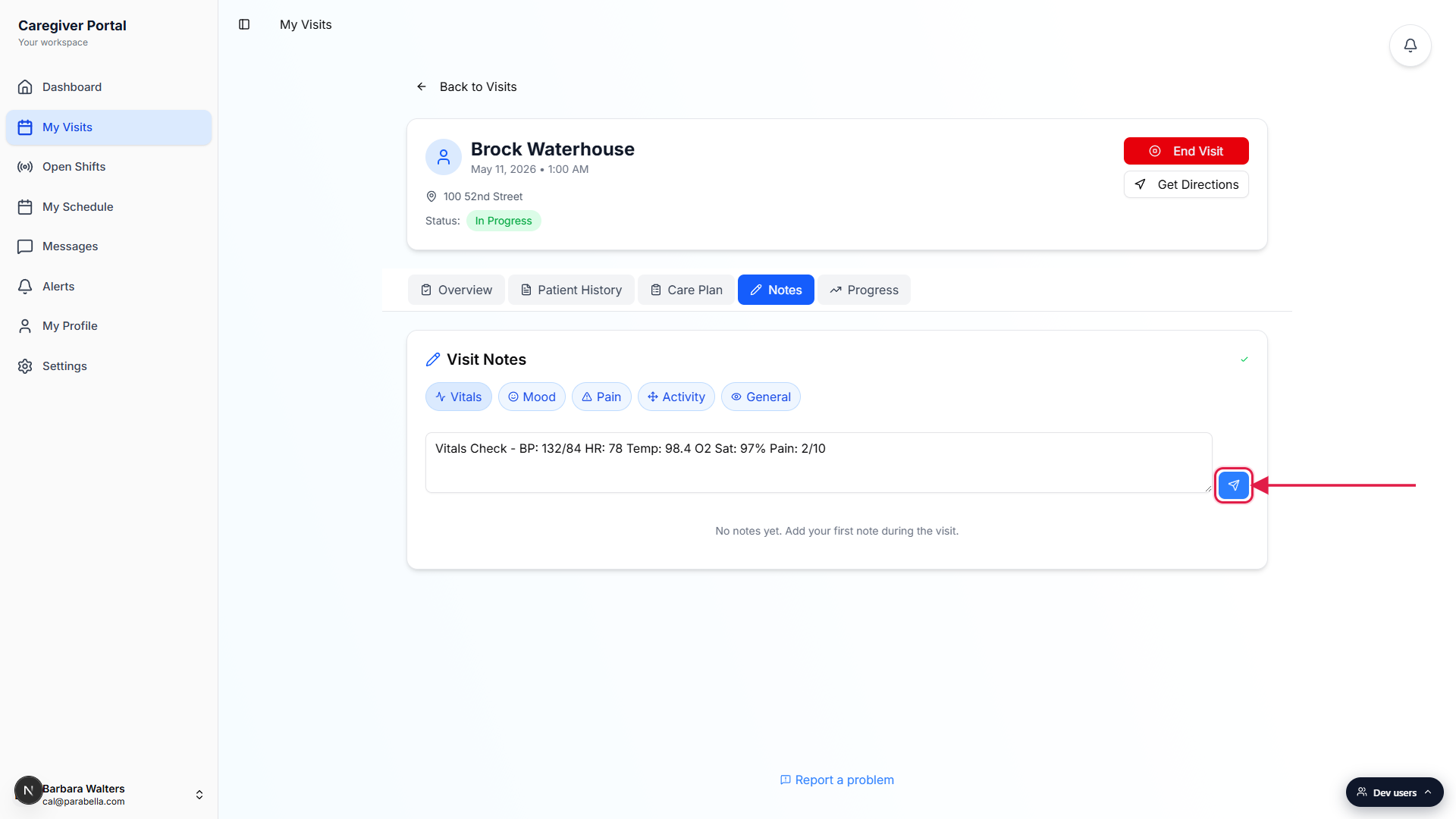
Common pitfalls
- Tapping a chip wipes my note. It will not. Tapping a chip on an empty input inserts the template, and tapping a chip on a non-empty input appends the template on a new line. Your existing text is preserved.
- The blanks are literal text, not form fields. The three-underscore blanks like BP: ___/___ are placeholders inside the textarea. You have to tap into the textarea and overwrite them. The template will not collect values for you.
- Templates are not editable. The five chips and their snippets are fixed across the tenant. There is no admin screen to customize templates, and there is no Add Template button.
- Notes lock 24 hours after the visit ends. You can insert and post templates until 24 hours after the visit ends. After that the Notes tab is read-only for the caregiver and corrections have to go through the office.
- Chips are missing for scheduled or cancelled visits.The chip row only appears when the visit can accept new notes. A cancelled visit or a visit that has not started yet shows the Notes tab without the input or the chip row.