The Active Visit banner is the green “Visit in Progress” card that appears at the top of the caregiver-side pages whenever you are clocked into a visit. It carries the patient's name and a Continue Visit button that drops you straight back into the visit detail so you never lose your place between rooms or tabs.
Quick answer
Once you press Start Visit on a confirmed visit and finish the EVV check-in prompts, AveeCare shows a green Visit in Progress banner at the top of your Caregiver Dashboard and My Visits page. It stays there until you press End Visit on the visit detail.
1. Clock in so the banner appears
Open the upcoming visit and confirm it, then press Start Visit.
You will see a Location Notice about GPS at check-in and check-out, then a Member Verification Required prompt that asks how the patient is signing off on the visit. The default is Signature. Pick the method that matches what you collected and press Confirm and Start Visit.The green Visit in Progress banner shows up on the Caregiver Dashboard.
The banner reads Visit in Progress with You have an active visit with and the patient name. A green check icon sits on the left, a Continue Visit button on the right.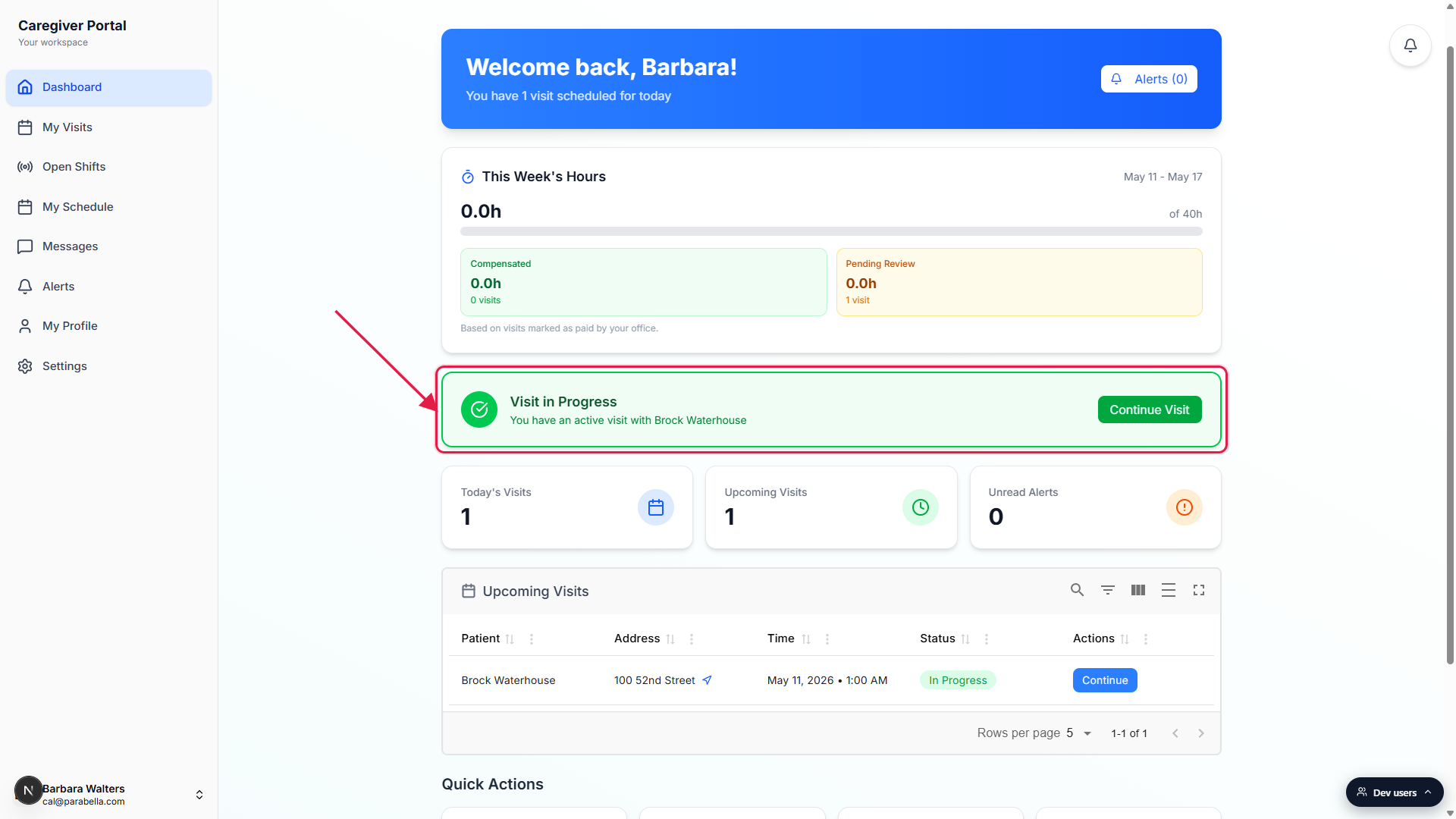
2. See the banner follow you between caregiver pages
Click My Visits in the sidebar.
The same green banner re-appears at the top of My Visits, above the Upcoming / Active / Completed / Weekly Summary tabs. The Active tab count flips from 0 to 1 while a visit is in progress, and the visit shows on the calendar in green.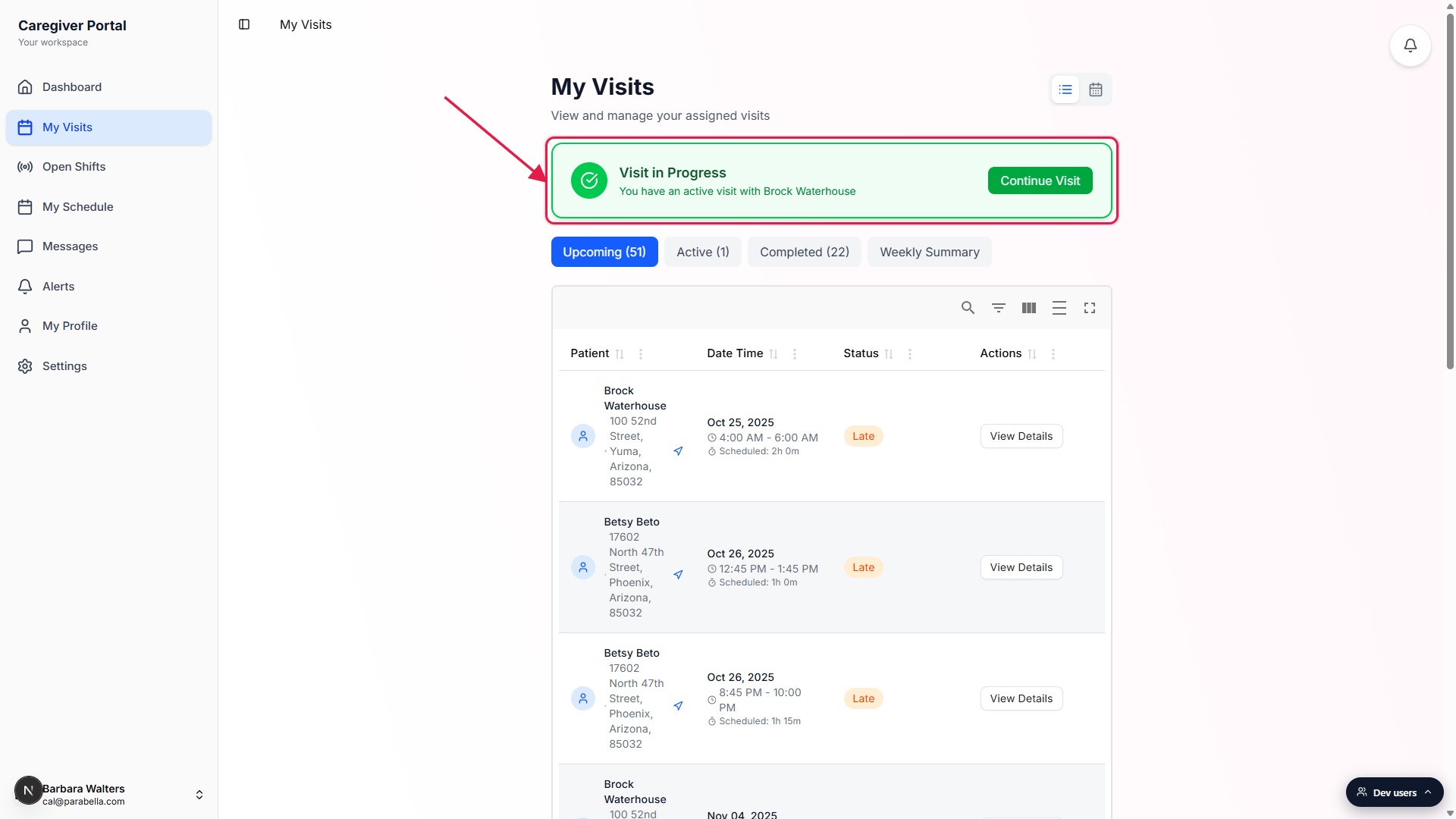
The banner is the fastest way back to the visit on either page.
The Caregiver Dashboard and My Visits page both render the banner. The visit detail page itself, My Schedule, Messages, and Alerts do not show the banner. They show the visit by other means, like a status pill in the table or an In Progress color on the calendar.
3. Click Continue Visit to jump back to the visit
Press Continue Visit on the banner.
Continue Visit opens the visit detail for the in-progress visit. You land on the Overview tab with the running Elapsed Time, the Scheduled End and Overtime After clock, and your ADL checklist.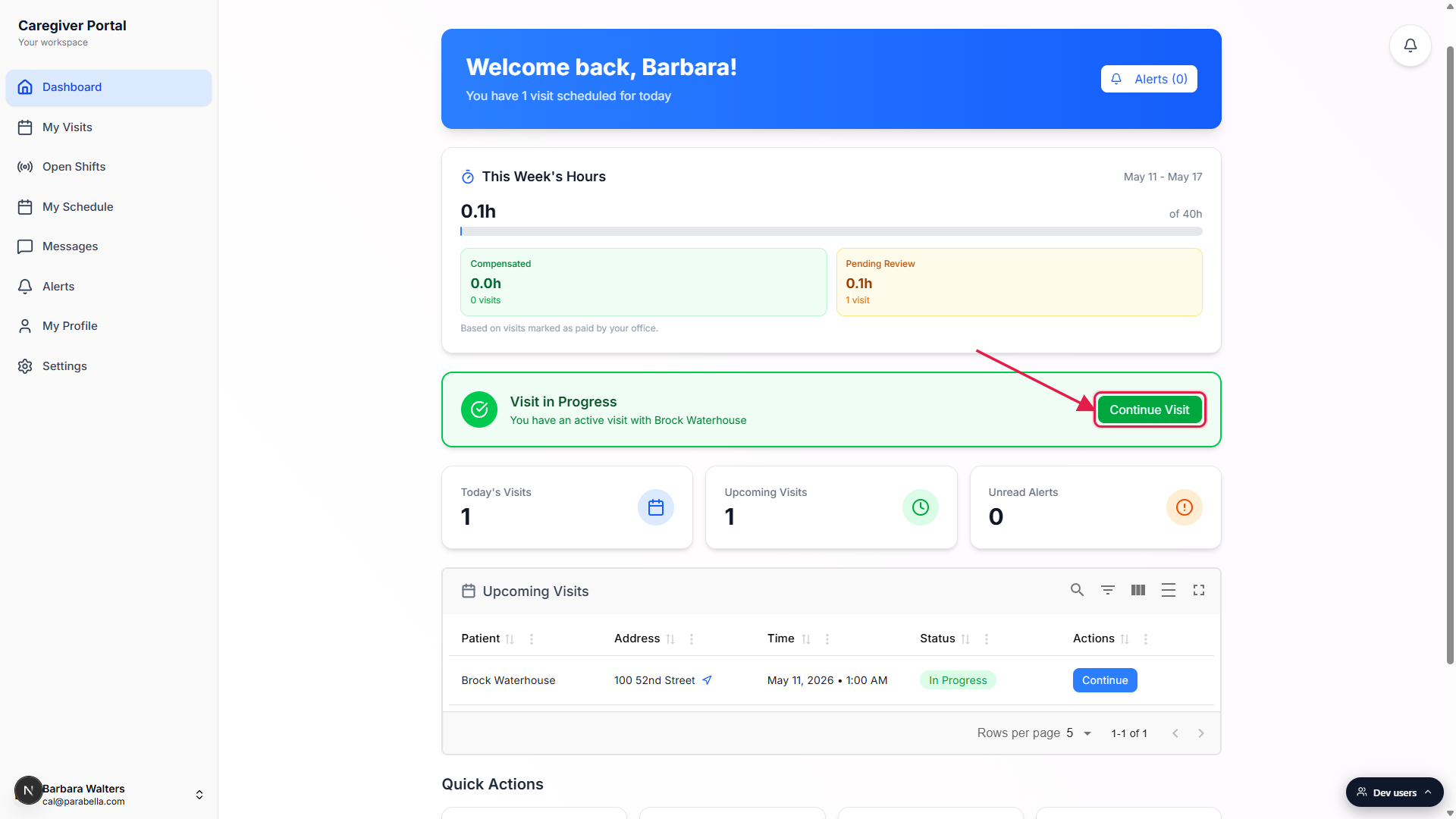
Use it any time during the visit to get back to documentation.
If you navigate away to read a message or check your schedule, the banner is the one-click way back to the visit detail. It does not pause or affect the clock. The timer keeps running while you are on another page.
4. End the visit to clear the banner
On the visit detail, press End Visit when the visit is done.
End Visit opens the EVV checkout wizard, where you confirm the patient's signature, ADLs you completed, and any extra activities. Once the wizard saves, the visit flips to Completed and the green banner disappears from every caregiver page.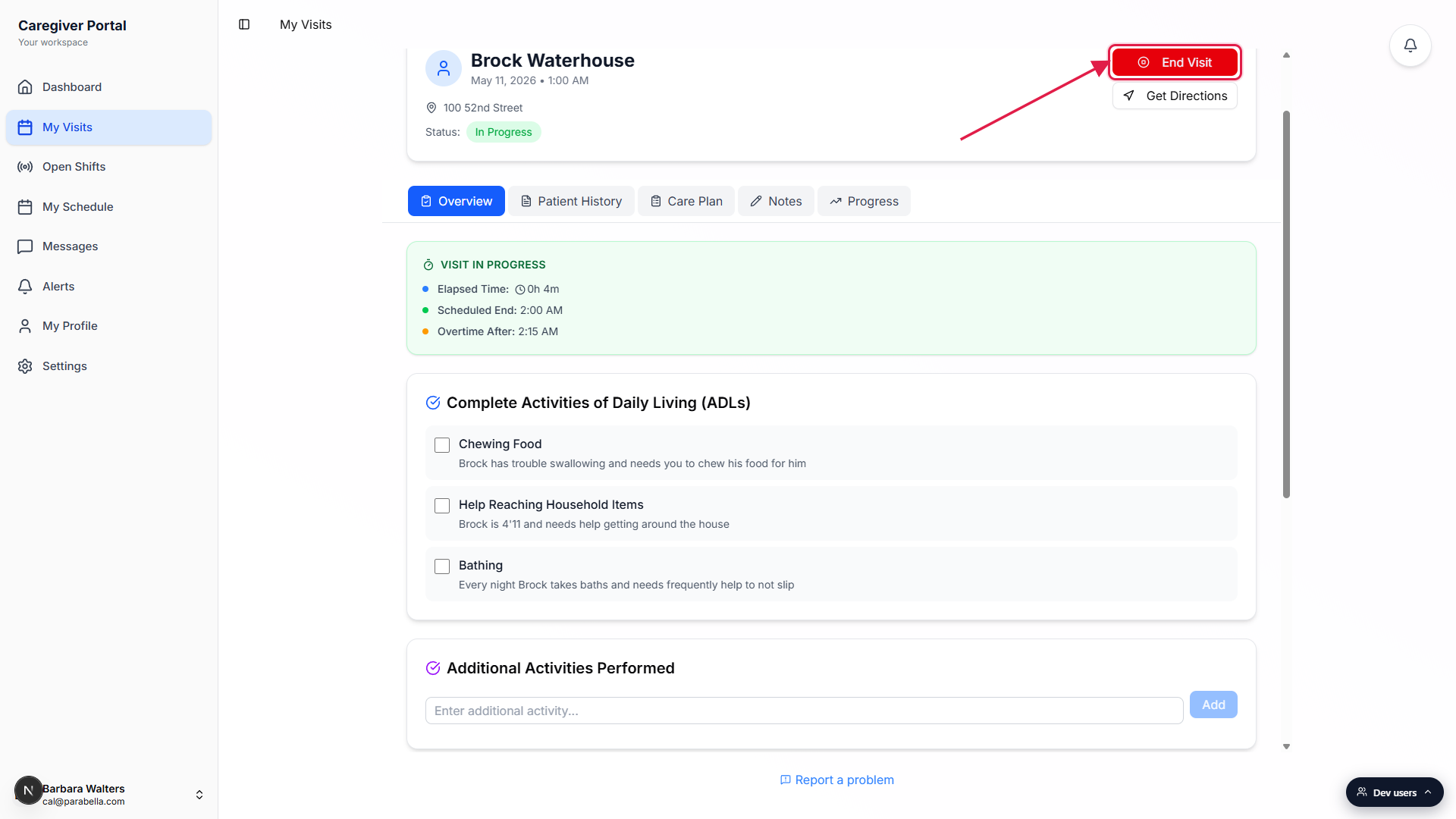
Only one visit can be in progress at a time.
The banner only ever describes a single visit, even if you have back-to-back shifts. Finish one visit before starting the next, or the office side will see two overlapping clock-ins and flag it for review.
Common pitfalls
- Banner missing after a refresh. The banner is driven by the visit's server-side InProgress status, not by local state. If it disappears after a reload, you are almost certainly not clocked in. Open the visit detail and check the Status row, then press Start Visit if it still says Scheduled.
- Clicking Continue Visit and seeing the wrong visit. The banner targets the oldest InProgress visit. If you started two visits in quick succession before the office side caught it, Continue Visit can land on the earlier one. End that visit, then the banner switches to the next in-progress visit.
- Banner stuck after clocking out. The banner reads from the same visit list as the dashboard and updates within a second or two of clocking out. If the green strip is still there after a few seconds, reload the page. A stuck banner usually means the EVV checkout wizard did not finish saving.
- Looking for the banner on My Schedule. The schedule page does not show the green banner. It shows the same visit in calendar form, color-coded green for In Progress. Switch to Dashboard or My Visits if you specifically want the banner with the Continue Visit button.
- Trying to start a second visit while the first is open. AveeCare will let you press Start Visit on a different visit, but the office side flags the overlap. Always End Visit on the first one before starting another, even on tight back-to-back shifts.