The EVV Check-Out Wizard is the modal that opens when a caregiver presses End Visit on an in-progress visit. It walks you through the signals AveeCare needs for Electronic Visit Verification: task completion, your signature, how the patient verified the visit, an exception code if anything was off, and a final review. Submit Visit saves it all and closes the visit.
Quick answer
From My Visits, press Continue on the in-progress visit, then press End Visit in the top right of the visit header. The wizard opens. Walk each step, press Next, and on the final Visit Summary press the red Submit Visit button. The wizard remembers your progress, so closing it by accident does not lose your work.
The five wizard steps
The wizard runs in this fixed order, but two steps are conditional and AveeCare auto-skips them when they do not apply:
- Tasks and Activities. Checkboxes for the visit's assigned tasks and ADLs. Skipped if the visit has zero tasks.
- Caregiver Signature. You sign on the canvas to attest that you provided care. Always shown. Required.
- Member Verification. Pick how the patient verified the visit: Patient Signature, PIN Verification, Voice Recording, Designee Verification, or Member Unavailable. Always shown. Required.
- Exception Documentation. Exception, reason, and resolution codes plus a memo. Only appears when AveeCare detects an anomaly (clock-in or clock-out more than 30 minutes off, visit shorter than 5 minutes or longer than 16 hours) or when you picked Member Unavailable on the previous step.
- Visit Summary. Review of everything captured. Submit Visit saves the record and ends the visit. Always shown.
1. Open the in-progress visit and press End Visit
On the Caregiver Dashboard, find the visit in the Upcoming Visits table with status In Progress.
The Status column shows In Progress in green. The Actions column has a Continue button for in-progress visits (versus Clock In for scheduled ones). Press Continue to open the visit detail page.Press End Visit in the top right of the visit header.
The button is red and sits next to Get Directions. The wizard modal opens immediately on top of the visit detail page. If you had a previous unsaved wizard session, you will see a Resume Previous Progress prompt first; pick Resume to continue or Start Fresh to begin from step 1.
2. Check off Tasks and Activities (if any)
If the visit has tasks, the wizard opens on the Tasks step.
Check off each task you completed during the shift. ADLs from the care plan appear in their own sub-list below the tasks. Anything left unchecked still saves with the visit, the checkboxes are documentation, not a hard gate.Press Next when the list reflects what you actually did.
If the visit has zero scheduled tasks, the wizard skips this step automatically and opens on Caregiver Signature instead.
3. Capture your Caregiver Signature
Sign on the white canvas with your finger or stylus.
The canvas sits between the heading and the Cancel / Next row. A small Signature captured confirmation appears below once you lift your finger. If the signature looks wrong, tap clear below the canvas to wipe it and sign again.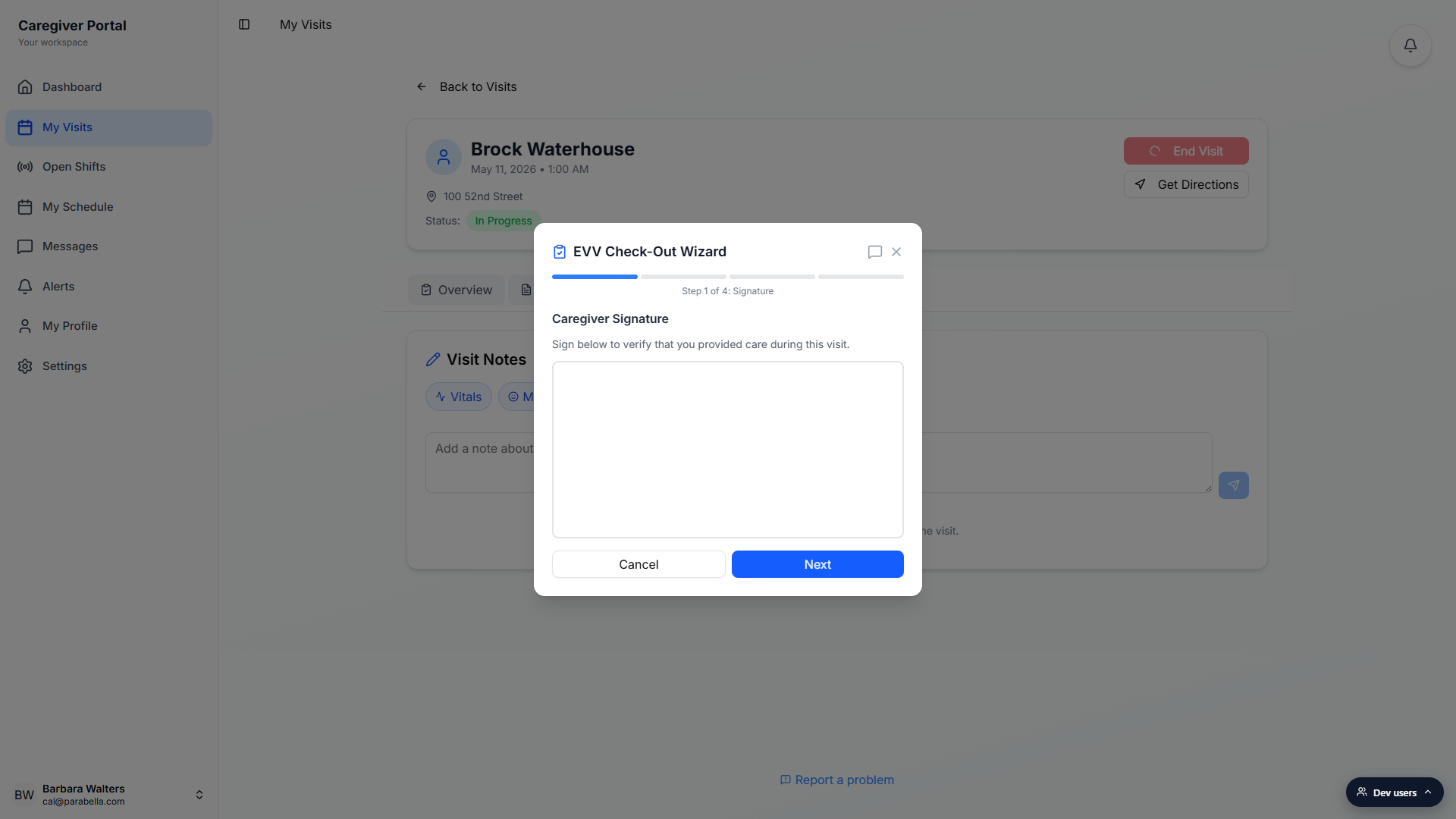
Press Next once you see Signature captured.
Next is disabled until a signature is on the canvas. This step is required on every visit and there is no skip.
4. Pick a Member Verification method
Tap one of the five verification cards.
The choices are Patient Signature (patient signs on the device), PIN Verification (patient enters their EVV PIN), Voice Recording (patient gives a verbal confirmation), Designee Verification (an authorized designee verifies on the patient's behalf), and Member Unavailable (patient cannot verify right now). In states that require a signature on every visit, only Patient Signature and Member Unavailable show up.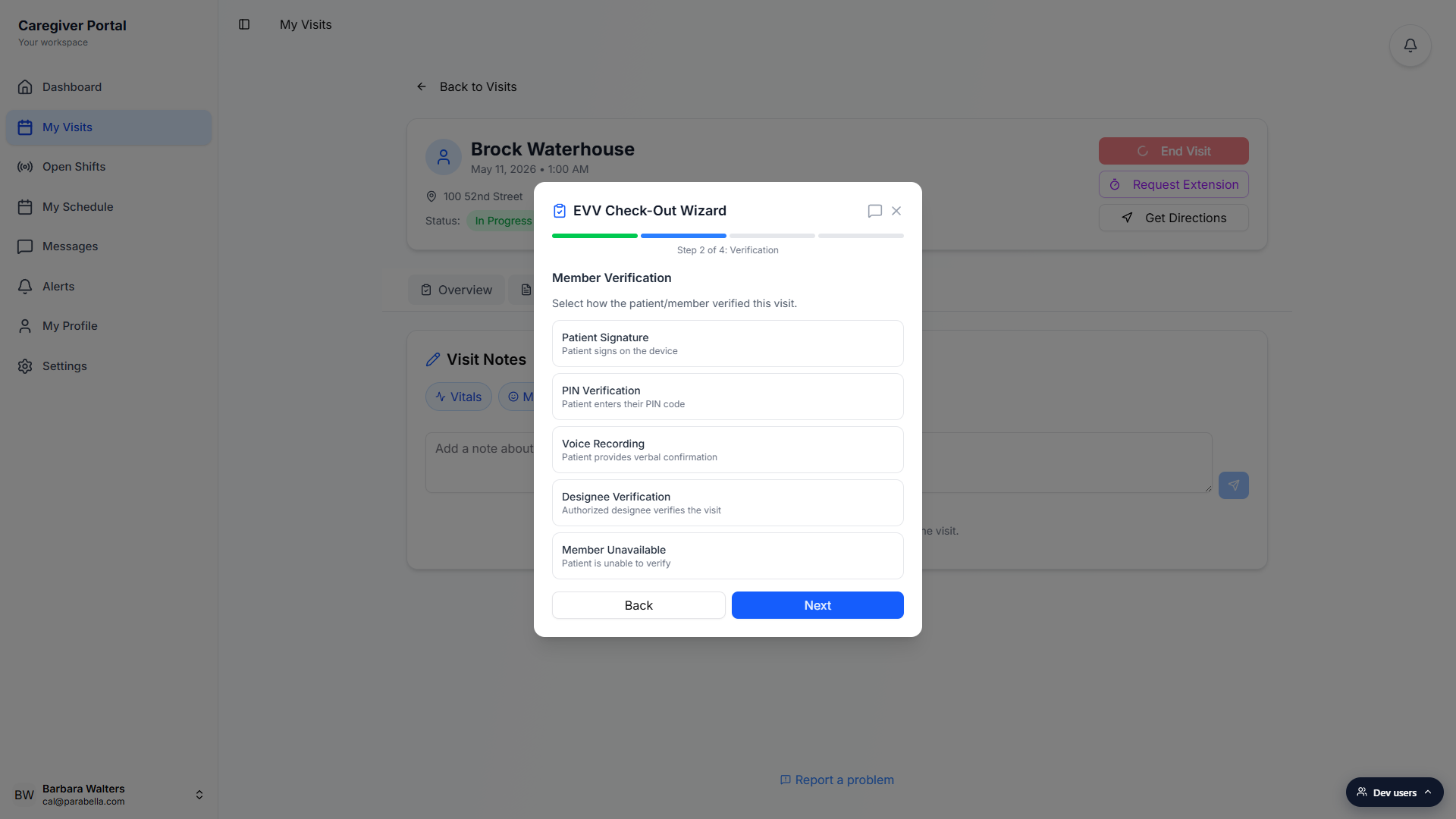
Complete the sub-prompt for whichever method you picked.
Patient Signature opens a second signature pad. PIN Verification opens a 4-digit entry field. Voice Recording opens a record button. Designee Verification asks for the designee's name. Member Unavailable shows a yellow notice that an exception will be documented in the next step.Press Next.
You cannot skip this step. If you press Next without picking a method, the wizard shows an inline error and stays put.
5. Document an exception (only if needed)
If the wizard adds an Exceptions step, fill it in.
The step opens automatically when AveeCare detects an anomaly (clock-in or clock-out more than 30 minutes off the scheduled time, or a visit shorter than 5 minutes or longer than 16 hours), or when you picked Member Unavailable on the previous step. If neither is true, the wizard goes straight from Member Verification to the Visit Summary.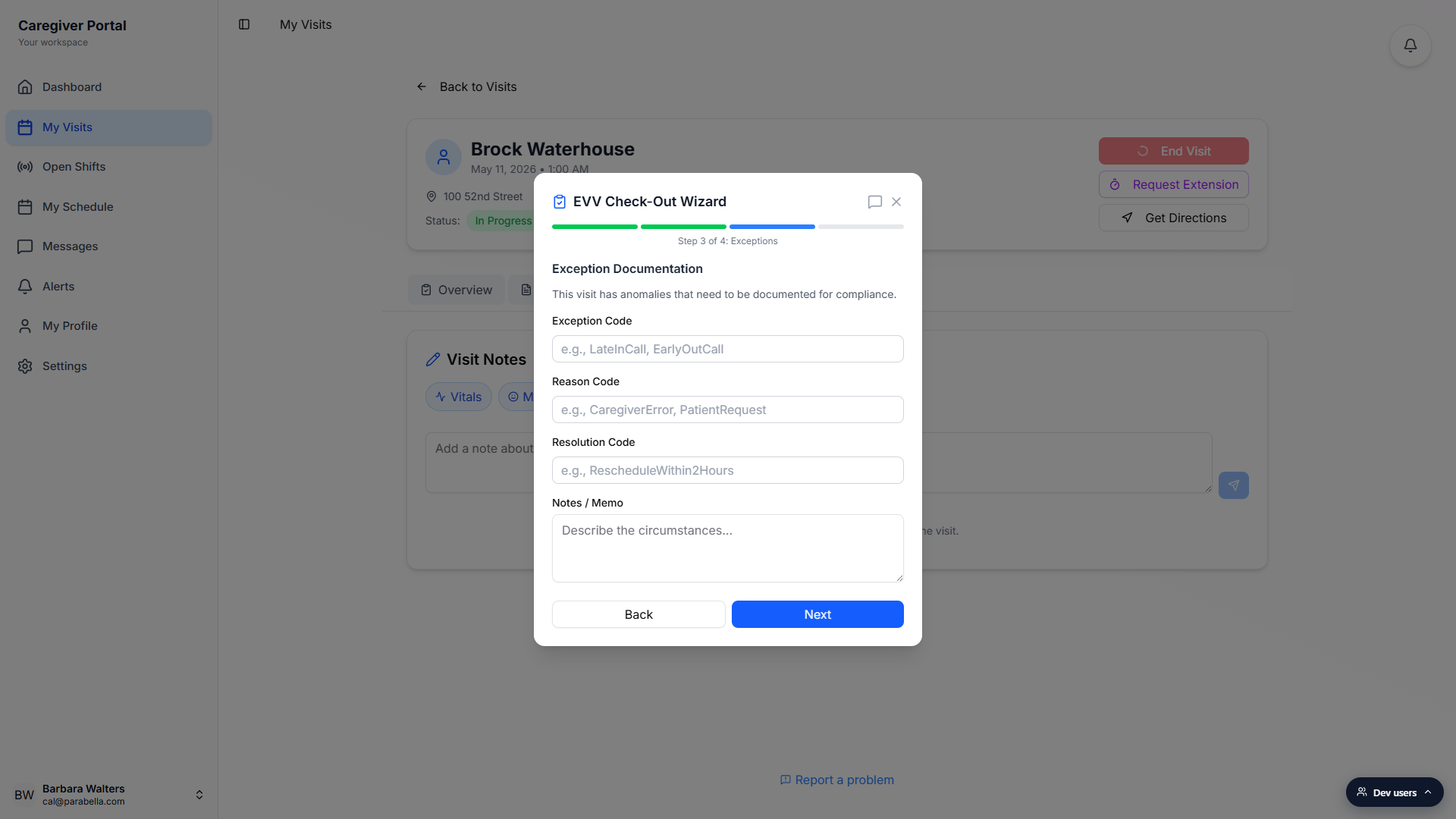
Type or paste an Exception Code, plus optional Reason, Resolution, and a memo.
Exception Code is the only required field. Reason Code and Resolution Code follow your state Medicaid's code lists (e.g. LateInCall, CaregiverError, RescheduleWithin2Hours). The Notes / Memo box is free-text for the circumstances. Press Next when the form is filled.
6. Review the summary and Submit Visit
The Visit Summary step shows what is about to save.
Patient, Duration, Tasks Completed, Caregiver Signature (Captured or Missing), Member Verification method, and any Exception code. If anything is wrong, press Back to step backwards through the wizard and fix it.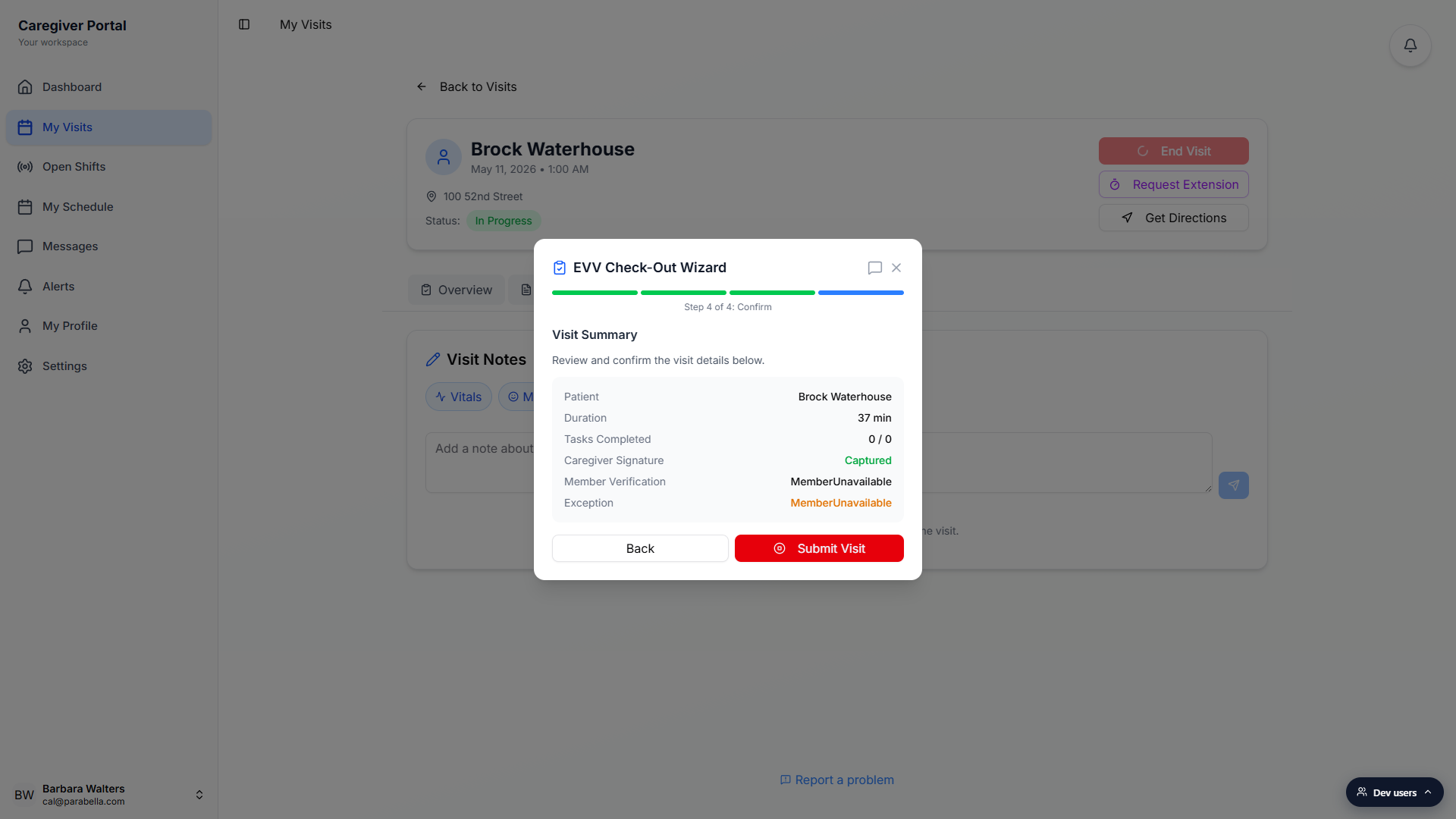
Press Submit Visit to save and end the visit.
The wizard closes, the visit status flips from In Progress to Completed on the My Visits list, and the EVV record (including signatures, verification method, and any exception codes) is sent to the office. If you lose connection, the wizard caches the data on the device and syncs once you are back online.
Common pitfalls
- Closing the wizard does not lose work. Tapping the X or pressing Cancel just hides the modal. The wizard auto-saves your progress to the visit record every few seconds. Press End Visit again and pick Resume to keep going.
- Member Unavailable always triggers Exceptions. If the patient cannot verify and you pick Member Unavailable, the wizard adds the Exception Documentation step even when no other anomaly is detected. That is by design, the state needs a reason on file.
- Some states hide the verification methods you can use. If your tenant operates in a state that requires a signature on every visit, only Patient Signature and Member Unavailable appear. PIN, Voice, and Designee are filtered out so you cannot accidentally pick a method that will not pass state checks.
- The wizard runs offline. The whole flow works without a network connection. Signatures, codes, and the memo cache locally and submit once you reconnect. Do not refresh the page mid-wizard, the cache lives on the device.
- Tasks Completed of 0 / 0 is normal. Visits scheduled without specific tasks (e.g. a generic companion-care shift) skip the Tasks step entirely and the summary reads 0 / 0. It is not a missed step, it is no step.