Every EVV-compliant visit has a clock-in moment and a clock-out moment. AveeCare captures both from the caregiver app, stamps GPS coordinates, runs verification (signature, PIN, or voice depending on state), and gives office staff a way to correct a missed time without breaking the audit trail.
Quick answer
Caregivers clock in by tapping Start Visit on the visit detail in the caregiver app. Clock-out runs through the EVV checkout wizard when they tap End Visit. Each event records a timestamp and GPS reading. Office staff see both on the visit detail under EVV Verification Data and in the Time In and Time Out columns on the EVV page. If a caregiver forgot to clock in or out, fix it from Pre-Billing QA.
What gets captured at clock-in and clock-out
Each clock event saves the following to the visit record:
- Timestamp. The actual server-stamped time the caregiver tapped the button, separate from the scheduled start/end.
- GPS coordinates. Latitude and longitude from the device, used for the patient-location match required by most state EVV programs.
- Verification method. Signature, PIN, voice recording, or portal/app verification, picked by the caregiver in the Location Notice and Verification modal at clock-in.
- Designee flag. If a family member verifies instead of the patient, the caregiver records the designee name.
- Patient and caregiver signatures. Collected at clock-out through the EVV checkout wizard.
- Exception or reason code. If anything blocks a clean clock-out (member unavailable, GPS off, signature refused), the caregiver picks a coded reason the aggregator accepts.
1. Caregiver taps Start Visit to clock in
Open the visit on the caregiver app and tap Start Visit.
The green Start Visit button only shows up inside the clock-in window. By default the window opens 30 minutes before the scheduled start and the visit is flagged Late after 15 minutes past, then No-Show at 30 minutes past. Both thresholds are configurable under Settings.Accept the Location Notice so GPS can be captured.
A modal explains that location is only captured at clock-in and clock-out and is required for regulatory compliance. Tap I Understand to continue.Pick a verification method, then Confirm and Start Visit.
The method dropdown lists Signature, PIN Code, Voice Recording, and Portal/App Verification. If a family designee is verifying on behalf of the patient, check the designee box and type their name. The clock-in timestamp and GPS save the moment you tap Confirm and Start Visit.
2. Caregiver taps End Visit and runs the EVV wizard
When the visit is done, tap End Visit on the visit detail.
The red End Visit button appears in place of Start Visit once the visit moves to InProgress. Tapping it kicks off the EVV checkout wizard.Walk through the wizard steps.
The standard order is Tasks and Activities, Caregiver Signature, Member Verification, Exception Documentation (only if anomalies were detected or the member was unavailable), and Confirmation. Each step gates the next, and the wizard saves progress on every screen so a dropped connection does not lose the visit.Finish on the Confirmation screen.
The clock-out timestamp and GPS save when the wizard hits the final Confirmation screen, alongside the patient and caregiver signatures and any exception code. The visit moves to Completed (or Incomplete if exceptions blocked a normal close).
3. Review Time In and Time Out on EVV
Open EVV from the sidebar.
The EVV Records table is the system of record for the clock times the aggregator sees. The two key columns are Time In and Time Out. The Duration column derives from those two values, and the GPS column shows the coordinates that were captured.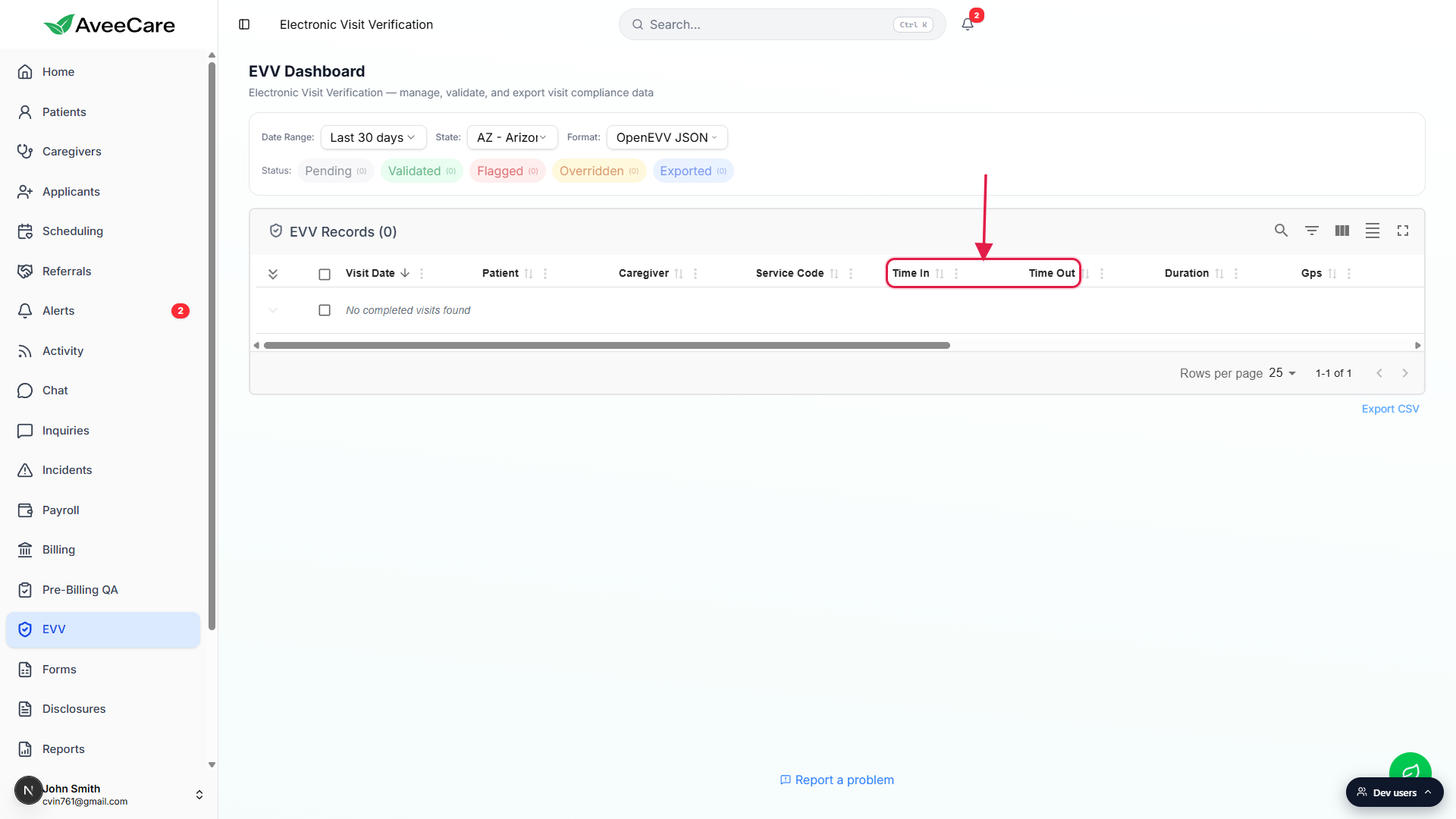
Open any visit to see the full EVV Verification Data panel.
Click the row to open the visit detail. The EVV Verification Data section has two side-by- side cards: Check-In with the captured time and GPS, and Check-Out with the same plus a calculated Total Duration band when the visit is completed. If a caregiver never clocked in or out, both fields read Not recorded here.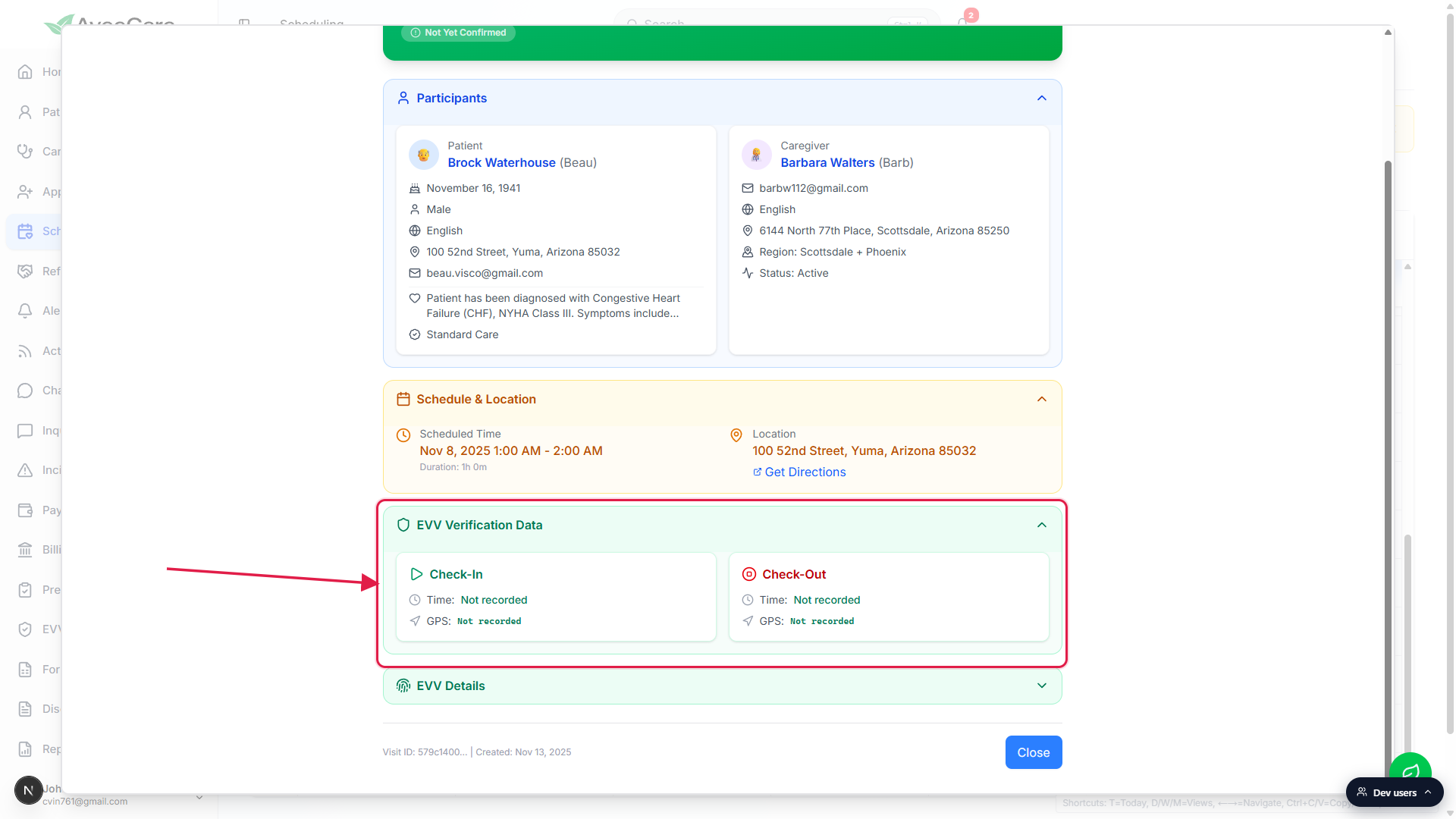
Use the Status filter to find the visits that need attention.
Pending, Validated, Flagged, Overridden, and Exported each have their own pill at the top of the page. Anything in Flagged or Pending usually has a clock-in/clock-out reason: missing time, off-location GPS, missing signature, or an exception code that needs an override.
4. Fix missing clock-in or clock-out from Pre-Billing QA
Open Pre-Billing QA and expand the visit that is missing a time.
Pre-Billing QA groups every checkable issue per visit so you do not have to hunt across pages. Visits with a missing clock-in or clock-out show a Critical badge next to the issue. Click the visit row to expand the issue list inline.Find the Missing Clock-In Time card and enter the actual time.
The card reads Visit is completed but no actual start time was recorded. Enter the actual clock-in time. Use the datetime picker (mm/dd/yyyy, hh:mm) to record the time the caregiver actually started the visit. Click Save on the right edge of the card. The recorded time will flow into the EVV record on save.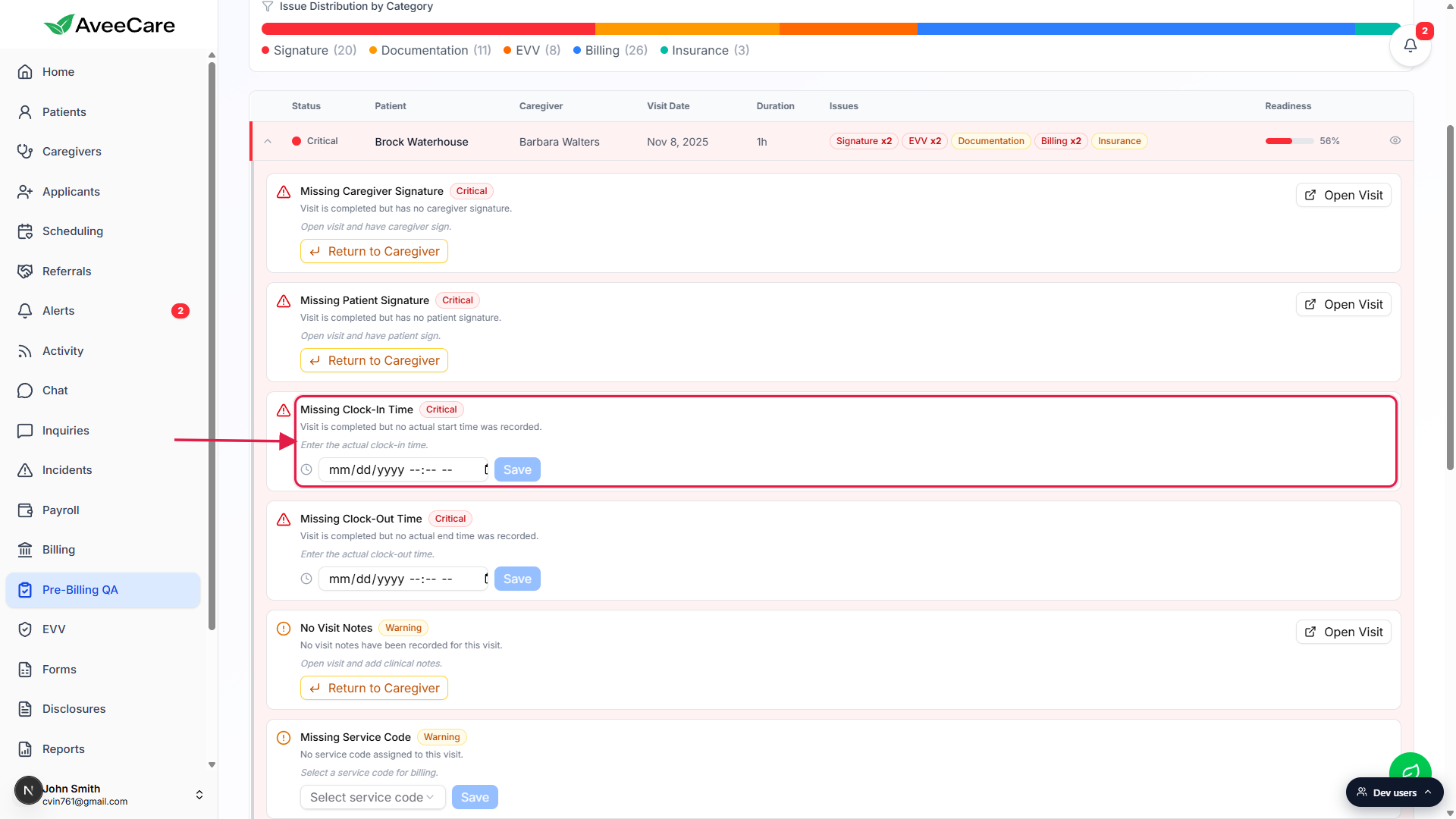
Find the Missing Clock-Out Time card and record the actual end time.
Same pattern, one card below. The card reads Visit is completed but no actual end time was recorded. Enter the actual clock-out time. Pick the time and click Save. The card disappears once the time persists and the visit is one step closer to passing pre-billing QA.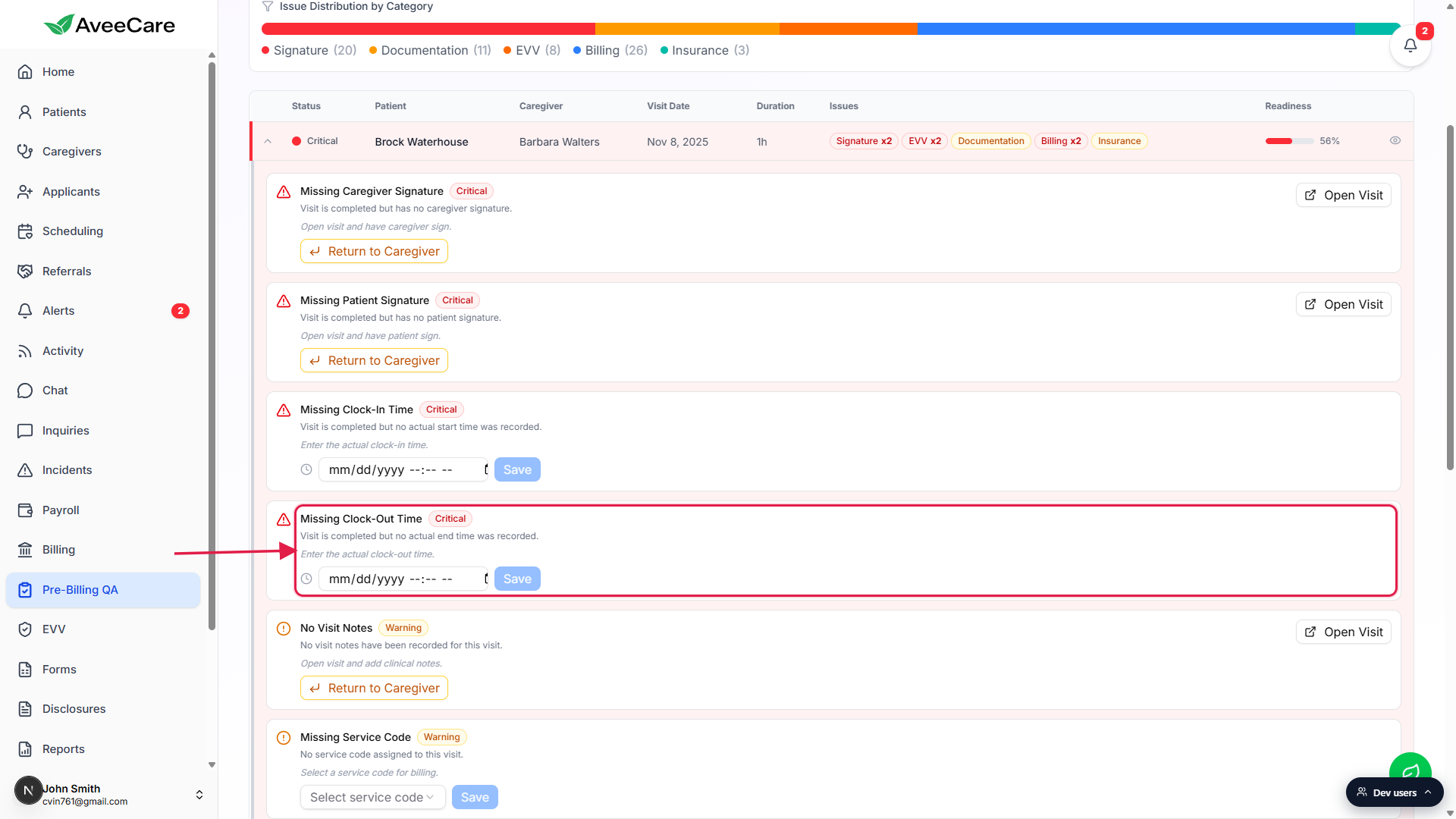
If signatures are also missing, click Return to Caregiver instead.
Times can be corrected office-side because they are timestamps, but signatures need a real human signature. The signature cards show a yellow Return to Caregiver button that sends the visit back to the caregiver app so they can capture the signature without forging it. Office staff cannot sign on behalf of the patient or the caregiver.
Common pitfalls
- Confusing scheduled start with actual start. The visit detail shows two times: the Scheduled Time (what the office planned) and the actual clock-in time captured by the caregiver. Aggregators only care about the actual times. If Time In and Time Out on EVV are blank for a Completed visit, the caregiver never tapped Start Visit or End Visit, even if the visit looks fine everywhere else.
- Editing a clock-in that the caregiver already recorded. The Pre-Billing QA card only appears when the time is missing. If a caregiver clocked in and you need to correct that time (typo, accidental tap, clock-skew device), open the visit detail and edit the actual start time there. Office-recorded edits flag for review on the aggregator side and may need an Override reason on the EVV page.
- GPS turned off on the caregiver device. If location permission was denied, the visit clocks in but the GPS field saves empty. That counts as Flagged on most states. Caregivers should re-enable location permission in their device settings before the next visit; for the affected visit, you may need to add an override reason on EVV.
- Forgetting to End Visit. Without End Visit the visit stays InProgress forever, no clock-out time is recorded, EVV cannot export it, and payroll cannot calculate hours. If a caregiver notices the next day, have them open the visit and finish the EVV wizard then. Office staff can also enter the actual clock-out from Pre-Billing QA if the caregiver cannot.
- Trying to add a clock-in for a Scheduled visit. The Missing Clock-In/Out cards only fire on Completed (or Incomplete) visits. If the visit is still Scheduled or InProgress, the right fix is for the caregiver to clock in on the app, not for office to backfill.