AveeCare uses a single GPS fix at clock-in and a second at clock-out to stamp every caregiver visit with the location that EVV requires. The phone is not tracked between visits and not tracked in the background. Two short reads, both while the caregiver has the app open, both tied directly to a visit record.
Quick answer
On the first caregiver sign-in, the AveeCare mobile app asks for location permission. Tap Allow While Using App. After that, the app silently grabs a GPS fix when you tap Clock In and again when you tap Clock Out. That is the full GPS lifecycle. There is no background tracking and no continuous trail.
What gets captured and when
The native LocationService records the same shape for every fix, and only at two moments per visit:
- At clock-in. Latitude, longitude, accuracy in meters, a device timestamp, and a flag if the OS reports the location as mocked. The fix is attached to the CHECK_IN payload the app sends to AveeCare.
- At clock-out. A second fix with the same fields, attached to the CHECK_OUT payload. The two fixes together let the office confirm that the caregiver arrived at and left the patient address.
- Never anywhere else. No periodic background pings, no idle reads, no drives-between-visits trail. The Android build ships with background location explicitly disabled.
Each fix uses the BestForNavigation accuracy preset with a 15-second timeout. If the device cannot find a fix in 15 seconds (basement, airplane mode, GPS off), the app returns no location and the visit records the clock-in or clock-out time without coordinates. The office sees an EVV exception on that visit so it can be reviewed.
1. Allow location on the first caregiver sign-in
Tap Allow While Using App on the iOS or Android permission prompt.
The first time a Caregiver account signs in on the AveeCare mobile app, the OS shows a system prompt asking to use your location. The prompt copy reads: AveeCare needs your location to verify visit check-ins and check-outs for compliance purposes. Allow While Using App is the right answer for normal caregiver work. Allow Once works for a single visit but will keep asking on every visit afterward.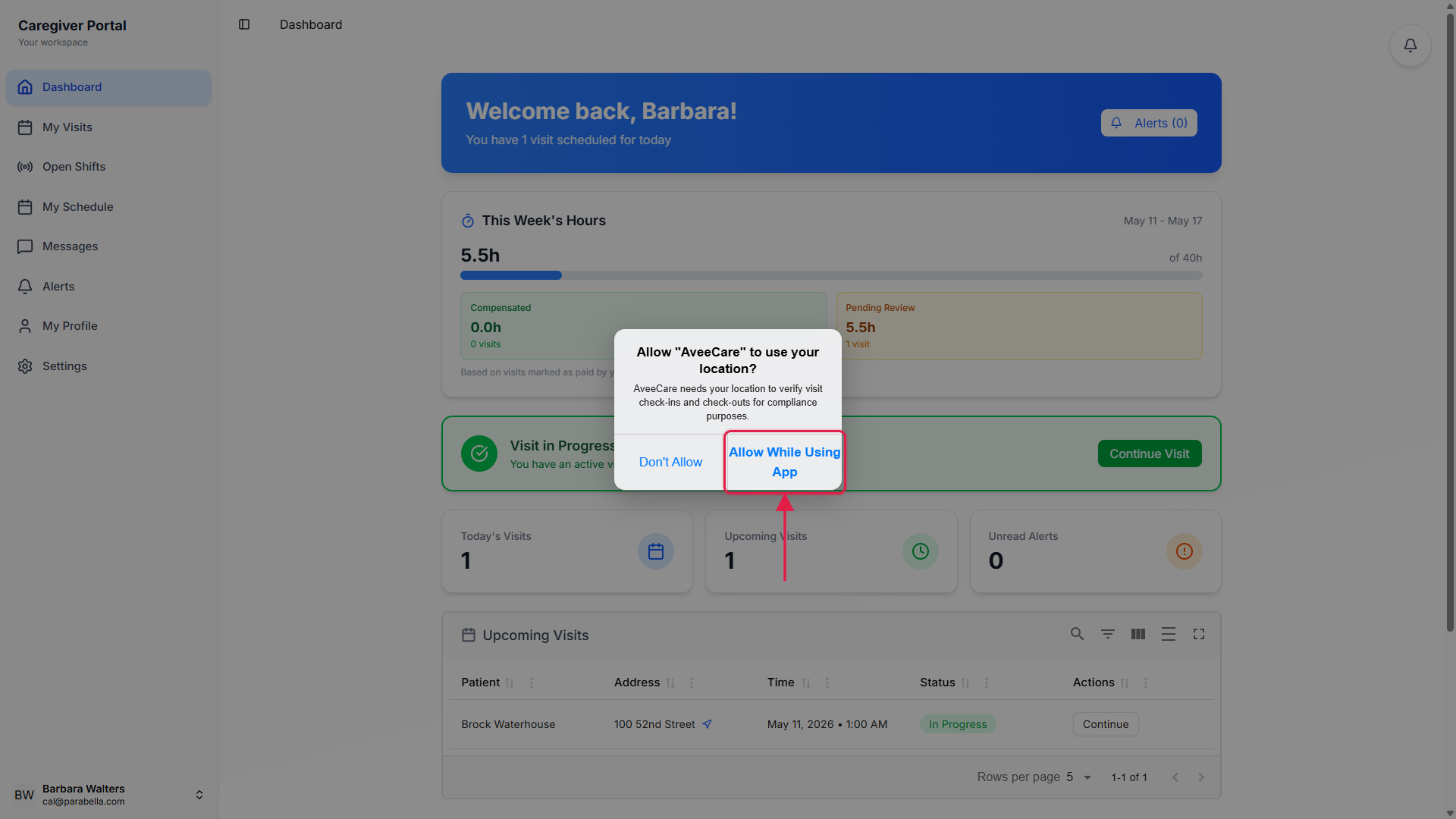
If you tap Don't Allow, the visit can still be saved but EVV will be flagged.
The app will not stop you from clocking in or out. It records the times you tap the buttons. But CHECK_IN and CHECK_OUT payloads will not have GPS, and the visit lands in the office with an EVV exception. You can fix that later from device Settings, or by toggling EVV Location Tracking back on from inside the app.
2. Watch GPS get captured during clock-in and clock-out
Tap Clock In on the visit. The phone grabs a single GPS fix.
The native LocationService asks the device for a BestForNavigation reading. Up to 15 seconds, then the operation either resolves with a fix or gives up. While the fix is pending the caregiver sees a brief location captured confirmation, then the visit moves to In Progress on the phone.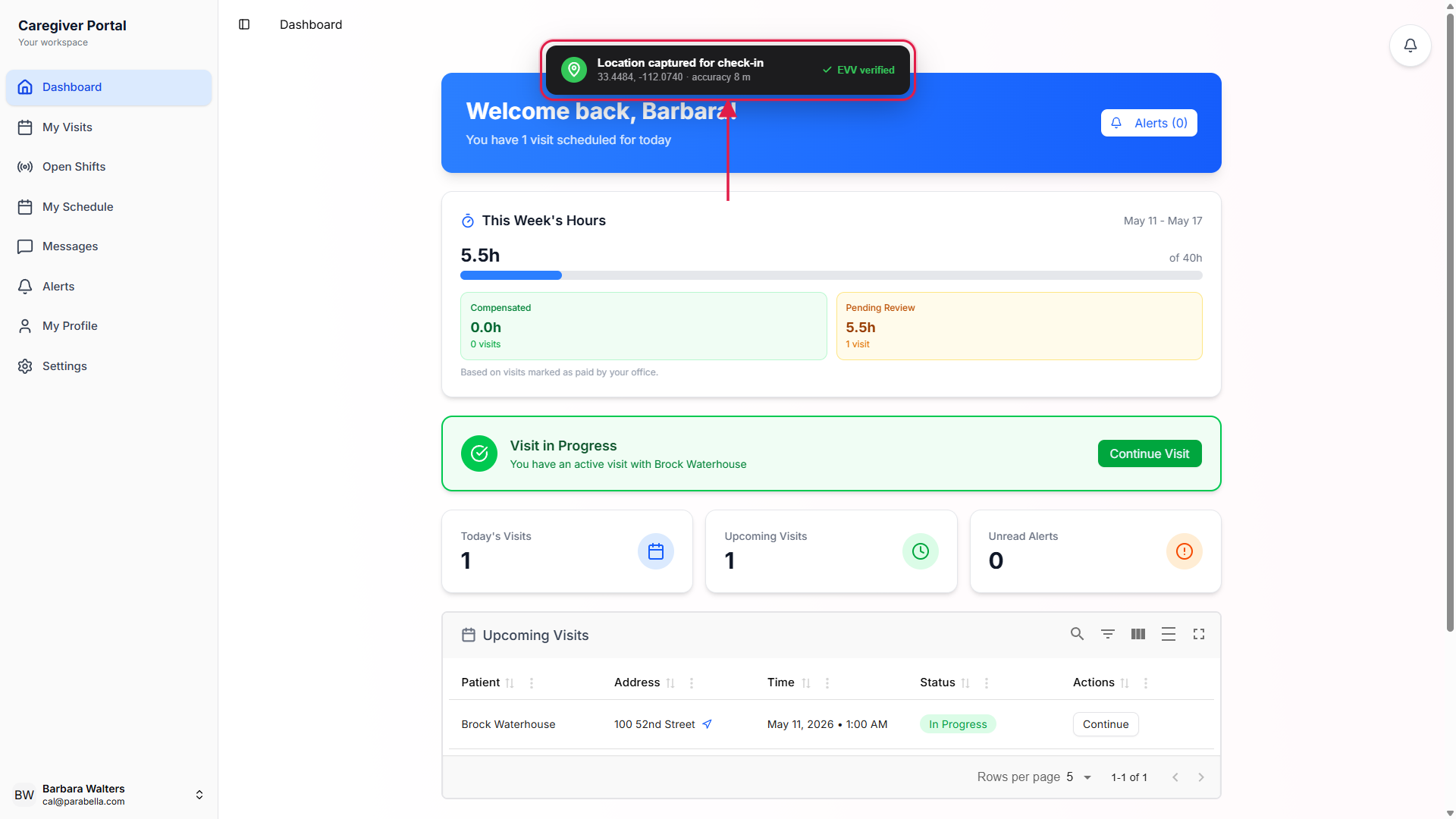
Finish the visit and tap Clock Out. A second fix is captured the same way.
The CHECK_OUT payload carries the clock-out fix alongside the wizard fields like signatures and completed tasks. Both fixes are persisted in the offline queue if the phone has no signal, so they replay with the original timestamps and coordinates when the phone reconnects.The office sees both points on the visit detail and on the activity map.
On the web dashboard the visit detail shows the captured clock-in and clock-out coordinates next to the times. The activity map plots both points so a supervisor can see at a glance that the caregiver was at the patient address.
3. Manage the EVV Location Tracking toggle in Settings
Open Settings from inside the mobile app.
Settings is a native screen, not a web page. Caregivers see a Location Services section with one switch: EVV Location Tracking. The helper line under it reads Required for Electronic Visit Verification compliance, and the footnote under the row reads Location is only tracked during check-in and check-out to comply with EVV requirements. Your location is not continuously tracked.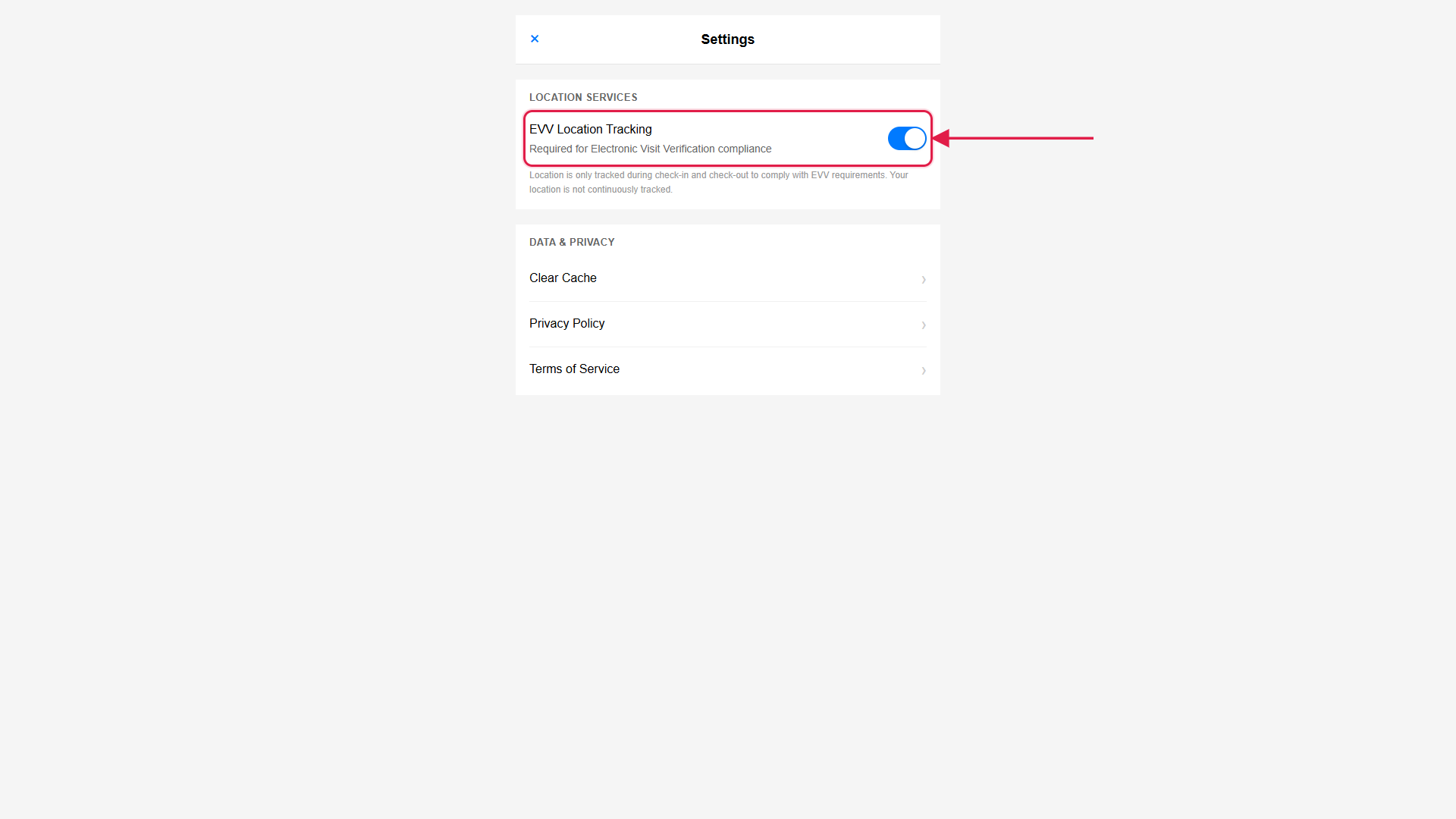
Flipping the toggle off does not revoke OS permission.
Inside-the-app toggling just stops the app from asking the LocationService for fixes during EVV operations. If the caregiver wants to fully revoke permission, they need to use the OS-level Location settings for the AveeCare app. Tapping the toggle to On when OS permission is missing prompts the caregiver to open device Settings.
4. Recover when the phone said no
If permission was denied, tap EVV Location Tracking and choose Open Settings.
The in-app alert says Please enable location services in your device settings for EVV compliance and offers an Open Settings button. That deep-links to the AveeCare permission page in the native OS settings. Switch the location permission to While Using the App and return to AveeCare. The next clock-in will capture a fix.For older visits with missing GPS, the office resolves the EVV exception from the web.
A clock-in or clock-out with no coordinates is not a hard failure for compliance, it is an exception that needs a note. The office can mark a manual reason on the visit (signal lost, permission missing) and the EVV submission still goes through to the state aggregator with that reason attached.Mocked locations are flagged automatically.
If the device reports a fix as mocked (location spoofing apps, emulators), the LocationService stamps the payload with mocked: true and the office sees an alert on the visit. Real caregivers on real phones never see this.
Common pitfalls
- Assuming AveeCare tracks the caregiver between visits. It does not. Two fixes per visit, period. No drive-time trail, no idle pings, no map of where the caregiver is right now. The Android build is shipped with isAndroidBackgroundLocationEnabled set to false, so the OS will not even hand the app a background fix.
- Tapping Allow Once instead of Allow While Using App. Allow Once kills the permission as soon as the app is closed, so every new visit re-prompts. Caregivers find this annoying and start dismissing the prompt out of habit, which loses the fix.
- Turning the in-app toggle off and forgetting. Flipping EVV Location Tracking off does not revoke OS permission, so the caregiver thinks GPS is on (it is, at the OS level) while the app silently skips capturing fixes. Office calls about missing GPS almost always trace back to this switch being off.
- Indoor signal black holes. Concrete basements, metal-clad rural homes, and elevator banks routinely time out the 15-second fix. The clock-in still saves, but the visit lands with an EVV exception. Caregivers can step outside for a moment before tapping Clock Out to get a clean fix on at least one end.
- Expecting the phone to ask once and stop. iOS asks for location permission again if the user has not opened the app for a while (Apple calls this re-affirmation). A Caregiver who takes a week off may see the system prompt again on their next shift. Allow While Using App is still the right answer.