Caregivers lose signal on the road, inside basements, and in rural homes. AveeCare keeps the mobile app working through it. Clock in, clock out, signatures, and visit updates queue locally and replay to the server when the phone is back online. The web dashboard sees the events in the order they actually happened on the phone.
Quick answer
When the phone loses signal, a red No Internet Connectionbanner appears at the top of the app and stays put. Anything you do for the visit (clock in, clock out, signatures, completed tasks, memos) is queued on the device. When the phone reconnects, the queue replays automatically and the banner disappears.
What gets queued offline
The queue inside the mobile app stores three kinds of EVV operations per visit:
- CHECK_IN. Clock-in time, GPS coordinates, and the method that verified the patient at the start of the visit.
- CHECK_OUT. Clock-out time, end GPS coordinates, caregiver signature, patient signature, completed care plan tasks, ADLs, and any EVV exception or memo entered on the wizard.
- VISIT_UPDATE. Mid-visit edits, like changing the status or correcting a memo before clock-out.
The queue lives in AsyncStorage on the device and survives app restarts and phone reboots. Failed operations retry on a back-off schedule, up to three attempts each, before they move to a Failed bucket you can review in the Sync Queue section of Settings.
1. Spot the offline banner when signal drops
Look for the red bar at the very top of the screen.
As soon as the phone reports no connection, the native shell shows a red bar above the dashboard with the text No Internet Connection - Data will sync when restored. It stays visible the entire time the phone is offline. The dashboard below keeps rendering from the cached state, so you can still see today's visit details, the Continue Visit banner, and Upcoming Visits.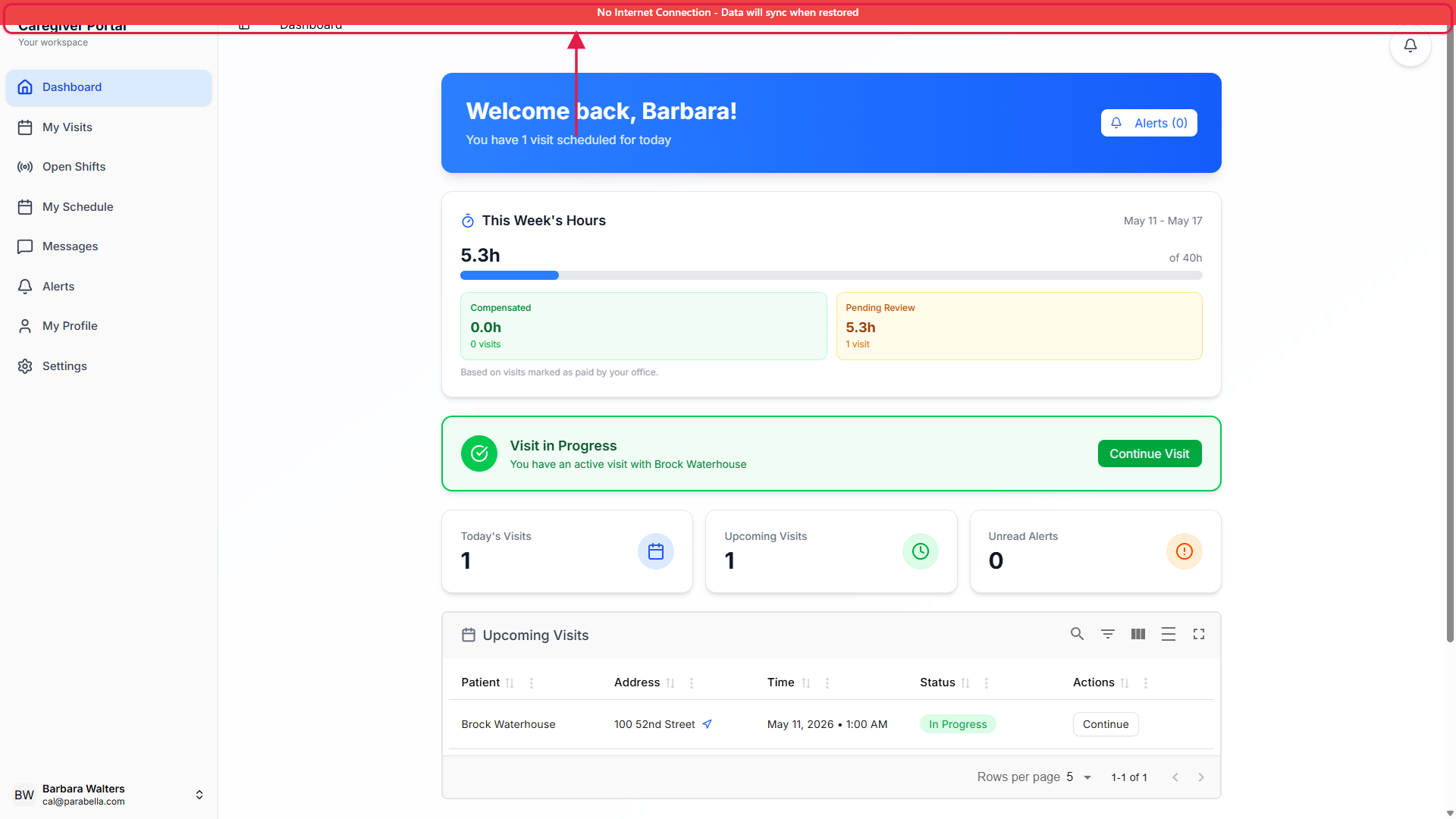
Keep the app open. Do not force-quit while offline.
The sync queue is persisted to disk, so a force-quit will not lose your work. But the running app already knows your visit state and can show the live Continue Visit banner without touching the network. Closing the app means the next launch has to re-cache, and any visit detail you have not opened yet may show a stub until reconnection.
2. Keep working: clock in, clock out, signatures
Clock in normally. GPS coordinates are captured locally.
The clock-in button still works. The native LocationService grabs the latitude, longitude, and accuracy from the device, and the app queues a CHECK_IN operation tagged with the visit id, the timestamp, and the GPS fix. Nothing waits on the server.Walk through the EVV checkout wizard at the end of the visit.
Capture caregiver and patient signatures, mark completed tasks and ADLs, pick a member verification method, add a memo, and tap Confirm. The queue adds a CHECK_OUT operation with every field the wizard collected. The visit goes into a queued state on the phone, distinct from a fully synced Completed visit.Same-visit edits merge into the existing queue entry.
If you change the memo or correct the signature before reconnecting, the new payload merges into the existing CHECK_OUT for that visit instead of stacking up duplicate operations. The deduplication is keyed on visit id and operation type. You will not get two clock-outs on the same visit.
3. Watch the queue in Settings while offline
Open the native Settings screen from inside the app.
Settings is a native screen, not a web page. The Sync Queue section shows two live counters: Pending Syncs (operations waiting to send) and Failed Syncs (operations that ran out of retries). Tap View Sync Queue to see a per-operation summary, including the visit id, the operation type, the timestamp, and how many retries have happened.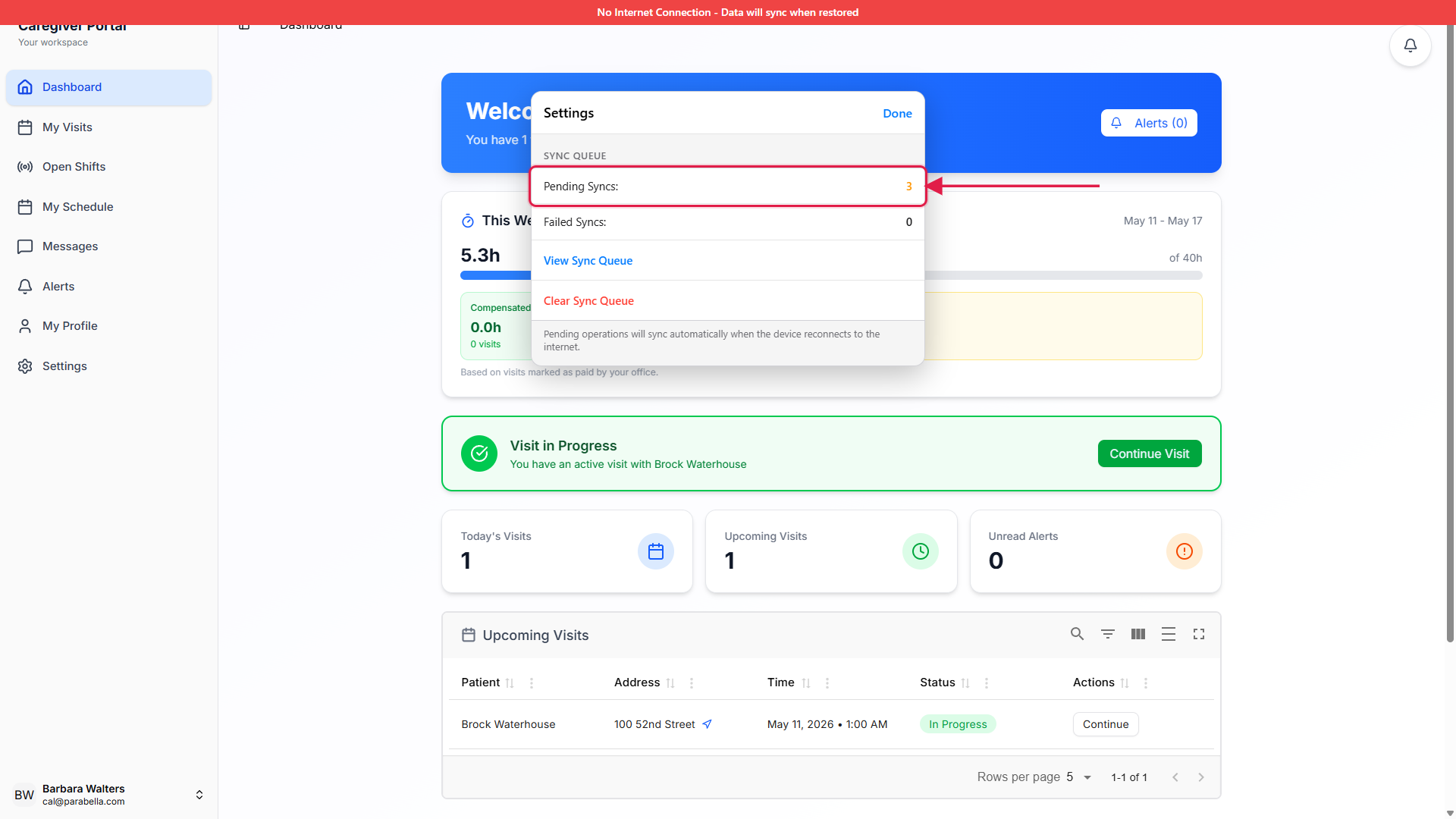
A non-zero Pending Syncs count is normal while offline.
A pending count just means the queue is waiting for connectivity. Failed Syncs is the one to watch. If it ever shows above zero, that means a specific operation hit its retry ceiling (default three attempts) and needs office attention. The web dashboard will show the visit as Incomplete until that case is resolved.
4. Reconnect and let the queue drain
The red banner disappears as soon as the phone is back online.
The native shell listens for NetInfo events and clears the banner the moment the device reports a real connection. The bridge then sends a TRIGGER_EVV_SYNC message into the WebView with the count of pending operations.The WebView replays the queue oldest to newest.
Each pending operation goes through the same API endpoint a live clock-in or clock-out would call, in timestamp order, so the office sees the events in the sequence they really happened. Successful operations are removed from the queue. Failed operations bump their retry count and wait for the exponential back-off (2 seconds, then 4, then 8) before the next attempt.Check Settings to confirm the queue is empty.
After a full sync, Pending Syncs and Failed Syncs both read zero, and a green All operations synced row appears in the Sync Queue section. That is the signal that everything you did while offline has reached AveeCare and is now visible to the office on the web dashboard.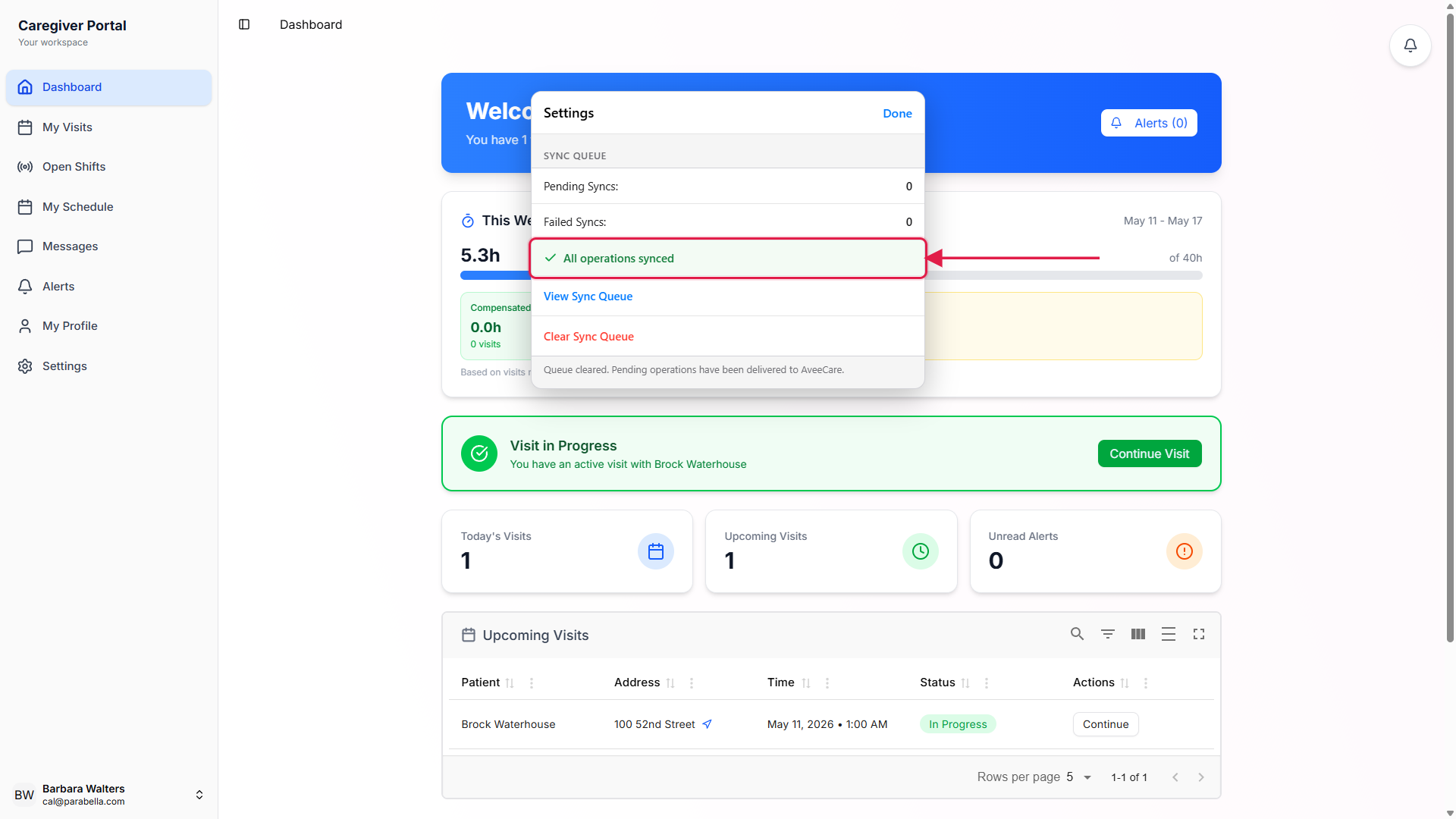
Common pitfalls
- Letting the queue grow past a workday without reconnecting. The queue is capped at 100 operations. That is more than enough for a normal shift, but a caregiver running through several days of visits offline can hit the ceiling. If you have a long stretch of bad signal, find Wi-Fi at the end of each day so the queue drains overnight.
- Force-quitting the app to fix offline behavior. The queue survives a force-quit, but doing it mid-sync wastes retry attempts. If the banner is gone and Pending Syncs is ticking down, leave the app alone and let it finish.
- Mistaking Pending for Failed. Pending Syncs counts operations that are waiting to send. Failed Syncs counts operations that gave up after retries. Pending while offline is fine. Failed at any point means the office should look at the visit and re-run the action manually.
- Expecting offline mode to work for office workflows. Offline sync is built around caregiver EVV actions, not admin tools. Scheduling, billing, payroll, and reports all need connectivity. Admins should plan around that and not assume the app will buffer anything outside of the caregiver experience.
- Phone showing offline when Wi-Fi is on but blocked. Some clinic and hospital Wi-Fi networks block the AveeCare API even though the phone shows as connected. The banner will be gone but the queue will not drain. If pending stays stuck for more than a minute on visible Wi-Fi, switch to cellular and the queue will replay.