Clock-in and clock-out are the two caregiver taps that bracket every AveeCare visit. Start Visit captures your GPS, the time, and the verification method the patient used at arrival. End Visit closes the visit and hands you off to the EVV checkout wizard. This page is the caregiver-side walkthrough of both actions, including the early-window rule that controls when Start Visit becomes tappable.
Quick answer
Open the visit from My Visits or the Caregiver Dashboard. When the scheduled start time is inside the clock-in window (default 30 minutes before), the green Start Visit button appears in the top right of the visit header. Tap it, accept the Location Notice, pick a Verification Method, and tap Confirm and Start Visit. The visit flips to In Progress. When you finish, tap the red End Visit button to clock out and start the EVV wizard.
The clock-in window, late, and no-show thresholds
AveeCare shows the four timing rules right on the Scheduled visit detail in a blue Visit Timing Policy card so you can see exactly when each threshold fires. The default values your office sets under Settings > Visit monitoring are:
- Clock-In Opens. 30 minutes before the scheduled start. Start Visit stays hidden until you are inside this window so you cannot clock in hours early.
- Scheduled Start. The visit start time the office put on the calendar.
- Late After. 15 minutes after the scheduled start. If you have not tapped Start Visit by then, the visit is flagged Late and the office is notified.
- No-Show Flagged. 30 minutes after the scheduled start. The visit moves to a No-Show review state for the office to follow up.
1. Open the visit when the clock-in window opens
Open the Caregiver Dashboard or My Visits.
The Upcoming Visits table on the dashboard lists today and tomorrow with patient, address, time, and status. The full My Visits page splits visits into Upcoming, Active, Completed, and a Weekly Summary tab.Tap the visit row or its View Details button to open the visit.
The visit detail page is where you start and end the visit, so you do not need to dig further than this. The header shows the patient name, the scheduled date and time, the address with a Get Directions shortcut, and the current visit Status.Check the Visit Timing Policy card under the tab bar.
The card lists the four key moments so you know when Start Visit will become tappable. Outside the green clock-in window the button is not shown at all.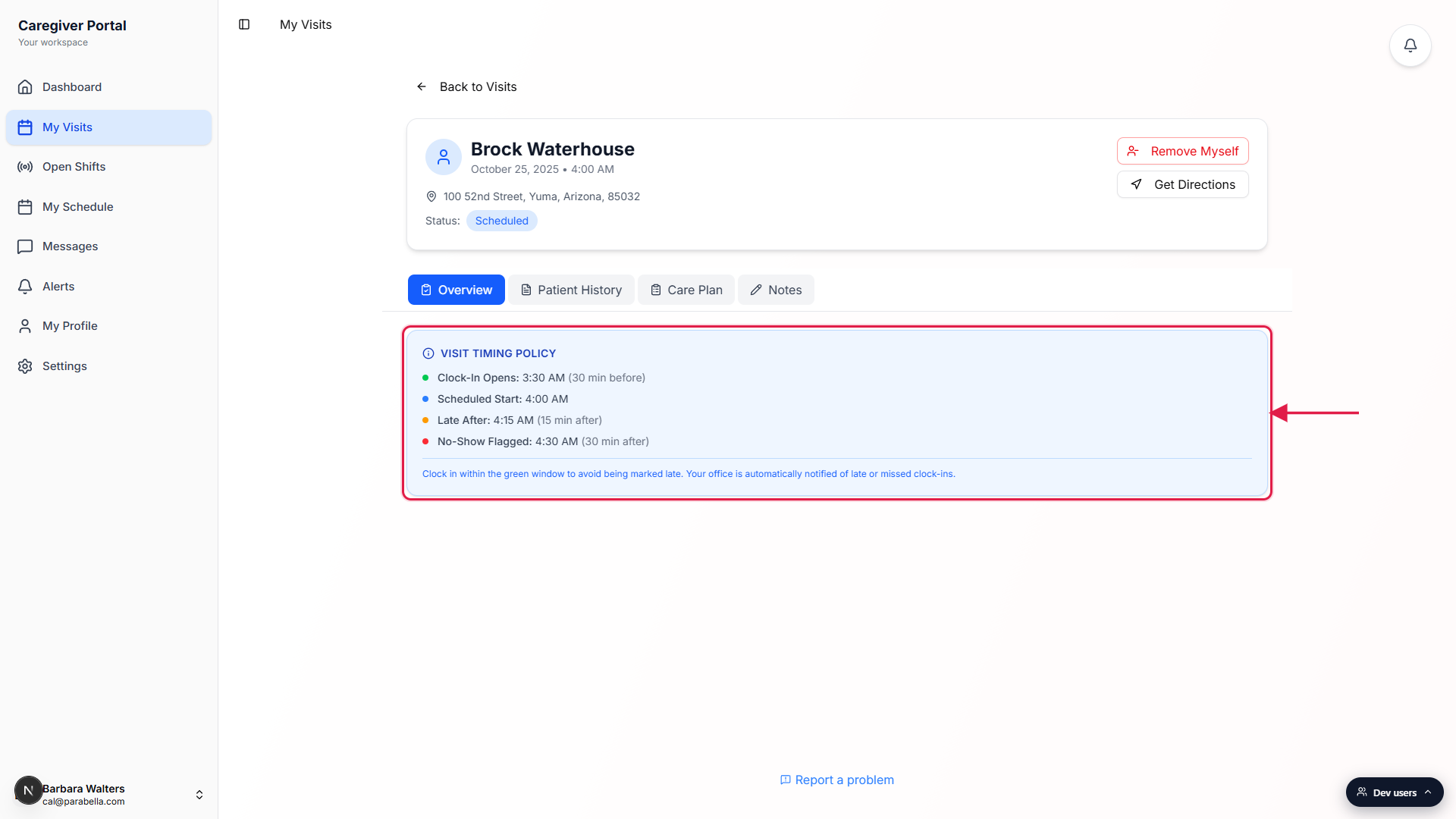
2. Tap Start Visit and accept the Location Notice
Tap the green Start Visit button in the top right of the visit header.
The button sits next to Get Directions. It only renders while the visit Status is Scheduled and the current time is inside the clock-in window. If you do not see it, the window has not opened yet or has already closed past the late threshold.A Location Notice modal opens. Read it and tap I Understand.
The modal explains that your GPS coordinates are captured only at clock-in and clock-out, never between. This is the consent step state EVV programs require. Tap I Understand to continue, or Cancel if you are not ready.
3. Pick a Verification Method and confirm
A Member Verification Required modal opens after the location notice.
The patient (or an authorized designee) needs to verify the visit at arrival. Pick from the Verification Method dropdown: Signature, PIN Code, Voice Recording, or Portal/App Verification. In states that require a signature on every visit, only Signature appears.If a family member is verifying, check Verified by designee.
A Designee Name field opens once the box is checked. Type the designee's name as written, then tap Confirm and Start Visit. The clock-in timestamp and GPS save the moment you tap that button.The visit flips to In Progress.
You will see a green Visit in Progress banner on the Caregiver Dashboard with a Continue Visit button that takes you straight back to this visit. The status row on the visit detail now reads In Progress.
4. Work the visit from the In Progress state
The dashboard surfaces a green banner so you can find the active visit fast.
Coming back to the Caregiver Dashboard mid-visit, the Visit in Progress card sits above your stats. Tapping Continue Visit opens the same visit detail you started on so you can take notes, check tasks, or end the visit.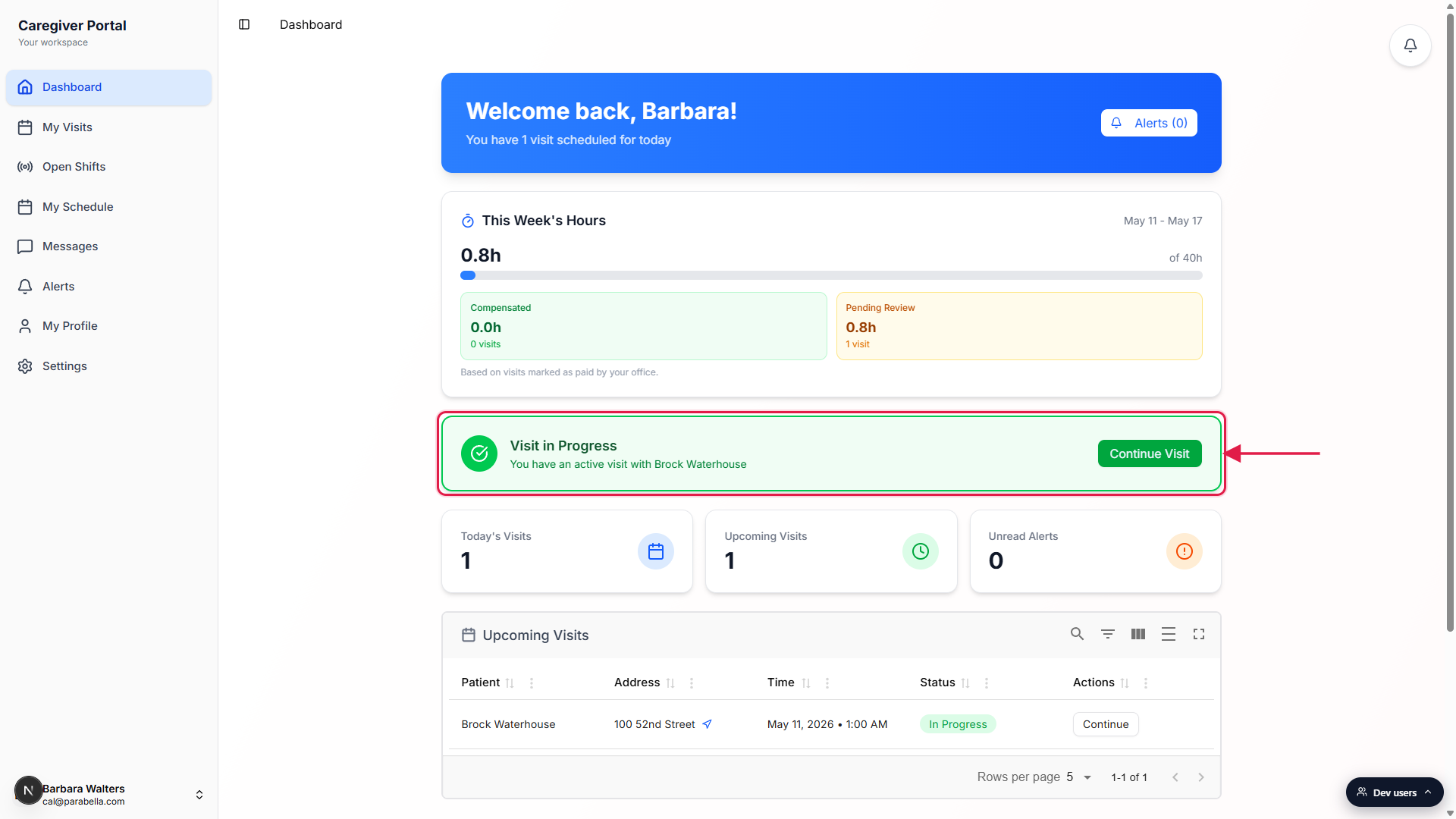
Add notes, mark tasks, and capture observations during the shift.
The visit detail picks up extra tabs while the visit is In Progress: Overview, Patient History, Care Plan, Notes, and a Progress tab for vitals, mood, pain, and activity. None of these are required for clock-out, they are documentation aids.If the visit runs long, tap Request Extension before the scheduled end.
When the scheduled end is within 30 minutes, a purple Request Extension button appears next to End Visit. The office can approve or deny in real time. While the request is pending, the button shows Extension Pending and cannot be tapped again.
5. Tap End Visit to clock out
In the top right of the visit header, tap the red End Visit button.
End Visit replaces Start Visit once the visit moves to In Progress. Tapping it kicks off the EVV checkout wizard, which captures your signature, member verification, any exception codes, and a final summary before the visit closes.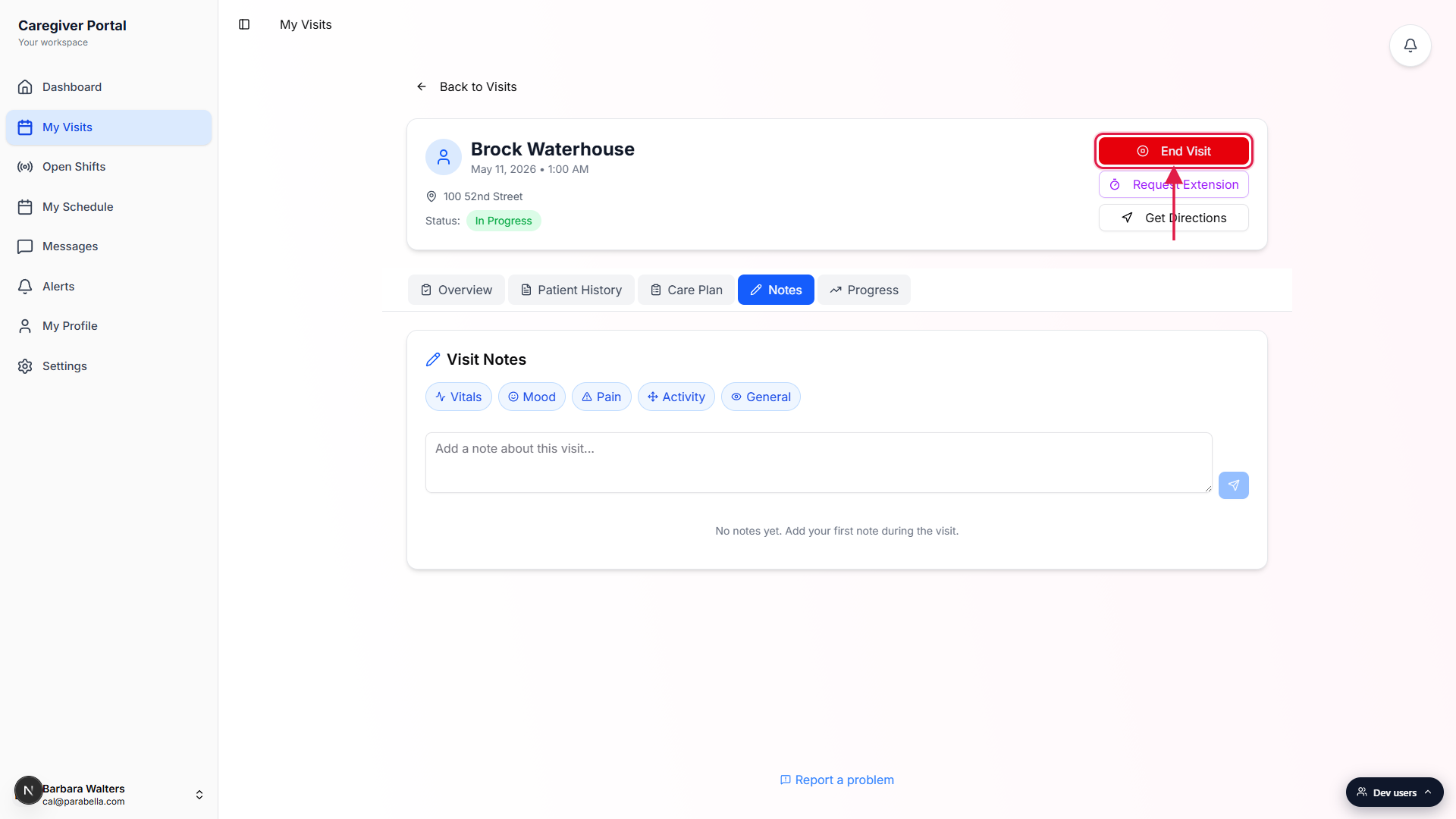
Finish the EVV wizard. The clock-out timestamp and GPS save on the final Submit Visit step.
Full EVV wizard walkthrough lives in the EVV checkout wizard article. The short version: tasks, signature, member verification, an exception step if anomalies were detected, then the Visit Summary with a red Submit Visit button. The visit then moves to Completed on My Visits.
Common pitfalls
- Start Visit not showing yet. The button hides until the clock-in window opens. If your scheduled start is 9 AM and the early window is 30 minutes, the button appears at 8:30 AM. Check the Visit Timing Policy card on the visit detail to see the exact open time for that visit.
- Start Visit greyed out or missing past the late threshold. Once the Late After time passes, the visit flips to Late and Start Visit changes behavior depending on your office's config. If you cannot start the visit, message the office and they can clock you in from Pre-Billing QA after the fact.
- GPS permission was denied on the device. The visit still clocks in but the GPS field saves empty, which most state EVV programs treat as a Flagged record. Turn on location for the AveeCare app in your phone settings before the next visit so the aggregator gets a clean GPS reading.
- Forgetting to tap End Visit. The visit stays In Progress with a blank clock-out time. Payroll cannot calculate hours and EVV cannot export it. Open the visit the next day and finish the EVV wizard then, or ask the office to record the actual end time from Pre-Billing QA.
- Picking the wrong Verification Method. If the patient is not actually verifying (they are asleep, refusing to interact, or a family member is helping), check Verified by designee in the modal and enter the designee's name. Picking Signature and then signing for them yourself is not allowed and may fail state audits.