AveeCare ships native iOS and Android apps for caregivers and patients. The app is a thin Expo / React Native shell wrapped around the same web dashboard you already know, plus native services for push notifications, GPS-backed EVV, offline sync, and a native Settings screen. Sign in is the same account you use on the web.
Quick answer
Download AveeCare from the App Store or Play Store, sign in with the same email and password you use on the web, and the app drops you on the same Dashboard you would see in a browser. Caregivers land on the Caregiver dashboard, patients land on the Patient dashboard. Admin and office staff use the web, not the app.
Who uses which role
The mobile app is designed for two roles only:
- Caregiver. Sees the visit schedule, can clock in and out, captures GPS for EVV, receives push reminders, takes photos and signatures, and works offline when the phone has no signal.
- Patient or family member. Sees scheduled visits, messages the office, views inquiries and alerts, and gets push reminders for upcoming visits.
Admin, office staff, and billing roles should keep using the web dashboard. Those workflows are too dense to fit a phone screen and the mobile app explicitly does not ship them.
1. Install AveeCare and sign in
Search for AveeCare in the App Store or Play Store and install.
The same app shell serves caregivers and patients. Role is detected from your user record after sign in, so there is no separate caregiver app or patient app to pick between.Sign in with the same email and password you use on the web.
Authentication runs through the same AWS Cognito account that backs web sign in, including MFA if your agency requires it. Your session is shared with the in-app browser, so you stay signed in across launches.Allow notifications when prompted.
Push permission is requested on first launch. Approve it so visit reminders, schedule changes, and message alerts can reach you when the app is closed. You can change this later in the native Settings screen.
2. Use the Caregiver experience on phone
Land on the Caregiver dashboard.
The first screen shows the blue Welcome back banner, This Week's Hours card, a green Visit in Progress banner when you have a visit clocked in, and Today's Visits and Upcoming Visits panels. Everything is the same React page that runs on the web, laid out for narrow screens.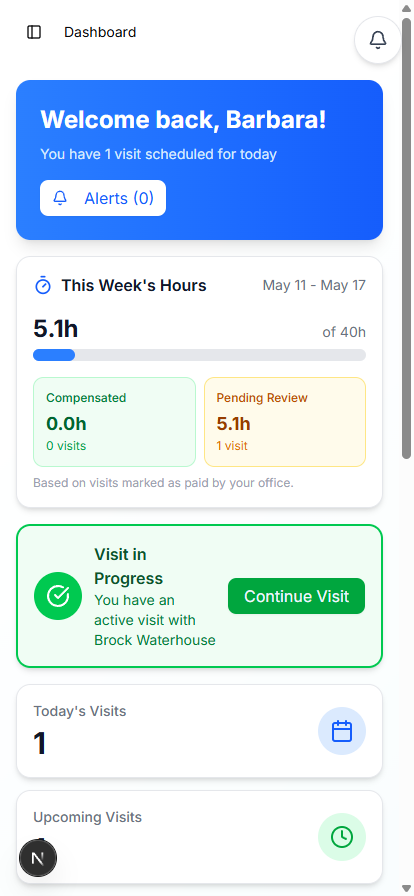
Scroll for Upcoming Visits and Quick Actions.
Below the hours card you see Upcoming Visits and a Quick Actions grid with All Visits, Messages, Alerts, and My Profile tiles. Tap Continue Visit on the Upcoming Visits card to jump straight into clock-in or documentation.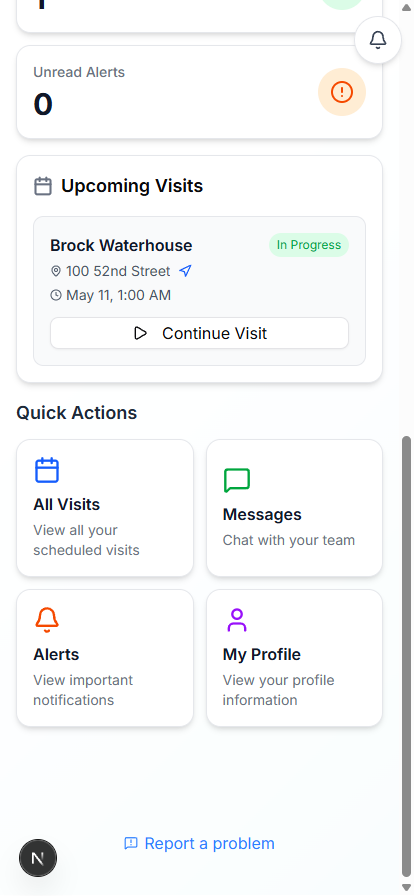
3. Use the Patient experience on phone
Land on the Patient dashboard.
Patients see a different landing page when they sign in. The gradient Welcome banner greets them by first name, followed by four stat tiles (Today, Active, Upcoming, Unread) and two shortcut cards: View All Visits and My Inquiries. The bell in the top right opens Alerts.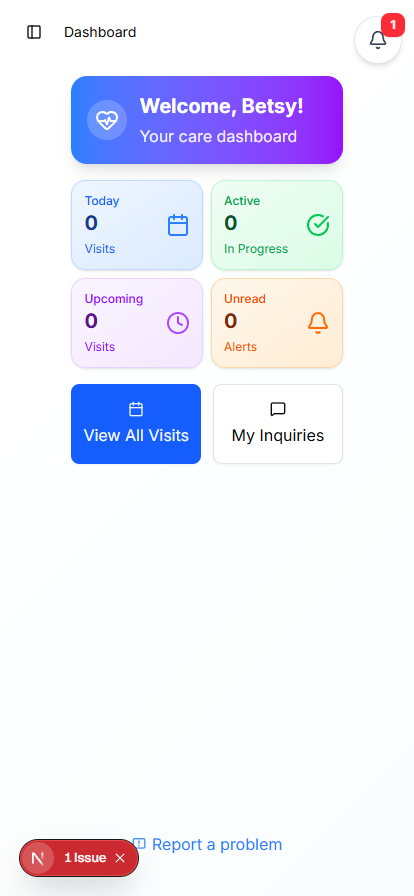
Read scheduled visits, message the office, view alerts.
Patients use the app to see upcoming and past visits, message their care team, see alerts from the office, and reach the Inquiries page if they need to ask about scheduling, billing, or care. Patients do not see GPS or clock-in controls.
4. Know what is native and what is web
The screens you see ARE the web app, rendered in a native WebView.
AveeCare keeps a single React codebase for every dashboard. The mobile app loads that codebase inside a native WebView shell, so a fix or a new feature ships to web and mobile at the same time. You do not have to wait for an App Store update to see today's improvements.Push, GPS, offline, and Settings are native services.
Around the WebView, the native shell adds four things the web cannot do on its own: push notifications via Expo, GPS capture for EVV check-in and check-out, offline queueing of visit actions for the OfflineSyncService to replay when the phone reconnects, and a native Settings, Privacy, and Terms screen to satisfy App Store and Play Store rules.A red offline banner appears when the phone loses signal.
When connectivity drops, the native shell shows a red "No Internet Connection" banner above the WebView. Anything you do during that time is queued locally. When the connection returns, the queued items sync automatically.
Common pitfalls
- Trying to use the app as an admin. The mobile app is for caregivers and patients only. Admin and office workflows (scheduling other people, billing, payroll, reports) are not in the mobile shell. Use the web dashboard on a laptop or tablet for office work.
- Skipping the notification permission prompt. If you deny push on first launch, you will not get visit reminders or schedule-change alerts on the phone. Re-enable in the device Settings under AveeCare, or use the in-app Settings screen.
- Expecting native screens for visit detail or clock in.The visit detail, calendar, and clock-in flows render inside the WebView. They look and behave like the web app, just sized for a phone. Native UI is reserved for Settings, the offline banner, and (on iOS and Android) the OS push and location prompts.
- Forgetting that GPS for EVV runs only during a visit.The app does not track location in the background outside of an active clocked-in visit. As soon as you clock out, background tracking stops. This is intentional for privacy and battery.
- Looking for biometric sign in. Sign in uses your web account plus MFA if your agency enabled it. Face ID and Touch ID are not a separate AveeCare feature today, though your device password manager can autofill the password field.