AveeCare uses the OS notification system to nudge caregivers about upcoming visits, late starts, and missed shifts. The native shell registers an Expo push token on first sign-in, and the same code path schedules local reminders straight from the device clock. One permission grant, three categories of alert, one toggle to turn the whole thing off.
Quick answer
On the first caregiver sign-in, the AveeCare mobile app asks for notification permission. Tap Allow. After that the app schedules a 30-minute reminder, a 10-minute late warning, and a missed-visit warning for every visit on your schedule. You can flip the whole thing off from Settings, under the Notifications section.
What alerts you actually get
The mobile app schedules three notifications per upcoming visit and ships two Android channels for routing. Every number below is from the live mobile source, not made up:
- Upcoming Visit in 30 minutes. Title reads “Upcoming Visit in 30 minutes” with a body that names the visit and the patient. Fires 30 minutes before the scheduled start, on the device clock. Routed to the Visit Alerts channel on Android with max importance and a vibration pattern.
- Visit May Be Late. Fires 10 minutes after the scheduled start if you have not clocked in yet. Body asks you to start the visit or contact your supervisor. Same Visit Alerts channel.
- Missed Visit. Fires at the visit's expected end time when a clock-out never landed. Body tells you to contact your supervisor immediately. Same channel.
- Two Android channels. Visit Alerts (max importance, custom vibration, red LED) for the three categories above, and General Notifications (high importance, blue LED) for everything else.
Reminders are only scheduled for visits that start within the next 24 hours. Visits further out get scheduled on the day-of. If you re-open the app, the queue is rebuilt: stale reminders for visits that no longer exist on your schedule are canceled, and new ones are scheduled for fresh visits.
1. Accept the system permission prompt
Tap Allow on the iOS or Android system prompt.
The first time a Caregiver account signs in on the AveeCare mobile app, the OS shows a system prompt. On iOS the title reads “AveeCare” Would Like to Send You Notifications and the body explains that notifications may include alerts, sounds, and icon badges. Tap Allow. On Android 13+ you get a similar prompt for the POST_NOTIFICATIONS runtime permission.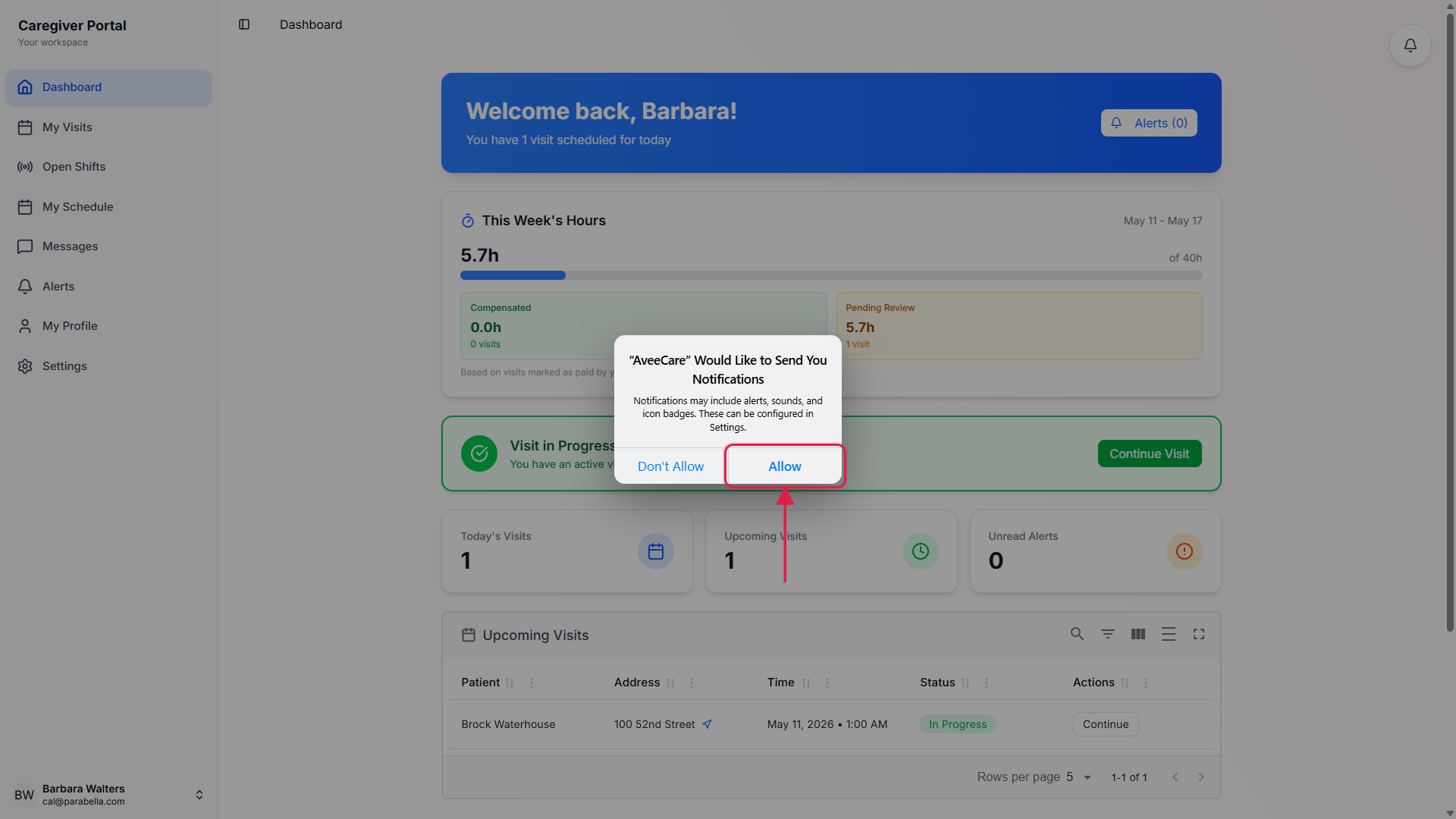
If you tap Don't Allow, the app still works but you will not get reminders.
The Caregiver dashboard, the visit detail screens, and the EVV wizard all keep working without notification permission. You just lose the 30-minute, 10-minute, and missed-visit pings. You can change your mind later from device Settings or by flipping the in-app Push Notifications toggle on, which deep-links to the OS permission page.
2. See a foreground banner during a shift
A banner slides in at the top of the screen 30 minutes before each visit.
When the AveeCare app is open and a reminder fires, the native shell shows a foreground banner pinned to the top of the screen. Title reads Upcoming Visit in 30 minutes, body shows the visit title and the patient's name. Tap it to jump straight to that visit's detail in the app.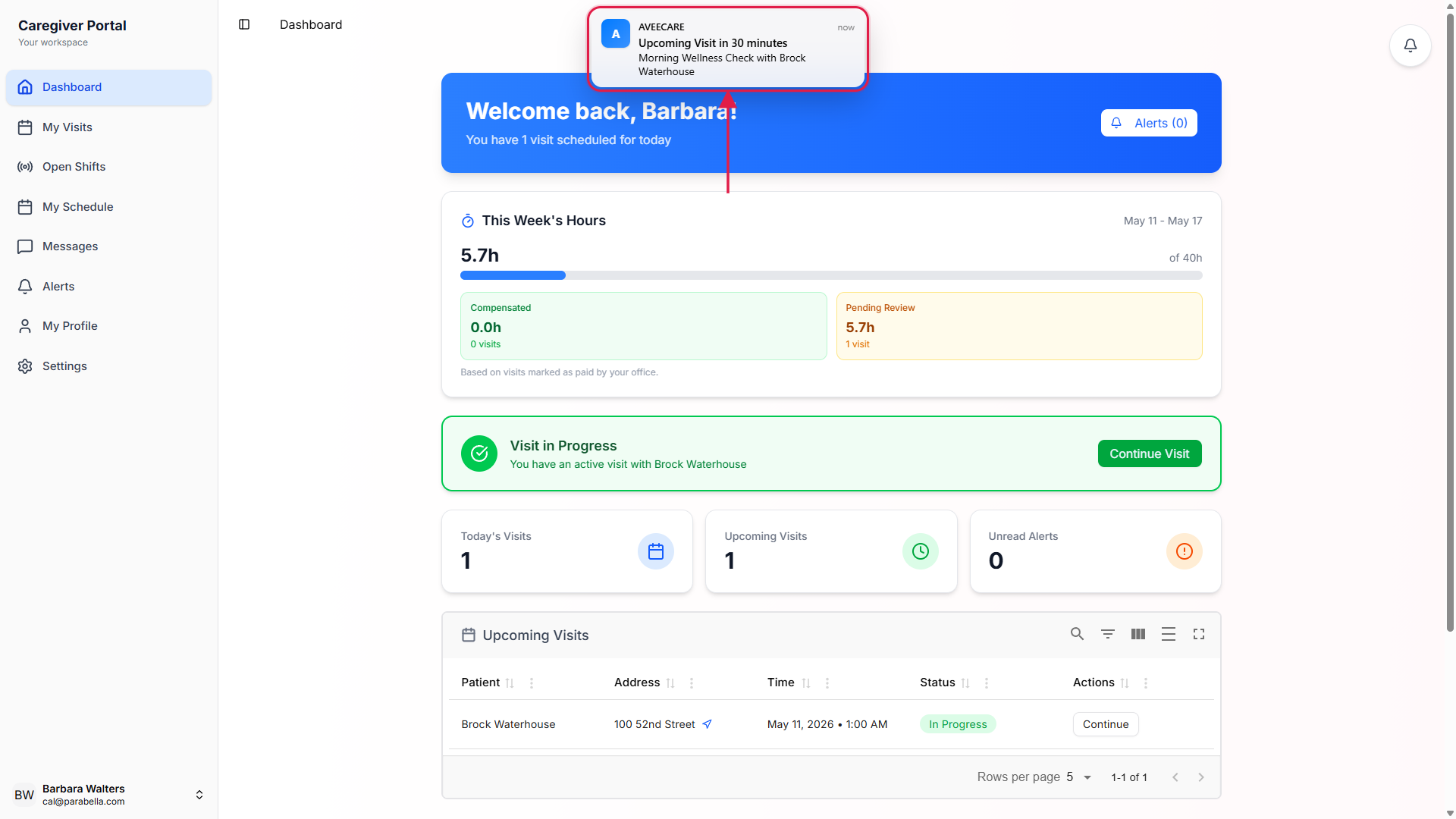
When the app is closed, the same alert arrives on the lock screen.
On Android the alert lands in the Visit Alerts channel with max importance, so it pops a heads-up notification, plays a sound, and vibrates with the configured pattern. On iOS it lands on the lock screen as a banner, plays the default sound, and bumps the app badge count.Late warnings and missed-visit warnings use the same banner format.
The 10-minute late warning title reads Visit May Be Late and the missed-visit warning title reads Missed Visit. Both are routed to the same Visit Alerts channel on Android, so they all share max importance and the same vibration pattern.
3. Manage Push Notifications in Settings
Open Settings from inside the mobile app.
Settings is a native screen, not a web page. The Notifications section has one row labeled Push Notifications, with the helper line Receive alerts about visits, messages, and updates. The iOS-style switch shows whether the app has a valid Expo push token stored. Tap to flip it.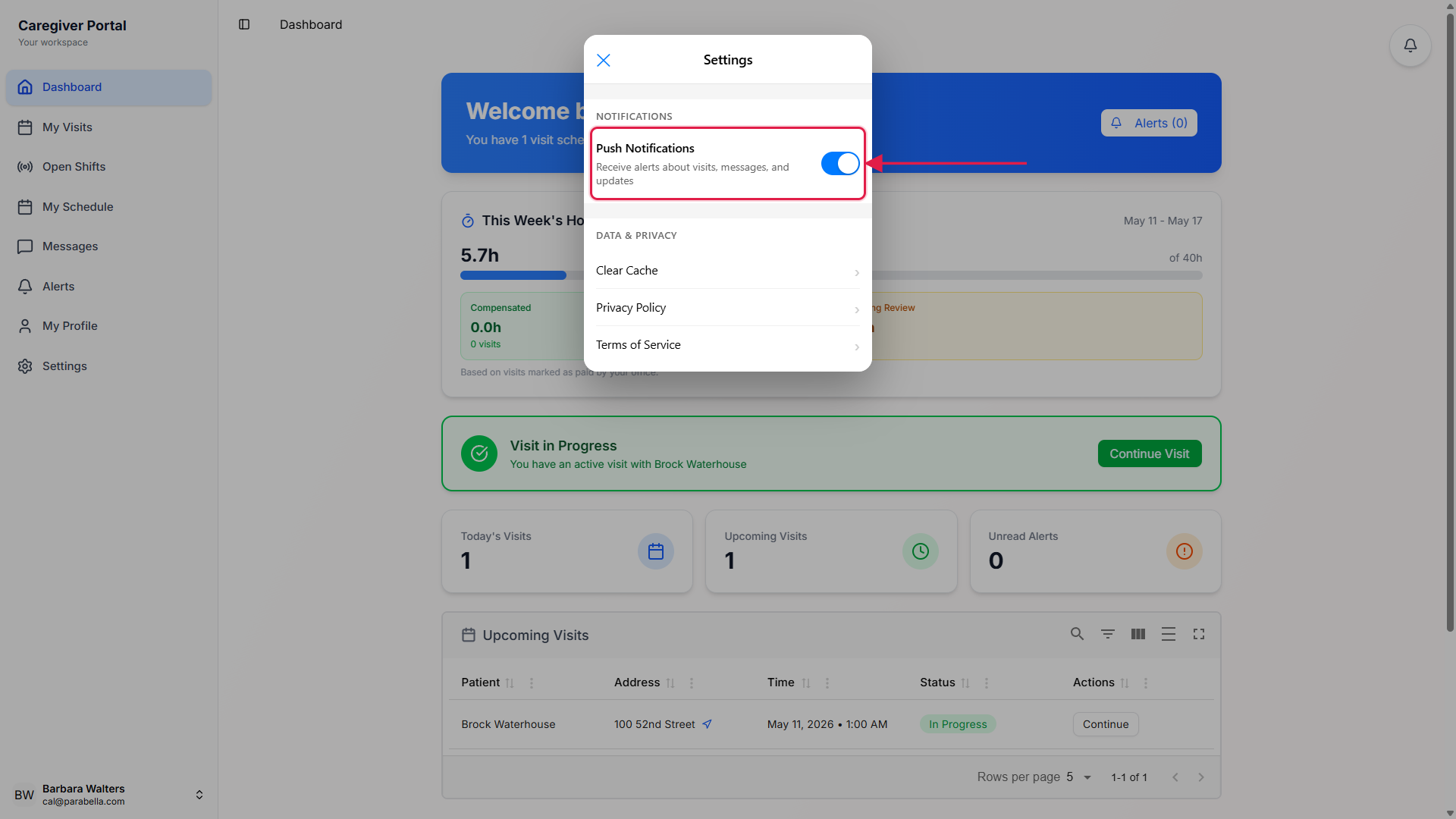
Flipping it off cancels every scheduled reminder and clears the badge.
The off branch removes the stored Expo push token from AsyncStorage, calls cancelAllScheduledNotificationsAsync so no future reminder fires, and clears the badge count to zero. Flipping it back on re-registers for push and reschedules reminders for the next batch of upcoming visits.If OS permission was revoked, the toggle prompts you to open device Settings.
When you try to flip the in-app toggle on but the OS-level permission is missing, the app shows a Permission Required alert with a Cancel and Open Settings button. Open Settings deep-links to the AveeCare notification page in the OS settings.
4. Recover when push stopped working
Confirm OS-level permission is still granted.
Open the OS Settings app, find AveeCare, and check that Notifications are allowed. iOS may auto-disable notifications for apps you have not opened in a while. Android can demote a channel to low importance if you dismiss enough alerts in a row.Confirm the in-app Push Notifications toggle is on.
Settings is a separate switch from the OS permission. If someone tapped it off (or if the Expo push token failed to register on first sign-in), the toggle is off and the app will not schedule reminders even with OS permission on. Flip it back on and the app re-registers and reschedules.Check that EAS push is configured for the build.
Push tokens come from Expo's push service and need a valid EAS projectId baked into the app at build time. If a rogue dev build has the placeholder projectId, the app fails the token registration silently and only local reminders schedule. The shipping iOS and Android builds have a real projectId, so this is only a problem on a custom build.For visits on Do Not Disturb time slots, use the OS DND schedule.
AveeCare does not ship a quiet-hours feature inside the app. Caregivers who do not want late-night pings use the operating system's Do Not Disturb schedule. iOS and Android both let you allow specific apps to break through DND if a visit reminder still needs to land.
Common pitfalls
- Confusing the in-app toggle with the OS permission. They are separate. The in-app Push Notificationsswitch only controls whether the AveeCare app schedules local reminders and registers for push. It does not revoke OS permission, and it does not enable the app if the OS has push turned off for AveeCare. Both have to be on.
- Expecting reminders for next week's visits. The mobile shell only schedules reminders for visits that start within the next 24 hours. A Monday morning visit scheduled on Friday will get its reminder when the app rebuilds the queue inside the 24-hour window, not at Friday scheduling time. Keep the app installed and signed in over the weekend and it schedules itself.
- Dismissing reminders out of habit. Android demotes a notification channel after several dismissals in a row. If caregivers keep swiping away the Visit Alerts heads-ups, the channel can lose its max importance and stop popping over other apps. Tap into the alert at least sometimes, or restore the channel from OS Settings.
- Counting on push to deliver PHI. Notification bodies show the visit title and the patient's first and last name, nothing more. Detailed care notes, addresses, and chat messages stay inside the app. Tap the notification to read the full record on the visit detail screen.
- Multiple devices reduce, not multiply, reliability. The same caregiver account signed in on a phone and a tablet will get reminders on both, but the Expo push token stored is the most-recent device's token. If the older device's token stays in the queue, server-side push targeting that device may fail silently. Sign out of the device you are not actively using.