Settings is the caregiver-side page for the three notification channels (email, SMS, push) and the per-category toggles that sit underneath them. Use it to silence the noise your office sends and keep only the alerts you actually want. The page also hosts your personal API keys for connecting AI assistants like Claude Code, ChatGPT, or Cursor to your AveeCare data.
Quick answer
Open Settings from the Caregiver Portal sidebar. Toggle Email Notifications, SMS Notifications, or Push Notifications on or off. When Email or Push is on, an indented list appears with the sub-categories you can fine-tune. Click Save Settingsat the bottom when you are done.
1. Open Settings from the Caregiver Portal
Click Settings at the bottom of the Caregiver Portal sidebar.
The caregiver sidebar runs Dashboard, My Visits, Open Shifts, My Schedule, Messages, Alerts, My Profile, and Settings. Settings is the last item. The page header reads Settings with the subtitle Manage your notification preferences.The Communication Preferences card opens on top.
You will see a blue header banner, then a Communication Preferences section with three rows: Email Notifications, SMS Notifications, and Push Notifications. Each row has a blue switch on the right. The switches show their current state from the last time you saved.
2. Pick the channels you want to receive
Toggle Email Notifications, SMS Notifications, and Push Notifications.
The three channels are independent. Turn off SMS if you do not want texts and leave email and push on. Turn off push if you do not have the mobile app installed. The switches save your preference but the change is not committed until you click Save Settings at the bottom.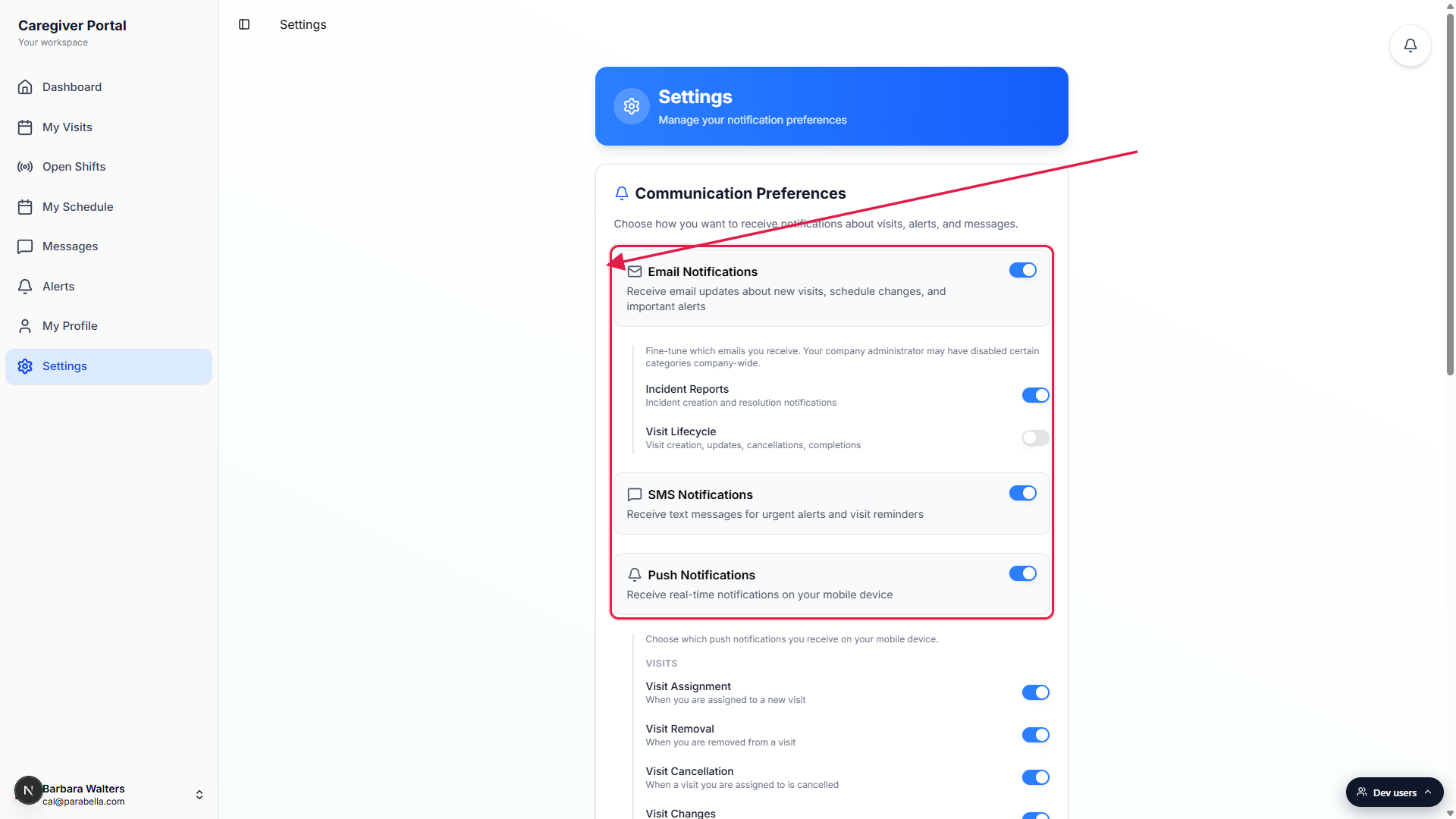
When Email Notifications is on, a fine-tune sub-list appears.
Underneath the Email row, an indented panel shows Incident Reports (incident creation and resolution notifications) and Visit Lifecycle (visit creation, updates, cancellations, and completions). Each has its own switch so you can keep incident alerts but drop the routine visit emails.A note explains that your company admin may have disabled categories company-wide.
The line reads Fine-tune which emails you receive. Your company administrator may have disabled certain categories company-wide. That means your office side has the final say. If a category is off at the agency level, your personal toggle will not turn it back on.
3. Fine-tune the per-category push toggles
When Push Notifications is on, an indented panel groups the categories.
The push sub-list is organized into five groups: Visits, Shifts and Scheduling, Financial, Care, and Communication. Each group label is in small gray uppercase letters.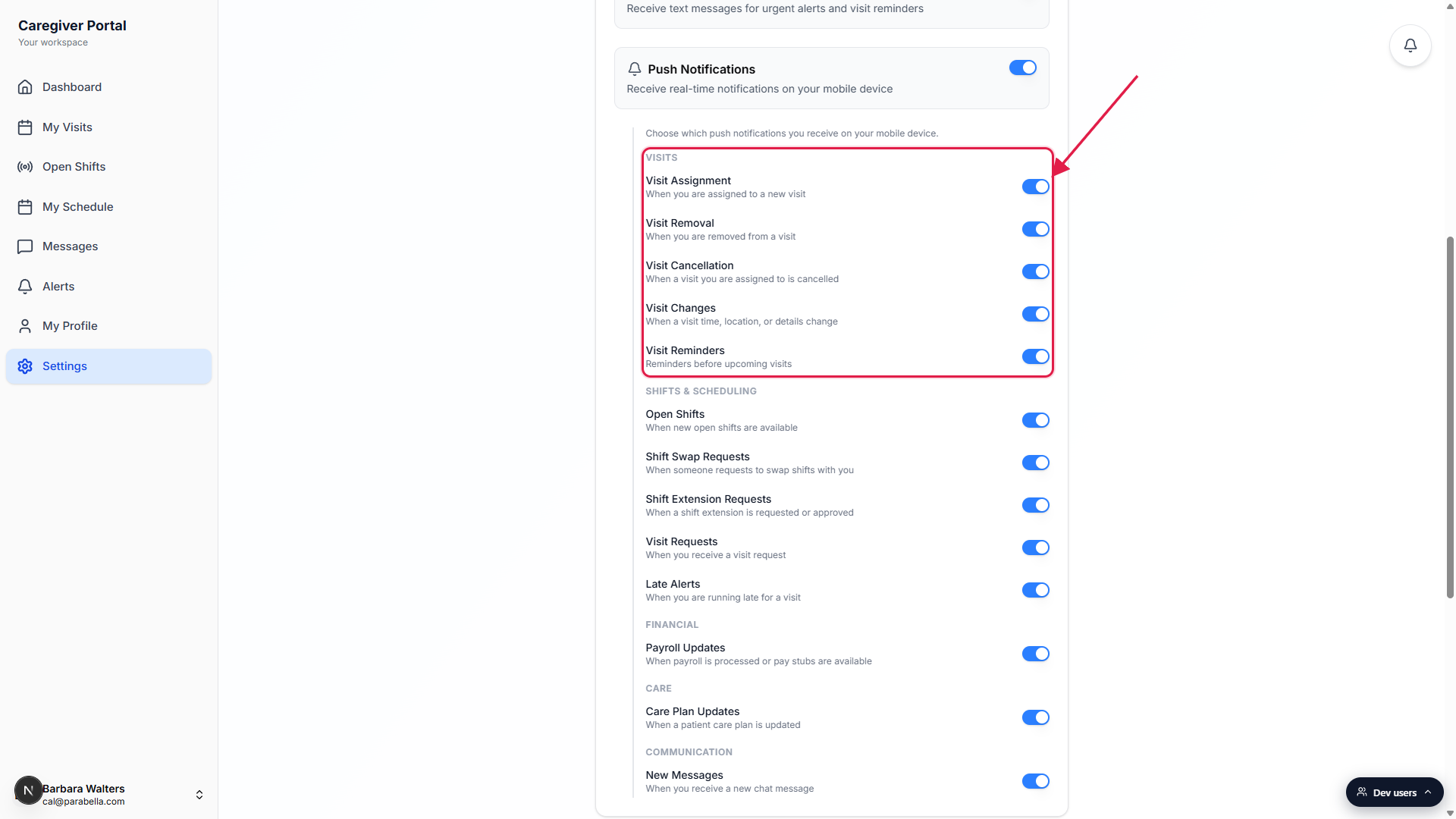
Toggle the rows you actually want.
The Visits group has Visit Assignment, Visit Removal, Visit Cancellation, Visit Changes, and Visit Reminders. Shifts and Scheduling has Open Shifts, Shift Swap Requests, Shift Extension Requests, Visit Requests, and Late Alerts. Financial has Payroll Updates. Care has Care Plan Updates. Communication has New Messages. All start on by default the first time you load the page.Turning Push Notifications off hides the sub-list entirely.
The sub-list only renders when the top-level Push switch is on. Same pattern for the Email fine-tune list. If you do not see the per-category toggles, the parent channel is off.
4. Click Save Settings at the bottom of the page
Scroll to the bottom of the page and click Save Settings.
The Save Settings button is below the API Keys card and the blue Your Privacy Matters note. On a phone the button sticks to the bottom of the screen. On desktop it sits at the end of the page content.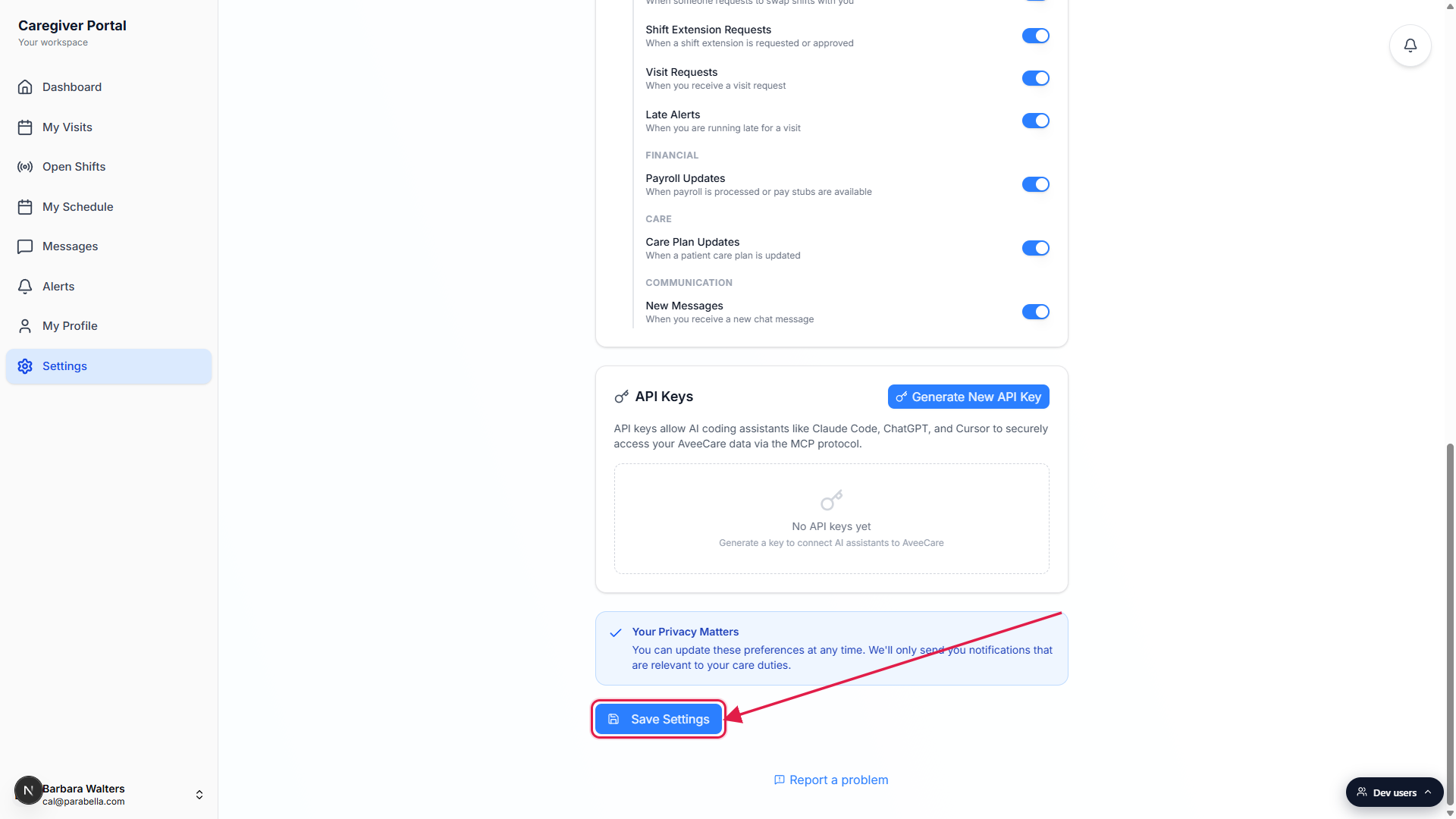
A green toast confirms Settings saved successfully.
A toast appears at the top of the page. The button text briefly changes to Saving with a spinner while the request is in flight. If the save fails you will see Failed to save settings instead.Changes take effect on the next notification trigger.
Once the toast confirms the save, future notifications respect the new toggles. Notifications already queued or in flight before the save may still come through.
Common pitfalls
- Forgetting to hit Save. The switches feel like they save instantly because they animate the moment you tap them, but the change is only sent to the server when you click Save Settings at the bottom. Reload the page without saving and the toggles snap back to their last-saved state.
- Turning off the top channel and looking for the sub-list. The fine-tune lists only appear when the parent Email or Push switch is on. If you turn the top toggle off, the sub-rows disappear from the page because they no longer apply.
- Expecting the agency admin to see your toggles. These are personal preferences. The admin side has its own agency-wide notification settings page. Your office cannot read which categories you switched off. They can only see the agency-level defaults they configured.
- Treating Push as covering text messages. SMS and Push are separate channels. SMS is the text-message channel that uses your phone number. Push is the mobile app channel that uses your device push token. Turning one off does not affect the other.
- Disabling notifications and missing a critical alert. The office can still call you. Some safety-critical alerts may also stay on at the agency level. If you turn everything off, coordinate with your office so they know how to reach you for urgent care issues.