My Profile is the caregiver-side view of your own staff record. It gathers your basic info, contact details, address, and certifications on a single scroll. Every field is read-only by design. The office side of AveeCare owns the source of truth for staff records, so updates flow from them to you, not the other way around.
Quick answer
Open My Profile in the Caregiver Portal sidebar. You will see a blue Profile Information banner at the top reminding you that the page is read-only, followed by four cards: Basic Information, Contact Information, Address, and Certifications. If anything is wrong, message your office, do not look for an Edit button. There is not one.
1. Open My Profile from the Caregiver Portal
Click My Profile in the Caregiver Portal sidebar.
The caregiver sidebar lists Dashboard, My Visits, Open Shifts, My Schedule, Messages, Alerts, My Profile, and Settings. My Profile is your own staff record. It does not show other caregivers and it does not show patients.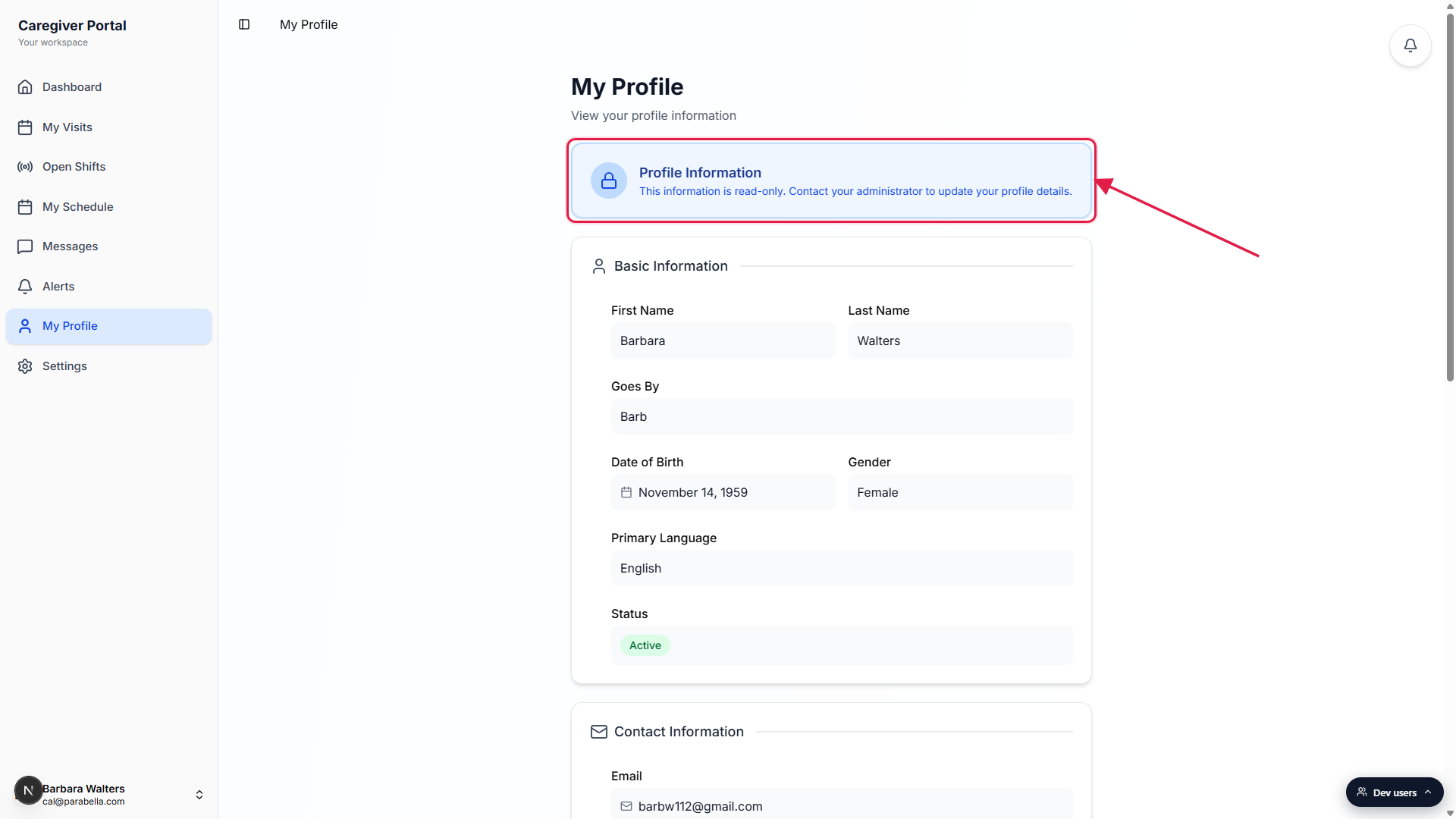
The page header reads My Profile.
Subtitle is View your profile information. The blue Profile Information banner just below the header sets the expectation for the rest of the page. No tabs, no edit toggle, no save bar at the bottom.
2. Read the four profile sections
Basic Information.
First Name, Last Name, Goes By (the nickname the office and patients use for you), Date of Birth, Gender, Primary Language, and Status. Status shows as a colored pill. Active is green, On Leave is yellow, anything else is gray.Contact Information.
Email and Phone Numbers. The email is the one your office uses for important notices. Phone numbers can include multiple entries, each with a small label like Mobile, Home, or Work, shown in parentheses next to the number.Address.
Street Address, City, State, Zip Code, and Active Region. Active Region is the service area your office assigns you to for routing visits. It is not your home address. It is the cities or neighborhoods you are scheduled in.Certifications.
Each certification card shows the name, the date you obtained it, and the date it expires. CPR, First Aid, HHA Training, CNA License, and any other credentials your office has on file. If a card is missing, the office has not added it yet.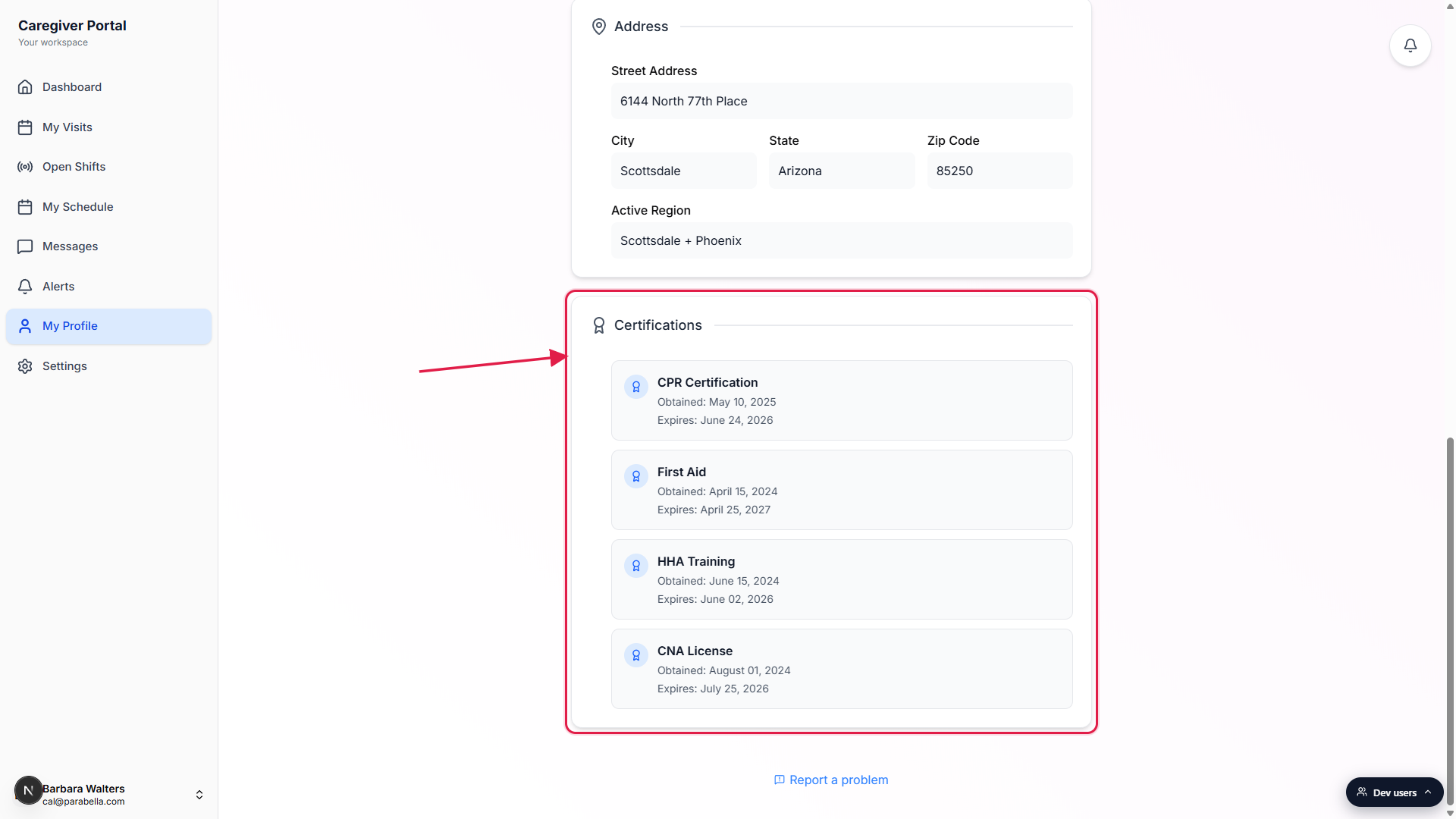
3. Confirm the read-only state on every field
Click on any value, it will not become editable.
Field values are rendered as plain text inside a light gray box, not as form inputs. They look slightly like inputs from a distance, but there is no cursor, no border focus ring on click, and no Save button on the page.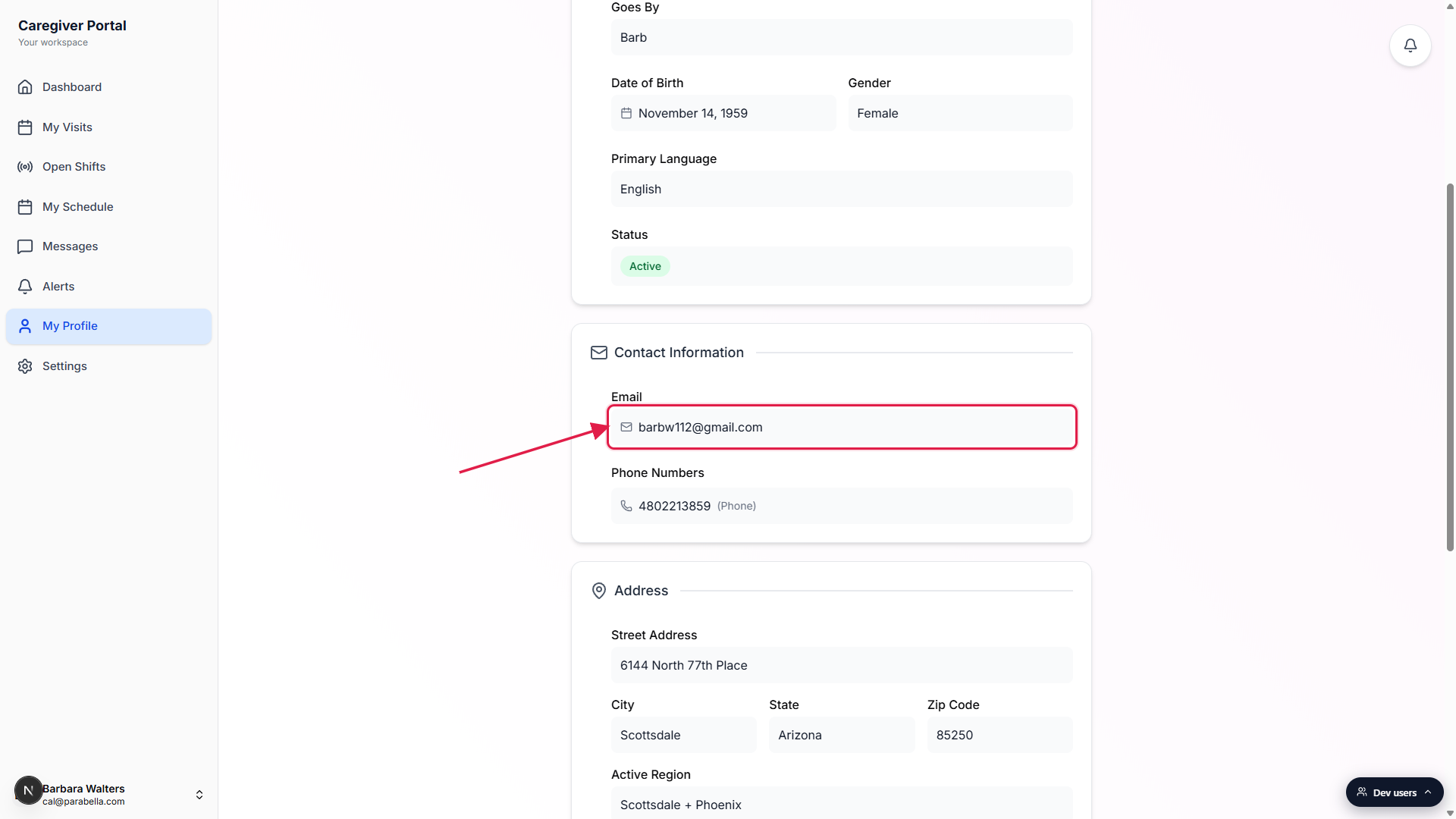
There is no Edit, Save, or Submit button anywhere on the page.
Some fields look interactive on first glance because they sit in soft gray containers. They are not. If you ever see a Save bar on My Profile, that is a bug. Report it and the office will look at the record.
4. Ask the office when something needs to change
Message your office through Messages in the sidebar.
Open Messages and start a chat with your office contact. Tell them which field is wrong and what it should be. Common examples: a name spelled wrong, a new phone number, a new home address after moving, or a renewed certification.For certifications, send the new document with the message.
Office staff add credentials on the admin side from your paperwork. Attach a photo or PDF of the new certificate to speed it up. Once they save it, the new card shows up on My Profile with the obtained and expires dates filled in.Refresh My Profile after the office tells you they updated it.
Changes are not pushed in real time. Pull-to-refresh on mobile, or reload the page in a browser, after the office confirms the update. You will then see the new value in the relevant card.
Common pitfalls
- Looking for an Edit button. There is not one. My Profile is intentionally read-only because the office side owns the staff record. Save yourself the hunt and ping the office through Messages instead.
- Mixing up Active Region and Address. Active Region is the service area you cover for visits. Address is where you live. They are often the same city, but not always. If your office dispatches visits in a region you no longer drive to, ask them to adjust Active Region, not your home address.
- Treating a missing certification card as a deletion. If your CPR or HHA card is not on the page, it has not been entered on the admin side yet. Send the office the document and they will add it. The expired ones do stay visible until the office removes them, so use the Expires date as the source of truth.
- Updating the wrong number. Phone Numbers can have several entries with labels like Mobile or Home. When you ask the office to change a number, name the label so they know which one to touch. Otherwise they may update the wrong row.
- Refreshing too soon. Wait for the office to confirm they saved the change. The profile reloads from the server on page load, so an early refresh shows the old value and looks like the office did not do anything.
Related
- Caregiver dashboard
- Caregiver certifications (admin)
- Caregiver overview tab (admin)
- Caregiver notification preferences