The Caregiver dashboard is the home screen every caregiver lands on right after sign-in. It shows hours worked this week, any visit in progress, the next few upcoming visits, and shortcut tiles into Visits, Messages, Alerts, and Profile. Same page whether you open AveeCare on the web or in the mobile app.
Quick answer
Sign in as a caregiver and you are dropped on the Dashboard. The sidebar reads Caregiver Portal. The top banner greets you by first name and tells you how many visits are scheduled for today. Below that: This Week's Hours, three quick-stat tiles, the Upcoming Visits list, and a Quick Actions row.
1. Sign in and land on Dashboard
Sign in with your caregiver email.
AveeCare reads your role from your user record. Caregivers see the Caregiver Portal sidebar with Dashboard, My Visits, Open Shifts, My Schedule, Messages, Alerts, My Profile, and Settings. Admins see a different navigation set.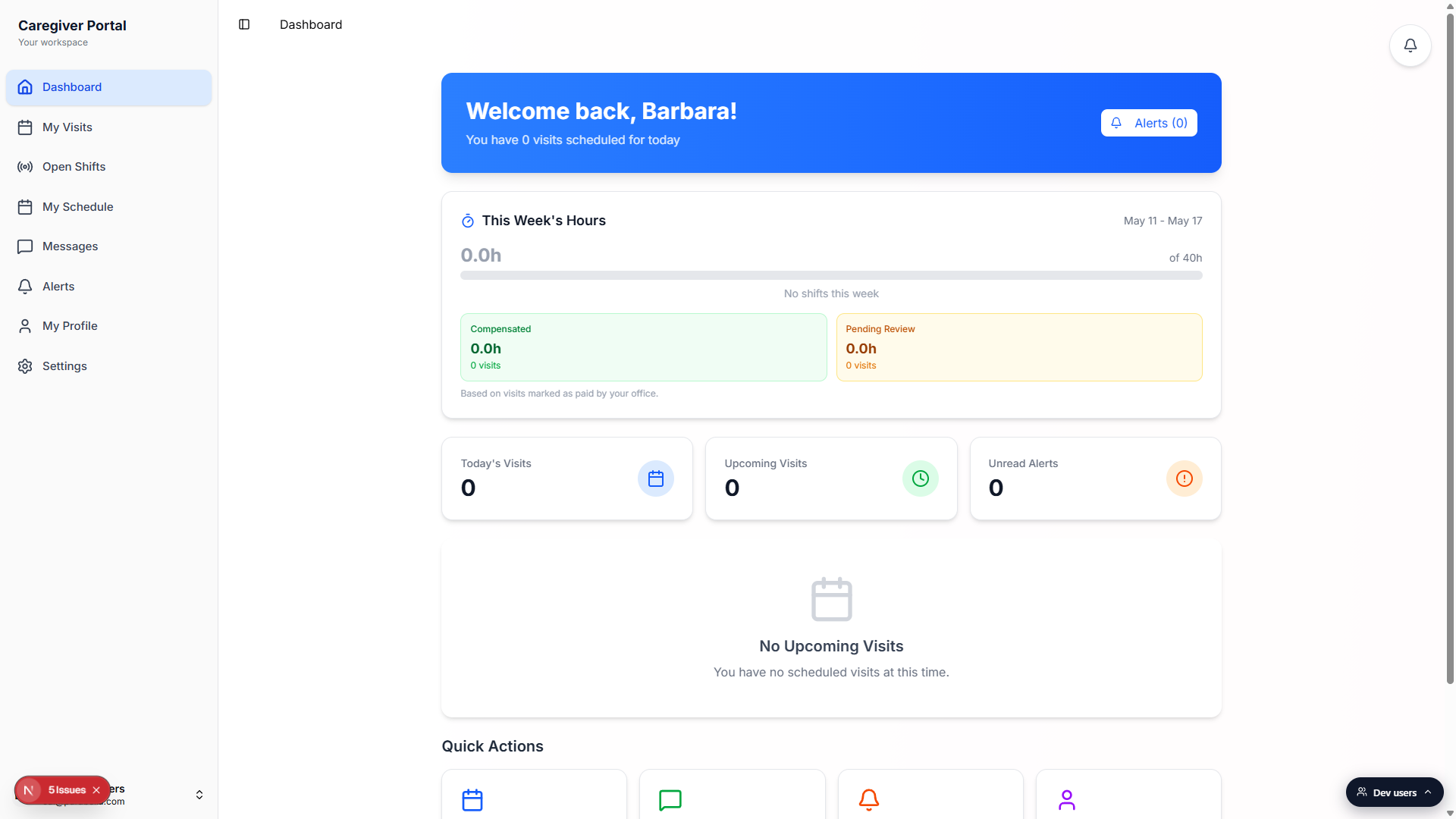
Read the blue Welcome back banner.
The banner pulls your first name from your profile and counts today's scheduled visits. The Alerts button on the right jumps to the alerts page and shows your unread count in parentheses.
2. Read This Week's Hours
Check the weekly total at the top of the card.
The big number is your running total for the current week (Monday through Sunday) measured against a 40-hour bar. The bar fills as hours land. Once you cross 32 hours the bar turns amber, and crossing 40 turns it red with an Overtime label showing how many hours you are over the limit.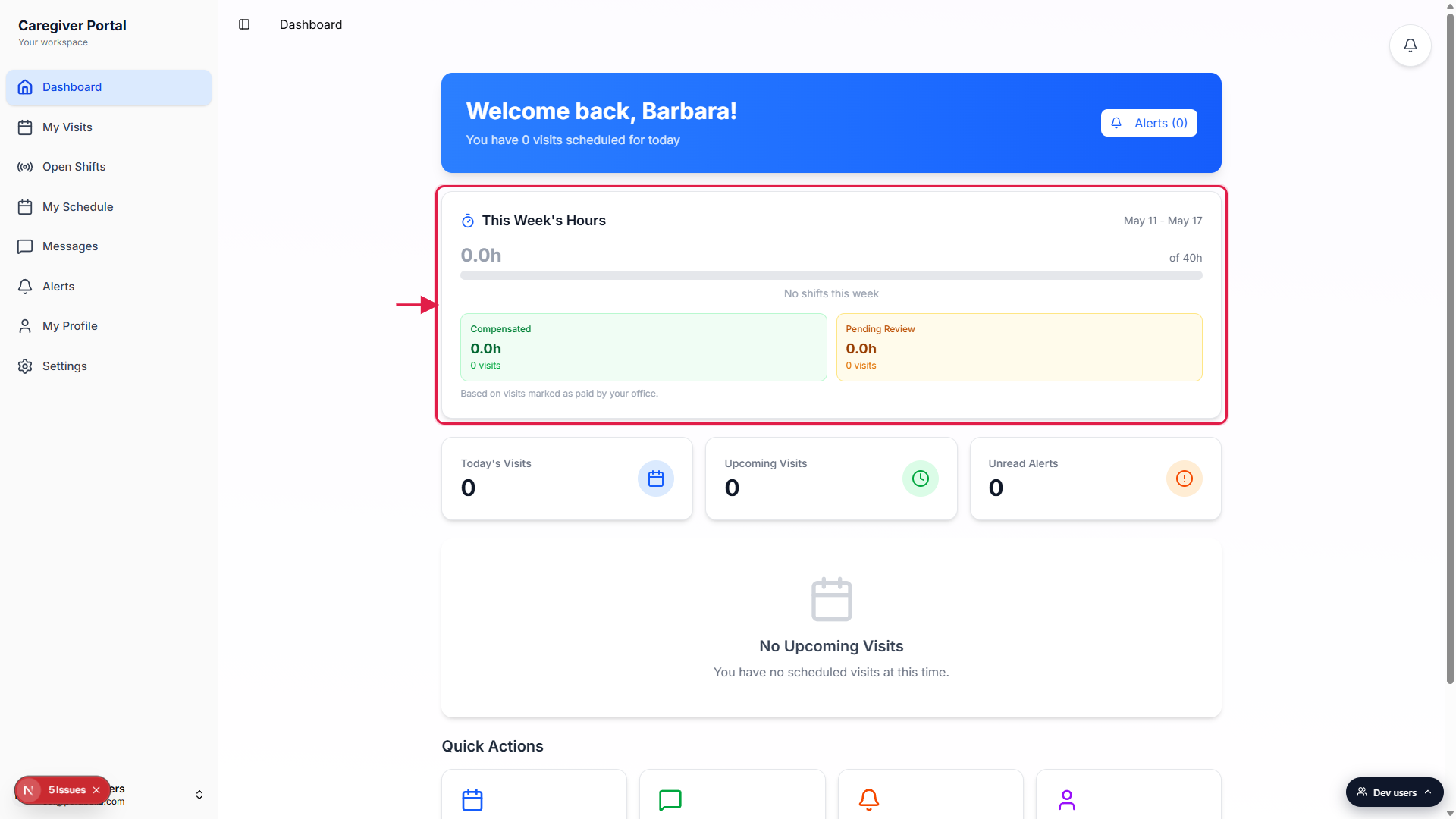
Read the Compensated vs Pending Review breakdown.
Compensated is hours your office has already marked as paid out. Pending Review is hours from completed, incomplete, in progress, or overtime visits that have not been paid out yet. A third Scheduled tile appears when you still have hours on the books for later this week.
3. Work the active visit and upcoming list
If a visit is in progress, use the green Continue Visit banner.
When you have a visit clocked in, a green Visit in Progress banner appears under the hours card with the patient name and a Continue Visit button. Tap it to jump straight back into the visit detail screen for documentation or clock-out.Confirm any visit that is within two hours.
Scheduled visits starting in the next two hours show a yellow Visits Need Confirmation card. Tap Confirm next to each one so the office knows you are on the way. Confirmation does not start the visit, it just acknowledges you are ready.Scan the Upcoming Visits panel.
The Upcoming Visits panel shows your next five scheduled or in-progress visits with patient, address, time, status, and an action button. The action button reads Start Visit once you are inside the clock-in window, Continue Visit if you already started, or View Details otherwise.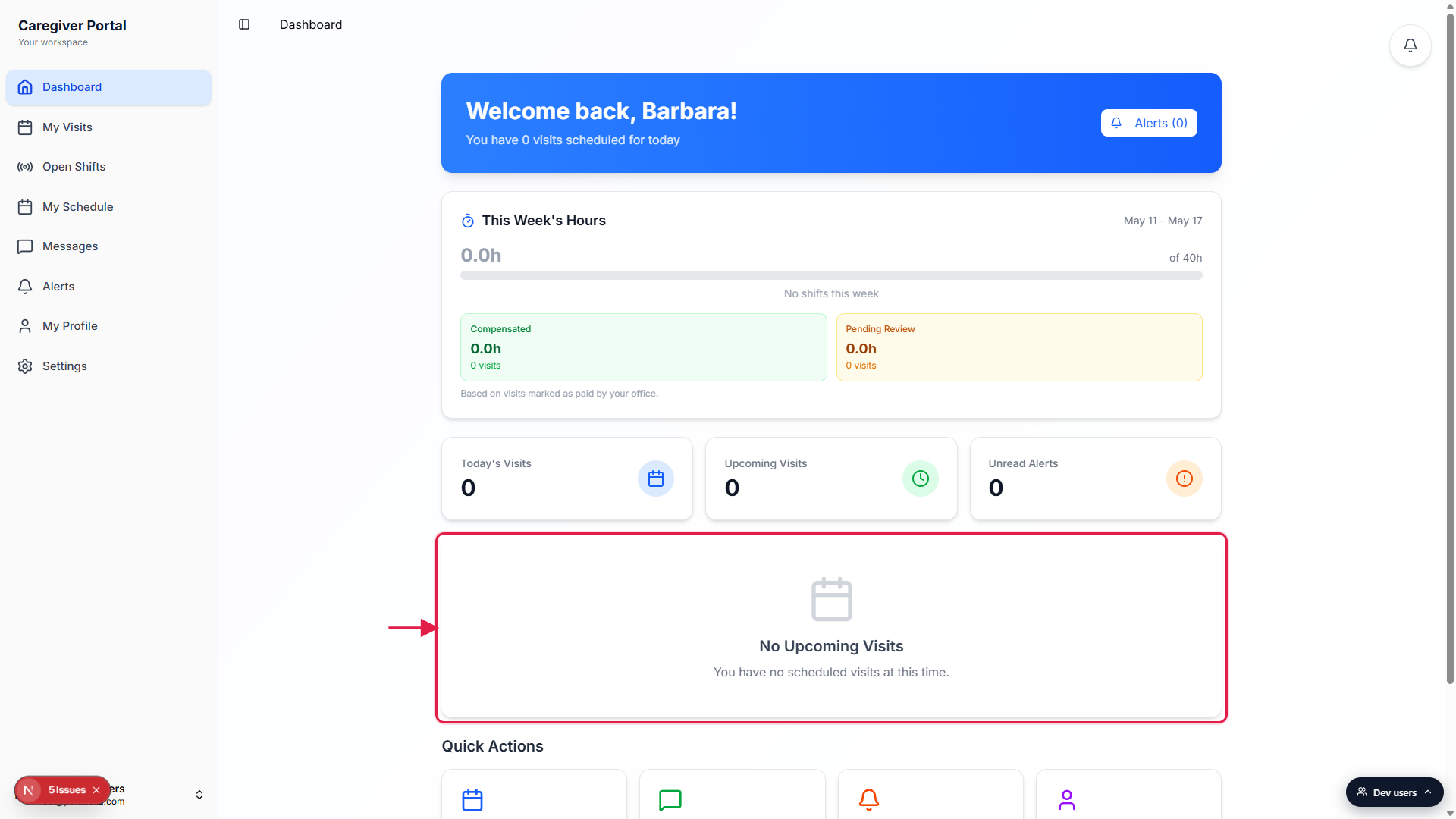
4. Use Quick Actions to jump around
Pick a tile from Quick Actions.
Four tiles sit at the bottom of the dashboard. All Visits opens the full visit list and calendar view. Messages opens the chat page. Alerts opens the notifications page. My Profile opens your profile page where you can update contact info and view training expirations.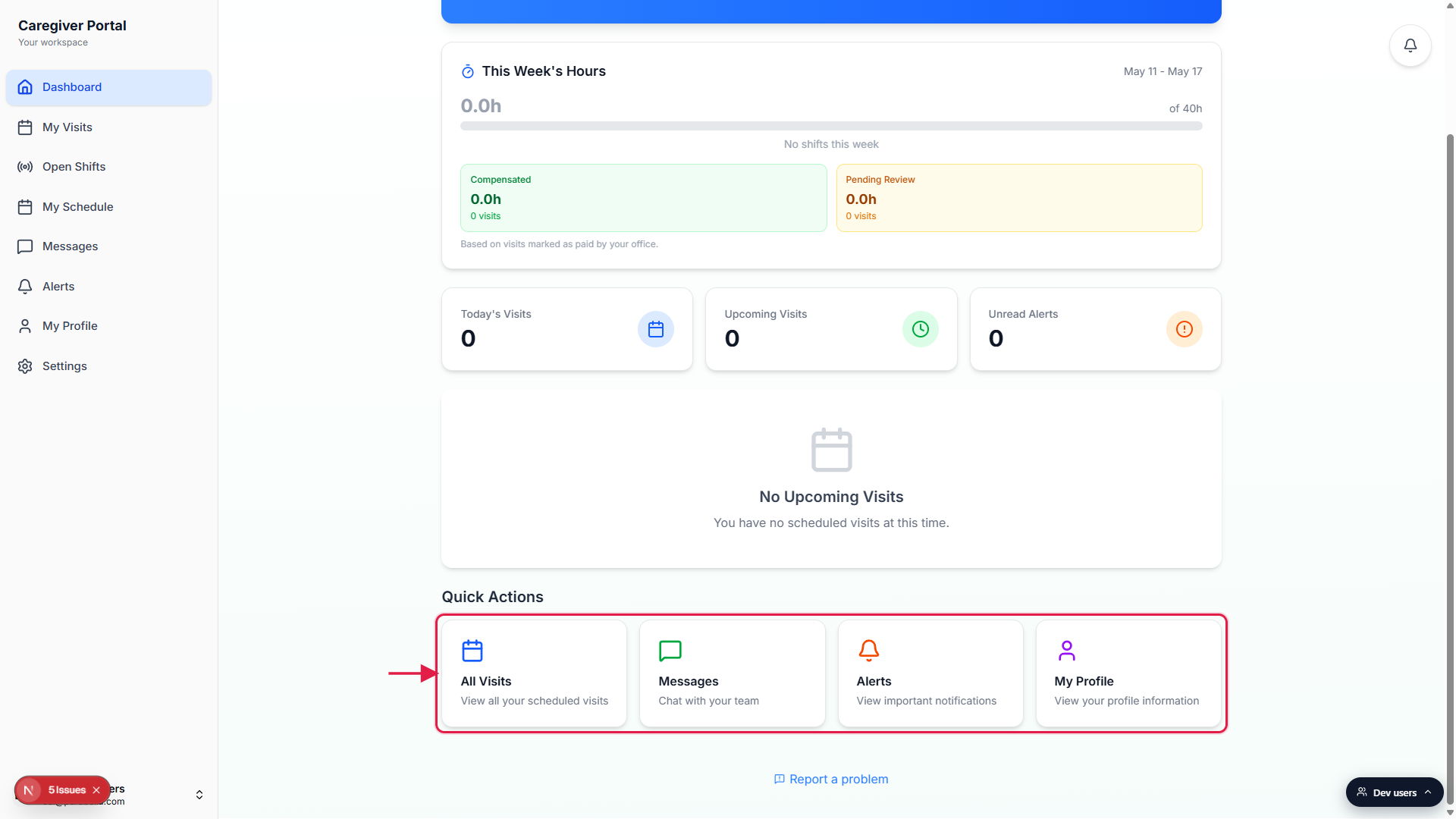
Tap the office phone number in the footer when you need help.
When your office sets a business phone number under Settings, a small blue card at the bottom of the dashboard lets you tap to call them. Use it if something is wrong with a visit, the clock-in window will not open, or you need to swap a shift.
Common pitfalls
- No banner because no visit is clocked in. The green Visit in Progress banner only shows once you have actually started a visit. If you are scheduled but not yet clocked in, you see the Upcoming Visits panel and (if within two hours) the yellow confirmation card instead.
- Start Visit button is greyed out. The clock-in window opens based on your office's settings. Default is 30 minutes before the scheduled start. If the button is disabled, you are still outside the window. View Details still works so you can read the care plan ahead of time.
- Confused by Compensated vs Pending Review.Compensated is what payroll has already approved and paid. Pending Review is the work that is done or in progress but not yet paid out by the office. Hours move from Pending Review to Compensated when payroll runs.
- Hours show 0.0h after a long week. Weekly totals reset on Monday based on your browser's local time zone. If you start a week on Sunday night, those hours may land in the previous week. The date range under This Week's Hours always shows the window the dashboard is counting.
- Upcoming Visits caps at five. The dashboard only surfaces the next five. To see the rest, tap All Visits in Quick Actions or click My Visits in the sidebar.
Related
- Caregiver visits (list and calendar)
- Active visit banner
- Caregiver visit detail
- Caregiver schedule (day and week)