My Schedule is the caregiver-side calendar of your assigned visits and any open shifts you have signed up for. It opens to the current week by default and pairs a Day / Week toggle with a thin red current-time line so you can see where you are in the workday at a glance.
Quick answer
Sign in as a caregiver and pick My Schedule in the sidebar. Use the Day / Week toggle in the top right to switch views. The horizontal red line marks the current time. Click any visit block to open the visit detail page.
1. Open My Schedule from the Caregiver sidebar
Click My Schedule in the Caregiver Portal sidebar.
The page header reads My Schedule with the subtitle View your visits and available shifts. The calendar opens on Week view by default, centered on the week containing today.
2. Switch between Day and Week with the toggle
Tap Day to see one day at full width.
Day view shows a single column with hourly slots from 12a through 11p. The page heading swaps from a week range like May 10 to 16, 2026 to the full date such as Monday, May 11, 2026. Use this view when you only want to focus on today or a specific day.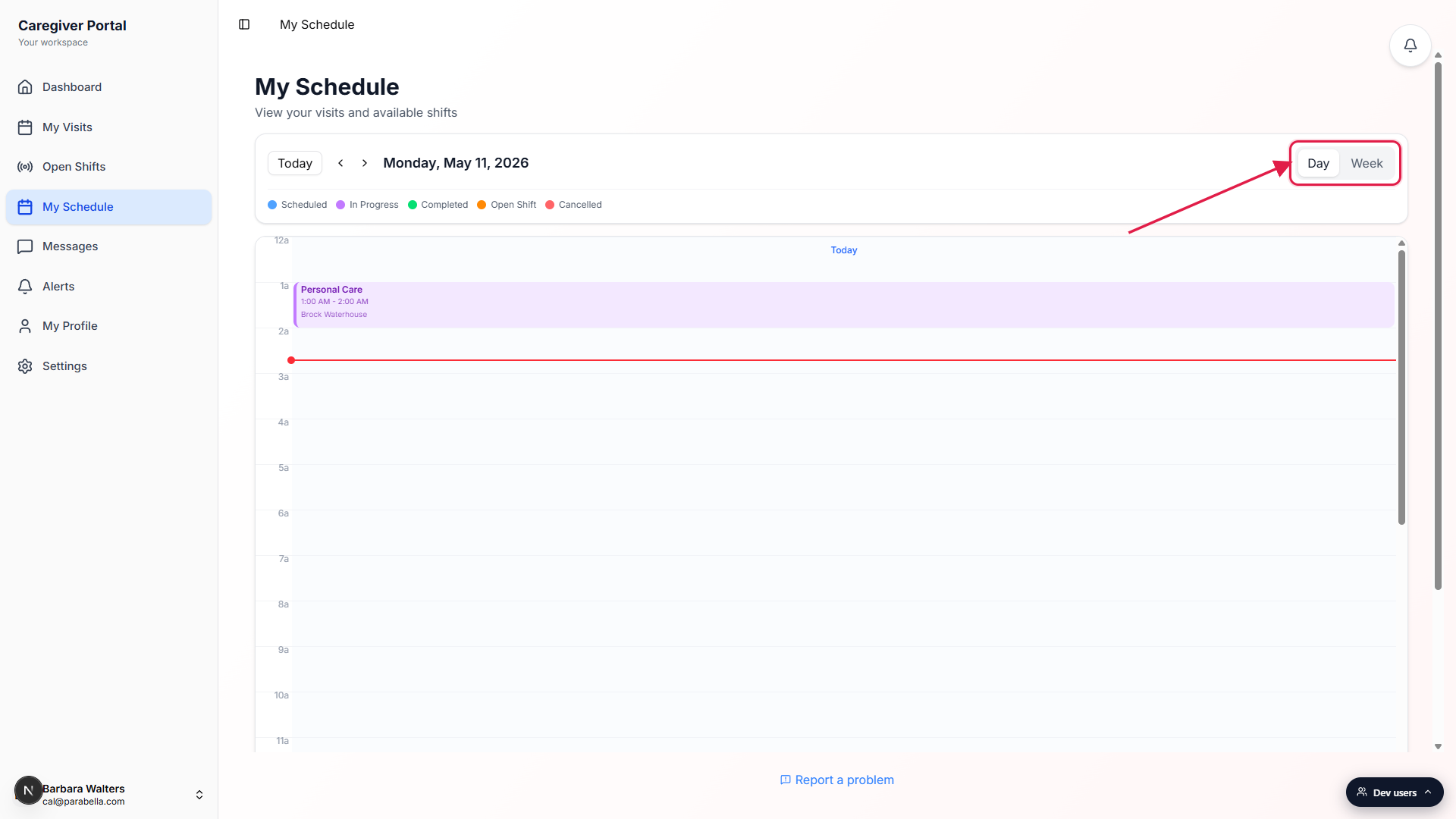
Tap Week to see all seven days side by side.
Week view lays out Sunday through Saturday as seven equal columns, each with its day-of-month number under the day name. The current day is shaded a light blue. Visit blocks land in their start-time row inside the matching day column.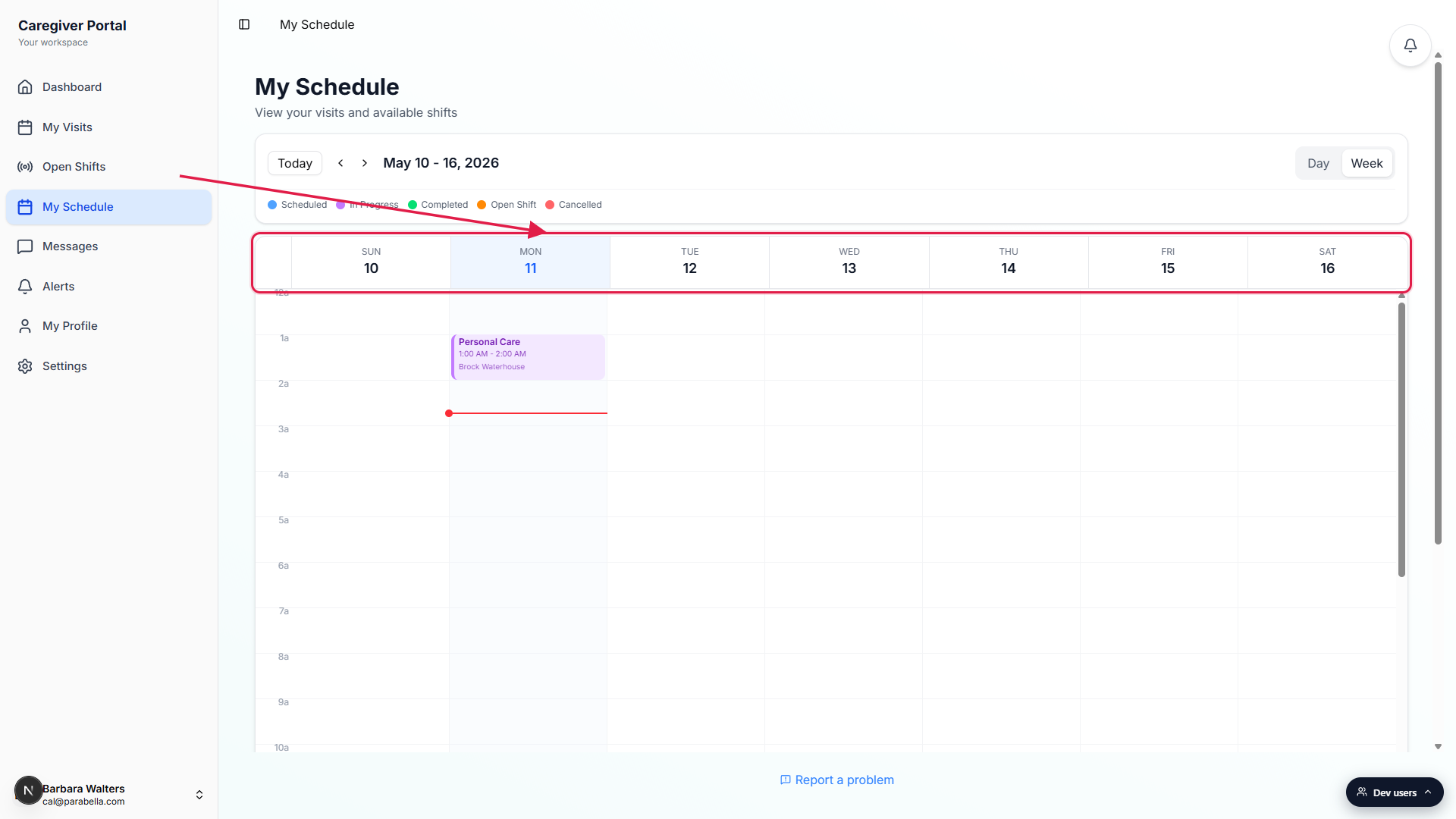
3. Read the current-time line and visit blocks
Find the thin red horizontal line crossing the calendar.
The red line marks the current time and slides downward through the day as the clock ticks. A small Today label and dot sit on the left side of the line so it is easy to spot even when the column is empty. Both Day and Week views show this line.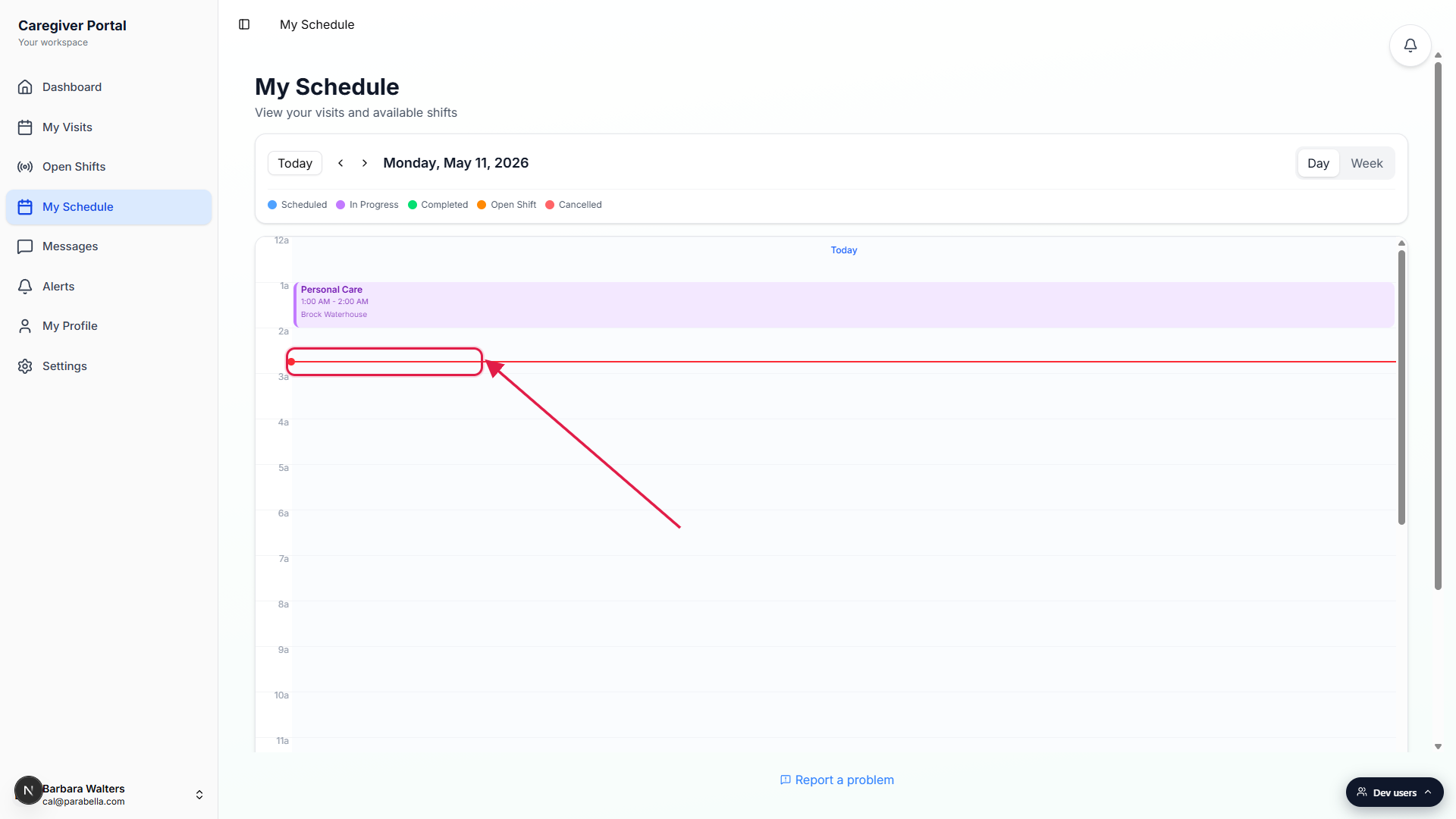
Read the visit blocks color-coded by status.
The color legend across the top of the calendar maps each color to a status: blue for Scheduled, purple for In Progress, green for Completed, orange for Open Shift, and red for Cancelled. Each visit block shows the visit title, start and end time, and the patient name. Click any block to open that visit detail page where you can clock in, document care, or read the care plan.
4. Navigate dates and jump back to Today
Step backward or forward with the arrow buttons.
The chevron arrows next to the date heading shift the view by one day in Day view, or by one week in Week view. There is no hard cap on how far you can page in either direction.Tap Today to snap back to the current day or week.
The Today button on the left side of the toolbar resets the view to the day or week containing right now. The current-time line reappears on whichever view is active so you can see how close the next visit is.
Common pitfalls
- Missing visits when paging. If a visit disappears, double-check the date heading. The arrows can land you in a different week or month, and the visit you expected might be on the previous or next page. Tap Today to reset.
- No Month view here. My Schedule only offers Day and Week. The office-side scheduling calendar has Day, Week, and Month, but on the caregiver side a month grid is intentionally out of scope to keep the surface tight. Use Week and the arrows to scan a few weeks.
- Open Shifts show in orange. Visits you have not been assigned to yet, but that are listed in Open Shifts, can still appear on the calendar in orange. They are not your visits yet. Pick them up from the Open Shifts page first if you want to claim them.
- Cancelled visits still show. The calendar does not hide a cancelled visit, it just colors it red. To stop seeing it, remove it from the schedule on the office side. On the caregiver side, a red block is informational.
- Time zone follows your browser. The current-time line and the visit start and end times render in whatever time zone your browser thinks you are in. If you travel and a visit looks off by a few hours, the calendar is reflecting your device clock, not the agency office time zone.