Scheduling is built on a Schedule-X calendar that switches between Day, Week, and Month layouts in one click. The same page also tabs over to the Available slot finder, the Resources timeline, and the Import flow, so the whole scheduling story lives in one screen.
Quick answer
Open Scheduling. The view buttons sit in the top-right of the calendar header. Click Day, Week, or Month to switch layouts. Use Today and the chevron arrows to move through dates. The diagonal-arrows icon opens fullscreen, and the - / + buttons next to 100% zoom the time grid.
1. Switch between Day, Week, and Month
Click Day, Week, or Month in the top-right of the calendar.
The page lands on Week by default. The active view button shows a solid blue fill so you can tell at a glance which layout you're looking at. Switching between views keeps the same date range, it only changes how the calendar renders the time grid.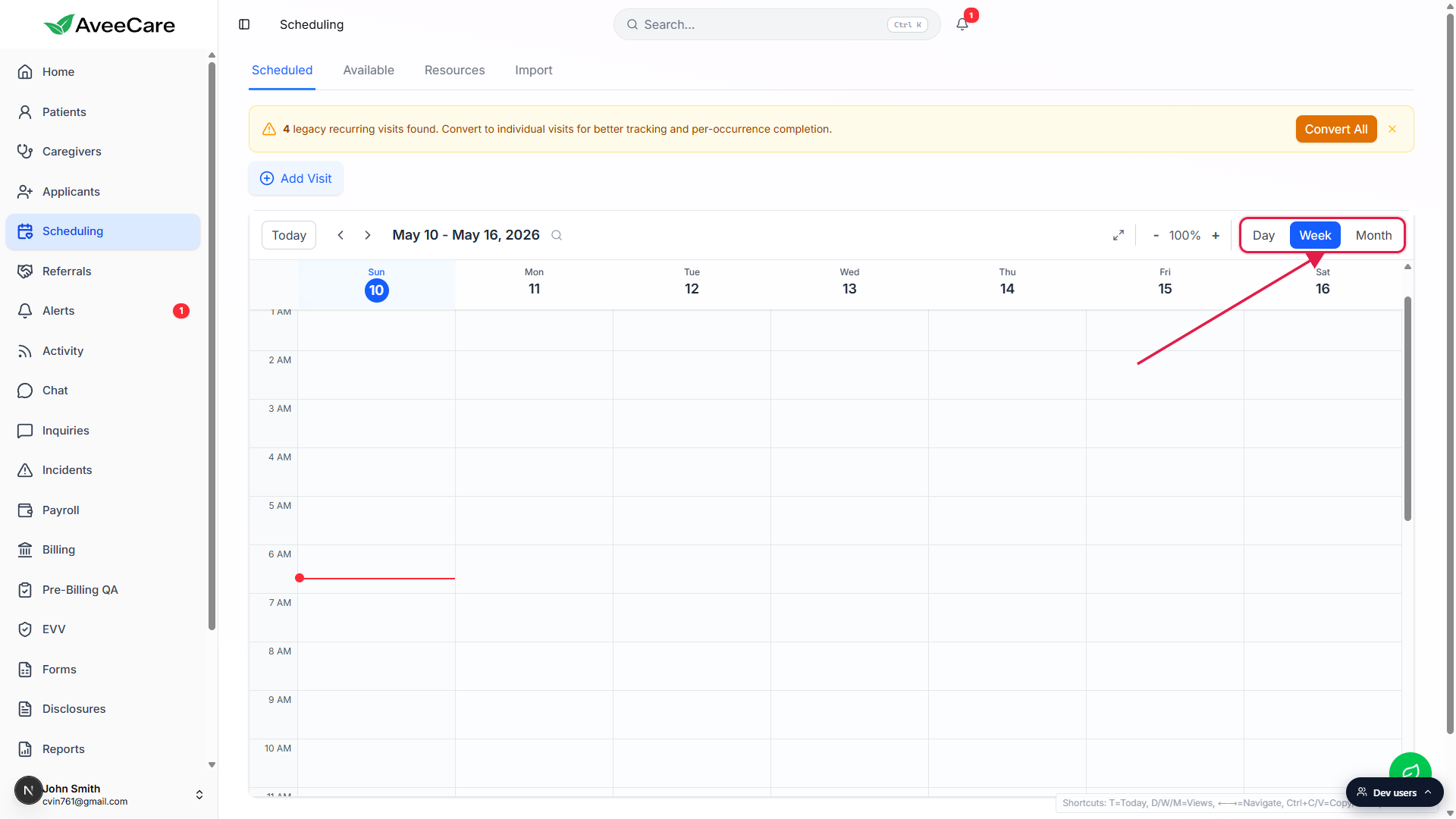
Day view is hour-by-hour for one date.
Best when you want to confirm there are no overlaps for a single shift, or when you're assigning early-morning visits and only care about that one day.Week view is the default planning layout.
Seven columns, one per day, Sunday on the left. The current day is highlighted with a blue date pill. This is the sweet spot for typical scheduling work.Month view shows a full calendar grid for the whole month.
Visit blocks render as colored chips inside each day cell so you can scan a month for coverage gaps or under-scheduled patients. Clicking a visit block opens the visit detail. See Visit detail modal for what shows up there.
2. Move through dates with Today, prev, and next
Click Today to snap back to the current date.
Useful after you've flipped a few weeks or months ahead and want to come home.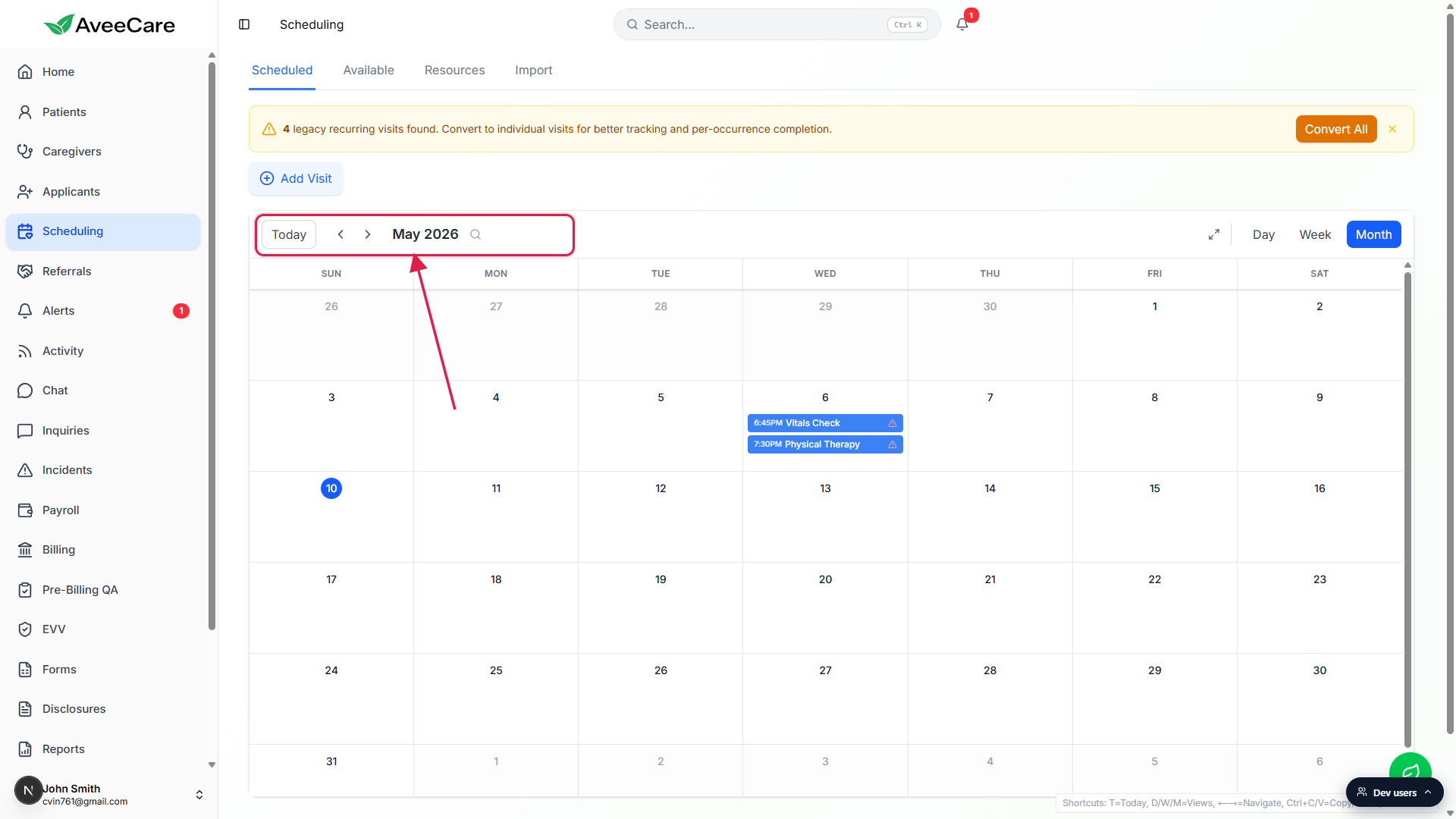
Use the left and right chevrons to step through the calendar.
The step matches the active view. On Day the arrows move one day, on Week they move a full week, on Month they move a full month. The date label between the arrows updates to show the current range, likeMay 10 - May 16, 2026on Week orMay 2026on Month.Click the magnifying-glass icon to jump to a specific date.
Sits right next to the date label. Faster than chevroning a few months ahead when you want to skip straight to a known date.
3. Use fullscreen and zoom for dense planning
Click the diagonal-arrows icon to enter fullscreen.
The browser fills its window with the calendar so the sidebar and chrome get out of your way. Press Escape or click the icon again to exit.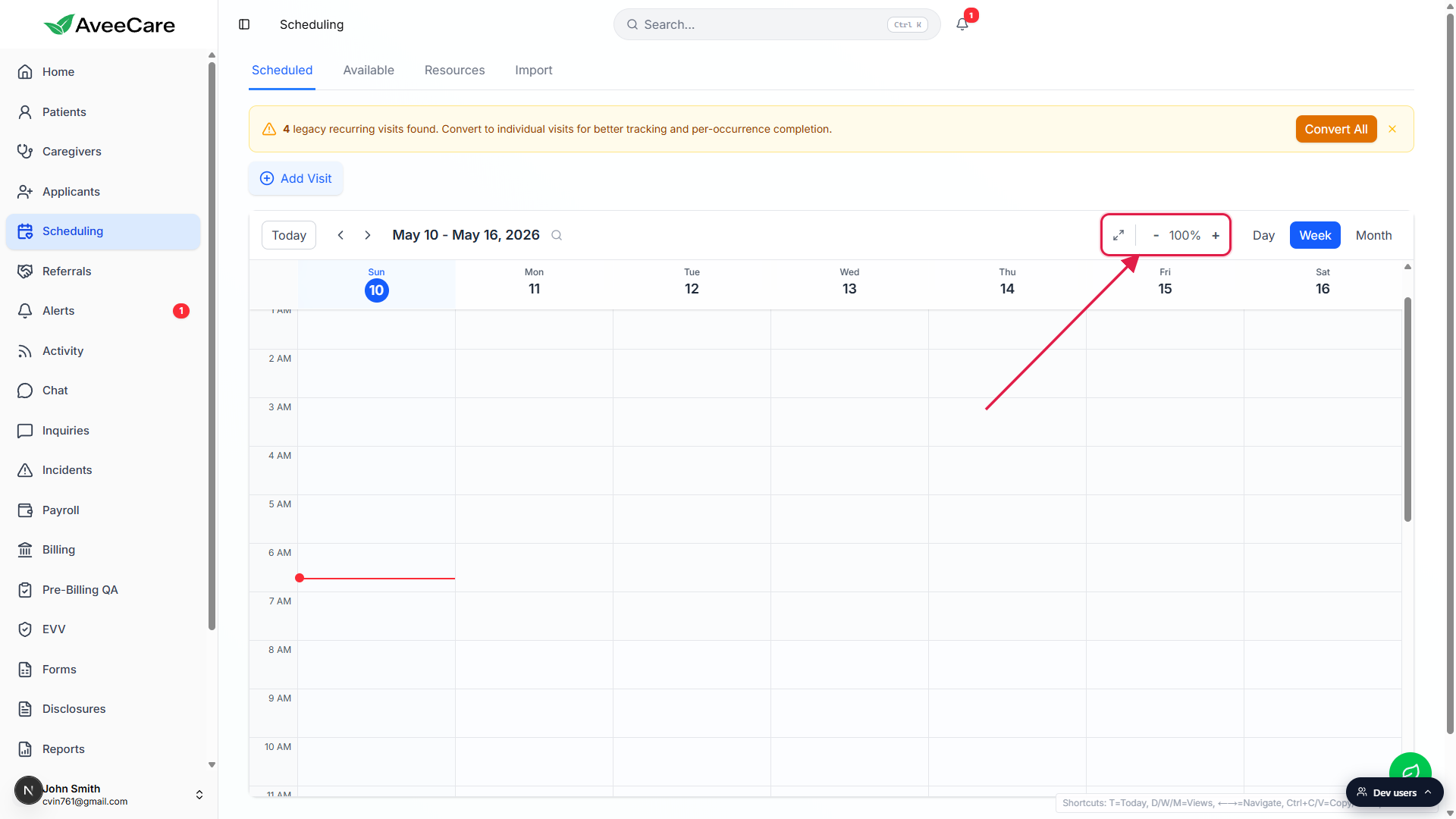
Use the - and + buttons next to 100% to zoom the time grid.
Zoom in when many visits stack at the same hour and you want to see them split out. Zoom out when you want more rows of the day visible without scrolling.
4. Switch tabs for Scheduled, Available, Resources, and Import
The tab strip at the top of Scheduling has four tabs.
Scheduled is the default and shows the Schedule-X calendar described above. Available is the open-slot finder. Resources shows caregivers as rows with hour columns for timeline-style planning. Import opens the .ics or .csv import flow. Each tab is a real route under/scheduling.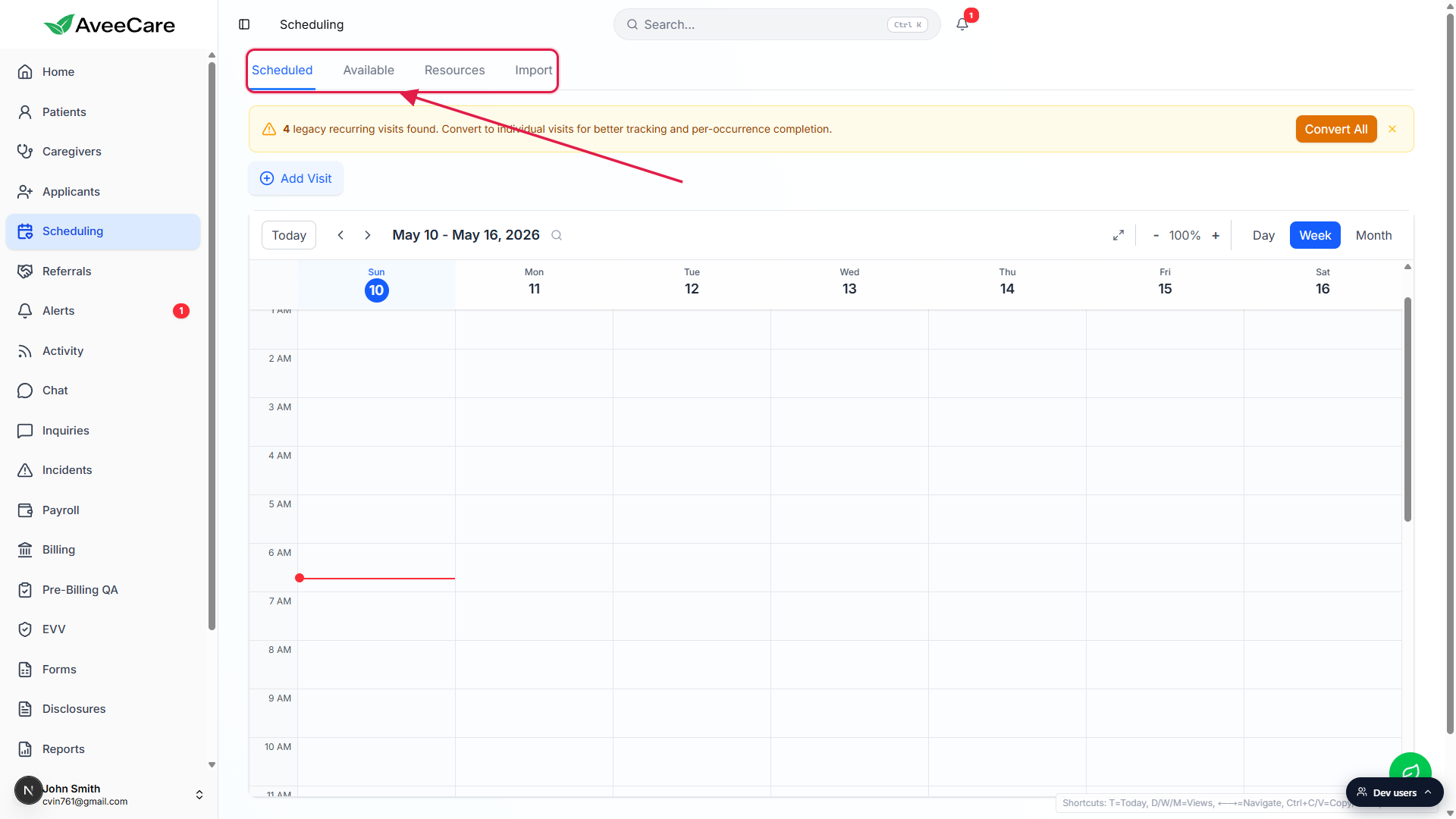
Read the related articles for the other tabs.
See Available slots viewer, Resource scheduler view, and Calendar import (.ics / .csv). The Day, Week, and Month switching covered here only applies to the Scheduled tab.
Common pitfalls
- Looking for an Agenda view. The Schedule-X calendar ships with Day, Week, and Month only. The agenda-style overview lives on the patient's Appointments tab and the caregiver-side schedule, not on this page.
- Confusing the legacy banner with new recurring visits. The amber “legacy recurring visits found” banner above the calendar refers to series scheduled under an older recurrence model. Click Convert All to expand them into individual visits. New recurring visits already render as per-occurrence blocks. See Recurring visits.
- Drifting weeks ahead and forgetting the way home. Click Today at any time to snap back to the current date. The chevrons do not snap, they only step.
- Expecting the view choice to persist forever. The page defaults to Week each new session. The view you pick sticks while you stay on Scheduling, but a fresh load resets it.
- Trying to drag a Month-view chip to a new time. Month view is for navigation and scanning. To reschedule by drag, switch to Day or Week first. See Drag and drop reschedule.