Appointments is the per-patient view of every visit ever scheduled for that patient. It rolls up totals at the top, lists Upcoming and Past visits in two collapsible sections, and lets you slot a new visit by searching caregiver availability without leaving the patient record.
Quick answer
Open Patients, click into a patient, then click the Appointments tab. Six stat tiles summarize the history. Underneath, Upcoming Appointments (next 2 weeks) is expanded by default, Past Appointments is collapsed, and Find Available Times & Schedule is at the bottom for booking a new visit.
What the six stat tiles show
- Total Appointments. Lifetime count, including cancelled.
- Upcoming. Active visits in the future, not cancelled.
- Cancelled. Lifetime count of cancelled visits, not a current state.
- Preferred Time. Computed from past start times, e.g. Evening (5pm+). Feeds the suggestion you see on the When step of the visit wizard.
- Avg Duration. Average visit length across the whole history.
- Past Visits. Lifetime count of completed and past-dated visits.
1. Open the Appointments tab on a patient
In the patient list, click a row to open the patient.
The patient detail view opens on the Overview tab. The tab strip runs Overview, Appointments, Forms, Files, Disclosures, Billing, and a long tail of clinical tabs to the right.Click Appointments in the tab strip.
It sits between Overview and Forms. Loading is fast even for patients with hundreds of visits, the list virtualizes after the first batch.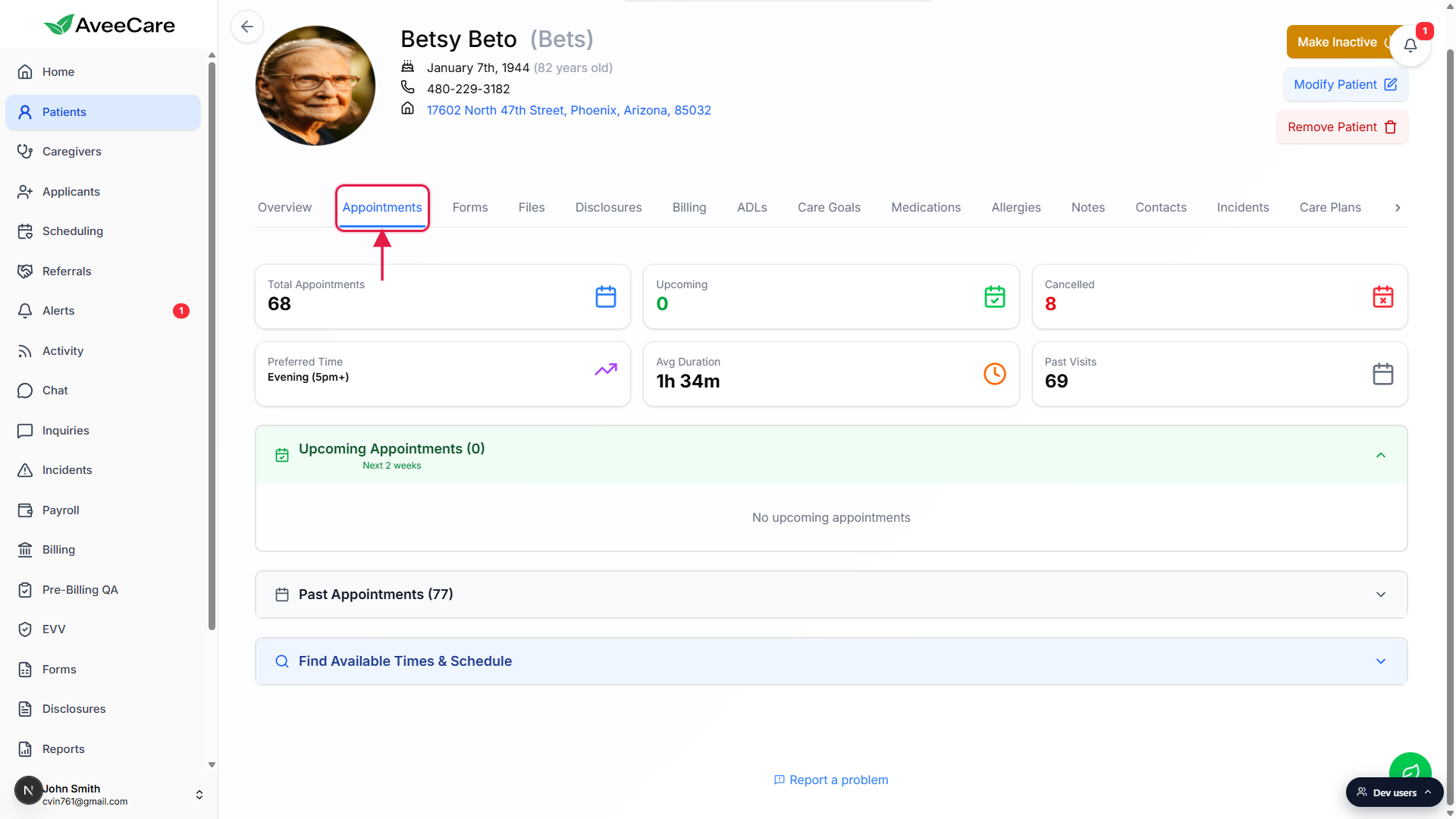
2. Read the six stat tiles at the top
Skim the tile row before scrolling.
The tiles tell you at a glance whether the patient has any upcoming visits, how many cancellations they have on record, and what time of day they tend to be seen. Preferred Time is the one most schedulers care about, since it's what the visit wizard uses to suggest a start time when you book.Below the tiles you see three collapsible sections.
Upcoming Appointments (next 2 weeks) is expanded by default. Past Appointments and Find Available Times & Schedule start collapsed so the page loads short.
3. Work the Upcoming and Past lists
Upcoming Appointments shows the next 2 weeks only.
Each row has the visit title, date, start and end time, caregiver, and address if set. A pencil icon edits the visit, a red trash icon opens the same edit modal with delete exposed. To reassign, open the edit modal and change the caregiver. To cancel, open it and use Delete (the modal handles single-occurrence vs whole-series for recurring visits).Click Past Appointments to expand the full history.
Past visits start collapsed because there are usually a lot. Once expanded, a search box filters by title, caregiver, or date, and an All Status dropdown narrows to Active or Cancelled. Each row shows a pencil icon on the right that opens the same edit modal as upcoming visits.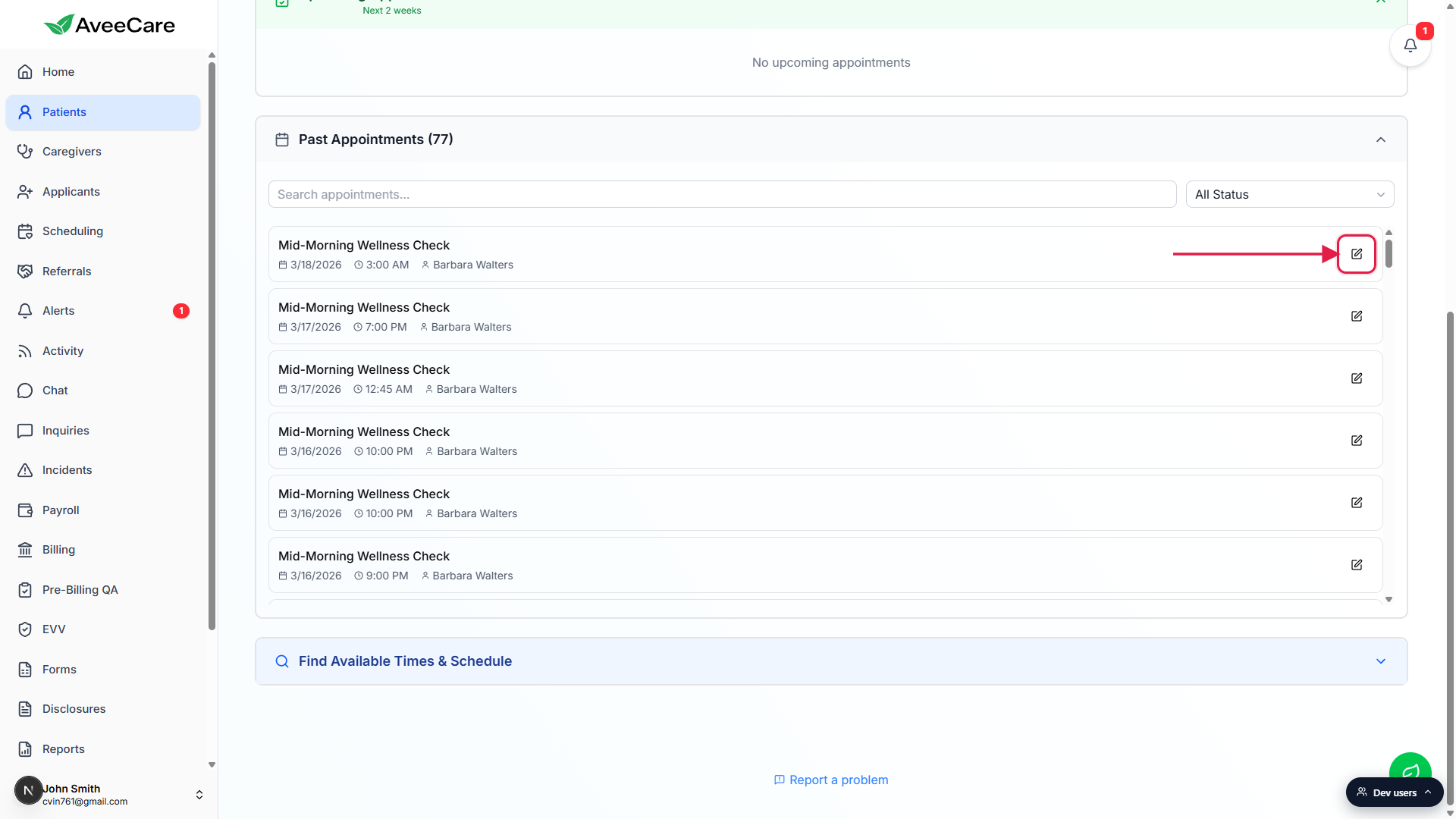
4. Slot a new visit with Find Available Times
Click Find Available Times & Schedule at the bottom.
The blue accordion expands into a caregiver multi-select, a Filter by Date toggle with start and end dates, a Filter by Time toggle with start, end, and AM/PM, plus Duration in hours and minutes and a Max Results cap. Pick the caregivers you want to consider, narrow the window, and click Search.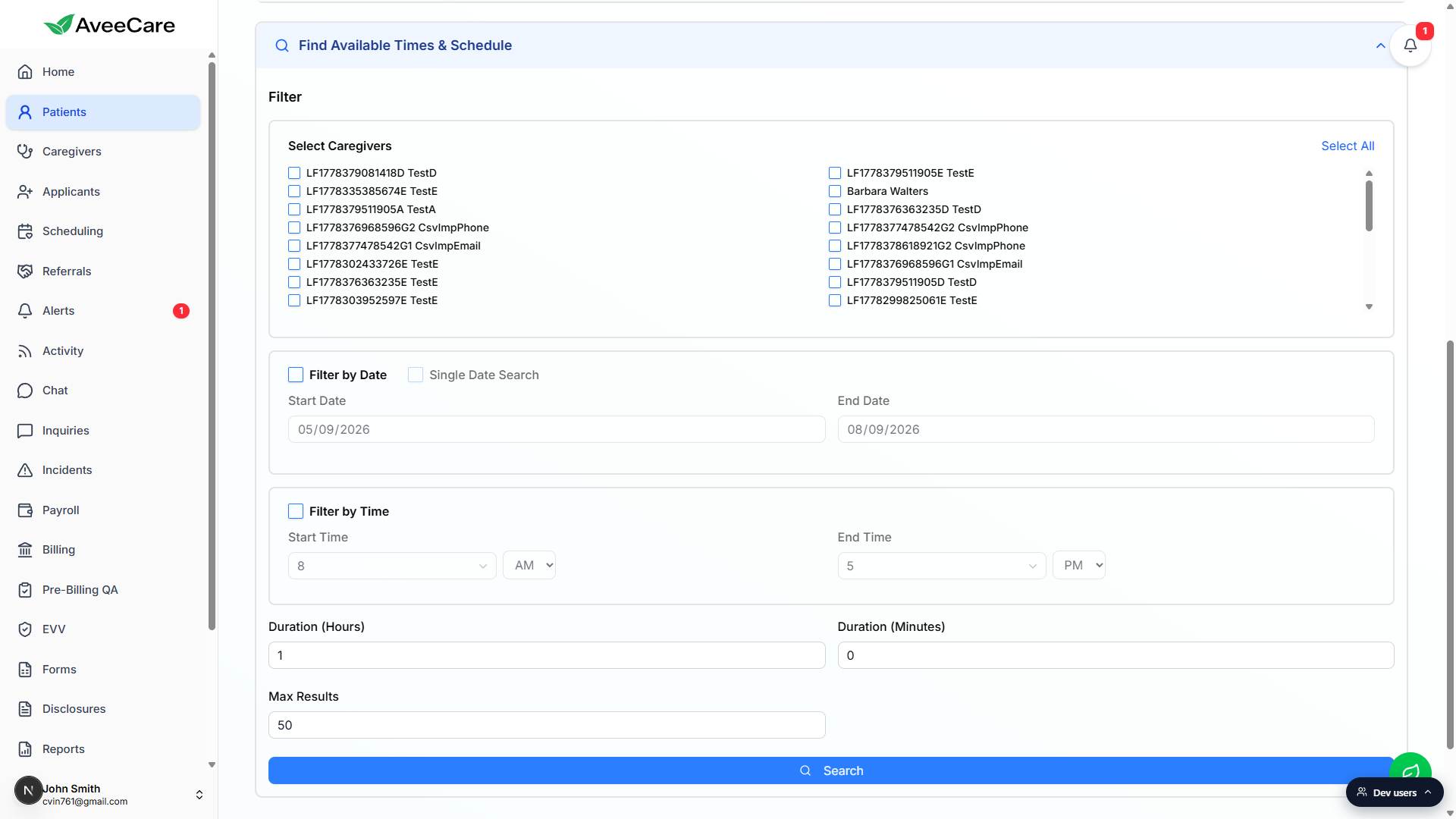
AveeCare returns slots that fit. Click one to schedule.
Each result is a caregiver plus a free window in their schedule. Clicking a slot opens the visit scheduler modal pre-filled with the patient, caregiver, and start and end times. Confirm the rest (visit type, ADLs, notes) and save. For a series, see Recurring visits.
Common pitfalls
- Confusing this with the agency calendar. This view is patient-scoped only. The agency-wide calendar lives at
/scheduling. Use Scheduling when you need to see everyone, use this tab when you're working with one patient. - Past Visits stuck collapsed. If you came here for billing or chart-review context, expand the Past Appointments accordion. The page deliberately hides it on first load so it stays short.
- Cancelled count on a patient with zero upcoming visits. Cancelled is a lifetime counter, not a current state. A patient can have 0 Upcoming and a Cancelled count of 8 because it rolls all-time cancellations.
- Recurring series look like duplicates. Each occurrence appears as its own row. The series itself is not a row, it's expanded into individual visits, so a weekly series running 12 weeks shows up as 12 rows here.
- Find Available Times needs at least one caregiver picked. The caregiver multi-select defaults to none. If you click Search with nothing selected, you get no results. Use Select All if you don't care which caregiver fills the slot.