The Billing sub-tab on a patient record is the per-patient billing surface. It shows the current balance, every payment method on file, the billing contact, per-patient billing preferences (including a rate override), and the invoice history that belongs to this one patient.
Quick answer
Open Patients, click a patient, then click the Billing tab. The Outstanding Balance card sits at the top with Send Statement and Quick Pay actions. Below it: Payment Methods, Billing Contact, Billing Preferences, and Invoice History.
What lives on this tab
Six sections, top to bottom:
- Outstanding Balance. Current Balance amount, plus Send Statement and Quick Pay buttons.
- Payment Methods. Cards and bank accounts on file with Default and Active badges. Add Payment Method opens the Stripe or Square connector.
- Billing Contact. Name, email, phone, and relationship for whoever receives statements. The default is to reuse the patient's own contact info.
- Billing Preferences. Auto-bill visits toggle, Default Payment Integration, and Default Billing Rate Override.
- Invoice History. Every invoice created for this patient. Empty state reads “No invoices found” until the first one is generated.
Generating new invoices and running the CMS-1500 wizard happen in the agency-wide Billing area, not on this tab. See the Invoices tab and the CMS-1500 Simple wizard articles for those flows.
1. Open the Billing sub-tab on a patient
Click Patients in the sidebar, then click the patient row.
Any active or inactive patient works. The header row shows the patient's name, date of birth, phone, and address.Click the Billing tab in the row of sub-tabs.
Billing sits between Disclosures and ADLs. The page loads quickly, since this is a per-patient view, not the agency-wide billing dashboard.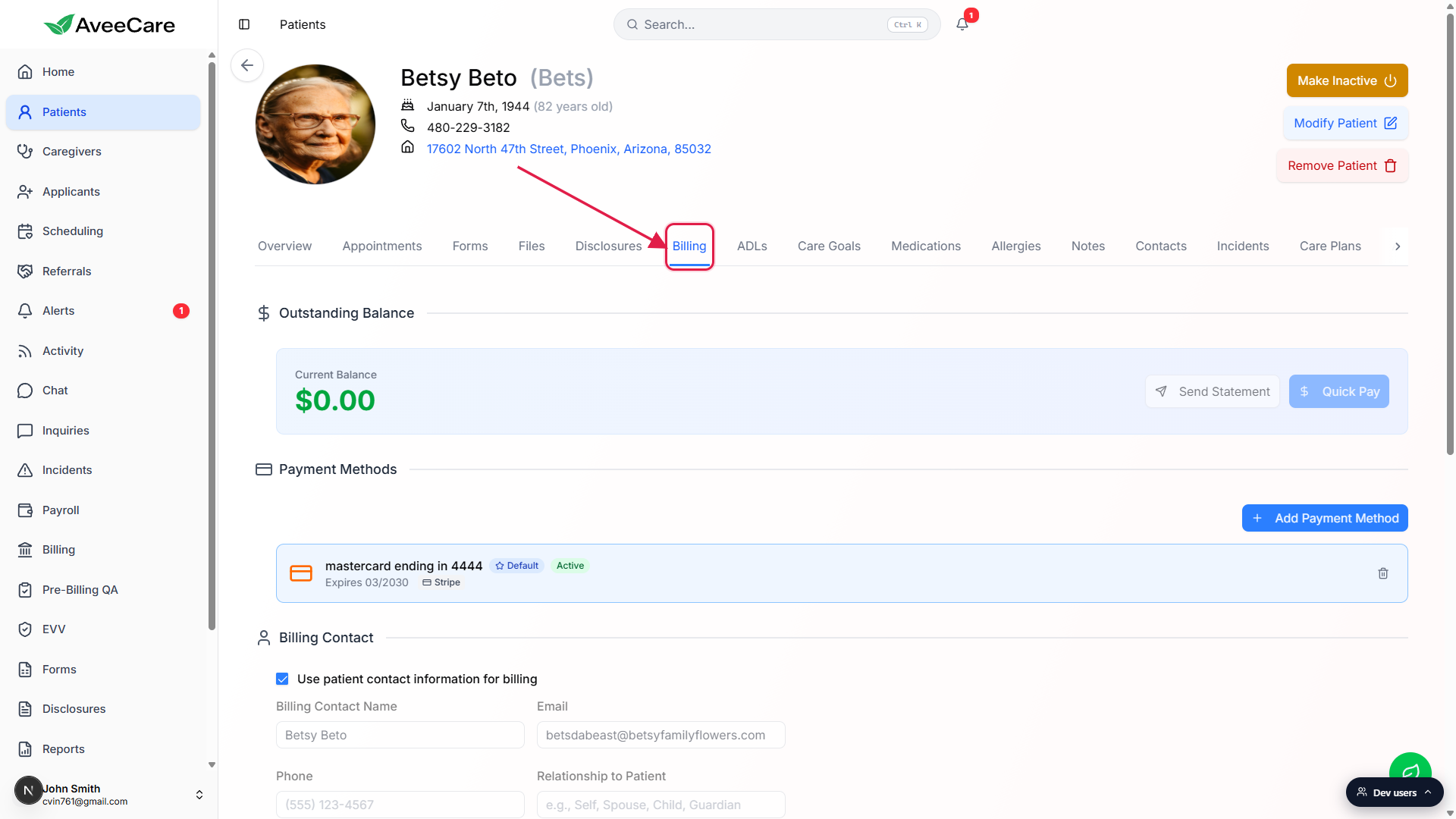
2. Read the Outstanding Balance card
Current Balance is the headline number.
It is the sum of unpaid invoices for this patient. A zero balance means no open invoices, not that the patient has never been billed.Send Statement emails a PDF statement to the billing contact.
The statement uses your agency branding and the email address on the Billing Contact card lower down the page.Quick Pay charges the default payment method on file.
A confirmation modal asks for the amount, defaulted to Current Balance. The receipt is emailed to the billing contact and saved to the patient's payment history. Quick Pay is disabled until at least one payment method is on file.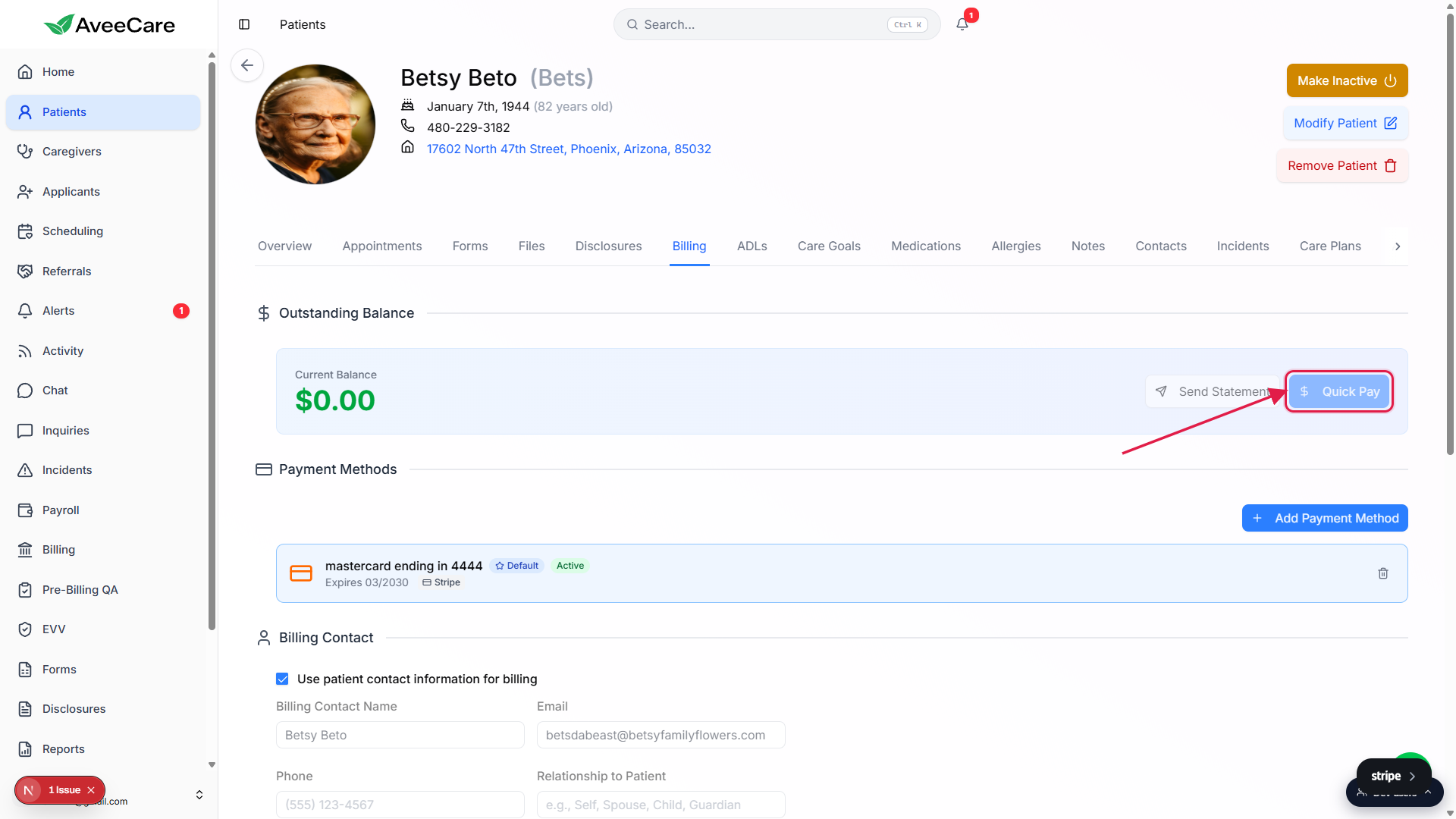
3. Add or manage a payment method
Click Add Payment Method on the Payment Methods card.
A modal opens with a Payment Provider dropdown. Pick Stripe or Square depending on what your agency has connected. Stripe is the default for most tenants.Fill in the card details inside the provider iframe.
Card number, expiration, security code, country, and ZIP. The provider iframe is a hosted field, so the raw card number never touches the AveeCare database. Click Add Payment Method in the modal footer to save.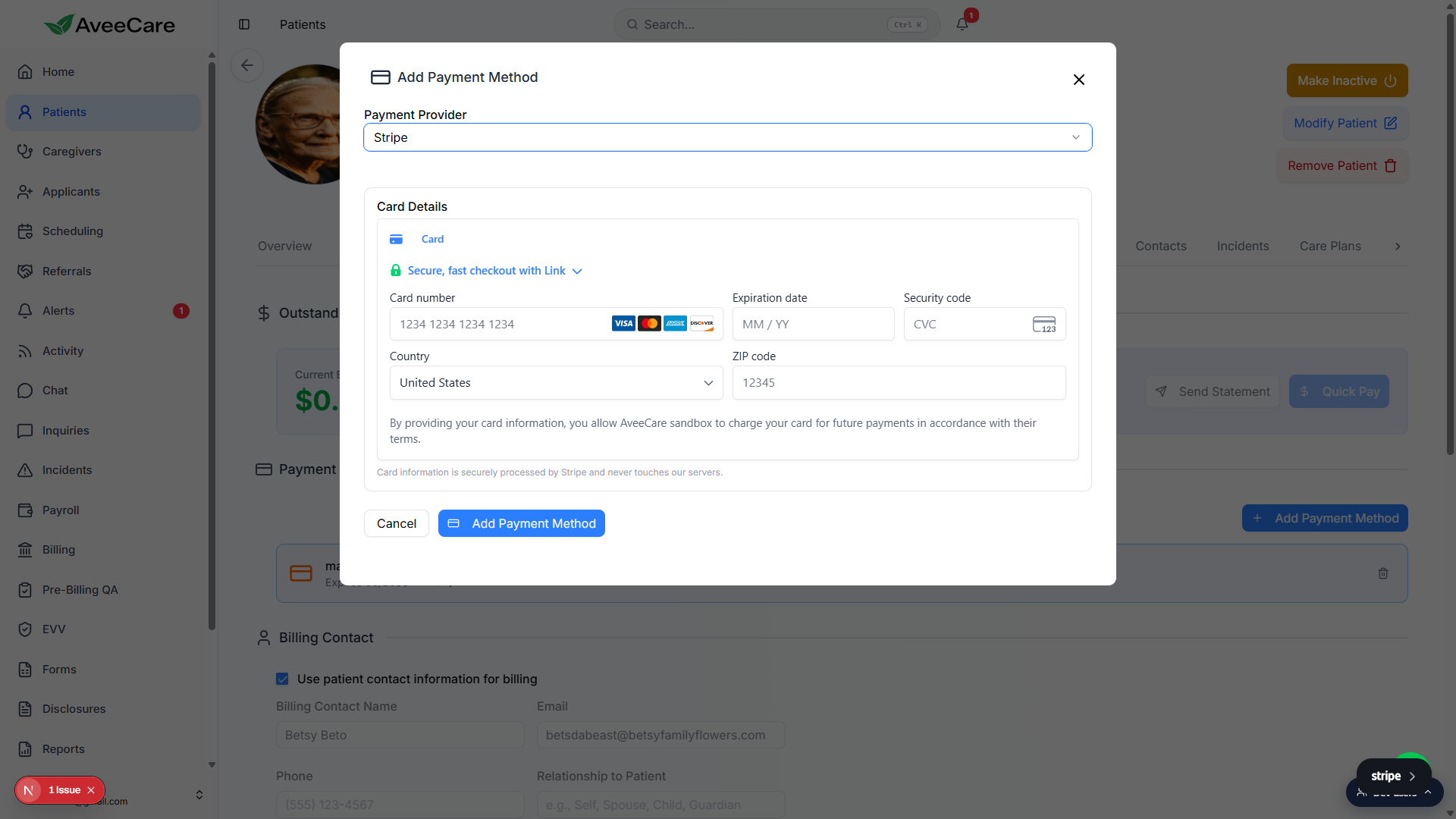
Use the row actions on saved methods to set Default or remove.
Each row shows the brand, last four digits, expiration, and Default and Active badges. The default method is the one Quick Pay charges and the one Auto-Pay uses for finalized invoices.
4. Set billing preferences and a rate override
Toggle Auto-bill visits if you want invoices to generate automatically.
When this is on, AveeCare creates an invoice for each completed visit on this patient. When off, invoices are created manually from the agency Billing area.Pick a Default Payment Integration if it differs from the agency default.
Useful when one patient pays via Stripe and another pays via Square. Leave on Select integration to fall back to the agency-wide default.Pick a Default Billing Rate Override to charge this patient a different rate.
The dropdown lists every billing rate configured on your agency. Picking one (for example “Standard hourly” at $140 per visit) overrides the company default for invoices created on this patient. Leave it on Use company default rate to fall back to the standard.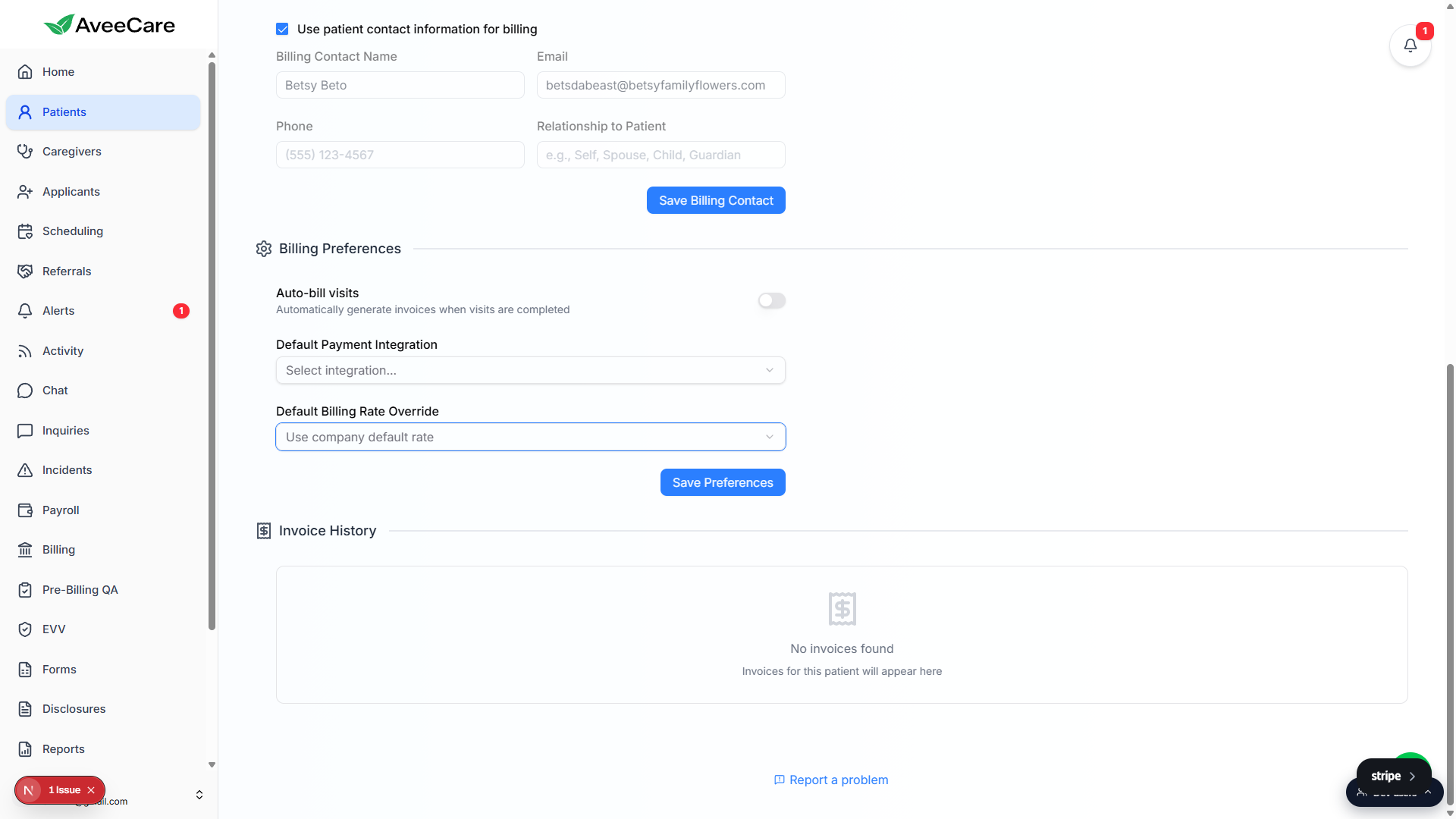
Click Save Preferences to persist the changes.
The button only saves the Billing Preferences card. Billing Contact has its own Save Billing Contact button.
Common pitfalls
- Quick Pay greyed out. The button needs at least one payment method on file for this patient. Add one first, then refresh.
- Confusing this with the agency Billing area. This tab is patient-scoped. Generating invoices, running CMS-1500 claims, and posting payments across multiple patients all live in the agency-wide Billing area in the sidebar.
- Forgetting the Save buttons. Billing Contact and Billing Preferences each have their own Save button. Editing fields and walking away without clicking Save loses the changes.
- Square modal stuck on “Failed to initialize”. That means the agency has not connected a Square account yet. Switch the Payment Provider dropdown to Stripe, or finish the Square connection in Settings.
- Empty Invoice History. “No invoices found” means no invoices exist for this patient yet, not that something is broken. Either turn on Auto-bill visits, or create an invoice from the agency Invoices tab.