Billing in AveeCare is a single Visit Billing worktable plus the controls that surround it. Each row is one visit, with Patient, Caregiver, Visit Date, Time, Duration, Rate Type, Estimated Charge, Status, Billing Sync, EVV Exported, and an Actions column. Status flips between Unbilled and Billed as you work through the queue.
Quick answer
Open Billing from the left nav. Use the Date Range chips and the All Statuses, All Billing, and All Patients filters to narrow the Visit Billing table, then tick rows and click Mark Billed to move them out of the unbilled queue. Per row, the Stripe icon charges the patient's card on file. Create Invoice and Export CSV live in the top-right; EDI 837P / 837I generation and 835 ERA import live in the EDI File Export card above the table.
What the columns mean
- Patient and Caregiver. The visit's assignees. Each Patient cell also shows the per-visit rate (for example, $140.00/visit).
- Visit Date and Time. Calendar date plus the clock-in / clock-out window.
- Duration. Worked duration (30m, 1h, 1m, etc.). A double dash means duration could not be computed, usually because the visit was logged in seconds or has no clock-out.
- Rate Type. Per Visit, Hourly, or whatever pay model the patient's billing preferences specify.
- Estimated Charge. Rate Type applied to the visit. This is the amount that flows to invoices and to Stripe.
- Status. Unbilled or Billed. Drives the Unbilled Visits and Billed Visits stat cards at the top.
- Billing Sync. Whether this visit has been pushed to your billing platform (QuickBooks / Paychex / ADP / Gusto). A double dash means not synced yet.
- EVV Exported. Status of the EVV export for the visit. Most rows start at Not exported.
- Actions. Stripe charge button (when the patient has a card on file) and Mark as Billed.
1. Open Billing and read the stat cards
Click Billing in the left nav.
The page may show Loading billing data... for a second or two while the visit query runs. Once it settles you land straight on the Visit Billing table; there is no separate Invoices tab to switch to.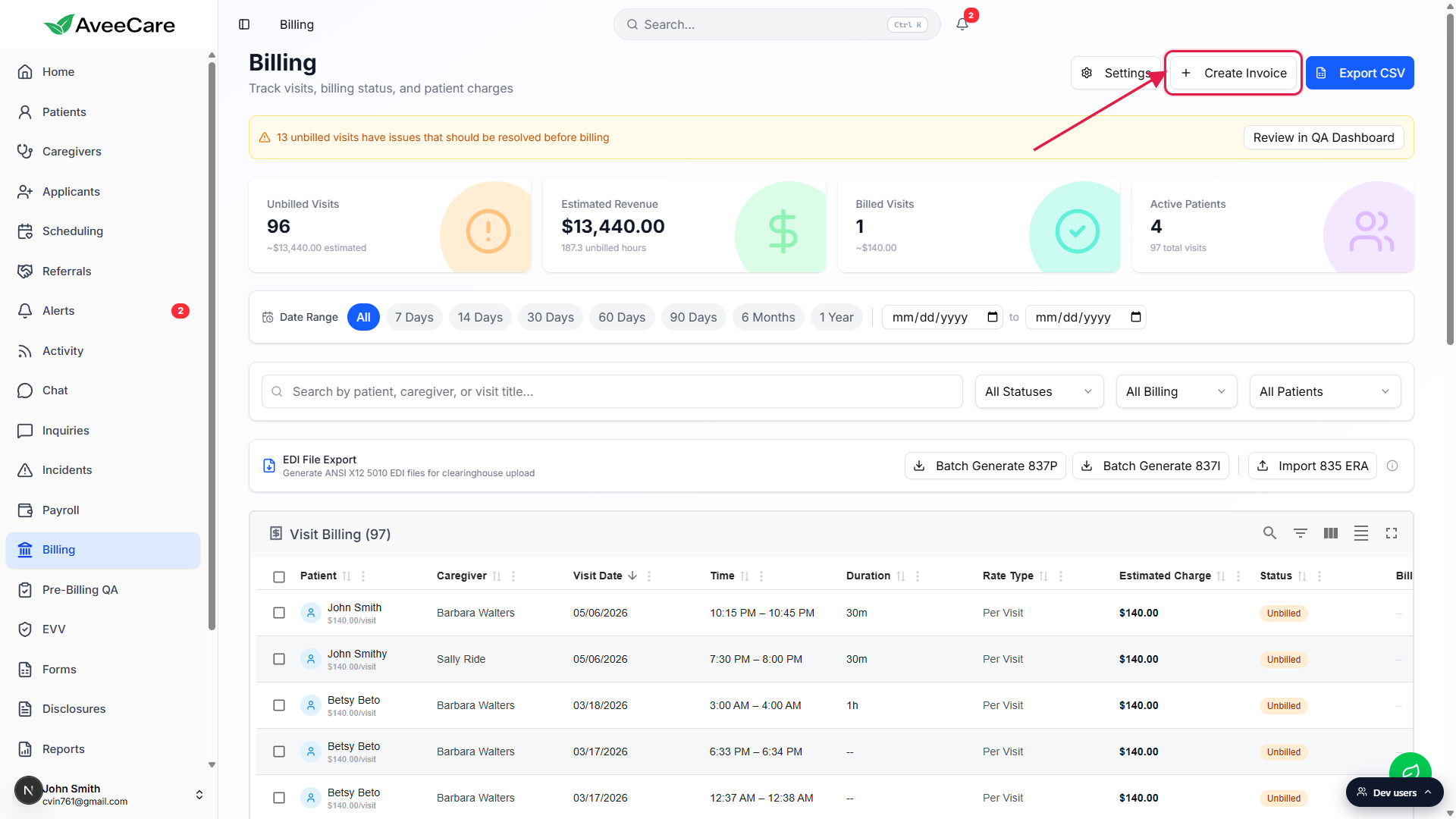
Read the four stat cards across the top.
Unbilled Visits with its estimated dollar total, Estimated Revenue with the unbilled hours that back it, Billed Visits, and Active Patients with the total visit count for the current filter window. These respond live as you change the date range and status filters.If the yellow Pre-Billing QA banner is visible, click Review in QA Dashboard first.
The banner shows the count of unbilled visits that have a QA issue (missing clock-in, missing notes, gap in EVV, and so on). Clearing those before you start marking visits Billed saves rework later. The link drops you into the dedicated Pre-Billing QA checklist.
2. Filter the Visit Billing table
Pick a Date Range chip or a custom from / to.
The chips run All, 7 Days, 14 Days, 30 Days, 60 Days, 90 Days, 6 Months, 1 Year. To the right of the chips, two date inputs let you pin a custom window for month-end billing runs.Narrow by status, billing destination, or patient.
The three dropdowns on the filter row are All Statuses (Unbilled, Billed), All Billing (Private Pay, Medicare, Medicaid, Long-Term Care, etc.), and All Patients. The search box above them takes free text matched against patient and caregiver name.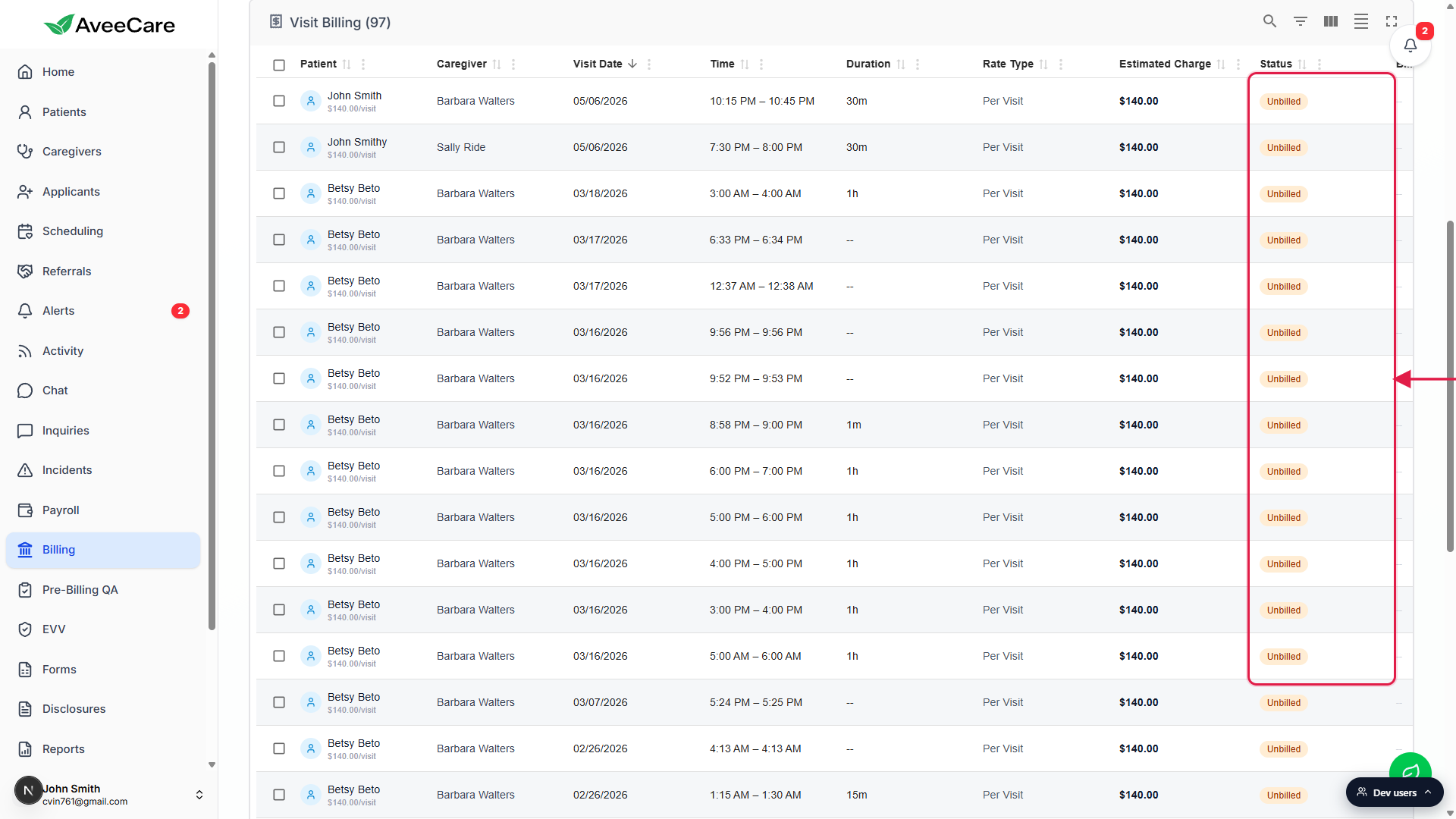
3. Mark visits Billed and charge cards
Tick the checkbox on each visit you want to bill, or use the header checkbox to grab everything in view.
A toolbar appears above the table that reads N of 97 row(s) selected with a CLEAR SELECTION link, and the Mark Billed (N) button shows up in the filter row on the right.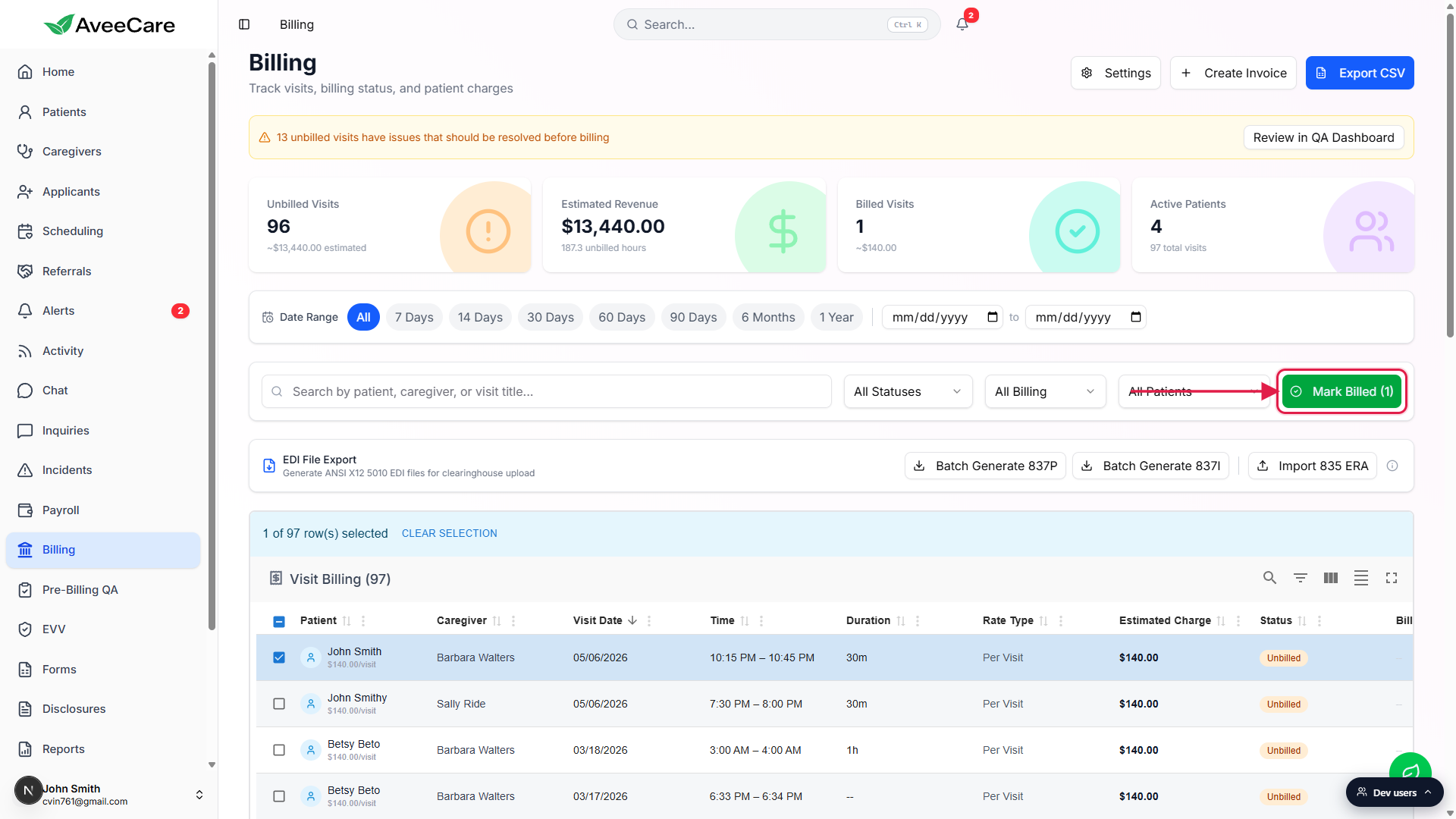
Click Mark Billed to flip the selected rows.
Status chips switch from Unbilled to Billed, the Unbilled Visits stat drops, and the Billed Visits stat rises. The change is immediate and applies per visit, so you can still un-bill a row from its own detail view if you mis-tagged it.For Private Pay rows, the Actions column has a Stripe charge button.
It appears as a small S icon and the tooltip reads Charge via Stripe (mastercard ...4444) or whichever card the patient has saved. Clicking it runs the charge against the saved card and flips Billing Sync to the Stripe state. Patients without a card on file do not show the button; collect a card on the patient's Billing tab first.
4. Export EDI 837 files or import an 835 ERA
For Medicare and Medicaid runs, drop into the EDI File Export card above the table.
It generates ANSI X12 5010 EDI files for clearinghouse upload. Batch Generate 837P produces the professional claim file for the visits in the current filter, Batch Generate 837I produces the institutional file, and Import 835 ERA takes the payer's remittance file back in so AveeCare can reconcile paid amounts against your claims.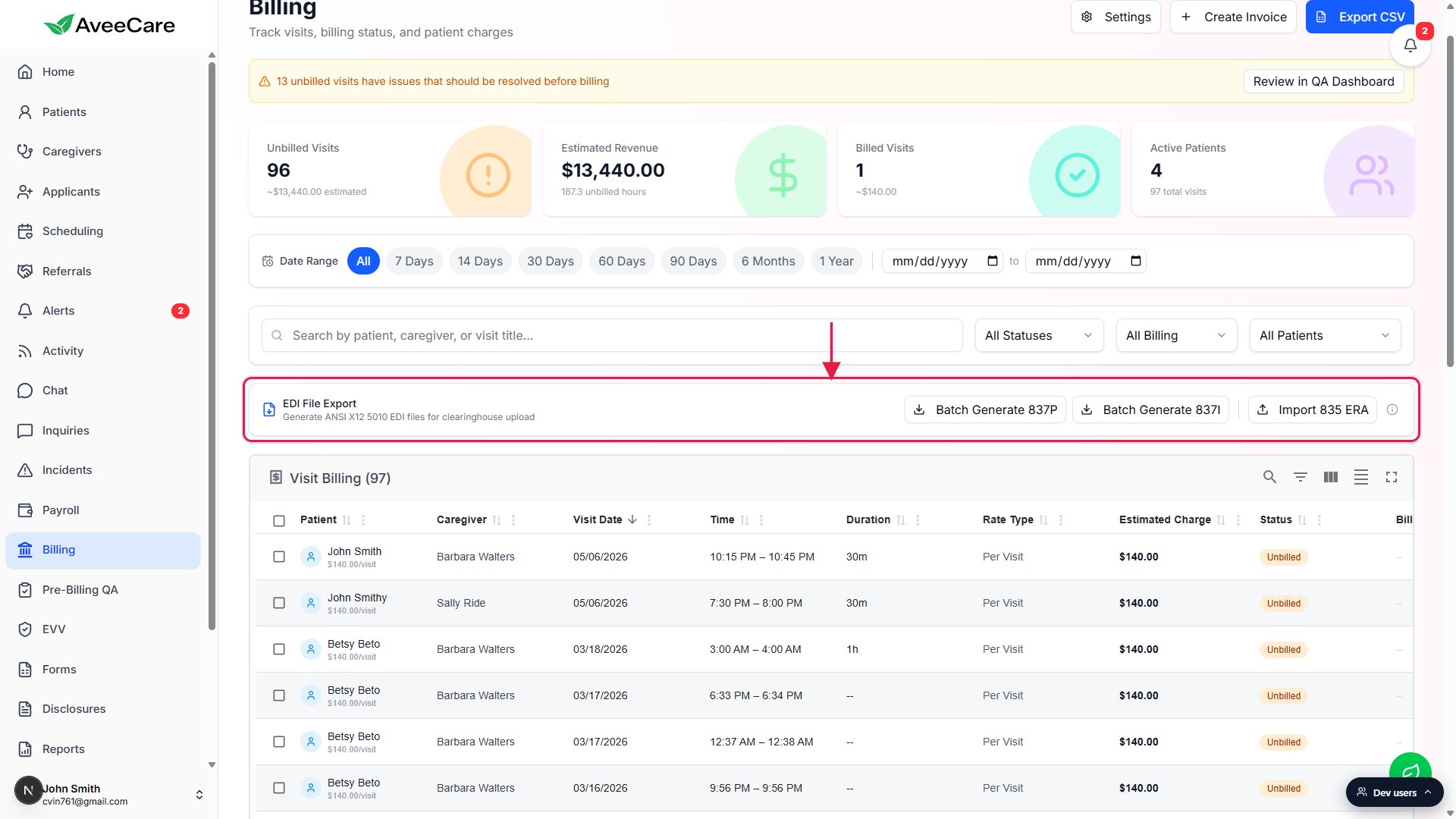
For everything else, use Export CSV (top right).
CSV pulls every row in the current filter, not just the visible page, so filter first and then export for clean reconciliation against a spreadsheet or an external accounting tool.Create Invoice (top right) builds a printable invoice document.
Use it when a patient or payer needs a single PDF instead of a CSV. The full flow is covered in the Create invoice article.
Common pitfalls
- Looking for an Invoices vs Claims tab. The page is a single Visit Billing worktable. Insurance claims live on their own page; see Claims tab.
- Marking visits Billed before clearing QA issues. The yellow banner counts visits that will likely fail on the payer side. Clear them in the QA dashboard first so you do not have to back out of a Mark Billed run.
- Forgetting that filters scope the EDI export. Batch Generate 837P and 837I run against the current filter window. If your date range is set to 7 Days, you only get the last 7 days in the EDI file. Switch to All or a custom range before generating.
- No Stripe button on a row. The Charge via Stripe action only appears when the patient has a saved card on file. Open the patient's Billing tab to add one, then come back.
- Duration showing a double dash. The visit either has no clock-out or the clock-in / clock-out window is less than a minute. The visit can still be billed, but verify the caregiver intended to log that short of a session.