Eligibility checks in AveeCare are run from the Reports page, not from Billing or the patient profile. The control lives inside the EDI File Tools panel in the right rail. You pick one or more patients with insurance on file, generate a 270 inquiry file, and AveeCare records the resulting status on each patient's overview tab.
Quick answer
Open Reports. In the right rail, expand EDI File Tools. Click the 270 Elig. pill, click Select Patients, check at least one patient that has an insurance ID, member ID, Medicaid ID, or Medicare ID on file, click Done, then click Generate 270. On success AveeCare writes the 271 response back to the patient's overview tab as Last Eligibility Check and Eligibility Status.
What the 270 / 271 flow is
270 is the ANSI X12 5010 transaction set for an eligibility inquiry. 271 is the response. AveeCare builds a 270 file from the patient records you select, sends it to your connected clearinghouse, parses the 271 the clearinghouse returns, and saves the result. The result becomes the Last Eligibility Check date and Eligibility Status fields on each selected patient's Overview tab. There is no in-app Check Eligibility button on the patient profile, the Billing page, or the CMS-1500 wizard. Reports is the only surface that runs the inquiry today.
1. Open Reports and expand EDI File Tools
Click Reports in the left nav.
The Reports page loads with the Recent Reports list on the left and a right rail of accordions: Manual Report Builder, AI Report Generator, EDI File Tools, and Configuration.Expand EDI File Tools in the right rail.
The accordion opens to a 2 by 2 grid of pills: 837P Prof., 837I Inst., 270 Elig., 276 Status. Below that sits the patient or claim picker, the Mode toggle, and the Generate button.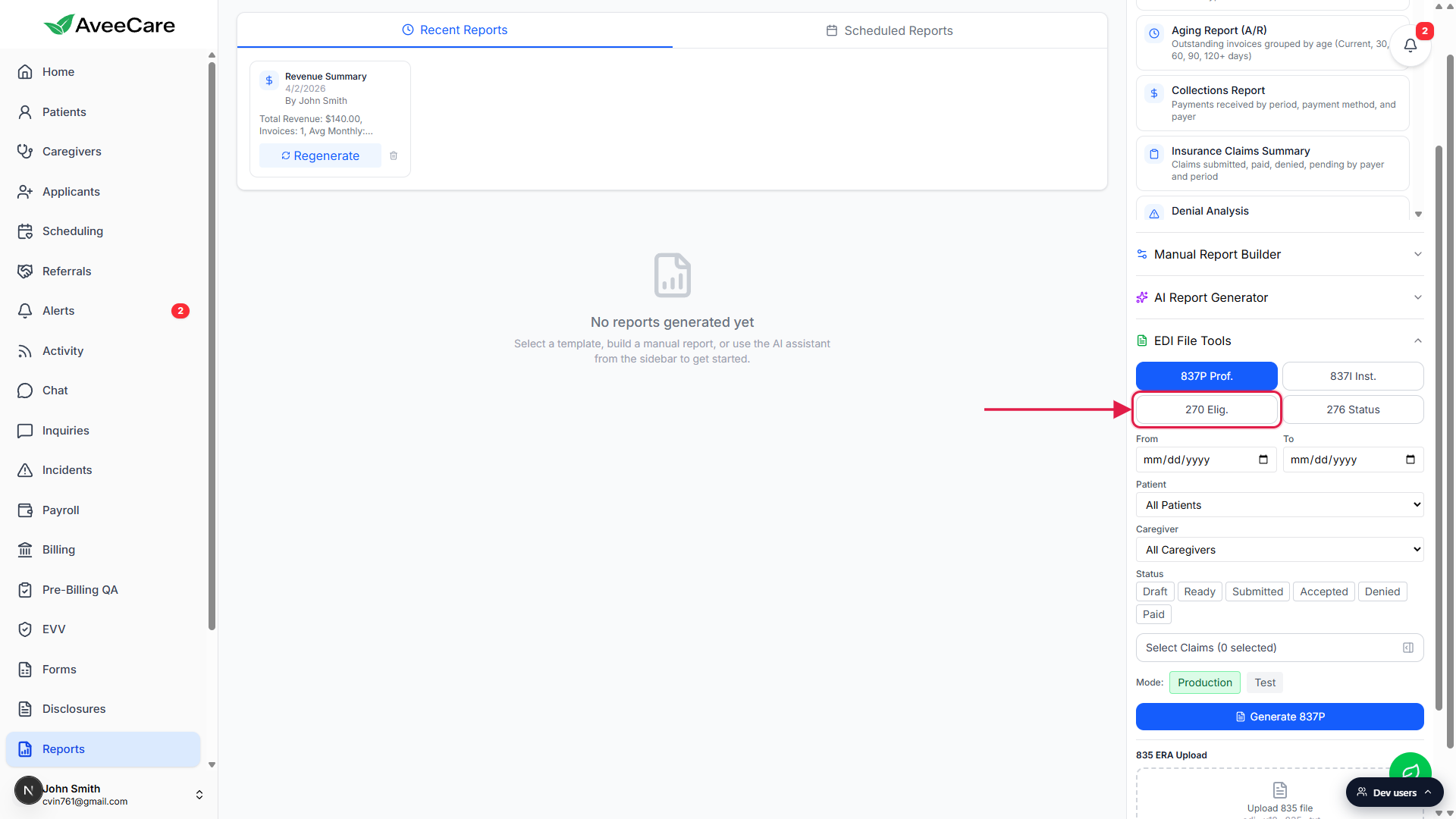
2. Switch the form picker to 270 Elig.
Click the 270 Elig. pill.
The pill turns blue once selected. The picker below it changes from a claim selector to a patient selector, and the Generate button label changes from Generate 837P to Generate 270.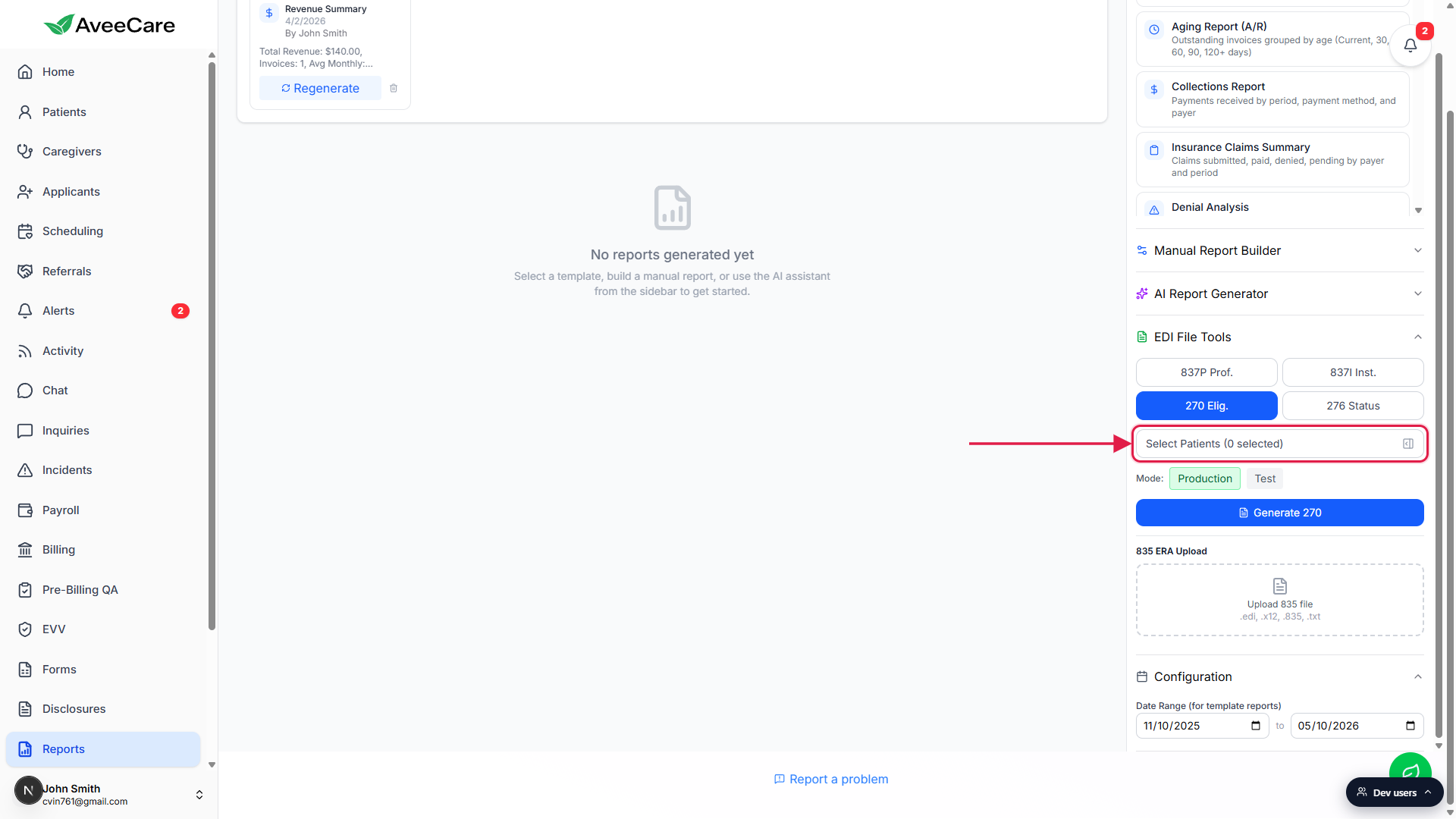
Note the Mode toggle.
Production sends a live inquiry your clearinghouse will bill against and use for actual eligibility data. Test generates a payer test-mode 270 file your clearinghouse will echo back without charging. Pick Test when you are first wiring up a new payer.
3. Pick patients in the Select Patients modal
Click Select Patients.
A centered modal opens titled Select Patients with the instruction Select patients for eligibility inquiry. The modal lists every patient that has an insurance ID, member ID, Medicaid ID, or Medicare ID on file. Patients with no insurance on file are filtered out and will not appear.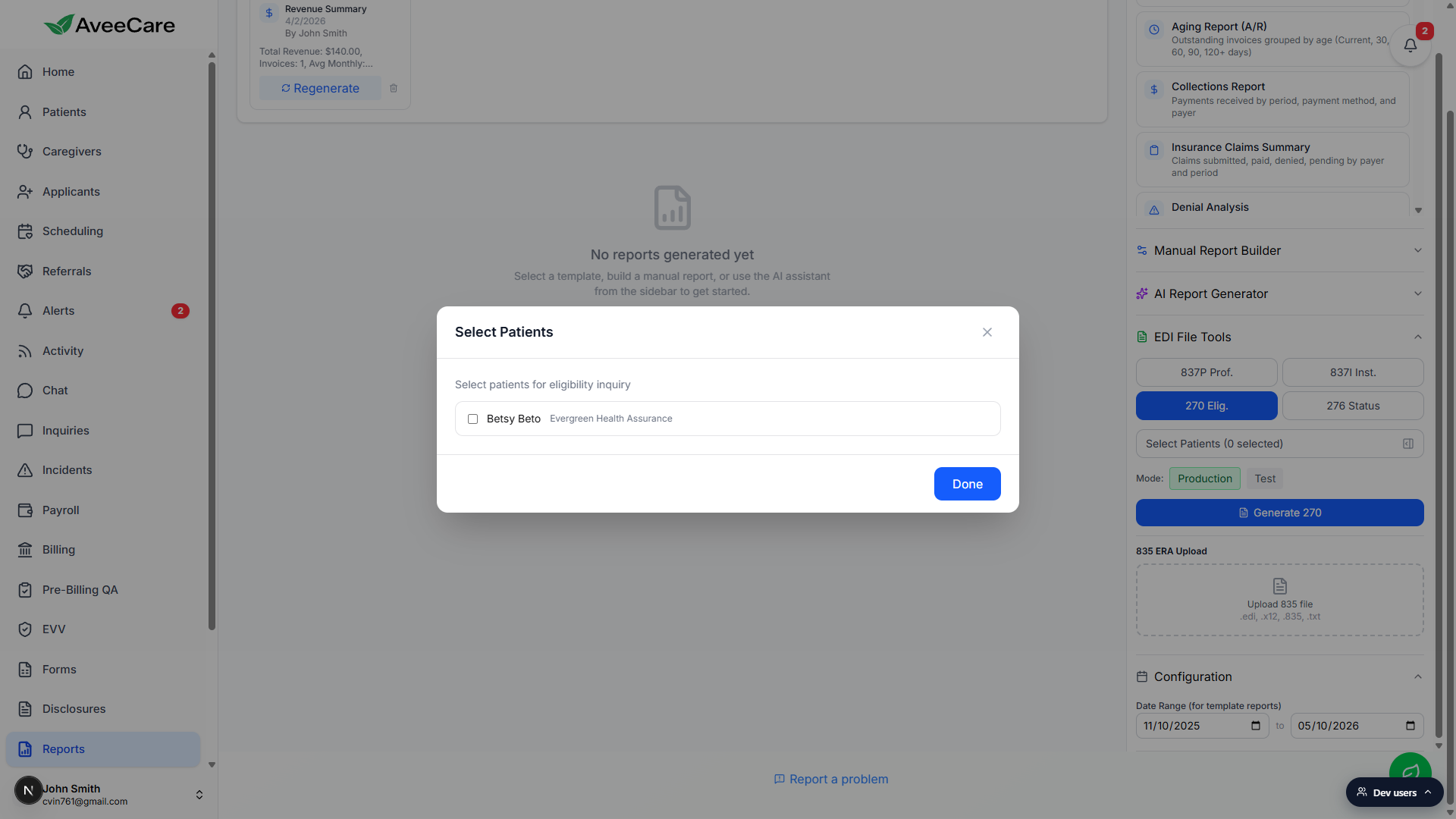
Check each patient you want on this inquiry.
Each row shows the patient name and the insurance provider name. You can pick one patient or batch many onto a single 270 file. The selection count updates on the Select Patients button as a live count.Click Done.
The modal closes and the button label updates to Select Patients (N selected). You can reopen the modal to add or remove patients at any time before clicking Generate 270.
4. Pick a mode and click Generate 270
Pick Production or Test on the Mode row.
The default is Production. Switch to Test if you are validating a new clearinghouse connection and do not want this to count against your eligibility quota.Click the blue Generate 270 button.
AveeCare builds the 270 inquiry, hands it to your clearinghouse, and waits for the 271 response. The whole round trip is usually a few seconds. While the call is in flight the button shows a spinner.Check the result panel below the button.
On success you get a Preview pane with the raw X12 content and a green Download button next to Generate 270 so you can save the file. On failure you get a red error strip with a short reason, for example No valid eligibility inquiries to serialize when one of the picked patients is missing a required field like NPI or member ID, or Clearinghouse integration is not configured when no clearinghouse is connected in Settings.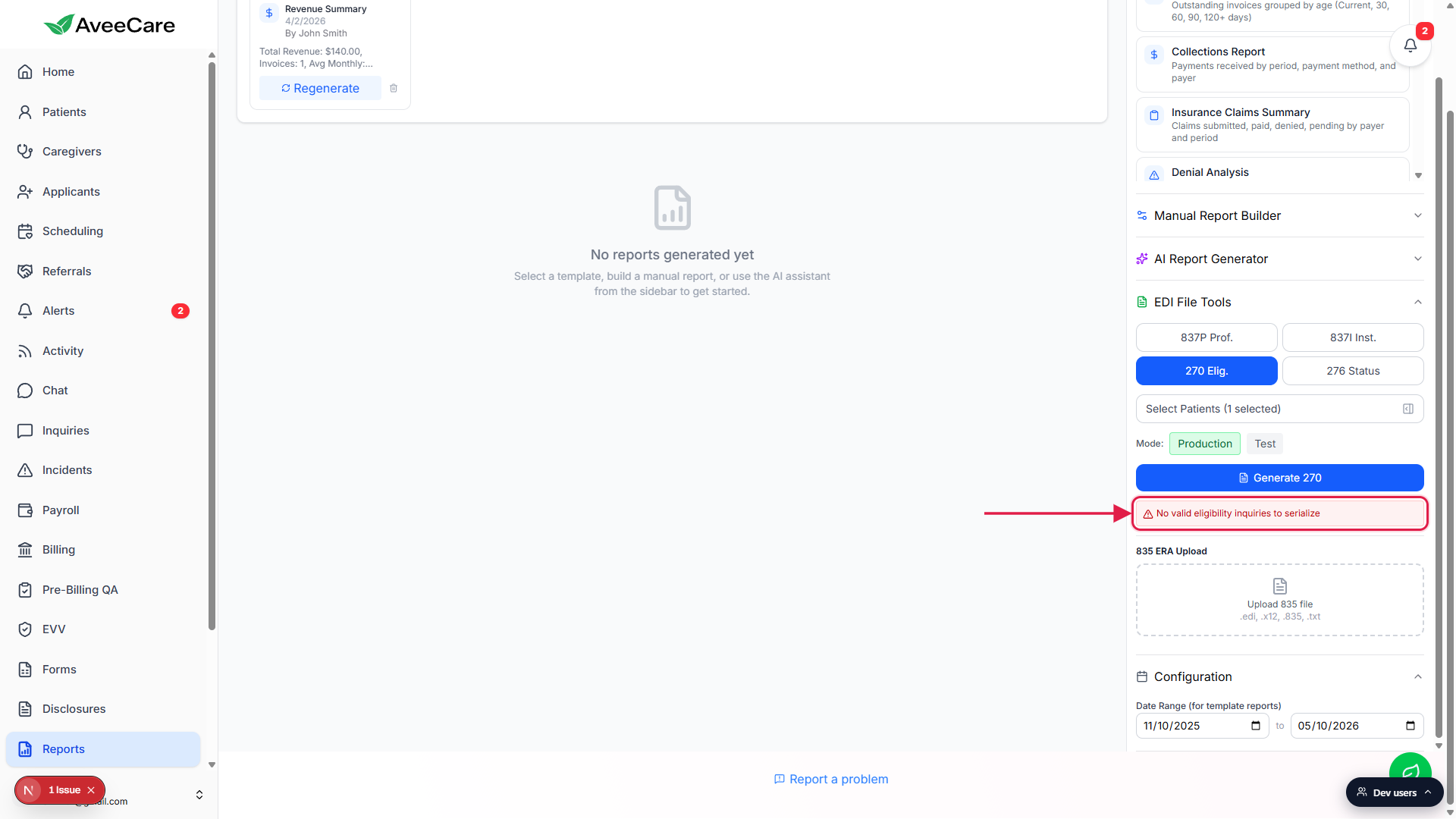
5. Where the eligibility result lands
Open the patient you ran a check against.
Navigate to Patients, click into the patient, and stay on the Overview tab.Scroll to the Billing Preference section.
After a successful 270 / 271 round trip, the Overview tab shows a Billing Preference block with Last Eligibility Check (date the inquiry ran) and Eligibility Status (Active or Inactive). This block is hidden until at least one of those values exists, so a fresh patient who has never been checked will not show it.Re-run the 270 inquiry whenever the patient or plan changes.
Eligibility status is a snapshot, not a live read. If the patient switches plans, ages onto Medicare, or you are opening a new month of visits, run the 270 again to refresh the date and status on the Overview tab.
Common pitfalls
- Looking for a Check Eligibility button on the patient page. There is not one. The patient Overview tab shows the eligibility status as a read-only field once a 270 has run. To actually run the check, go to Reports, expand EDI File Tools, and use the 270 Elig. mode.
- Looking for it on the Billing page or in the CMS-1500 wizard. Same answer. Neither surface has an eligibility action today. Reports is the only place that runs the 270 inquiry.
- Patient missing from the Select Patients modal. The modal only lists patients with insurance ID, member ID, Medicaid ID, or Medicare ID on file. Open the patient, scroll to Insurance Information, and add the missing identifier. The patient will then appear in the modal.
- No valid eligibility inquiries to serialize. This red error means the patient you picked is missing a piece of data the 270 generator requires, usually the company NPI (set in Settings, Company Profile) or the patient's payer ID or member ID. Open the patient's Insurance Information section, fill the gap, and re-run.
- Clearinghouse integration is not configured. AveeCare needs an active clearinghouse connection to actually deliver the 270 to a payer. Go to Settings, Clearinghouse and Claims, and connect a provider (Availity, Trizetto, Office Ally, Optum, Waystar) before running a Production 270.
- Treating Production and Test as interchangeable. Test mode generates a 270 your clearinghouse echoes back without charging or counting against quota, useful for new payer setup. Production mode hits the real payer and the result is what gets written to the patient's Overview tab. Pick Production for real eligibility lookups.