AveeCare auto-validates every CMS-1500 claim on step 1 of the Simple wizard. A Readiness Check panel at the bottom of the Select step audits five CMS-1500 segments against the patient, company, caregiver, and visit records, and disables the Next button until every required field is filled. You fix missing fields right from the panel without leaving the modal.
Quick answer
Open Billing, click the small blue shield icon on a visit row, and scroll the modal down to the Readiness Check. Each row is either green (passed) or yellow with N missing. Click a yellow row to expand it, fill the missing fields inline, click Save, and the row turns green. Once all five rows pass, Next activates and you can continue to Clinical and Review.
What the Readiness Check audits
The panel runs five checks for every claim:
- Patient Demographics. First and last name, date of birth, gender, street address, city, state, and zip on the patient record.
- Billing Provider. Company NPI, Tax ID, taxonomy code, and the company business address (street, city, state, zip).
- Rendering Provider. One row per caregiver assigned to a ticked visit. Each rendering row is gated on that caregiver's NPI.
- Insurance Info. Payer ID, member ID, and payer name on the patient's Insurance tab.
- Service Facility. Facility name, address, and NPI on the company record.
Rows that pass show a green check on the left. Rows that fail show a yellow triangle and the count of missing fields on the right (for example, 5 missing). The Next button at the bottom of the modal stays disabled until every row passes.
1. Open the CMS-1500 wizard from a visit row
Click Billing in the left nav and scroll the Visit Billing table right.
The shield icon lives in the Actions column at the far right of Visit Billing. On a 1080p screen you may need to scroll the table horizontally to expose it.Click the small blue shield icon on a row whose patient has insurance.
The hover tooltip reads Generate insurance claim (837P). Rows without an insurance record on the patient do not show this icon. The CMS-1500 Professional Claim (837P) modal opens on the Simple tab at step 1, Select.
2. Read the Readiness Check panel
Scroll the modal down past the Visits list to the Readiness Check panel.
The panel only renders after a patient is selected and at least one visit is ticked. Visits are usually preselected from the row you clicked, so the panel is typically visible on first open.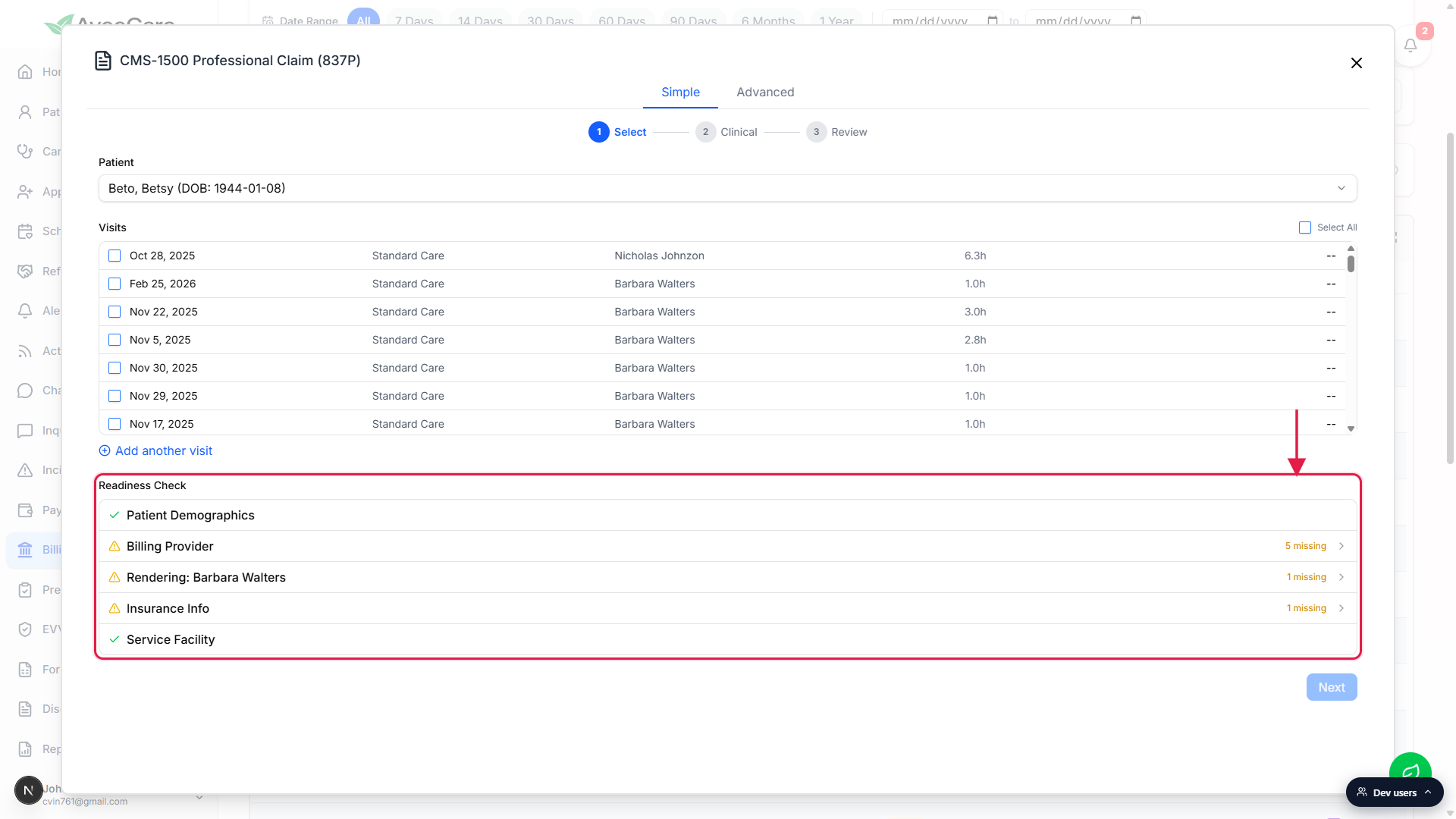
Scan the five rows and identify which segments are failing.
Passing rows are green. Failing rows are yellow with a count like 5 missing. The count is the number of required CMS-1500 fields on that segment that are still blank.
3. Fix missing fields inline and click Save
Click a failing row to expand the inline fix form.
The row opens into a yellow-tinted panel listing one input per missing field. For Billing Provider, the typical missing set is Taxonomy Code, Address, City, State, and Zip Code on the company record.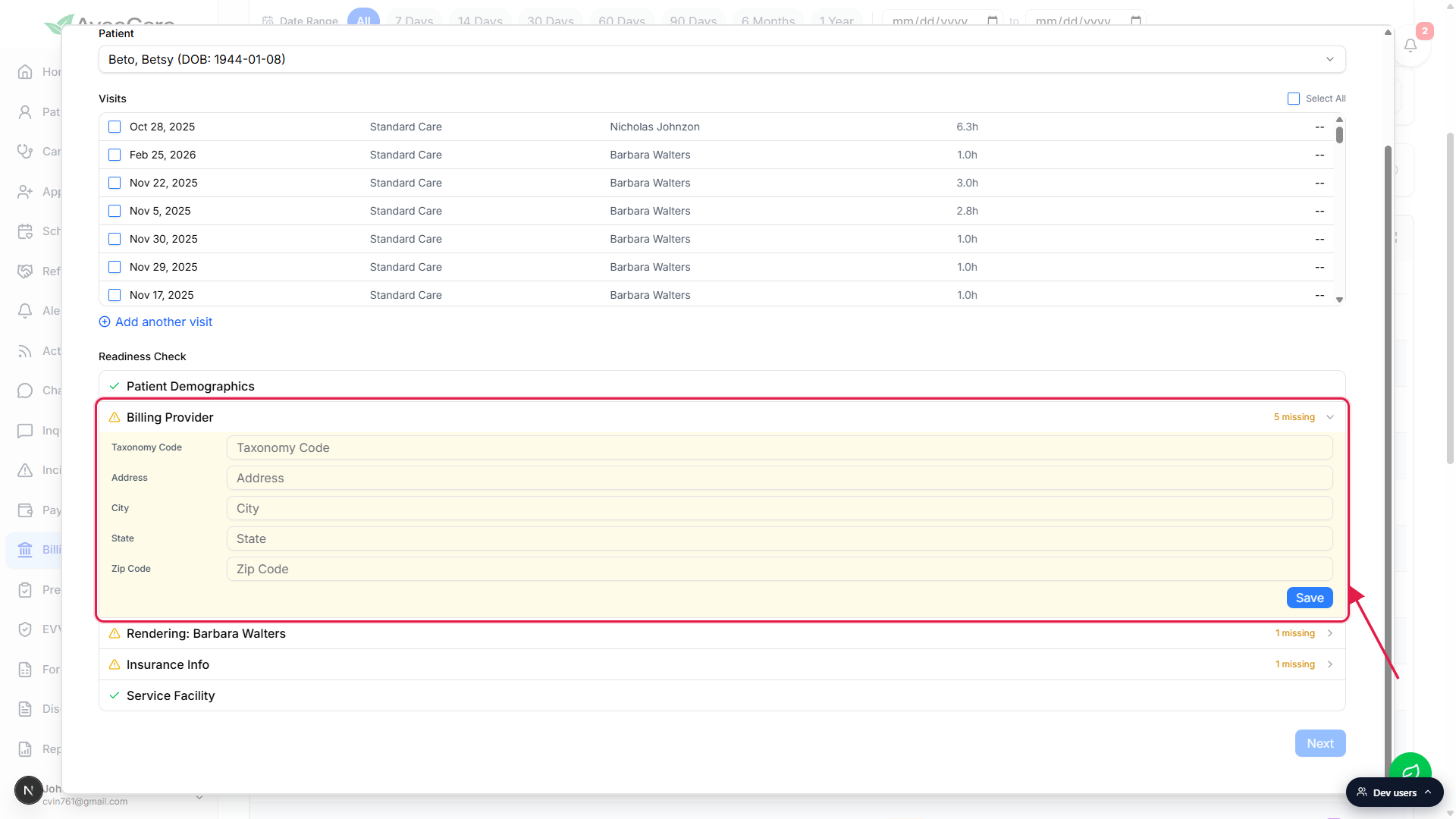
Type values into every input and click Save.
Inline saves write straight to the underlying patient, company, caregiver, or visit record. They persist across sessions, so the next claim for this patient will not have to fix the same fields again.Watch the row collapse and turn green after Save completes.
If a value is rejected (for example, a non-numeric Zip Code or a Tax ID with letters), the row stays yellow and the offending field gets a red border. Fix and click Save again.
4. Confirm Next activates and continue the claim
When every row has a green check, the Next button activates.
Until then, Next is greyed out and unclickable. This is the gating behavior: there is no override, no skip, no “submit anyway” option. Every required CMS-1500 segment must pass before the wizard advances.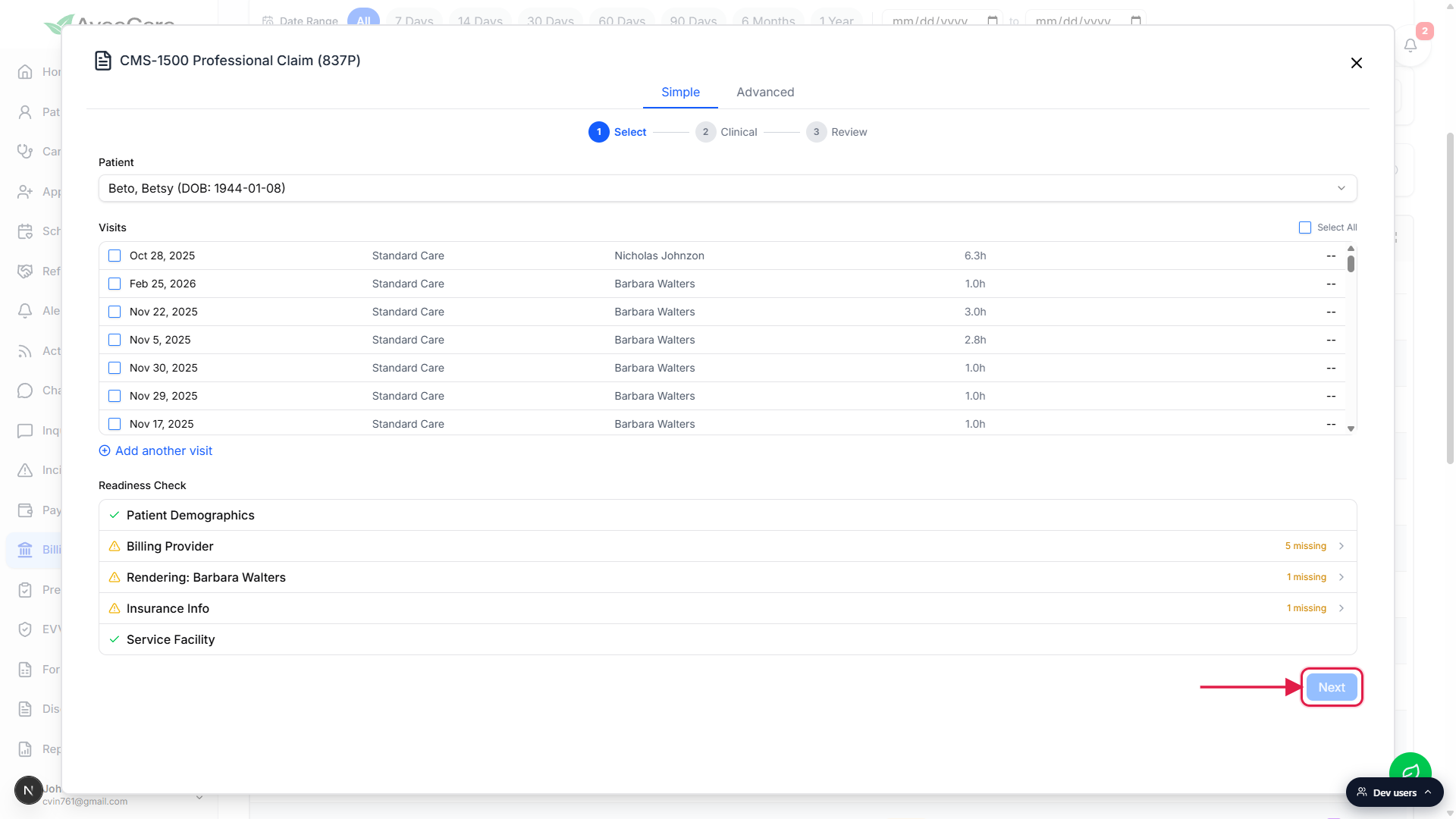
Click Next to walk to Clinical, then Review, then submit.
The Readiness Check only runs on step 1 of the Simple wizard. Clinical and Review trust the data on step 1. If you need to go back and change a value, click step 1 in the wizard header and the Readiness Check re-evaluates.
Common pitfalls
- Next stays disabled even after Save. A row only turns green when every missing field on that segment has a value. If you filled four out of five inputs and clicked Save, the row still shows 1 missing. Re-expand and fill the last input.
- Rendering row shows “No caregiver assigned.” One of the ticked visits has no caregiver. Untick the unassigned visit, assign a caregiver on Scheduling first, or open the visit and set a rendering provider before returning to the wizard.
- Insurance Info row will not turn green. The patient has an Insurance tab entry but it is missing payer ID, member ID, or payer name. Open the patient's Insurance tab in a separate browser tab, fill the missing field, save, then return to the wizard and re-click Insurance Info to refresh.
- Billing Provider keeps failing in bulk. The same company-level fields (NPI, Tax ID, taxonomy, business address) feed every claim. Fix them once on the Company settings page and the row turns green for every future claim too.
- The inline form does not have every box you expected. The inline form only lists fields that are actually missing. If a field is already filled on the source record, it does not appear in the fix form. That is by design, not a bug.