The 837 EDI file is the electronic version of a paper claim. AveeCare builds an ANSI X12 5010 837P file from your home care visits and an 837I file from any facility-based services, ready to upload to Availity, Trizetto, Office Ally, Optum, Waystar, or any other clearinghouse you use. You can generate a batch file with every eligible draft claim at once, or generate one X12 file from a single CMS-1500 claim.
Quick answer
Open Billing, scroll to the EDI File Export card, and click Batch Generate 837P for home care professional claims or Batch Generate 837I for institutional claims. AveeCare bundles every Draft, Validated, and Rejected claim into a single .edi file and downloads it to your computer. To generate a file for one specific claim, open its CMS-1500 modal and click Generate X12 on the Advanced tab.
837P vs 837I
AveeCare emits both flavors of the 837 transaction set:
- 837P (Professional). The default for home care. Use it for visits billed with HCPCS or CPT codes (T1019, T1021, 99509, and so on). The shield icon next to a visit row in Billing opens the CMS-1500 Professional Claim (837P) modal.
- 837I (Institutional). Use it for facility-based services billed on a UB-04. Most home care agencies never touch 837I. It is there for agencies that also run a skilled-nursing or hospice line and need to bundle institutional claims for that side of the business.
1. Open Billing and find the EDI File Export card
Open the Billing page from the left sidebar.
The page header reads Billing with a Visit Billing table below the action bar. The EDI File Export card sits between the filter row and the visit table. The label next to its file-down icon reads Generate ANSI X12 5010 EDI files for clearinghouse upload.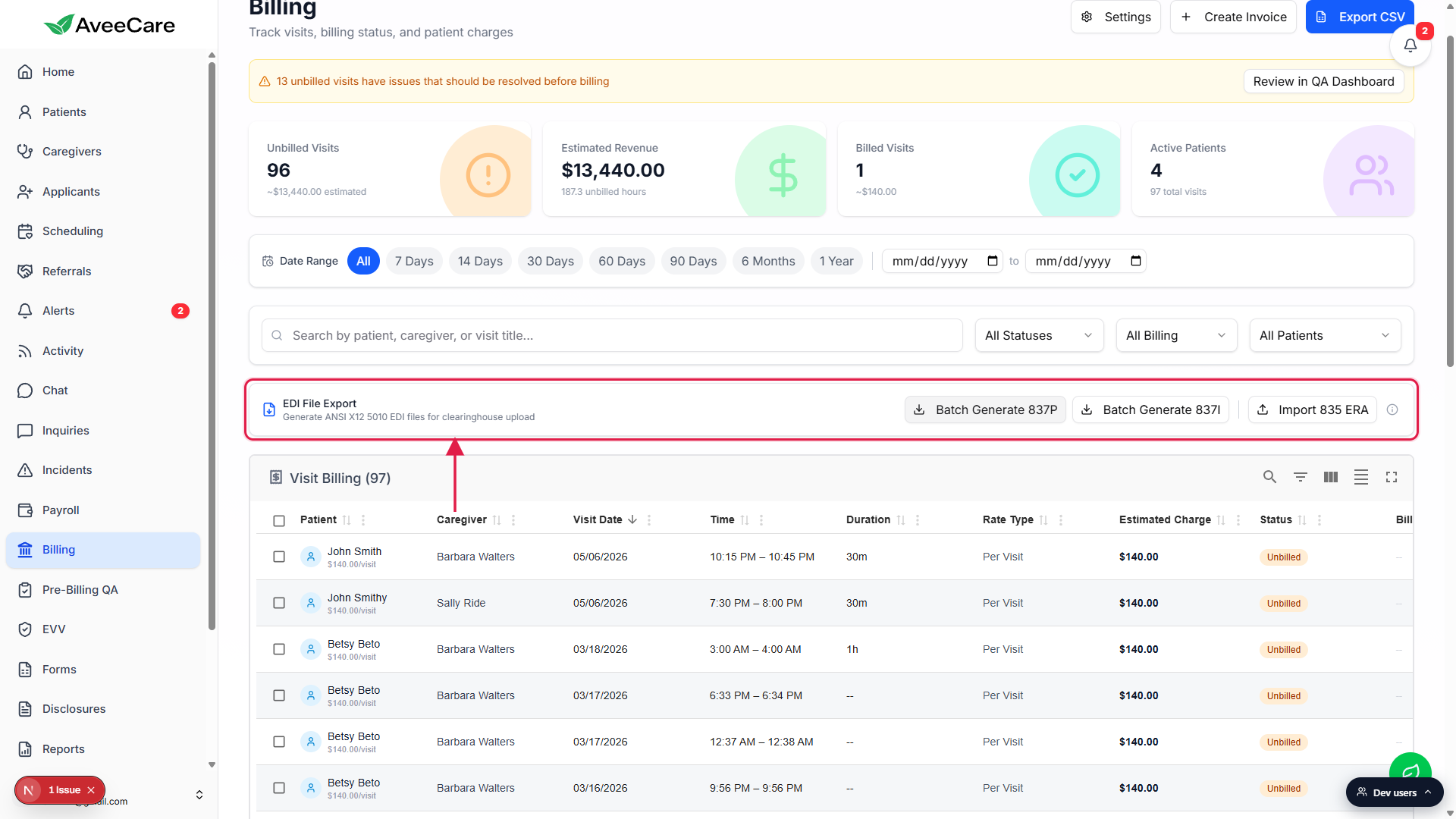
Confirm you have eligible claims to batch.
Batch generate picks up every claim in the tenant whose status is Draft, Validated, or Rejected. If the Visit Billing table is empty or every row is already Submitted, Acknowledged, or Paid, the batch will return zero claims and a toast error. Build at least one CMS-1500 first.
2. Pick Batch Generate 837P or 837I
Click Batch Generate 837P for the home care batch.
AveeCare collects every Draft, Validated, and Rejected Professional claim, builds an ANSI X12 5010 envelope around them with usage indicator P (production), and downloads the file to your browser as 837P_batch_YYYY-MM-DD.edi. A green toast confirms the claim count once the file is ready.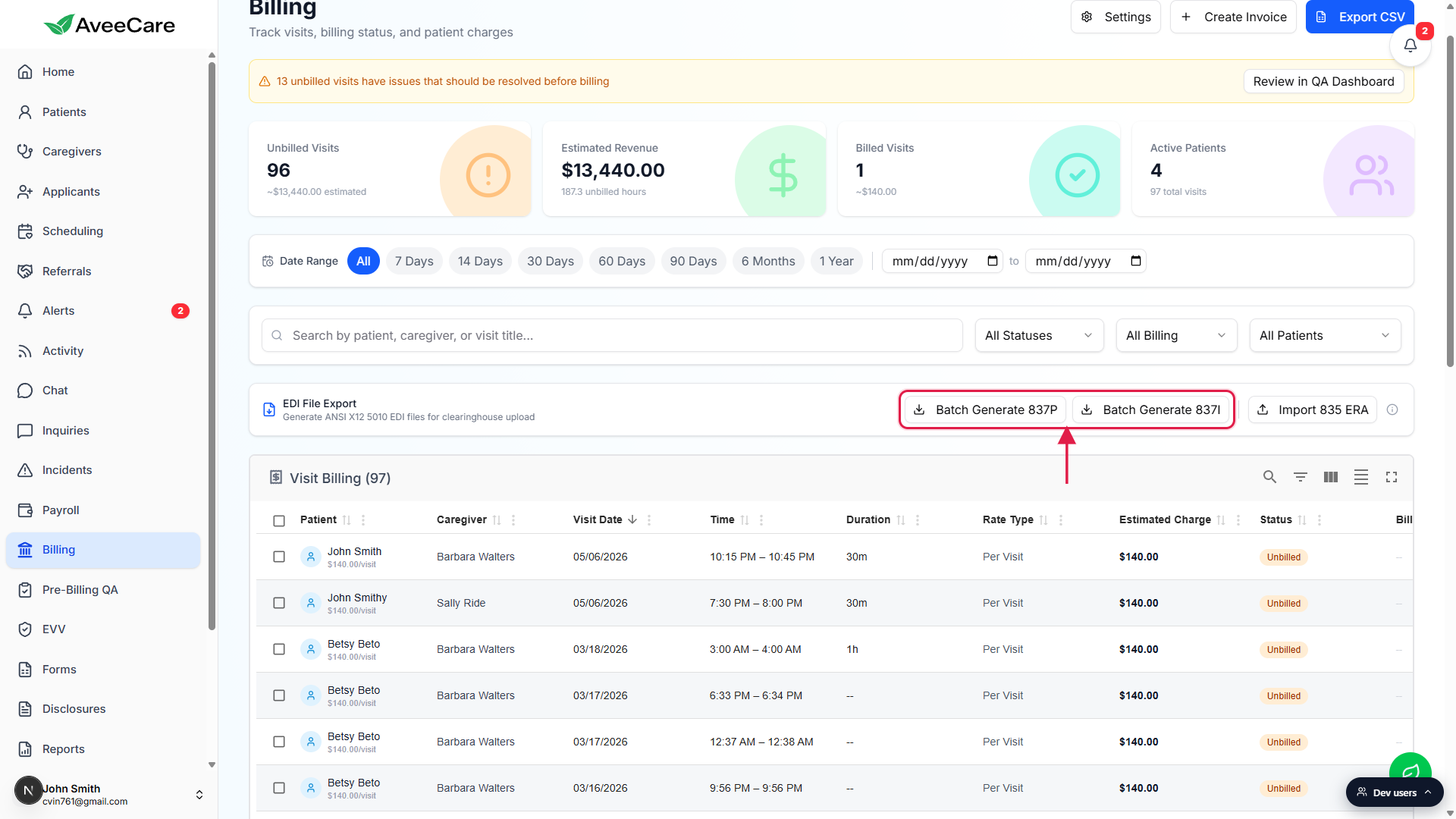
Click Batch Generate 837I instead for institutional claims.
Same flow as 837P, but the file is built against the 837I schema and saved as 837I_batch_YYYY-MM-DD.edi. Only use it if your agency files UB-04 claims. Pure non-medical home care never needs 837I.
3. Generate X12 from a single CMS-1500 claim
Open a visit row in Billing and click the blue shield icon.
The shield tooltip reads Generate insurance claim (837P). That opens the CMS-1500 Professional Claim (837P) modal on the Simple tab. Rows whose patient has no insurance record do not show the shield.Switch to the Advanced tab and scroll to the bottom action row.
The action row sits below the Totals (Boxes 27-29) section. It shows a Test Mode (ISA15=T) checkbox on the left, then Generate PDF, then Generate X12, then Submit to Clearinghouse.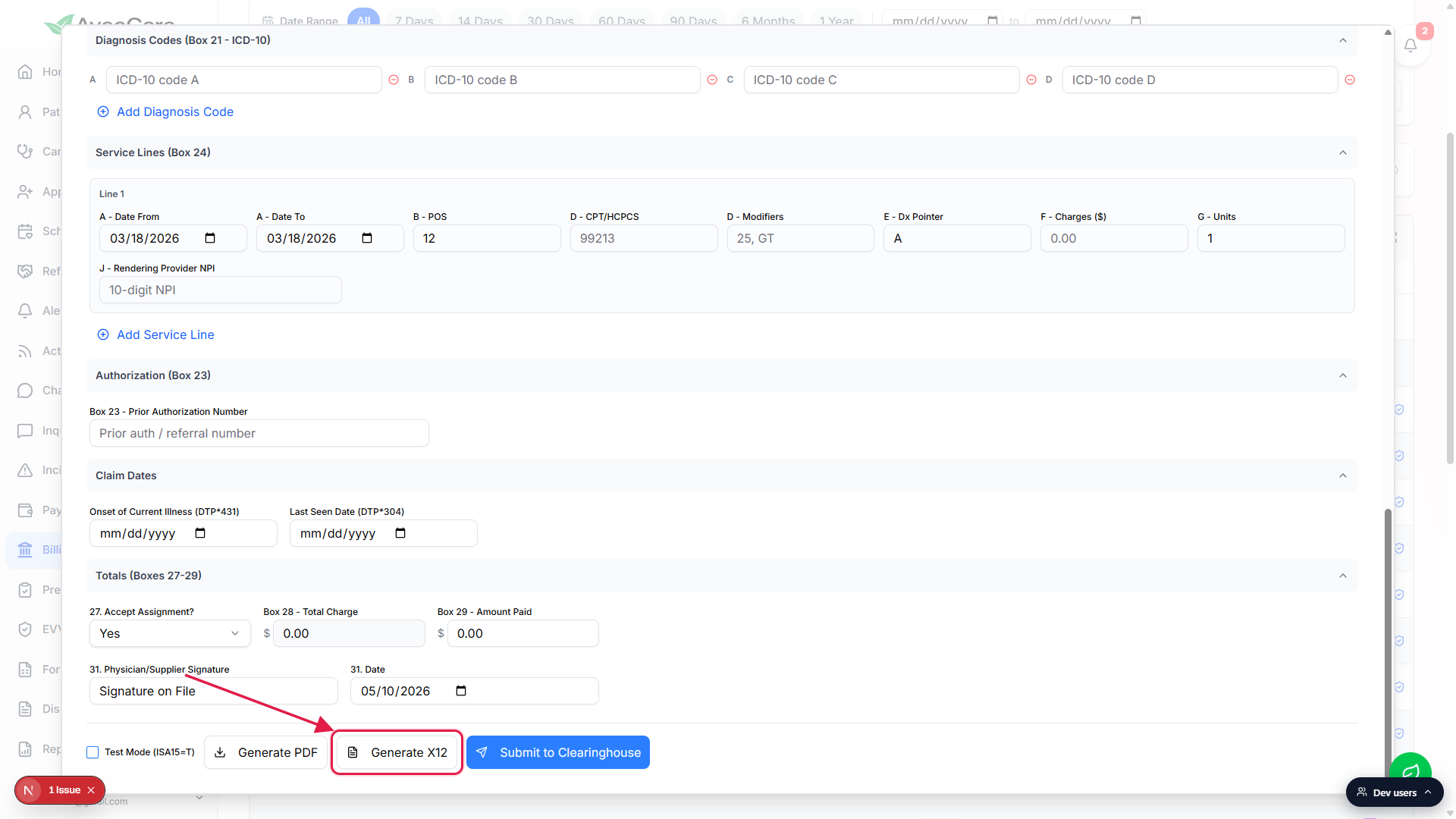
Tick Test Mode (ISA15=T) only for clearinghouse connection tests.
Test Mode flips the ISA15 indicator in the X12 envelope from P (production) to T (test), so the clearinghouse routes the file to its test environment instead of forwarding it to the real payer. Leave it unchecked for real claims.Click Generate X12 to download the single-claim file.
Before the download, AveeCare validates the required boxes (Box 1, 1a, 2, 11c, 21, 25, 28 service line procedure code, 33, 33a, Insurance Payer ID) and runs a Luhn check on the Box 33a NPI. Missing fields show as a toast list. When the file is ready it downloads with a name like claim_837P_2026-05-10.edi.
4. Upload the .edi file to your clearinghouse
Log in to your clearinghouse and upload the .edi file.
Every clearinghouse has its own upload page. Availity uses EDI Inbox, Office Ally uses Send Files, Optum uses Document Vault, Trizetto uses Claims Submission, Waystar uses File Manager. The .edi file is plain text, no extra packaging required.Or, if your tenant has a direct connection, click Submit to Clearinghouse.
If Settings has an active clearinghouse connection, Submit 837P to (provider) appears in the EDI File Export card next to Batch Generate, and Submit to Clearinghouse appears at the bottom of the CMS-1500 Advanced form. Either button sends the file straight to the clearinghouse over your stored credentials, so you never download the .edi yourself.Watch the claim status walk forward as responses come back.
The clearinghouse returns a 999 (functional acknowledgment), then a 277CA (claim acknowledgment), then the payer eventually returns an 835 (remittance). AveeCare ingests each response and walks the claim status from Submitted to Acknowledged to Paid, or to Rejected / Denied if the file failed validation. Click Import 835 ERA in the same EDI File Export card to apply payments from a downloaded 835 file.
Common pitfalls
- Batch returns zero claims. Batch Generate only picks up Draft, Validated, and Rejected claims. If every claim is already Submitted, Acknowledged, or Paid, you have nothing to batch. Build a new CMS-1500 first or open a Rejected claim, fix the issue, and try again.
- Confusing 837P with 837I. Home care visits billed on a CMS-1500 are always 837P. 837I is for UB-04 institutional claims (hospice, home health agencies that bill under a Medicare Part A benefit). Picking 837I for a personal-care visit produces a file the payer will reject.
- Forgetting to flip off Test Mode. If ISA15=T is left on, the clearinghouse routes the file to its test environment and the payer never receives it. The claim sits in Submitted forever. Always uncheck Test Mode for real claims.
- Generate X12 fails with a missing-fields toast. The validator gates on Box 1, 1a, 2, 11c, 21, 25, 28, 33, 33a, the billing provider address and phone, and an Insurance Payer ID. Any blank required box stops the file. Fill the missing fields and retry.
- Treating .edi as a binary file. The output is plain ASCII text. You can open it in Notepad to inspect the ISA / GS / ST envelope segments, but do not re-save it from Word or another rich text editor. Some editors silently add a BOM or change line endings and the clearinghouse will reject the file.