The Advanced tab on the CMS-1500 Professional Claim (837P) modal exposes the full paper CMS-1500 box surface in seven collapsible sections. Use it when the Simple wizard does not expose a box you need to set, when a payer requires a specific override (referring provider on box 17, service facility on box 32, secondary plan on box 9d, accident codes on box 10, and so on), or when you want to spot-check every field before it lands in the 837P file.
Quick answer
Open Billing, click the blue shield icon on a visit row, then click Advanced in the tab bar at the top of the CMS-1500 modal. Click Auto-fill Form to pull patient, company, and visit data into every box, then walk each of the seven sections (Patient and Insurance, Provider Info, Diagnosis Codes, Service Lines, Authorization, Claim Dates, Totals) and override the boxes you need. Click Generate X12 to download the 837P file or Submit to Clearinghouse to send it.
Simple vs Advanced
The CMS-1500 modal opens on the Simple tab by default, which is the three-step guided wizard most agencies use day to day. The Advanced tab next to it is the same claim record shown as the full box-numbered form. The two tabs share state, so you can flip between them mid-claim without losing data. Switch to Advanced when you need to set a box the wizard does not surface or when you want to verify every field before submission.
1. Open the CMS-1500 modal and switch to Advanced
Open Billing and click the blue shield icon on a visit row whose patient has insurance.
The shield lives in the Actions column at the far right of the Visit Billing table. Its hover tooltip reads Generate insurance claim (837P). Rows without an insurance record on the patient do not show this icon.Click the Advanced tab in the modal header.
The modal opens on Simple by default. Advanced is the second pill in the tab bar at the top, next to the close X. Switching tabs does not reset any data you have already entered on the Simple wizard.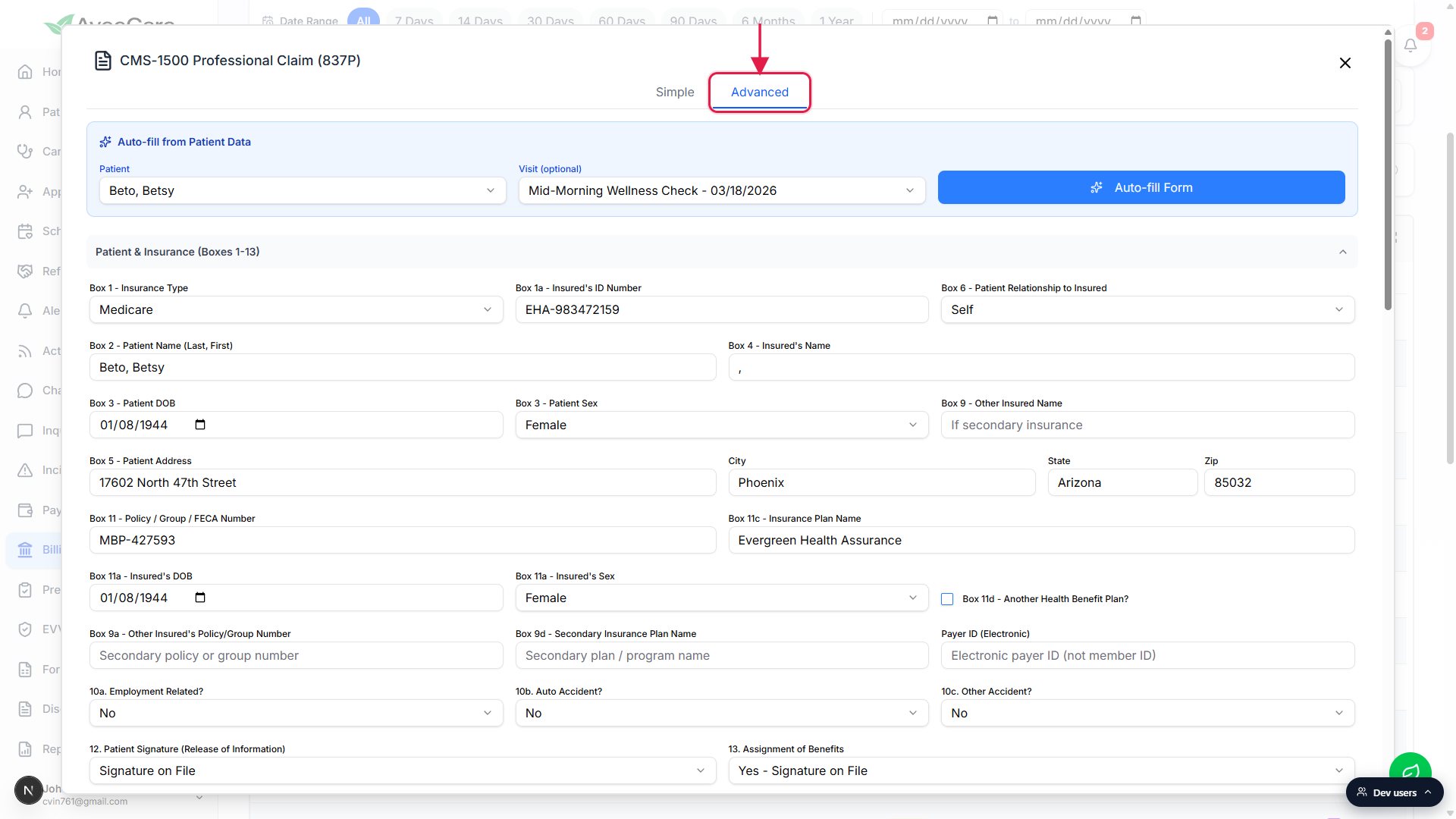
2. Auto-fill from the patient, then override any box
Pick the Patient (and optionally a Visit) in the blue Auto-fill from Patient Data card.
The Patient dropdown is the same patient picker as the Simple wizard. The Visit dropdown is optional and only affects the Service Lines section: leave it on No visit selected to build service lines by hand, or pick a visit to seed Line 1 with that visit's dates, HCPCS code, charges, units, and rendering NPI.Click Auto-fill Form to populate every section in one pass.
Auto-fill pulls patient demographics into Boxes 1 through 13, company data into Boxes 25 and 33, the selected caregiver's NPI into the service line, and the company's business address into Box 32 Service Facility. Override any field afterwards by typing into it. Auto-fill is non-destructive for fields you have already edited as long as they have a value: it only fills blanks.Override boxes the Simple wizard does not expose.
The boxes that only live on the Advanced tab include Box 9 and 9a (other insured name and policy), Box 9d (secondary plan name), Box 10a / 10b / 10c (employment, auto accident, other accident), Box 11d (another health benefit plan), Box 12 and 13 (signature on file and assignment of benefits), Box 17 and 17b (referring provider and NPI), Box 23 (prior auth), Box 27 (accept assignment), Box 31 (physician signature), and Box 32 / 32a (service facility location and NPI).
3. Walk the seven box-numbered sections
Patient and Insurance (Boxes 1-13).
Insurance type, insured ID, patient name and DOB, address, relationship to insured, secondary insurance, policy and group number, plan name, payer ID, accident questions, and the two signature toggles. The Box 7 Insured Address row only appears when Box 6 Patient Relationship is anything other than Self.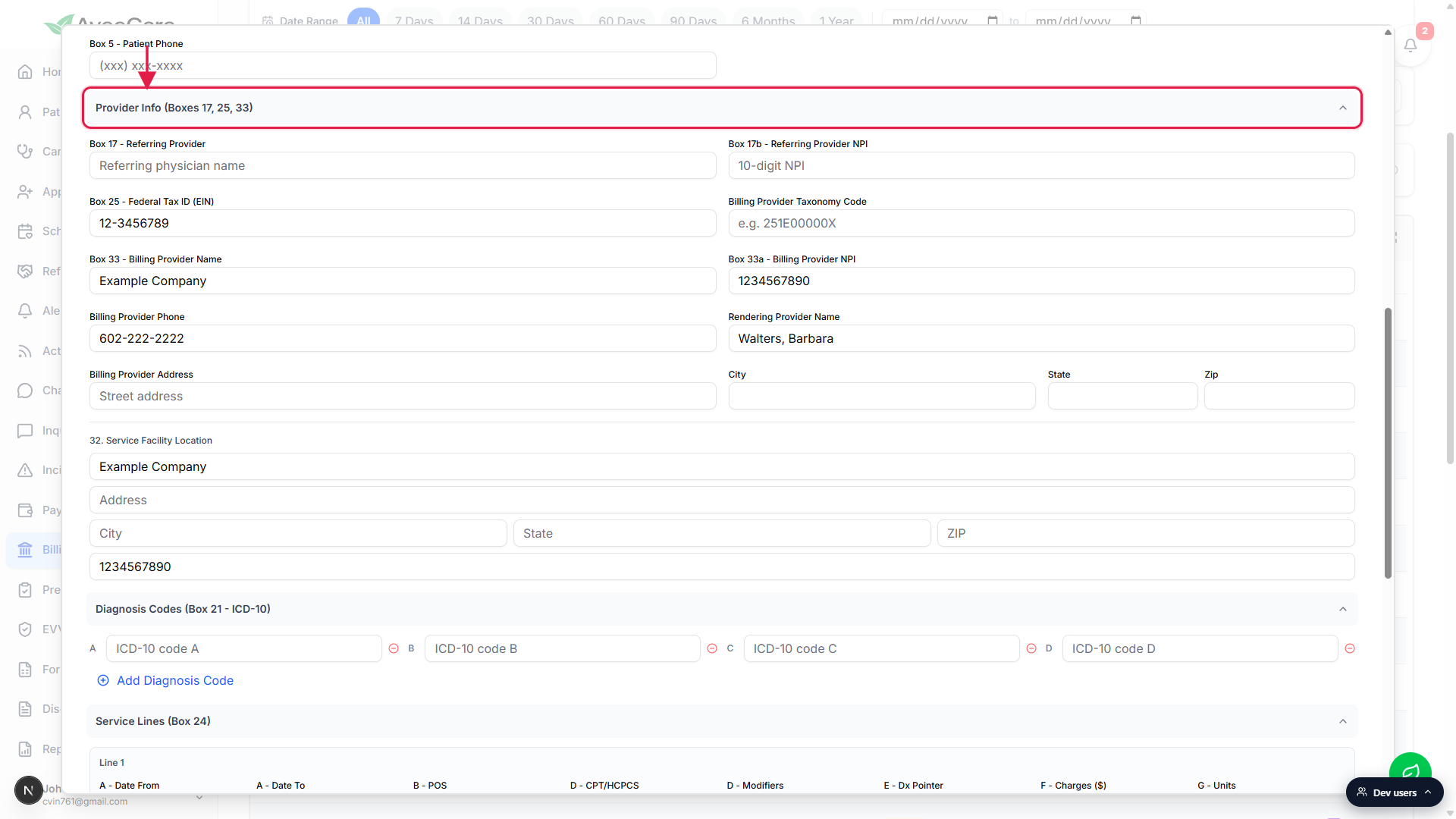
Provider Info (Boxes 17, 25, 33).
Referring provider name and NPI, Federal Tax ID (EIN), taxonomy code, billing provider name and NPI, phone and address, rendering provider name, and the Box 32 Service Facility Location card (name, address, city, state, zip, Service Facility NPI on Box 32a). Auto-fill drops your company record into all of these.Diagnosis Codes (Box 21, ICD-10) and Service Lines (Box 24).
Box 21 lets you list up to 12 ICD-10 codes (pointers A through L). Add a code by clicking + Add Diagnosis Code and remove one with the minus icon next to each row. Each service line below has eight fields: A Date From and Date To, B POS (place of service, defaults to 12 for home), D CPT/HCPCS and Modifiers, E Dx Pointer (which Box 21 pointer letters apply to this line), F Charges, G Units, and J Rendering Provider NPI. Up to 6 service lines per claim.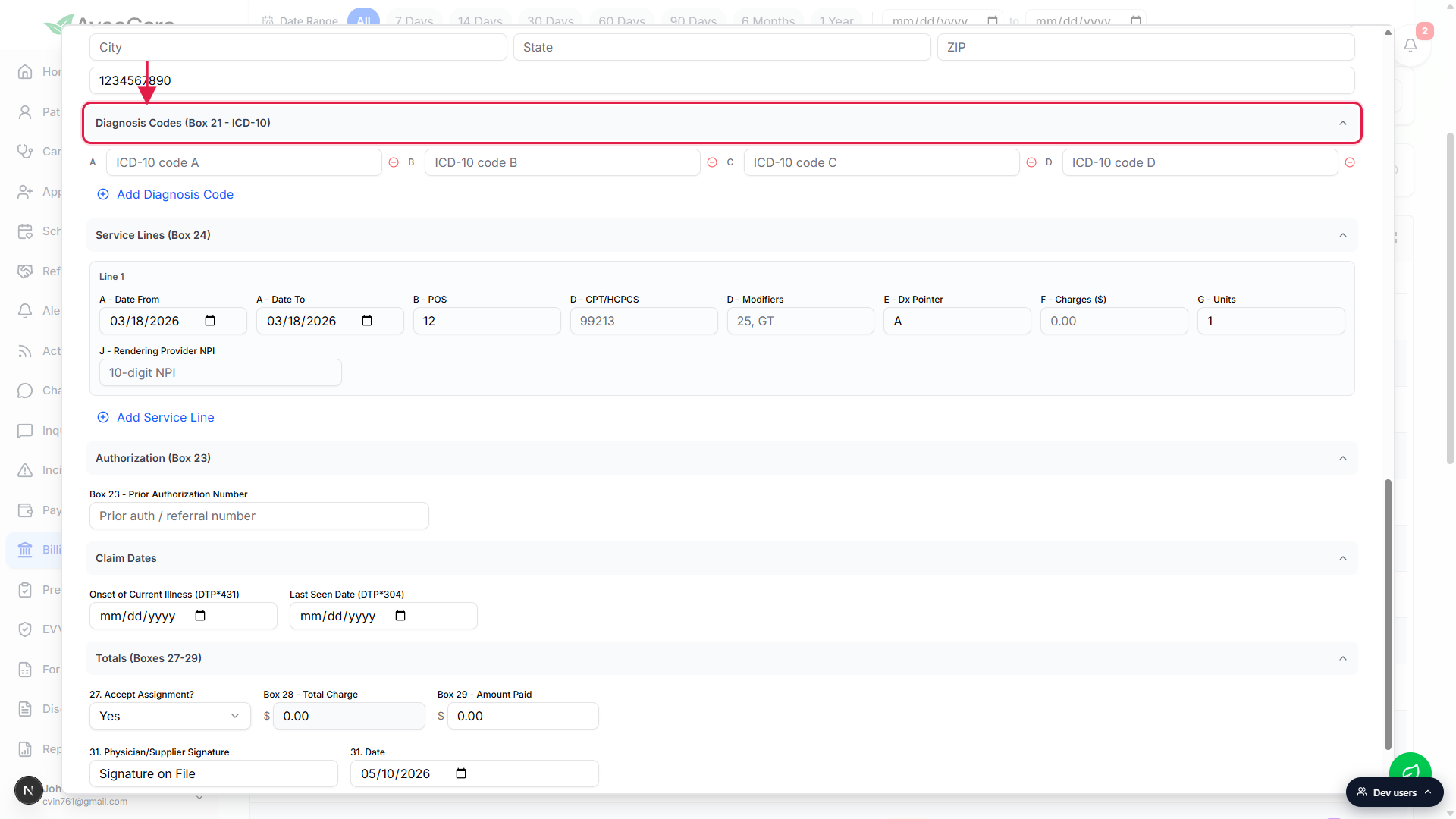
Authorization (Box 23), Claim Dates, and Totals (Boxes 27-29).
Box 23 is the prior auth or referral number. Claim Dates is where you set onset of current illness (segment DTP*431) and last seen date (DTP*304) for the 837P. Totals has Box 27 Accept Assignment, Box 28 Total Charge (read-only, summed from the service lines automatically), Box 29 Amount Paid, Box 31 Physician Signature (defaults to Signature on File), and the Box 31 date.
4. Submit: Generate PDF, Generate X12, or Submit to Clearinghouse
Check the Test Mode (ISA15=T) box first if this is a test claim.
Test Mode flips the ISA15 indicator in the X12 envelope from P (production) to T (test) so clearinghouses route the file to their test environment instead of forwarding it to the payer. Leave it unchecked for real claims.Click Generate PDF to export a paper-printable CMS-1500.
Generate PDF renders the printable CMS-1500 from the form values and prompts the browser to download it. Useful for paper submission, payer audit requests, or a quick visual proof of the claim before you generate the X12 file.Click Generate X12 to download the 837P file.
Generate X12 builds an ANSI X12 5010 837P file from every box on the form and downloads it locally. Upload that file to your clearinghouse portal (Availity, Trizetto, Office Ally, Optum, Waystar). Before generating, the wizard validates that the required boxes (1, 1a, 2, 11c, 21, 25, 28 service line procedure code, 33 billing provider, 33a NPI) are filled and that the Box 33a NPI passes the Luhn check digit. Missing fields show as a toast list.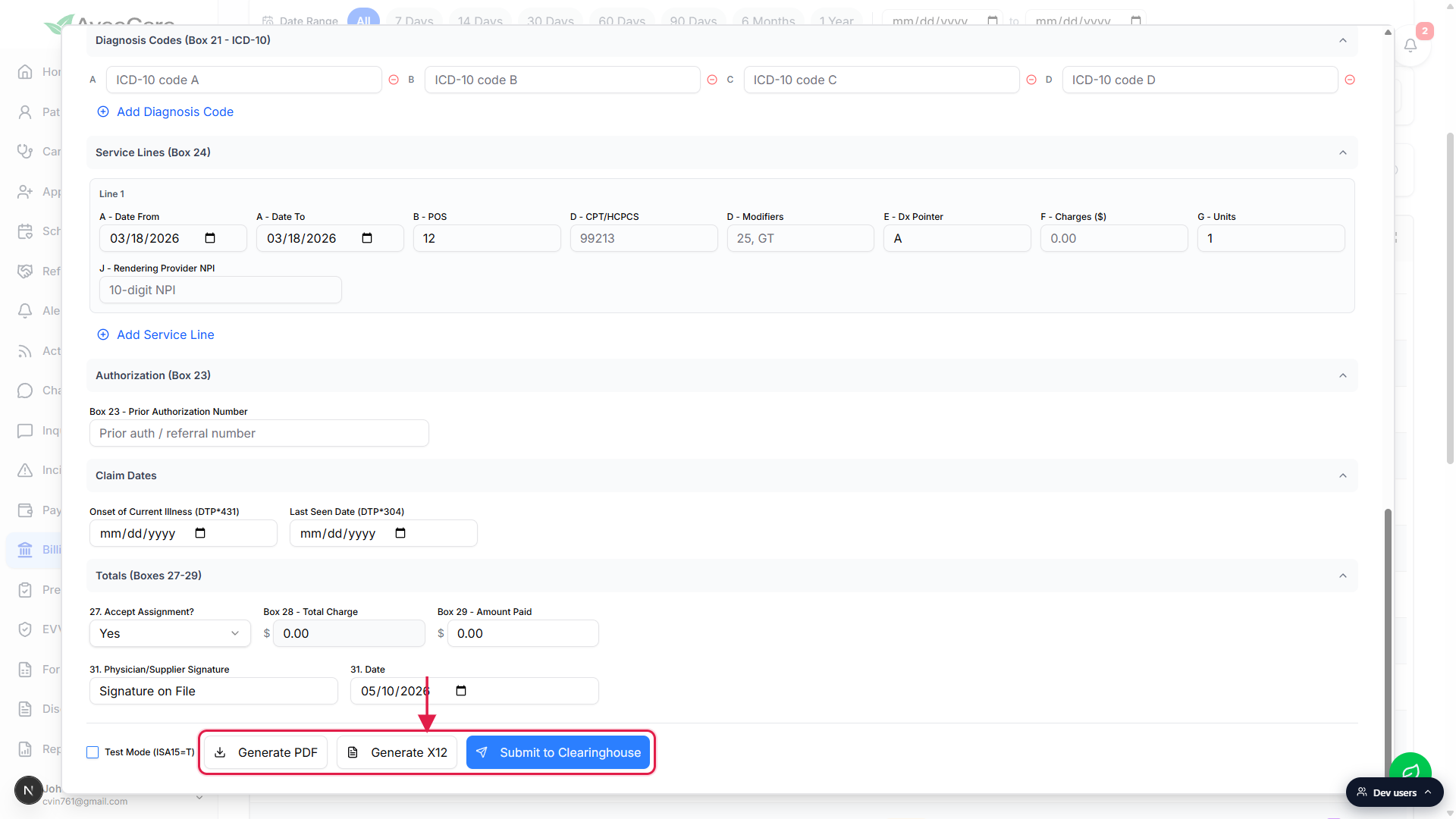
Click Submit to Clearinghouse to ship the file directly.
Submit to Clearinghouse requires an active clearinghouse connection in Settings. AveeCare shows a confirmation dialog, then calls the configured clearinghouse with the generated 837P. The claim's status on the Visit Billing table then walks Submitted, Acknowledged, and Paid (or Rejected / Denied) as the clearinghouse and payer respond.
Common pitfalls
- Skipping Auto-fill and typing everything by hand. Most fields on the Advanced form populate from the patient, company, and selected visit if you click Auto-fill Form. Hand-entering Box 2 Patient Name, Box 25 Tax ID, Box 33 Billing Provider, and the Service Line dates every time wastes effort and risks typos.
- Wrong Box 6 / Box 11a when the patient is not the subscriber. Box 6 Patient Relationship to Insured defaults to Self. If the patient is a spouse, child, or other dependent, change Box 6 first. The form will reveal the Box 7 Insured Address card, and you must fill Box 4 Insured Name and Box 11a Insured DOB and sex yourself because the patient's own DOB does not apply.
- Generate X12 fails with a missing-fields toast. The validator gates on Box 1, 1a, 2, 11c, 21, 25, 28 (service line with a procedure code), 33, 33a, the billing provider address and phone, and an Insurance Payer ID. If any of those are blank the X12 file will not generate. Fill them and retry.
- Box 33a NPI Luhn check. The Advanced form runs a Luhn check on the Box 33a (Billing Provider NPI) before generating the X12 file. A 10-digit string that does not pass the check digit algorithm is rejected with an NPI is invalid error even if the format looks right. Re-enter the NPI from your CMS NPPES record.
- Wrong Box 24B Place of Service. The Advanced form defaults every service line to POS 12 (home). For an assisted living facility visit, a domiciliary care visit, or a hospital discharge bridge visit, change the POS code on the service line before generating the file.
- Maximum 4 modifiers per service line. Box 24D modifiers are comma-separated. The validator caps each line at 4 modifiers because CMS-1500 box 24D only fits four. Listing a fifth one is rejected at generate time.