Clearinghouse status is the on/off signal that tells AveeCare whether your tenant has a live EDI connection to a clearinghouse vendor like Optum, Availity, Trizetto, Office Ally, or Waystar. When the connection is configured and saved, Submit to Clearinghouse buttons appear on Billing and AveeCare polls the clearinghouse for 999, 277CA, and 835 responses in the background. When it is not, you can still build CMS-1500 PDFs and download .edi files, but you upload them to the clearinghouse portal yourself.
Quick answer
Open Settings, click the Clearinghouse & Claims tab, and look at the Clearinghouse Connection card. The header shows a green Connected badge once a provider is selected and the integration record is saved. Then open Billing: the EDI File Export card grows new Submit 837P to (provider) and Submit 837I to (provider) buttons, and a Check for Responses row appears under the action bar.
Supported providers
The EDI Clearinghouse Provider dropdown lists:
- None. No active connection. Generate-only mode.
- Availity. Most common for commercial payers.
- Trizetto. Provided directories are pre-filled from known defaults.
- Office Ally. Popular low-cost option for small agencies.
- Optum. Pre-fills the SFTP host hint from your Optum enrollment packet.
- Waystar. Common for larger multi-state agencies.
- Other. For any clearinghouse with a standard SFTP endpoint.
1. Read the Clearinghouse Connection card in Settings
Open Settings and click the Clearinghouse & Claims tab.
The tab strip across the top of Settings reads Business Settings, My Notifications, Company Notifications, Subscription & Billing, Payment Integrations, Clearinghouse & Claims, Payroll, Locations, API Keys, Account. Click the sixth pill.Look at the Clearinghouse Connection card at the top of the tab.
When no provider is selected, a blue info panel reads No clearinghouse selected. You can still generate CMS-1500 and UB-04 claim forms as PDFs for manual submission. That is the disconnected state. No green badge sits next to the heading.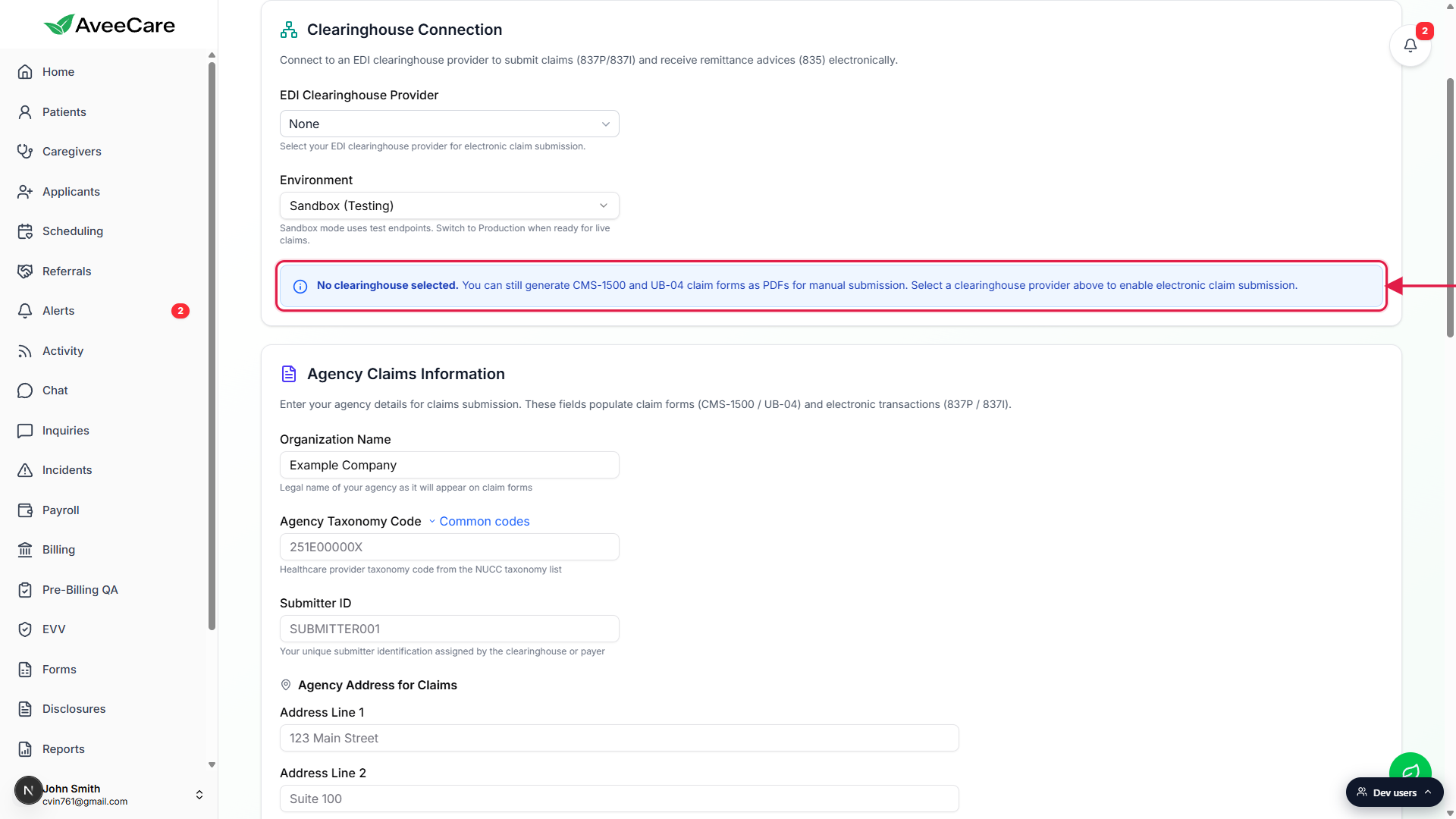
2. Pick a provider and save to mark the tenant Connected
Click the EDI Clearinghouse Provider dropdown.
Pick whichever vendor your agency uses. The list shows None, Availity, Trizetto, Office Ally, Optum, Waystar, and Other. Most home care agencies on this list use Optum or Availity.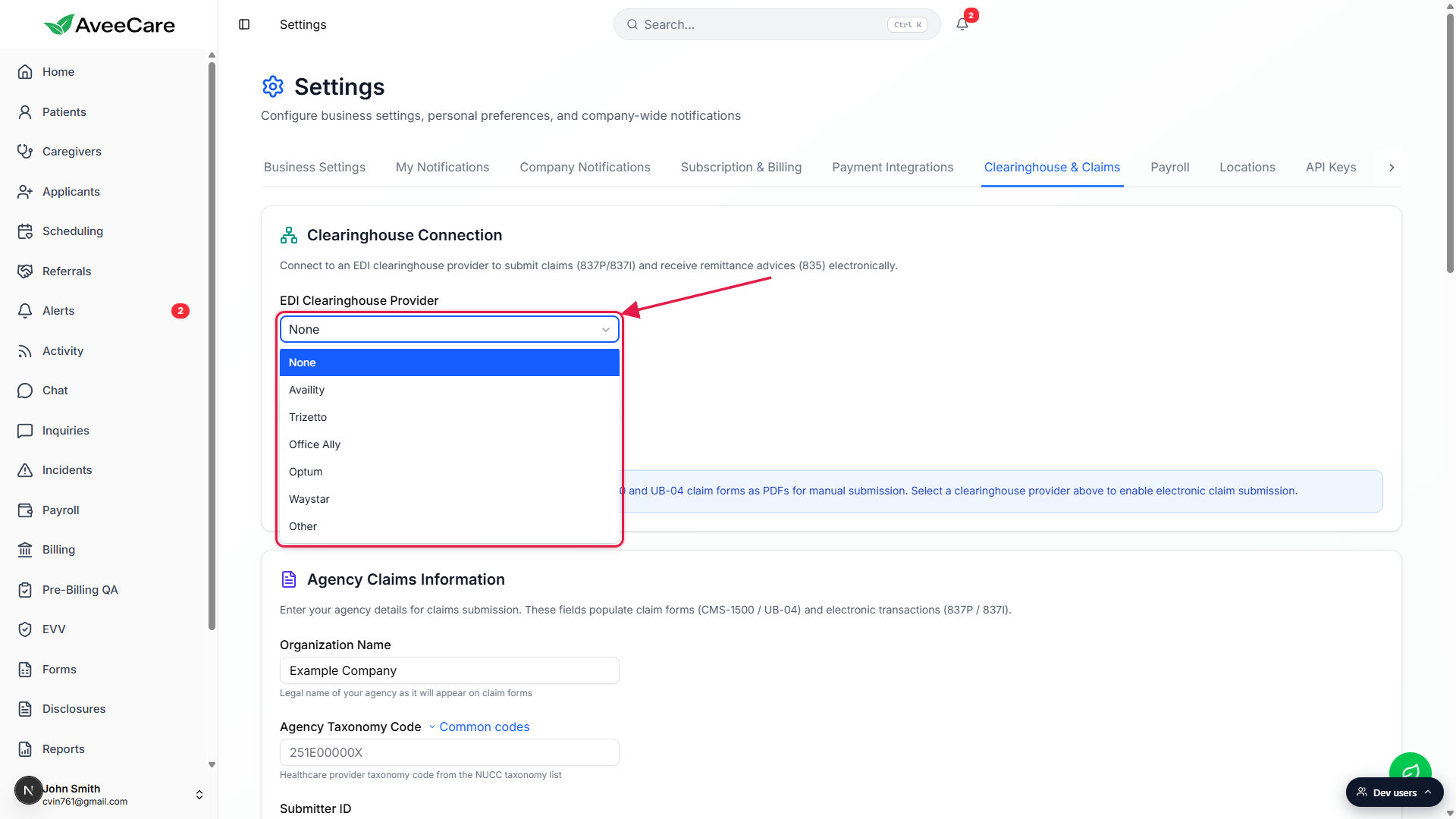
Set Environment to Sandbox for the first connection test.
The Environment toggle reads Sandbox (Testing) or Production. Sandbox flips the ISA15 indicator on outbound 837 files from P to T so the clearinghouse routes them to its test environment and never forwards to a real payer. Once a few test claims walk through cleanly, switch it to Production.Fill the SFTP Connection fields below the provider picker.
Host, Port (default 22), Username, and either a password or an SSH private key in PEM format. Upload Directory and Download Directory tell AveeCare where on the SFTP server to drop 837 files and look for 999, 277CA, and 835 responses. After Processing Responses lets you Delete, Rename with .processed, or Move to Archive once a response file is consumed.Click Save SFTP Connection, then Save Clearinghouse & Claims Settings.
The save creates the integration record. The Clearinghouse Connection card header now shows a small green Connected badge next to the heading, and a Test Connection button appears in the green Available features info panel. Click Test Connection to verify the SFTP credentials open a session against the upload and download directories.
3. Confirm Submit to Clearinghouse buttons appear on Billing
Open the Billing page from the left sidebar.
Billing surfaces the same connection status by changing which buttons it renders in the EDI File Export card. The card sits between the filter row and the Visit Billing table.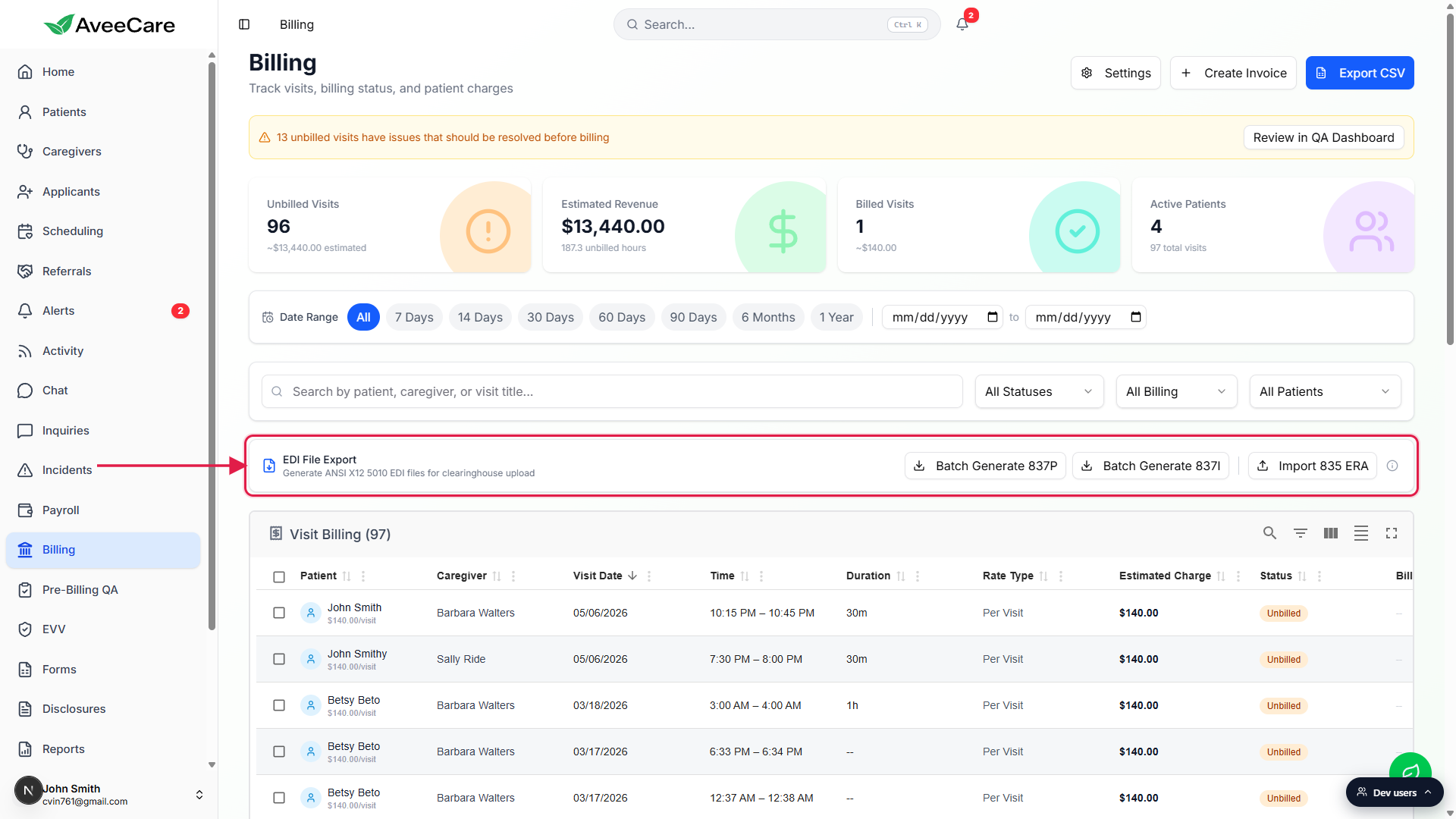
Check the button set.
Disconnected: only Batch Generate 837P, Batch Generate 837I, and Import 835 ERA. Connected: a vertical divider plus blue Submit 837P to (provider) and Submit 837I to (provider) buttons appear at the right end of the card, and a separate Check for Responses row appears below the EDI card with a Last checked timestamp and Connected to (provider) text.Also check inside individual CMS-1500 claims.
Open any visit row, click the blue shield to open the CMS-1500 Professional Claim modal, switch to the Advanced tab, and scroll to the bottom action row. The row reads Test Mode (ISA15=T), Generate PDF, Generate X12, Submit to Clearinghouse. The Submit to Clearinghouse button only appears when the tenant is connected.
4. Watch responses come back automatically
Background polling runs every 2 minutes on Billing.
While Billing is open, AveeCare polls the clearinghouse download directory every two minutes for 999 (functional acknowledgment), 277CA (claim acknowledgment), and 835 (remittance) files. On other pages the poll runs every five minutes. The polling ingests files automatically, walks each claim status forward (Submitted, Acknowledged, Paid, or Rejected / Denied), and cleans up processed files based on the After Processing Responses rule you picked.Click Check for Responses to poll on demand.
The Check for Responses row sits under the EDI File Export card when the tenant is connected. The button shows a spinner while polling, and the Last checked timestamp updates after each successful poll. Useful right after you submit a batch if you do not want to wait two minutes.
Common pitfalls
- Provider picked but no Connected badge. Selecting a provider in the dropdown does not flip the tenant to connected on its own. You have to click Save Clearinghouse & Claims Settings at the bottom of the tab so AveeCare creates the integration record. Until then the badge stays off and Billing still only shows Batch Generate buttons.
- Saved but Test Connection fails. Almost always wrong SFTP credentials, a typo in the host, the wrong upload or download directory, or your IP not allowlisted on the clearinghouse side. Fix the field and click Test Connection again. AveeCare lists the upload and download directory file counts on success so you can confirm it is talking to the right path.
- Stuck in Sandbox. If Environment is still set to Sandbox (Testing), every 837 file you submit lands in the clearinghouse test environment and never reaches the real payer. The claim sits at Submitted forever. Switch Environment to Production once you have verified a few test claims walk through cleanly.
- Submit to Clearinghouse button missing on a single claim. Confirm the tenant has a saved clearinghouse connection in Settings first, then reload the CMS-1500 modal. If the connection was added mid-session the modal needs a fresh open to pick up the connection state.
- Responses not appearing. If 999 or 835 files never show up on the claim, check that After Processing Responses is not set to Delete on a directory that another tool is also watching, and verify the download directory points at the right SFTP folder. AveeCare cleans up files only after a successful ingestion.