Pre-Billing QA is the per-visit checklist that catches missing notes, signatures, ADLs, and EVV captures before any visit gets sent to Billing. Every Completed or Incomplete unbilled visit gets audited by a check engine that groups problems into Signature, Documentation, EVV, Authorization, Billing, and Insurance categories, then sorts the worst rows to the top.
Quick answer
Open Pre-Billing QA. Five tiles at the top show Critical Issues, Warnings, Clean Visits, Total Checked, and Readiness Rate. Pick a date range (7d through All), click a row to expand its per-visit checklist, fix the missing fields inline or click Open Visit to jump to the source. When Clean Visits climbs, click Go to Billing in the page header.
What the engine audits
Every check falls into one of six categories. The colored bar under the tiles, labeled Issue Distribution by Category, totals them up:
- Signature. Missing caregiver or patient signature on a Completed visit.
- Documentation. No visit notes, no ADL log, no narrative for a Completed visit.
- EVV. Missing clock-in time, missing clock-out time, or no GPS capture.
- Authorization. Visit hours exceed the prior authorization on file, or no auth is active for the service date.
- Billing. No service code on the visit, no billing rate configured for the patient or service code.
- Insurance. Patient has no insurance entry, or the entry is missing payer ID or member ID.
1. Open Pre-Billing QA and pick a date range
Click Pre-Billing QA in the left nav.
The header reads Pre-Billing QA with the subtitle Review and resolve issues before submitting visits to billing. The page only shows Completed and Incomplete visits whose patientBilledOut flag is still false, so anything already invoiced or claimed drops out of the list.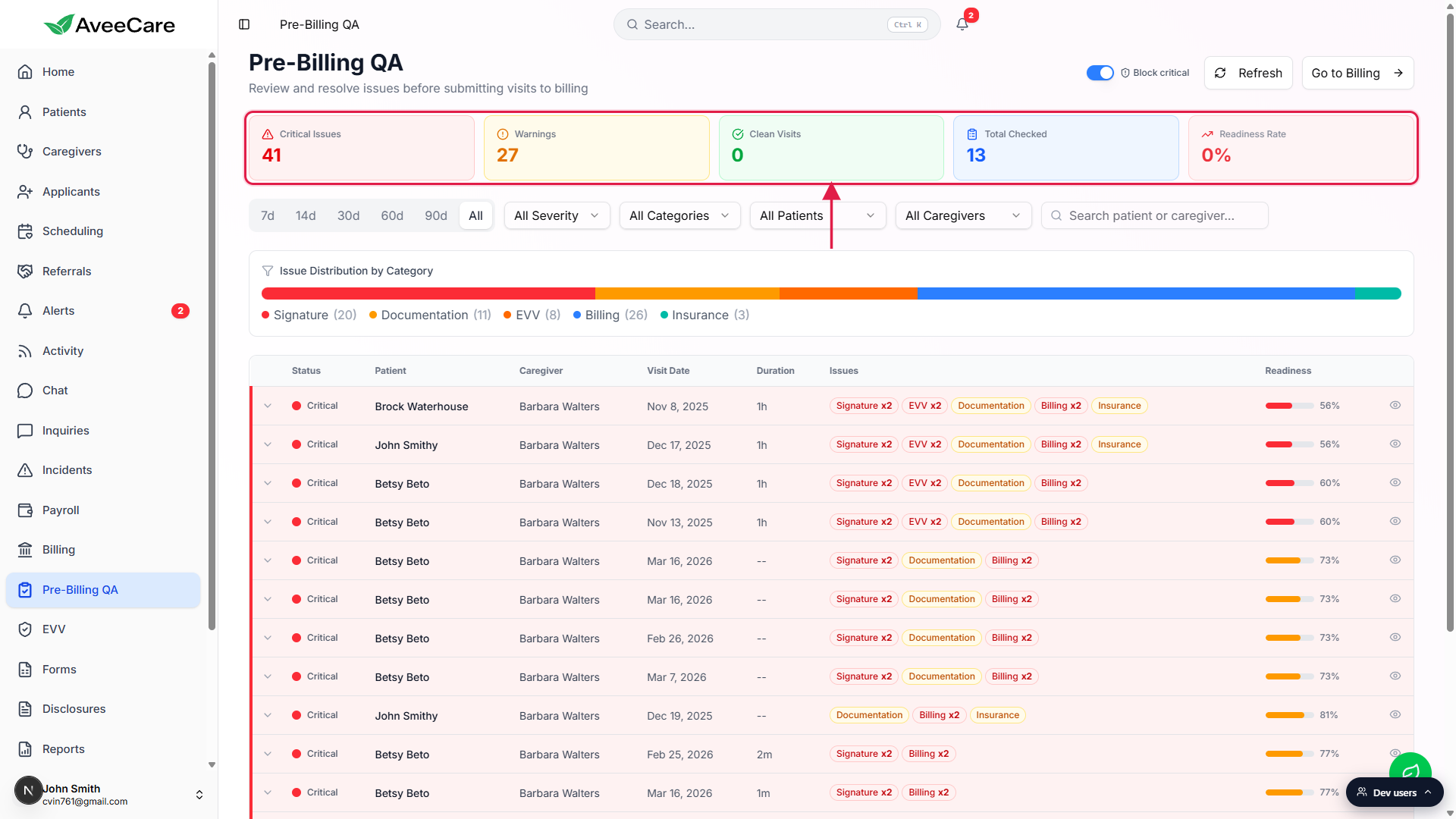
Pick a date range from the 7d / 14d / 30d / 60d / 90d / All toggle.
The toggle controls which visits get audited. All audits every unbilled visit on file, which is the right setting when you are catching up after a long gap. 7d is the right setting for a daily QA pass.
2. Read the five readiness tiles
Read each tile left to right.
Critical Issues is the count of visits with at least one critical problem (no signature, no clock-in, no clock-out, no service code, no billing rate, no insurance). Warnings is visits with non-blocking issues (no visit notes, no service code on a self-pay visit, and so on). Clean Visits is rows ready to bill. Total Checked is the denominator. The big Readiness Rate tile is Clean over Total, rounded.Click any tile to filter the table to that severity.
Click Critical Issues and the Severity dropdown switches to Critical, so only rows with at least one critical problem remain. Click the same tile again to clear the filter.
3. Filter and expand a visit row
Use the filter strip to narrow the list.
Severity (All, Critical, Warning, Info, Clean), Category (Signature, Documentation, EVV, Authorization, Billing, Insurance), Patient, Caregiver, and a free-text search by patient or caregiver name. Filters compose. The visible row count and total issue count are shown in the table footer.Click a row to expand its per-visit checklist.
The expanded panel lists every failing check as its own card, each with a severity badge (Critical, Warning, or Info) and a short fix-it instruction. Categories on this Brock Waterhouse row include Missing Caregiver Signature, Missing Patient Signature, Missing Clock-In Time, Missing Clock-Out Time, No Visit Notes, Missing Service Code, No Billing Rate Configured, and Missing Insurance Information.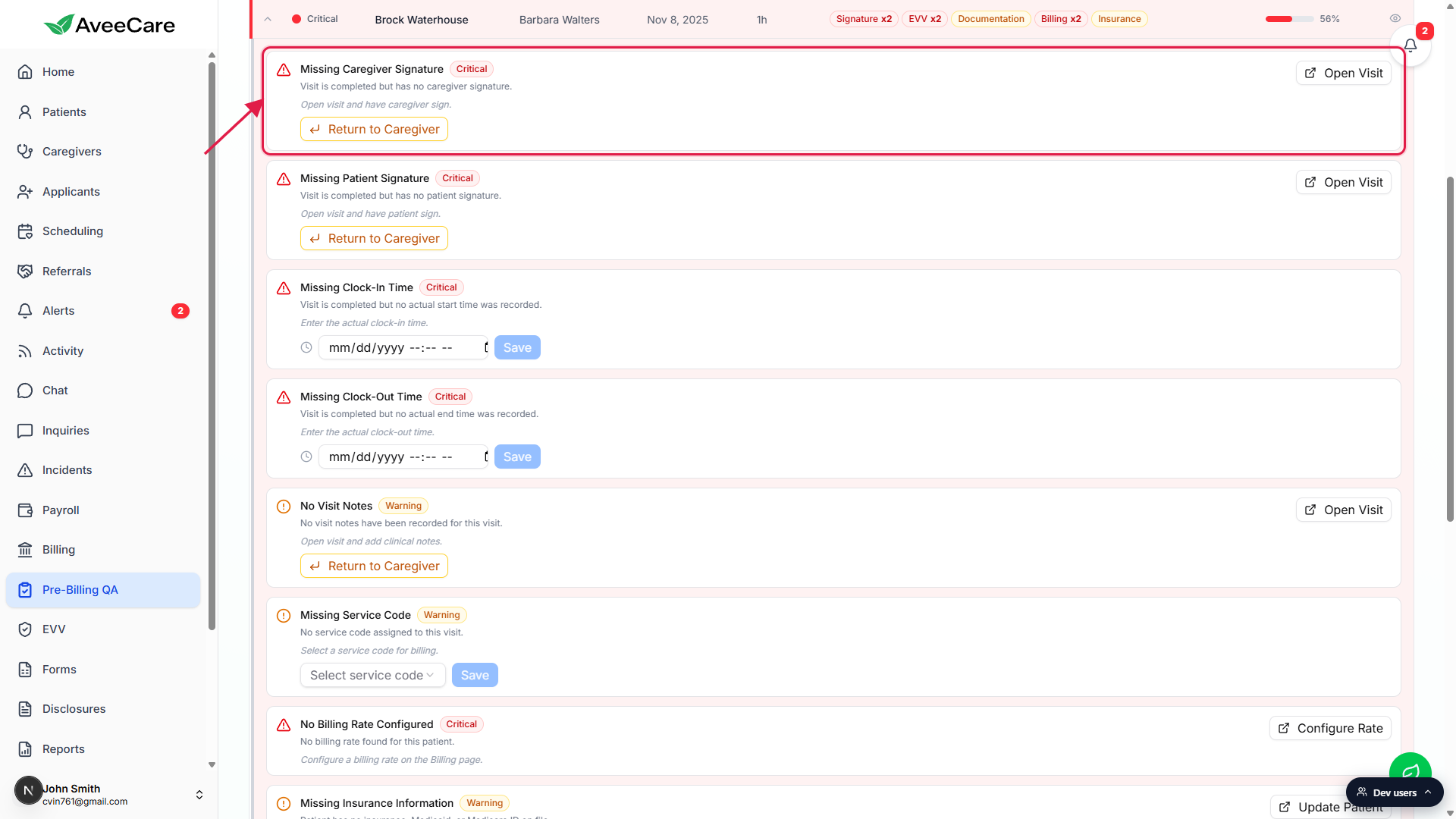
4. Resolve issues inline or jump to the source
Inline fields: type the value and click Save.
Some issues come with an inline form right on the card. Missing Clock-In Time and Missing Clock-Out Time both show a mm/dd/yyyy --:-- -- datetime input with a blue Save button. Missing Service Code shows a Select service code dropdown with the company service codes (T1019, T1020, T1021, S5125, S5126, S5130, S5135, G0151, G0152, G0153, G0156, G0299, G0300, H2014, H2015). Save writes straight to the visit record and the row re-validates on the next refresh.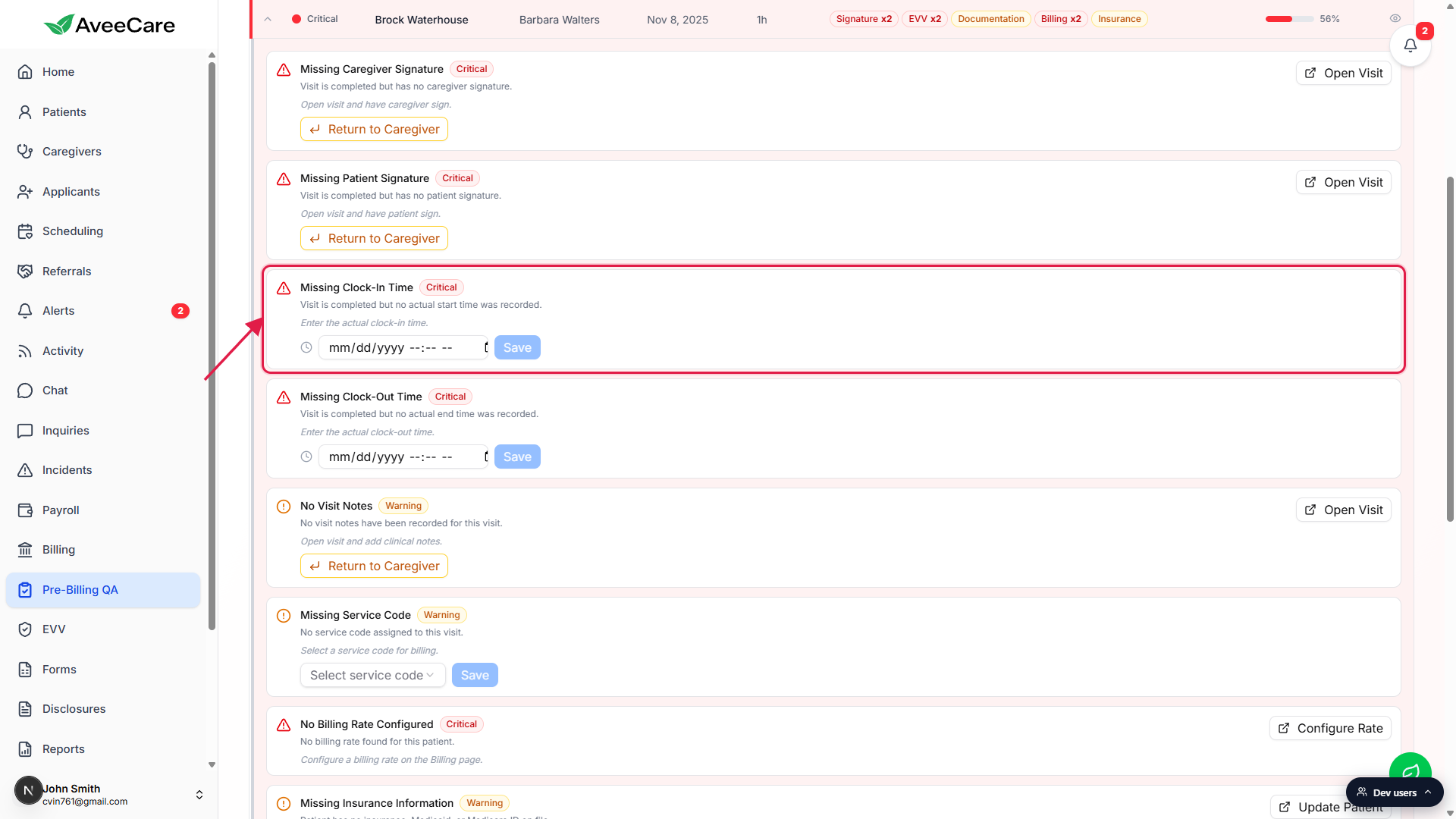
Open Visit / Return to Caregiver for issues that need the source record.
Signature, visit-notes, and ADL issues open a Return to Caregiver action (sends the visit back with a note for the caregiver to re-sign or re-document) and an Open Visit link that jumps to the visit detail page in Scheduling. Insurance and authorization problems jump to the patient record so you fix them once and every future visit benefits.Watch the tiles re-tally as you save.
Refresh re-runs every check against the loaded data. Clean Visits climbs by one per resolved row, Critical Issues drops, and Readiness Rate moves toward 100%.
5. Click Go to Billing when the clean count is right
Use the Go to Billing button in the page header.
The header shows a green Go to Billing (N Clean) button when there is at least one clean visit, plus a smaller outlined Go to Billing link to the right that always navigates to Billing. The green button confirms the clean count first, then navigates. See Go to Billing (clean count) for the handoff into Billing.Block critical toggle: enforce a hard gate.
The Block critical switch in the top-right is on by default and stored per-company in your browser. When on, only fully clean visits land in the Go to Billing button count. Turn it off and visits with warnings or info-level problems get included too (critical visits are still excluded either way).
Common pitfalls
- Readiness Rate says 100% with 0 visits. When the date range has no Completed or Incomplete unbilled visits, the denominator is 0 and the tile defaults to 100%. This is not a real green light, it just means there is nothing to check. Switch to a longer date range.
- A row stays Critical after Save. Saving a single inline field only fixes one check on the row. The row stays Critical until every critical issue is resolved. Click Refresh and the row re-evaluates, then click in again to fix the next blocker.
- No Visit Notes will not turn green from this page. Visit notes are written from the visit detail page in Scheduling or from the caregiver mobile app. The Pre-Billing QA card surfaces the gap and gives you an Open Visit shortcut, but the actual notes have to be charted on the source record.
- Missing Insurance keeps showing up on every visit for one patient. Insurance lives on the patient record, not the visit. Fix it once on the patient's Insurance tab and every future visit for that patient passes the check. Use the Open Patient shortcut on the card.
- Block critical is off and a critical visit is in the count. Even with the toggle off, the Go to Billing button never includes visits with at least one critical issue. Block critical only changes whether visits with warnings or info-level issues get included.