Reschedule a visit by dragging it on the calendar. Pick up the visit block, drop it on a new time or day, confirm the change, and AveeCare moves it. The same surface lets you resize a visit by dragging its bottom edge to extend or shorten the duration.
Quick answer
Open Scheduling. On Day or Week view, click and hold a visit, drag it to a new slot, and release. A Confirm Reschedule modal shows the previous time, the new time, and any conflicts. Click Confirm Change to save. Resize works the same way: drag the bottom edge of the visit up or down.
Where drag works
Drag-and-drop is supported on the agency-wide Scheduling calendar in all three views, with a different feel in each:
- Day view. One column. Vertical drag changes start time. Bottom-edge drag resizes the visit.
- Week view. Seven columns. Vertical drag changes time, horizontal drag changes the day.
- Month view. Drag a visit to a different date. Time of day stays the same.
The per-caregiver schedule on a caregiver profile is read-only. To reschedule, use the agency-wide Scheduling page.
1. Open Scheduling and pick Day or Week view
Open the Scheduling tab and find the visit you want to move.
Hover a visit block on the calendar. The cursor turns into a grab handle, signalling the visit is draggable. Use the date arrows or the Today button to jump to the week with the visit.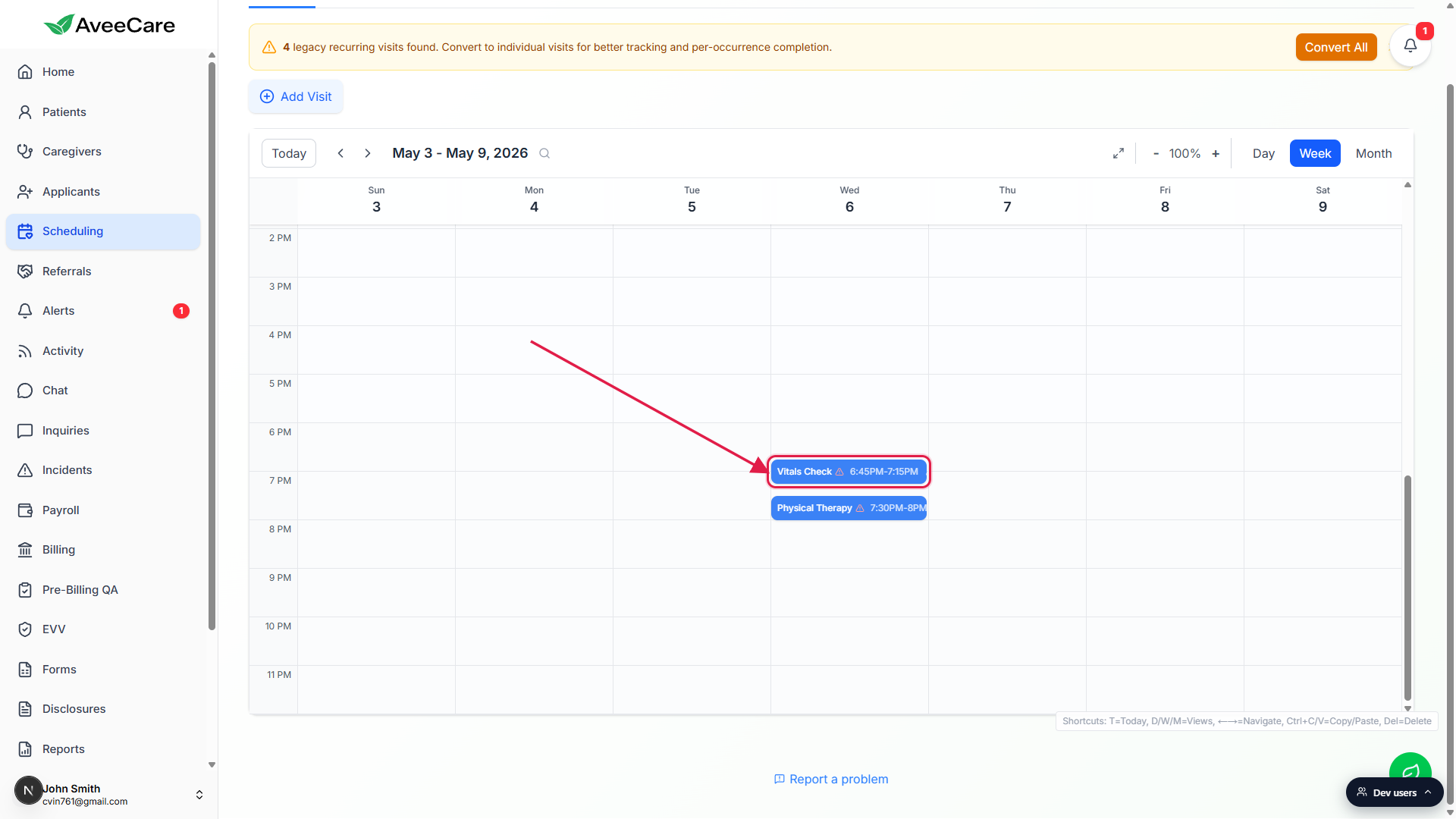
2. Drag a visit to a new time slot
Click and hold the body of the visit, then move the mouse.
A live preview rectangle follows the cursor. Move it vertically to change the time of day, or horizontally on Week or Month view to change the date. The visit duration stays the same when you move (a 30-minute visit stays 30 minutes long).Release the mouse on the new slot.
AveeCare opens a confirmation modal. The drag is not committed until you click Confirm Change.
3. Review the Confirm Reschedule modal
The modal shows the previous time and the new time side by side.
Title is Confirm Reschedule for a move, Confirm Time Change for a resize, and Confirm Caregiver Change if a different caregiver was involved. Click Confirm Change to save or Cancel to abort.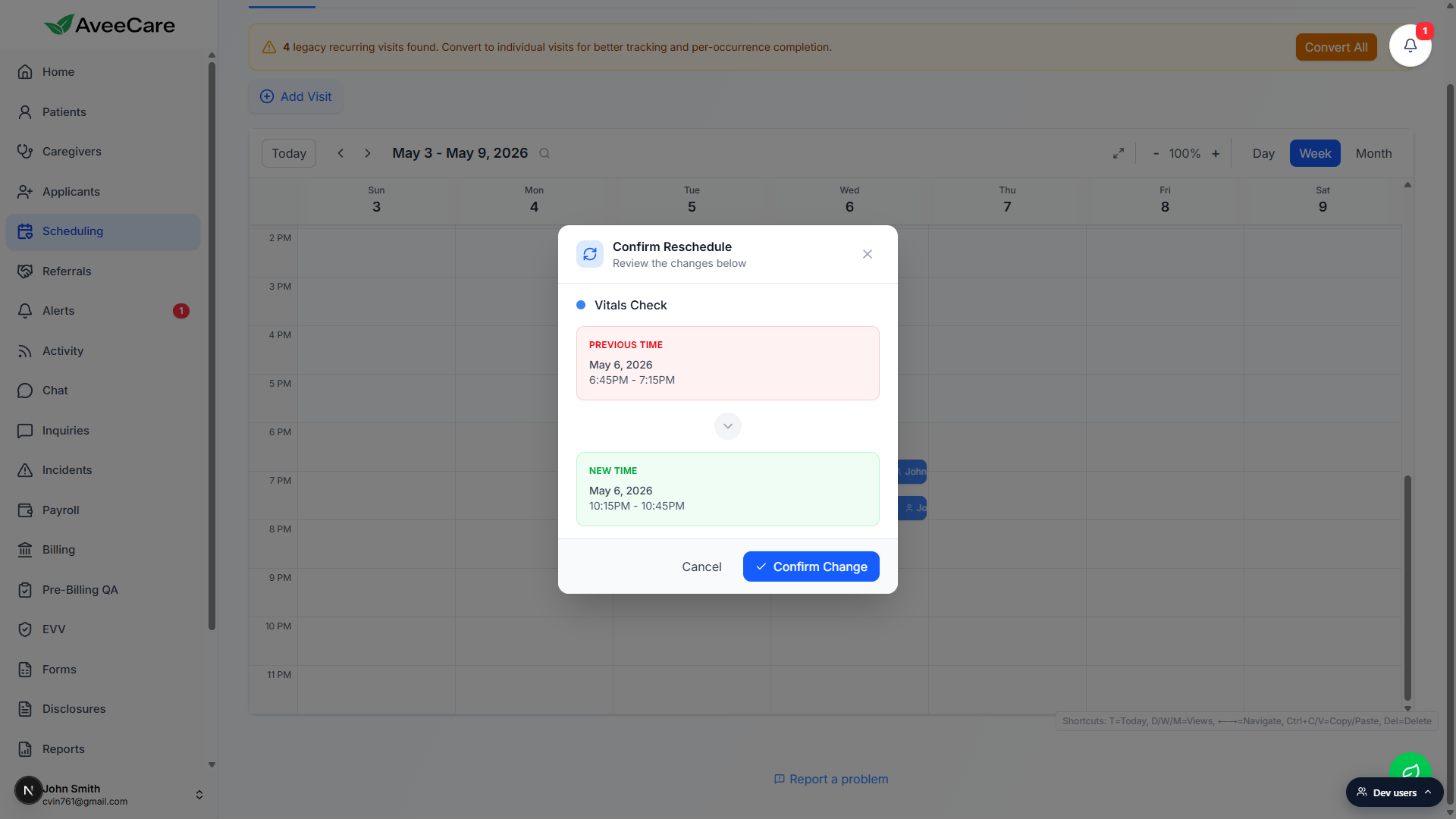
On a conflict, an orange warning appears with an acknowledgment checkbox.
If the new slot overlaps another visit on the same caregiver, the modal shows the conflicting visits and a checkbox: I understand this creates a scheduling conflict and want to proceed anyway. Tick the box to enable Confirm Change, or Cancel and pick a free slot.After Confirm, the visit lands on the new slot.
Other fields, patient, caregiver, notes, ADLs, EVV expectations, all stay the same. Only start and end shift.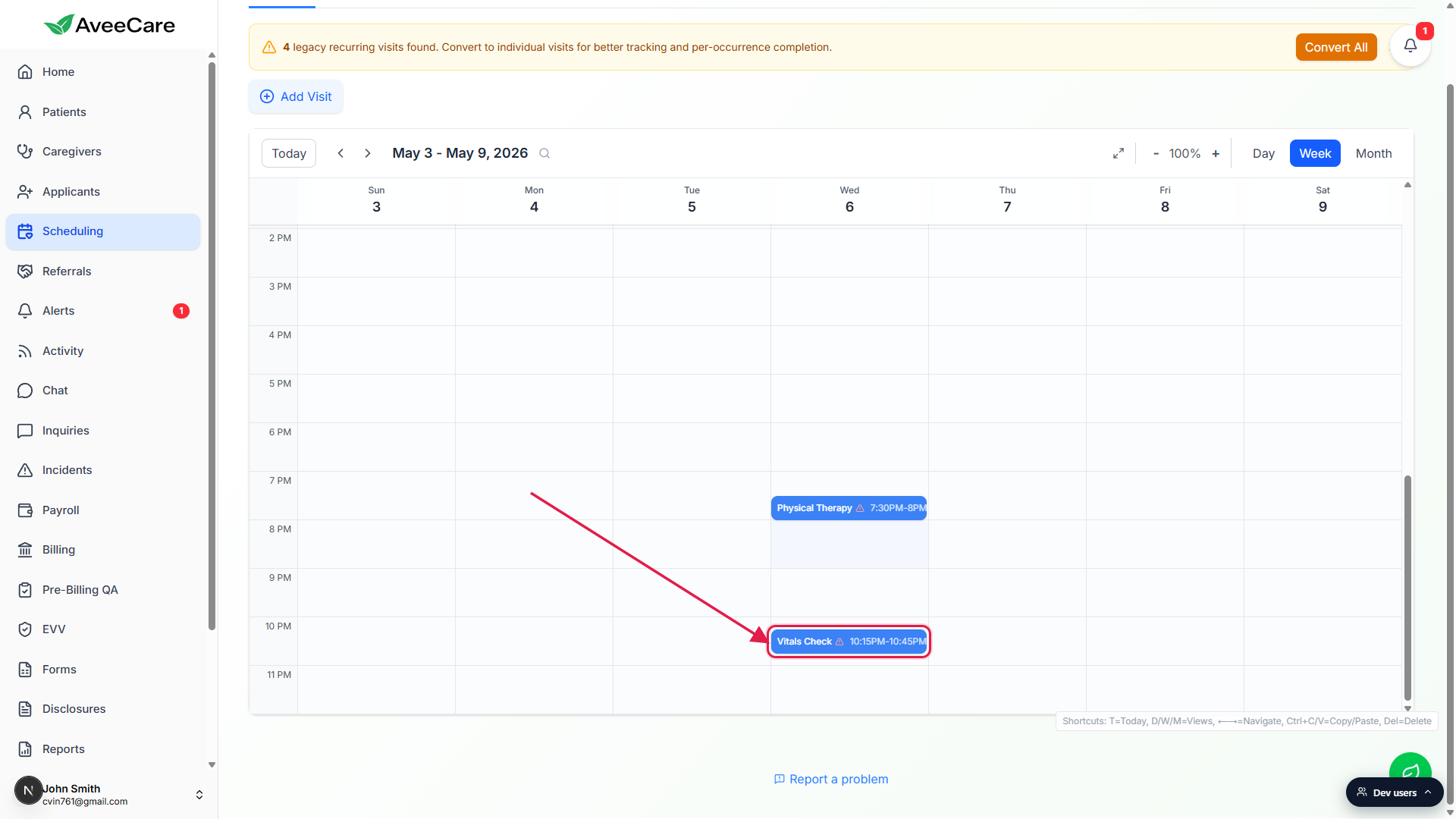
4. Resize a visit to change duration
Hover the bottom edge of a visit; the cursor changes to a resize handle.
Click and drag the edge down to extend, up to shorten. The end time updates live as you drag.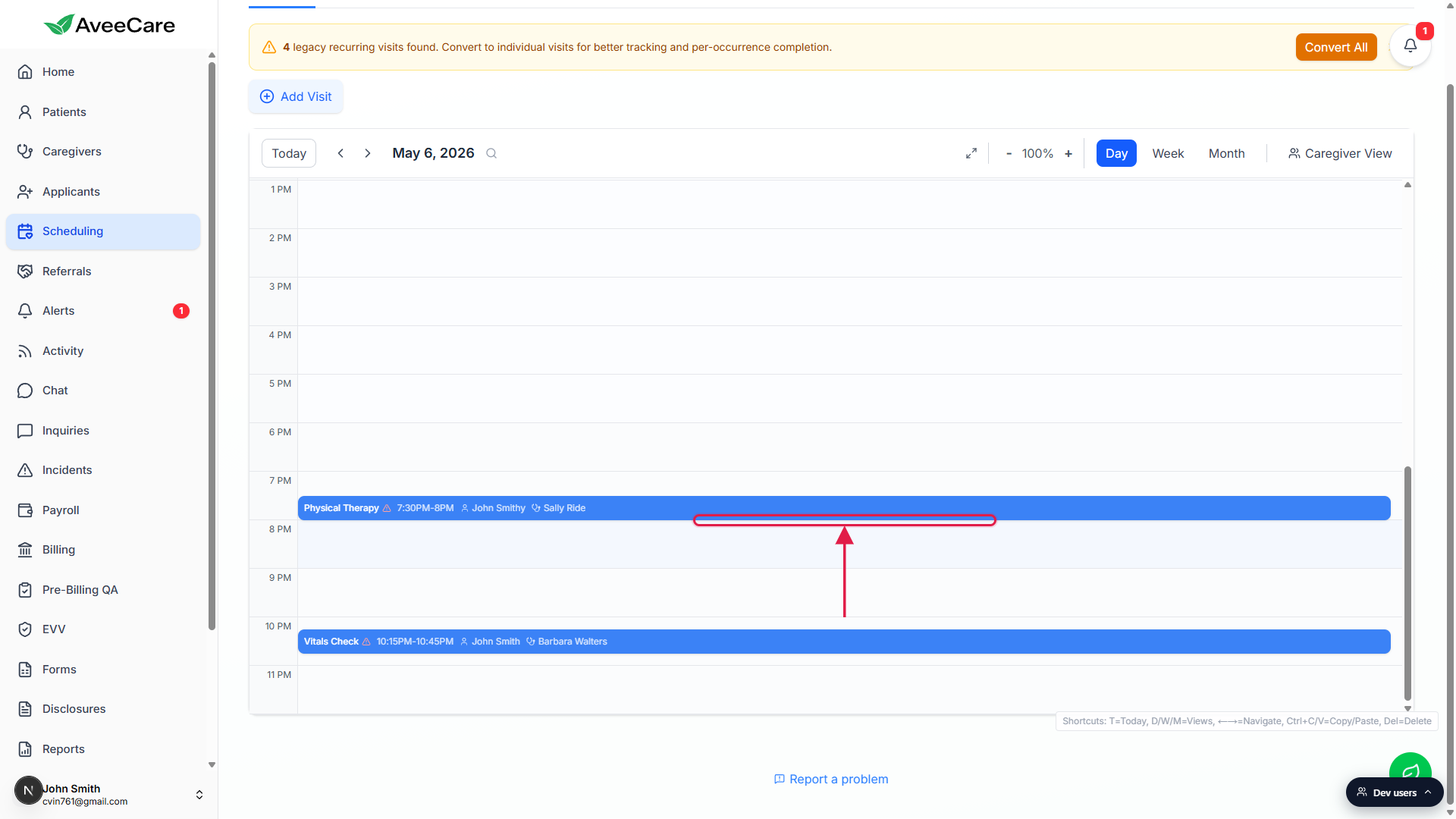
Release to open the Confirm Time Change modal.
Same flow as a move. Review previous time vs new time, then Confirm Change. Bigger structural edits (caregiver, patient, location, notes) are not on the calendar; use the Visit detail modal instead.
Common pitfalls
- Click vs drag threshold. AveeCare uses a 10-pixel threshold to tell a click apart from a drag. Tiny mouse movements open the visit detail panel instead of starting a drag. Move decisively.
- Recurring series moves one occurrence at a time. Drag changes a single visit, not the whole series. To shift a standing schedule, edit each occurrence or rebuild via Recurring visits.
- Conflicts need acknowledgment. The modal blocks Confirm Change until the conflict checkbox is ticked. Do not check it unless you actually want to double-book the caregiver.
- Month view loses hour precision. Month drops only change the date. Time of day is preserved from the original visit. For minute-level moves, switch to Day or Week.
- Scheduled or already clocked-in visits. Dragging a visit that has clock-in actuals shifts the expected window. Actual EVV punches stay attached to the visit and do not move.
Related
- Calendar views (Day / Week / Month)
- Inline edit / reschedule / cancel
- Visit detail modal
- Recurring visits