The Visit Details modal is the read-only single-page view of one visit. Caregiver, patient, schedule, location, and tasks are all on one screen. The modal is the gateway to every per-visit action: edit, reschedule, swap caregivers, or cancel.
Quick answer
On Scheduling, click any visit on the calendar to open its popover, then click Edit. The Visit Details modal opens. Read it for context. Use the footer buttons (Edit Visit, Reschedule, Remove Caregiver, Find Replacement, Cancel Visit) to take action.
Sections you will see
Visit Details uses an accordion layout. Sections appear based on what the visit has captured:
- Participants. Patient and caregiver cards with date of birth, language, address, and contact info.
- Schedule and Location. Scheduled time window, duration, and the visit address with a Get Directions link.
- Tasks and ADLs. The list of scheduled tasks for this visit (Take blood pressure, Bathing, Meal Prep, and so on).
- Travel and Mileage. Shown on visits with travel data captured.
- Billing. Shown once a visit has billing entries. Closed by default.
- EVV Verification Data, EVV Compliance Flags, EVV Details. Appear once the caregiver clocks in and EVV captures location, time, and signature data.
- Visit Notes, Incident Reports, Signatures. Appear once the caregiver adds notes, files an incident, or captures a patient signature.
1. Open the popover and click Edit
On Scheduling, click any visit on the calendar.
A small popover appears next to the visit with the title, date, time, caregiver, patient, location, tasks, and status. Three buttons are at the bottom: Reschedule, Edit, and Cancel.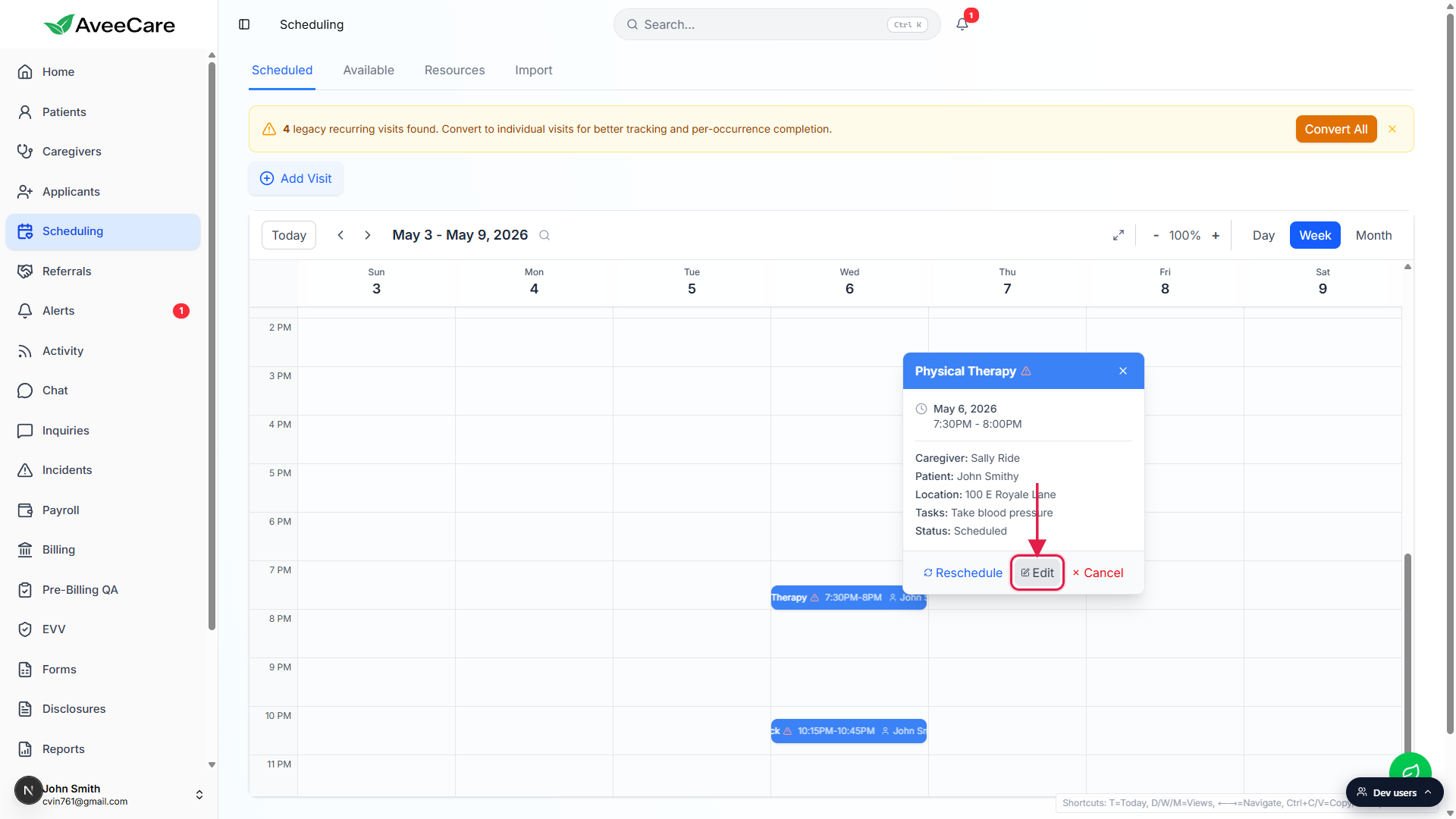
Click Edit on the popover.
The popover closes and the full Visit Details modal opens. To jump straight to the editable wizard instead, you can click Edit Visit in the modal footer once the modal is open.
2. Read the Visit Details modal
The modal opens with a status banner at the top.
The blue banner shows the visit title (Physical Therapy, Vitals Check, Bathing, and so on), the patient name, and a confirmation chip. “Not Yet Confirmed” is the default until the caregiver acknowledges the visit.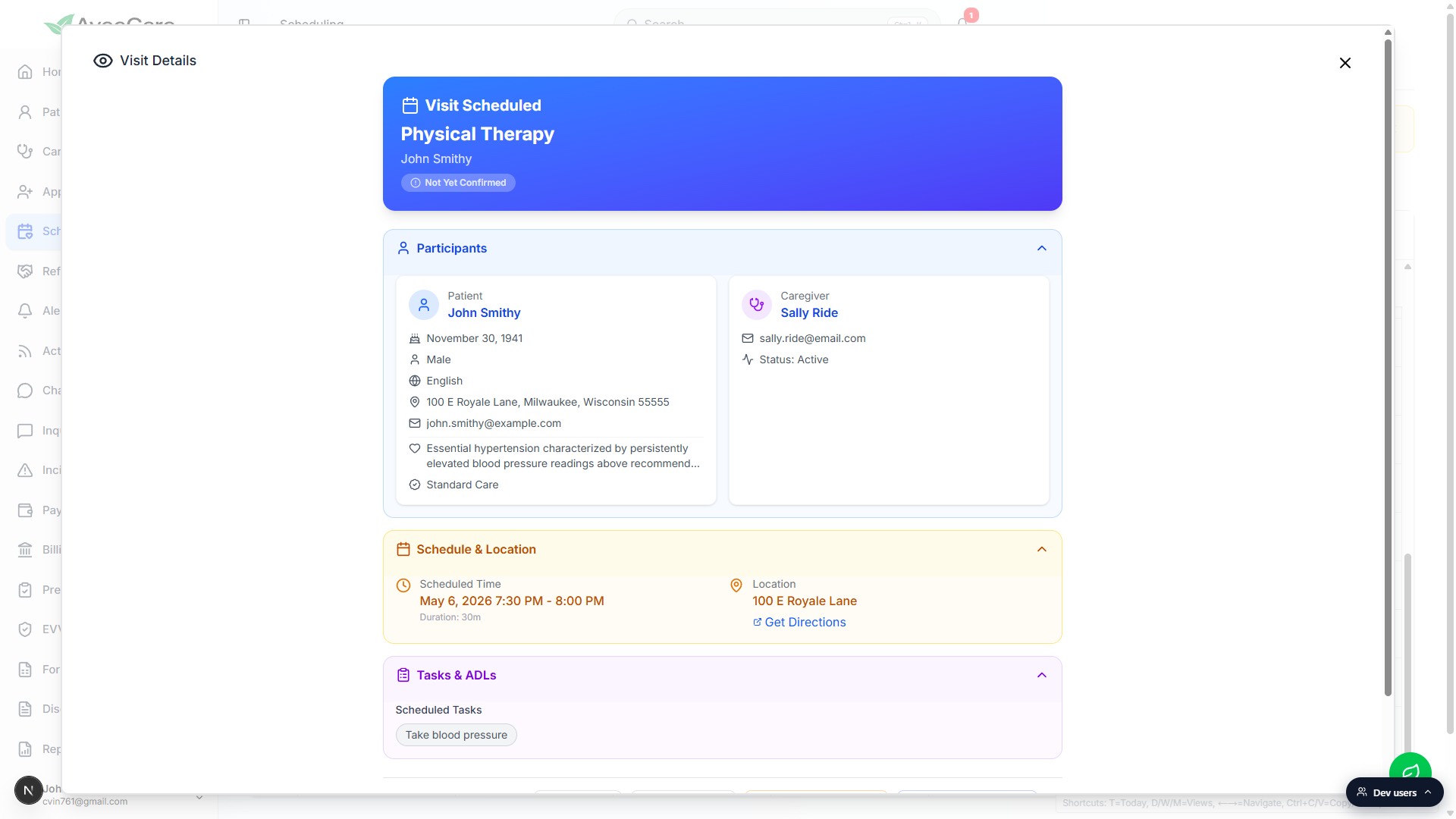
Each section is an accordion. Click the chevron to collapse or expand.
Participants, Schedule and Location, and Tasks and ADLs are open by default. Billing and EVV Details are closed by default so the modal stays scannable. Click the chevron on the right of any section to toggle it.
3. Walk every section of the modal
Participants gives you the patient card and the caregiver card side by side.
Patient card: date of birth, sex, language, address, email, primary diagnosis, and care level. Caregiver card: email, language, home address, region, and active status.Schedule and Location shows the scheduled window and the visit address.
Scheduled Time uses the visit's timezone, with a Duration line below. Location is the address the visit will happen at, plus a Get Directions button that opens the address in Google Maps in a new tab.Tasks and ADLs lists the scheduled tasks for this visit.
Tasks are pulled from the patient's care plan or set manually on the When step of the wizard. To change tasks for this visit only, use Edit Visit and edit the Details step.EVV and Billing sections appear once the caregiver clocks in.
EVV Verification Data shows clock-in and clock-out timestamps with location stamps. EVV Compliance Flags surface anything that fell outside tolerance (late clock-in, off-site, no signature). Billing surfaces the per-visit billing entries once the visit moves to billable status.
4. Use the footer action buttons
The footer is your launch pad to per-visit actions.
Footer buttons: Edit Visit, Reschedule, Remove Caregiver, Find Replacement, Cancel Visit, and Close. Visit ID and Created date sit on the left so you can quote them in support tickets.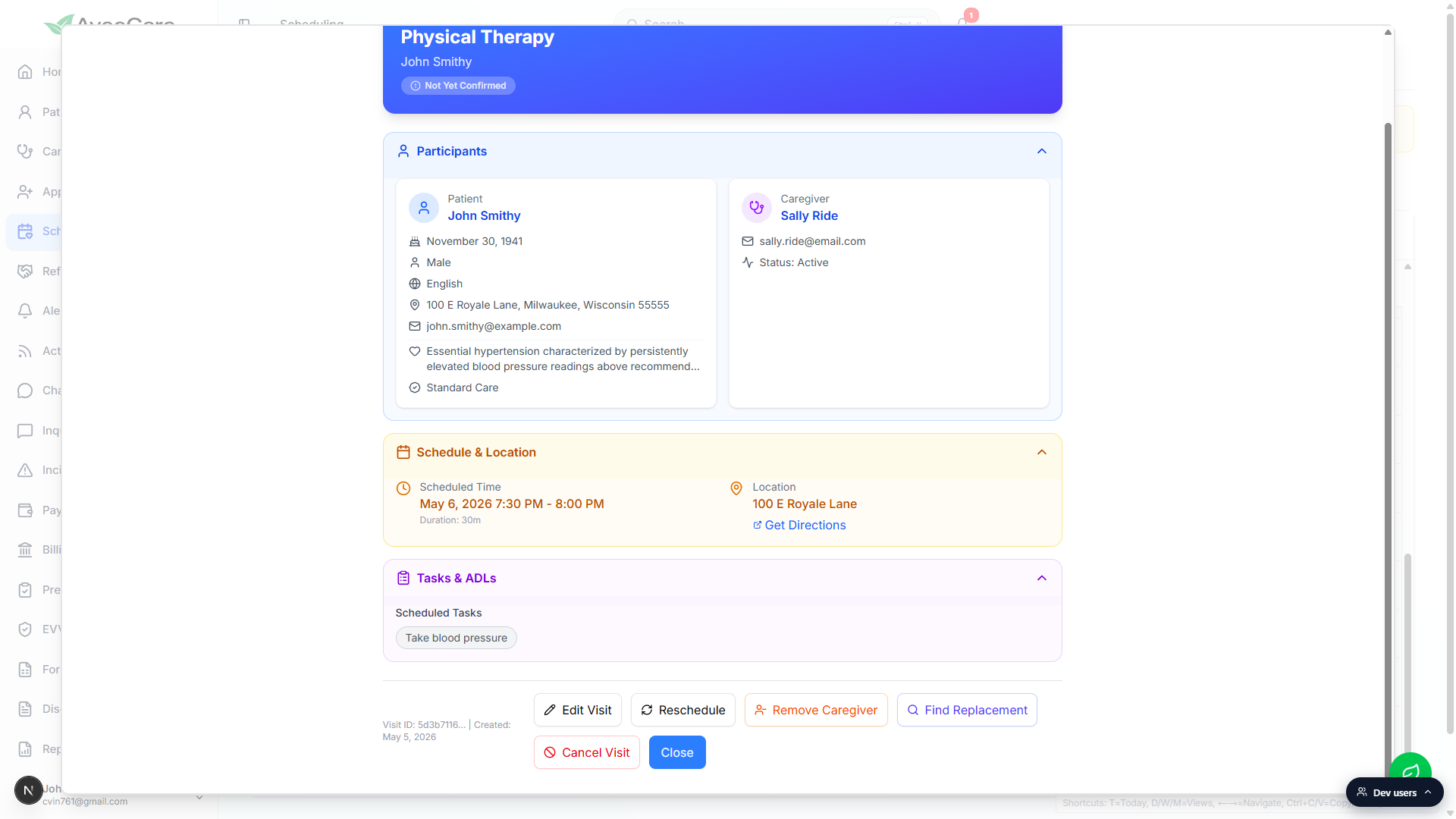
Edit Visit opens the same wizard as Add Visit, pre-populated.
Same Patient, Caregiver, What, When, Where, Details, Review stepper. Every field is editable. A Delete button sits in the bottom-left of the wizard footer for hard removal of the visit.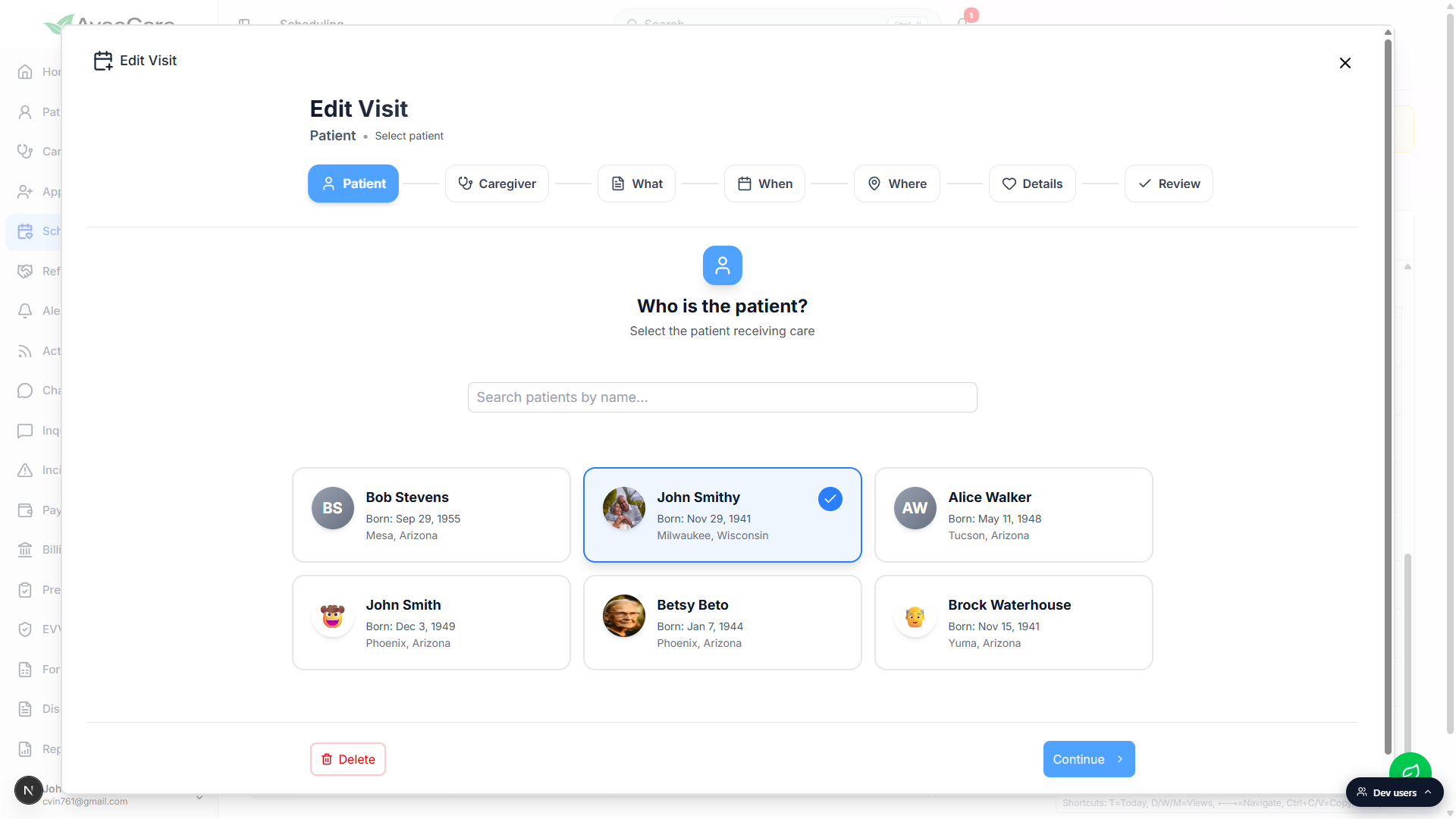
Reschedule, Remove Caregiver, Find Replacement, and Cancel Visit each open their own focused dialog.
Reschedule lets you pick a new date and time without walking the full wizard. Remove Caregiver turns the visit into an open shift. Find Replacement opens the swap-shift broadcast. Cancel Visit asks for a reason and ends the visit.
Common pitfalls
- Confusing the popover Edit with the modal Edit Visit. The popover Edit button opens the read-only Visit Details modal. The modal's footer Edit Visit button opens the editable wizard. Two layers, one extra click.
- Looking for EVV data on a future visit. EVV Verification Data, EVV Compliance Flags, and EVV Details only show up after the caregiver clocks in. A visit that has not started yet has no EVV section in the modal.
- Trying to retroactively change a billed visit. Once a visit is billed or paid, structural edits are blocked. Issue a billing adjustment instead of editing the visit through the wizard.
- Closing the modal before saving in the wizard. The modal itself is read-only, so closing it is safe. But if you opened Edit Visit and made changes, you have to walk through to Review and click Save in the wizard. Closing the wizard mid-flow discards your edits.
Related
- Scheduling calendar views (Day, Week, Month)
- Inline edit, reschedule, and cancel from the popover
- Drag and drop to reschedule a visit
- Visit compensation table