Most visit fixes do not need the full edit form. Click a visit on the Scheduling calendar and the popover gives you Reschedule, Edit, and Cancel right there. You stay on the calendar, you keep your context, and you fix the one thing that needs fixing.
Quick answer
Open Scheduling. Click any visit block on the calendar. A popover appears with the visit summary and three action buttons: Reschedule, Edit, and Cancel. Reschedule opens a time-slot picker, Edit opens the full Visit Details modal, and Cancel asks for confirmation before flipping the visit to Cancelled.
1. Click a visit to open the popover
Click any visit block on the calendar.
The popover anchors to the visit and shows the title, date, time range, caregiver, patient, location, tasks, and status. The three action buttons sit at the bottom: Reschedule, Edit, Cancel. Press the X in the popover header or click outside to dismiss without changing anything.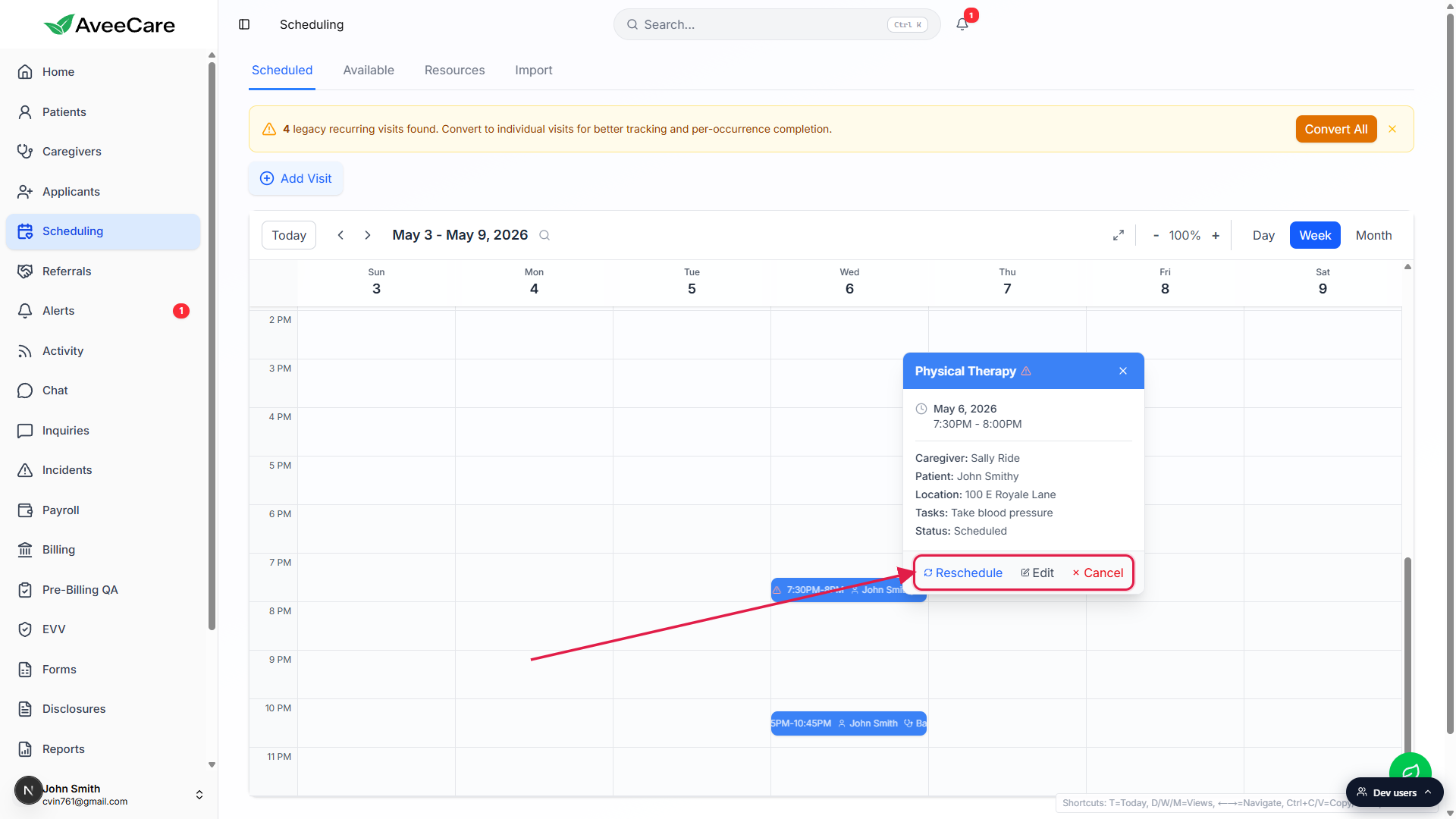
Pick the right action.
Reschedule when only the time or caregiver changes. Edit when you need the full form (notes, ADLs, location, payroll fields). Cancel when the visit is not happening.
2. Reschedule from the popover
Click Reschedule. The Reschedule Visit modal opens.
It shows the visit name at the top, a Same Caregiver / Different Caregiver tab toggle, the current caregiver block, a small date picker covering today and the next several days, a Filter by Time of Day row (All Day, Morning, Afternoon, Evening), and an Available Time Slots column on the right.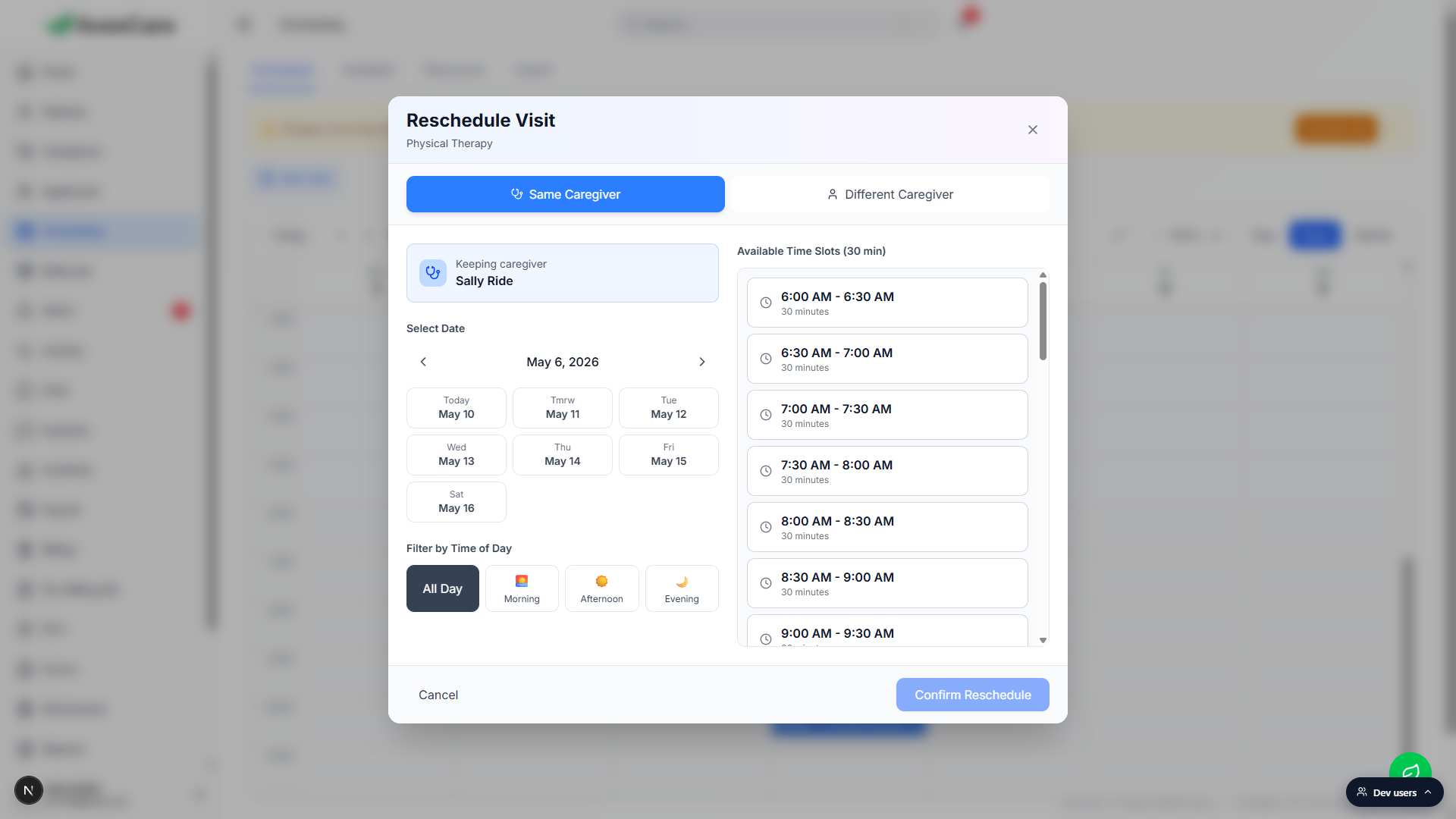
Pick a new date, optionally filter by time of day, and choose a slot.
Slots that overlap the caregiver's other visits are hidden, so anything in the list is open. Switch to Different Caregiver to swap to someone else and see their open slots instead.Click Confirm Reschedule.
The visit moves on the calendar instantly and a notification fires to the caregiver and patient based on tenant notification settings. Drag and drop on the calendar is the even faster path when you know exactly where the visit belongs, see Drag and drop reschedule.
3. Edit deeper details from the popover
Click Edit. The Visit Details modal opens.
This is the full visit record: a Visit Scheduled header, Participants (Patient and Caregiver cards with contact details), Schedule and Location (date, time, duration, address, Get Directions link), and Tasks and ADLs (the scheduled tasks with completion checkboxes). A footer action row offers Edit Visit, Reschedule, Remove Caregiver, and Find Replacement.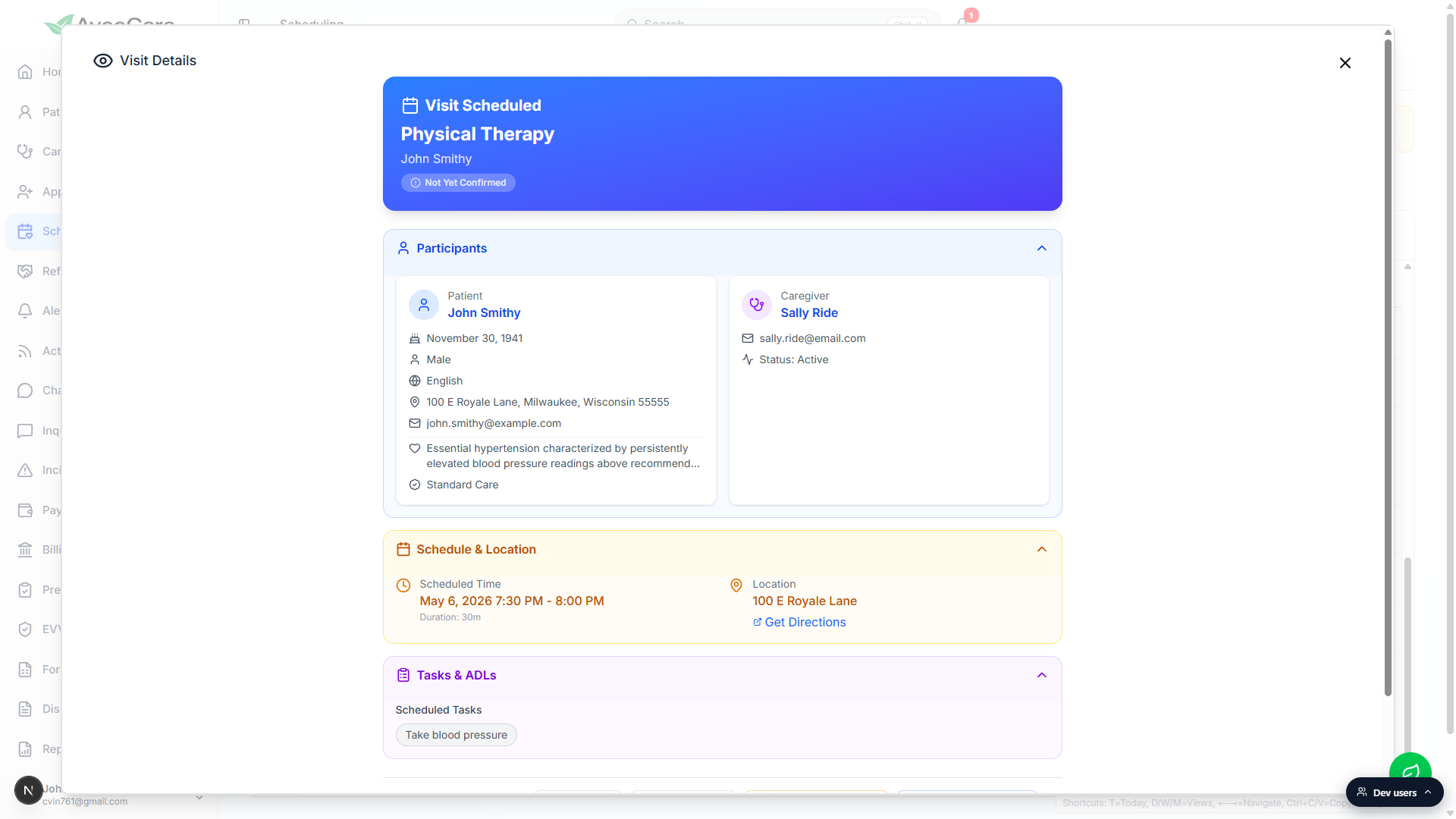
Use Edit Visit for free-form changes.
Edit Visit opens the same Schedule a Visit wizard you used to create the visit, pre-filled with the current values, so you can change tasks, notes, location, billing details, anything the wizard captures. See Visit detail modal for the full reference.
4. Cancel a visit from the popover
Click Cancel. A Cancel Visit confirmation appears.
The dialog asks “Are you sure you want to cancel this visit?” with two buttons: Cancel Visit (the destructive action) and Keep Visit (back out). The X in the corner also dismisses the prompt without changing anything.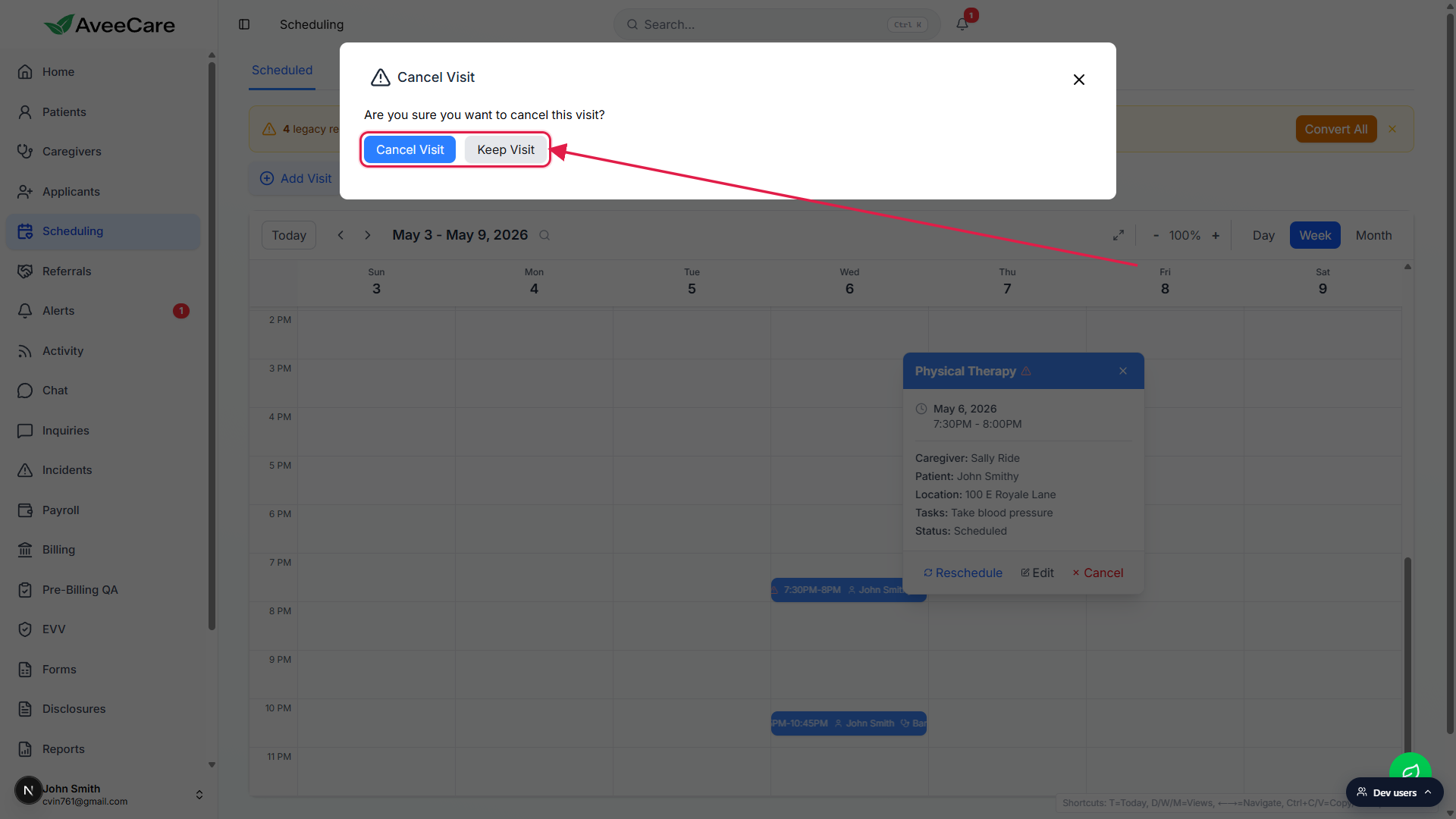
Click Cancel Visit to flip the status to Cancelled.
The visit stays on the calendar but renders in a Cancelled style and stops counting toward caregiver hours, EVV, and billing. The original record is preserved so the activity feed and patient history stay accurate.
Common pitfalls
- Trying to bulk-cancel a recurring series from one click. The popover Cancel only cancels the occurrence you clicked. Each occurrence in a series is its own visit, so cancel them one by one or use the patient's Appointments tab.
- Using Edit when Reschedule is faster. If only the time or caregiver is changing, Reschedule shows you open slots up front. Edit opens the entire wizard, which is more work.
- Closing the popover by accident. Clicking anywhere outside the popover dismisses it. If your click was meant to land on a button, hover the button first to confirm the popover is still present.
- Cancelling instead of rescheduling. Cancel ends the visit. If the visit is still happening but at a different time, Reschedule keeps the same record and the same activity history.
- Already clocked-in visits. Once a caregiver clocks in, EVV captures the visit and Cancel can be blocked or permission-gated. Use the Visit Details modal to investigate.