The Visit Compensation table is the line-by-line ledger on the Payroll page. Every payable visit is one row with caregiver, patient, date, time, duration, pay type, estimated pay, mileage, and a Paid or Unpaid chip. You can mark a single visit paid or unpaid right from the row, or export the whole filtered set to CSV for your bookkeeper.
Quick answer
Open Payroll. The table is titled Visit Compensation and sits below the five stat tiles and the filter bar. The row count in the title (for example, Visit Compensation (97)) follows whatever filters you have applied. Each row shows the visit and what it pays. The rightmost Actions column has one click-to-flip button to mark that visit Paid or Unpaid.
The columns, left to right
- Caregiver. Name and pay rate (for example, $25.00/hr or $60.00/visit).
- Patient. The visit recipient.
- Visit Date. The actual start date if clocked in, otherwise the scheduled date.
- Time. Start to end time window.
- Duration. Hours and minutes the visit ran.
- Pay Type. Per Visit, Hourly, or Salary, taken from the caregiver payroll profile.
- Estimated Pay. Dollar value computed from rate and duration. Salaried caregivers show as Salaried.
- Mileage. Reimbursable miles and dollar reimbursement when set on the caregiver.
- Status. Paid (green chip) or Unpaid (orange chip).
- Provider Sync. Appears when a payroll integration is connected. Shows Queued, Submitted, Failed, or Cancelled per visit.
- Actions. One inline button to flip the Paid or Unpaid state, plus a per-provider Send button when a payroll integration is connected.
1. Open Payroll and find the Visit Compensation table
Open Payroll from the left sidebar.
The page header carries Settings and Export CSV. Below it sits the five stat tiles, then the Date Range bar, then the Search and filter bar, then the Visit Compensation table.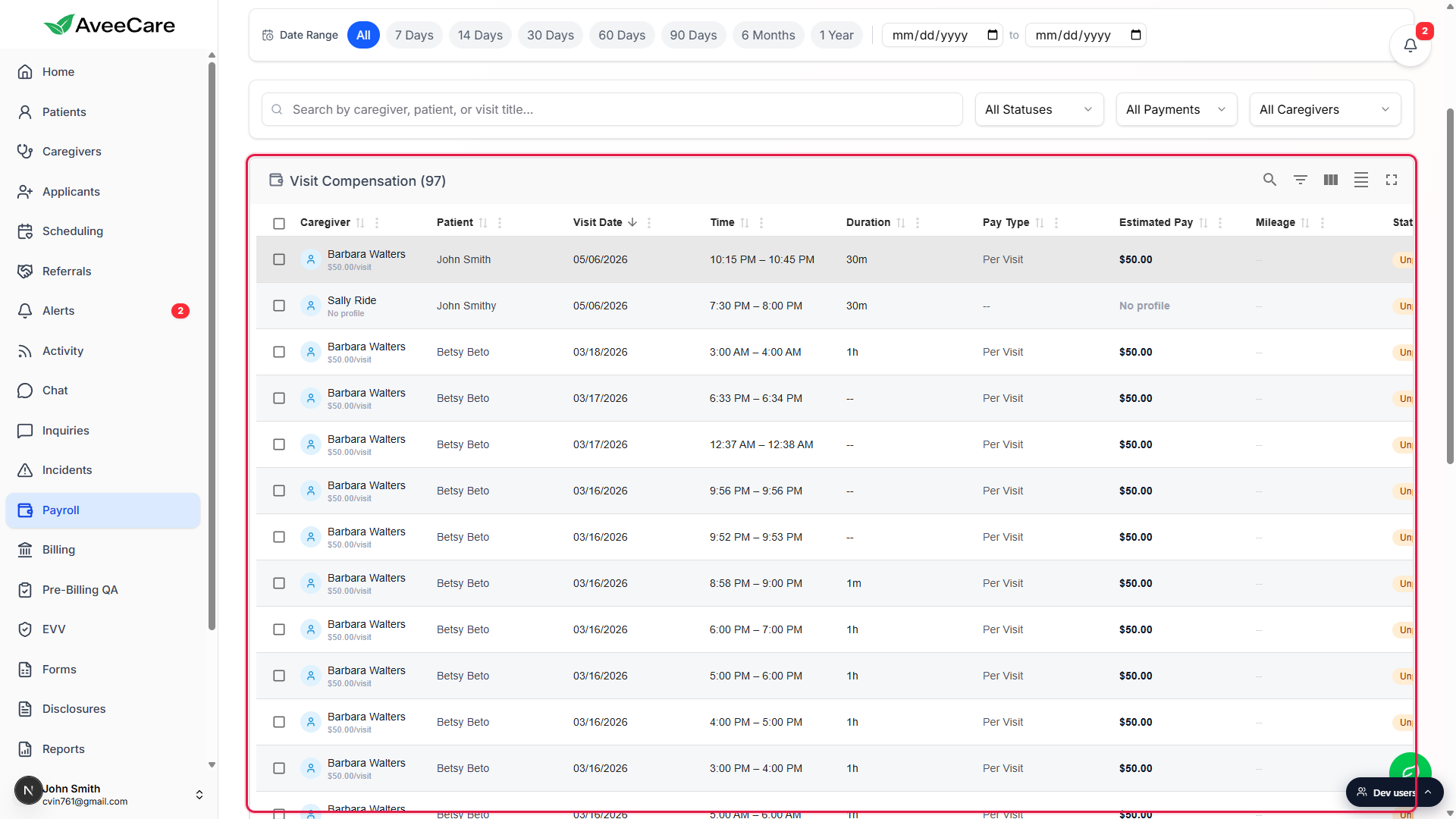
Confirm the row count in the table title.
The title reads Visit Compensation (N), where N is the count of visits matching every active filter (date range, visit status, payment status, caregiver, search query). If a visit you expected is not in the list, the filter set is the first thing to check.
2. Read the columns and the Status chip
Scan a row left to right.
Caregiver and Patient identify the visit. Visit Date, Time, and Duration anchor it in the calendar. Pay Type and Estimated Pay are the payable amount. Mileage is the reimbursable miles captured on the visit. Status is the Paid or Unpaid chip.Use the Sort, Search, Filter, Density, and Fullscreen icons in the table toolbar.
The table is built on the standard data-grid toolbar. Click a column header to sort, use the magnifier for in-table search, the funnel for per-column filters, the density toggle for comfortable or compact rows, and the corner icon to expand the grid to full screen for a long review.
3. Mark one row Paid or Unpaid inline
Find the Actions column at the far right of the row.
Unpaid rows show a green check icon. Paid rows show an orange X icon. The button does the opposite of the current state, so clicking the green check on an Unpaid row marks it Paid, and clicking the orange X on a Paid row flips it back to Unpaid.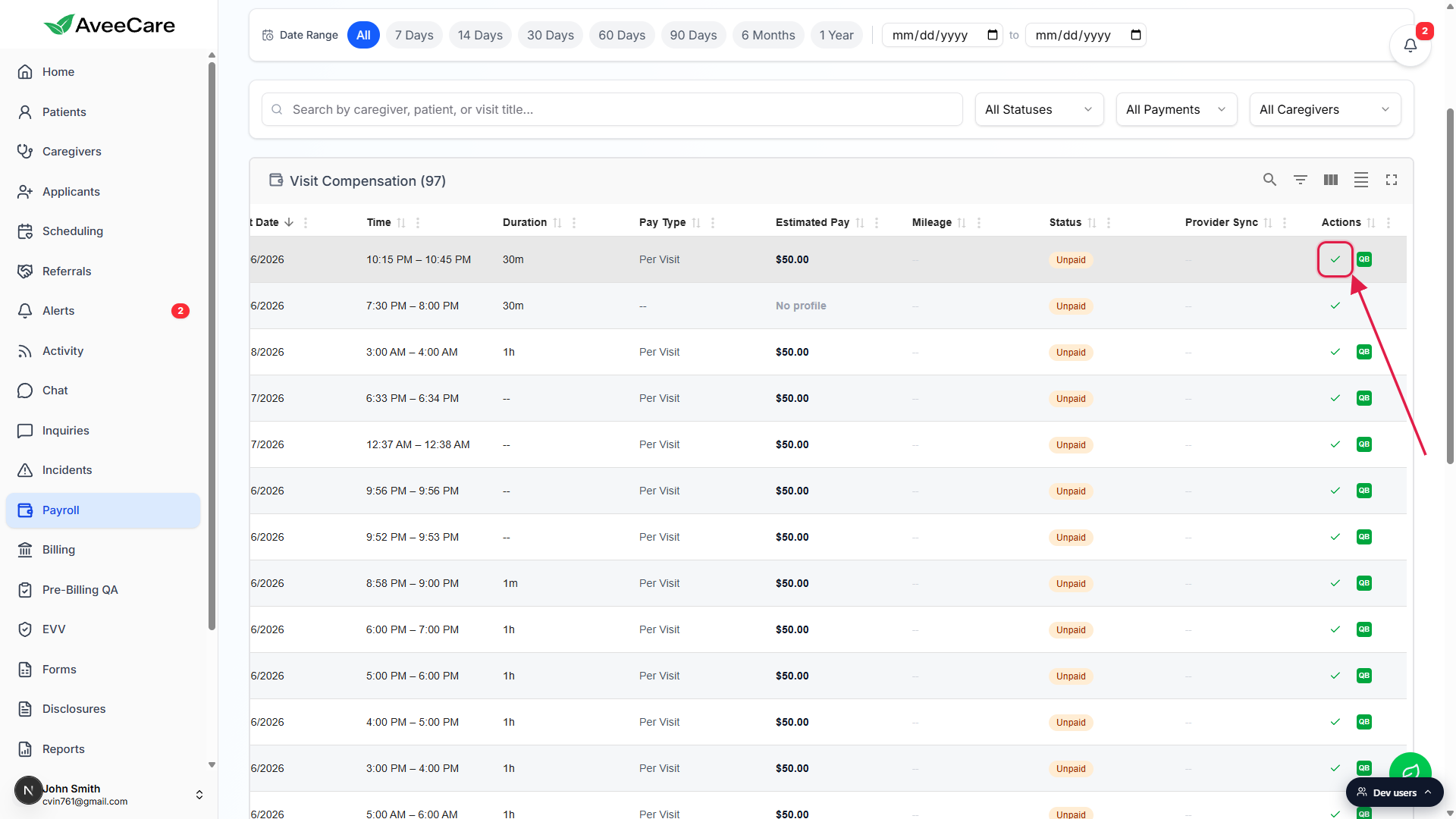
The Status chip and the Payroll stat tiles update in place.
Marking a visit paid drops Unpaid Visits by one, lifts Paid Visits by one, and reduces Estimated Owed by that visit estimated pay. No page reload. For batch flips on many rows at once, use the row checkboxes and the Mark Paid or Mark Unpaid bulk buttons above the table.
4. Export the visible rows to CSV
Click Export CSV in the top-right of the Payroll page header.
The export honors every active filter. If you have the table scoped to Unpaid Only for a 14-day window, you get only those rows. The downloaded file is namedpayroll-visits-<range>-<today>.csv(for example, payroll-visits-2026-04-26-to-2026-05-10-unpaid-2026-05-10.csv).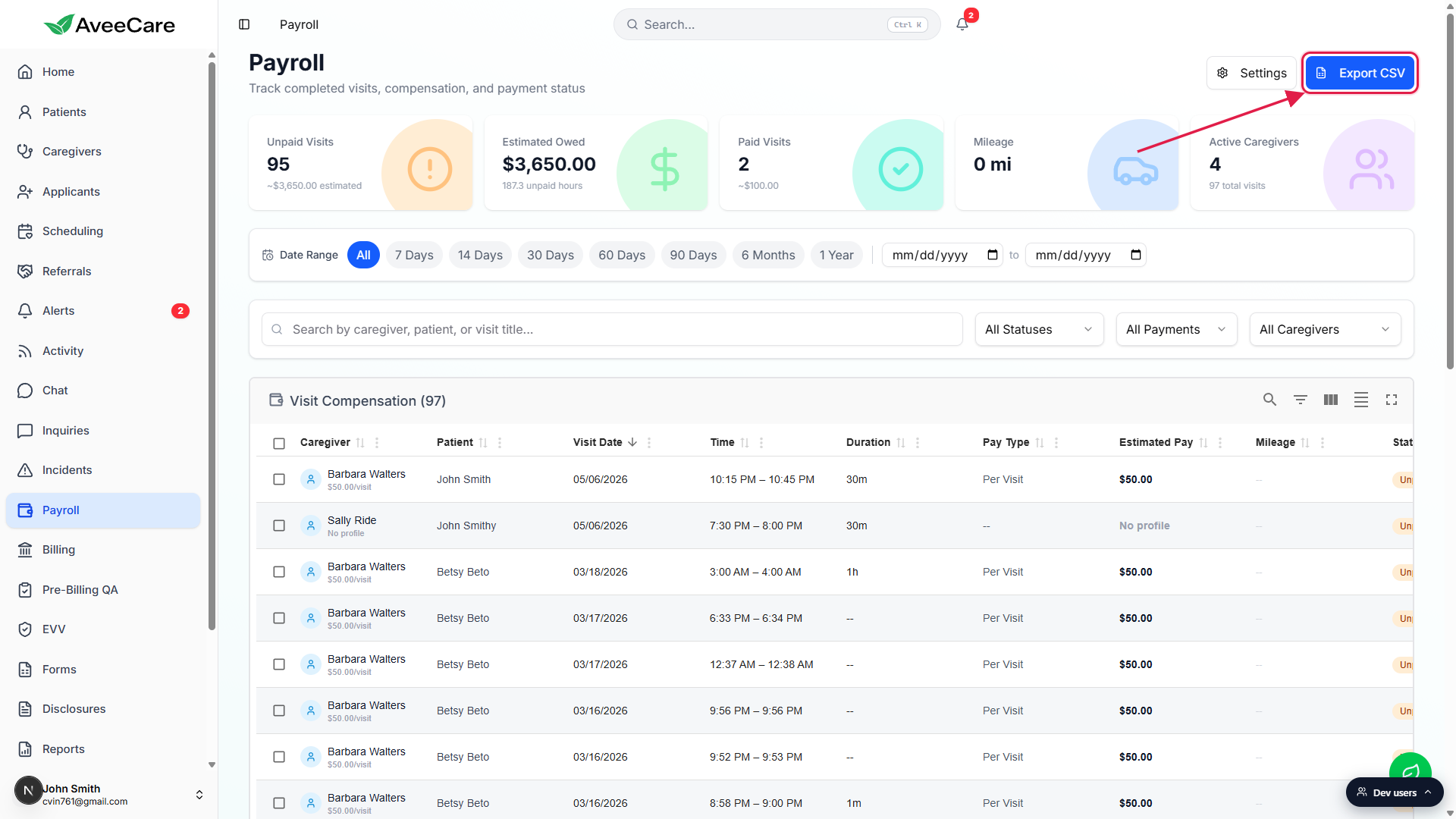
Open the CSV in Excel, Google Sheets, or your payroll software.
The file has twenty columns: Caregiver, Patient, Visit Title, Visit Date, Scheduled Start and End, Actual Start and End, Duration in hours and minutes, Pay Type, Pay Rate, Estimated Pay, Mileage and Reimbursement, Payment Status, Paid Out Date, Visit Status, Service Code, and Visit ID. That is more detail than the on-screen grid, so it works as a reconciliation document for downstream payroll runs.
Common pitfalls
- Missing rows. The row count in the title is the filtered count, not the office total. A visit can be hidden by the Date Range bar, by the Visit Status dropdown, by the Payment Status dropdown, by the Caregiver dropdown, or by the search box. Clear each filter one at a time to find the row you expect.
- Mistaking Estimated Pay for the paycheck. Estimated Pay is rate times duration for that visit. Overtime rules, deductions, taxes, bonuses, and reimbursements are not included. Use Export CSV and your payroll provider to compute the final paycheck.
- Salaried caregivers show $0 or Salaried. Salary pay is computed off the schedule, not per visit, so the Estimated Pay cell for a Salary caregiver shows Salaried or zero. That is expected. The visit still appears in counts and CSV exports.
- Mileage column shows --. The cell only fills in when the visit has a recorded travel distance. Visits without captured miles show two dashes even when the caregiver did drive. You can backfill mileage from the visit detail.
- Retroactive rate edits. Changing a caregiver pay rate updates future visits only. To re-price a visit that already happened, edit that visit and add a manual pay override on the visit detail.
Related
Frequently asked questions
payroll-visits-<range>-<today>.csv. Twenty columns of visit and payroll detail, ready for Excel or Google Sheets.