Bulk Mark Paid is the fastest way to close out a pay period on the Visit Compensation table. Tick the row checkboxes for the visits you want to flip, then click one button to mark every selected Unpaid visit as Paid (or every selected Paid visit back to Unpaid). The same toolbar handles both directions and only shows the buttons that apply to your current selection.
Quick answer
Open Payroll. Filter the table to the visits you care about, tick the row checkboxes, then click Mark Paid (N) in the filter bar above the table. A toast confirms the flip, the Status chips turn green, and the Unpaid Visits stat tile drops by the number you marked.
What the bulk toolbar looks like
The bulk buttons live in the same row as the All Statuses, All Payments, and All Caregivers filters, just above the table. They appear the moment one or more rows are selected and they disappear when the selection clears.
- Mark Paid (N). Green button. N is the count of selected rows that are currently Unpaid. Clicking it flips only those rows to Paid.
- Mark Unpaid (N). Outlined orange button. N is the count of selected rows that are currently Paid. Clicking it flips only those rows back to Unpaid.
- Mixed selection. If your selection contains both Paid and Unpaid rows, both buttons show side by side. Click the one you want, and only the matching rows flip.
1. Open Payroll and filter the table
Open Payroll from the left sidebar.
The page header carries Settings and Export CSV. Below it sits the five stat tiles, then the Date Range bar, then the Search and filter bar, then the Visit Compensation table.Narrow the table to the rows you want to act on.
Use Date Range, the Search box, the Payment Status filter (for example, Unpaid Only), Caregiver, or Visit Status. The count in the table title (for example, Visit Compensation (97)) reflects every active filter, so you can sanity-check the scope before selecting rows.
2. Tick the row checkboxes you want to flip
Use the leftmost column to select rows.
Click each row checkbox, or click the header checkbox to select every visible row on the current page. A selection counter shows above the table (for example, 3 of 97 row(s) selected), with a Clear Selection link to start over.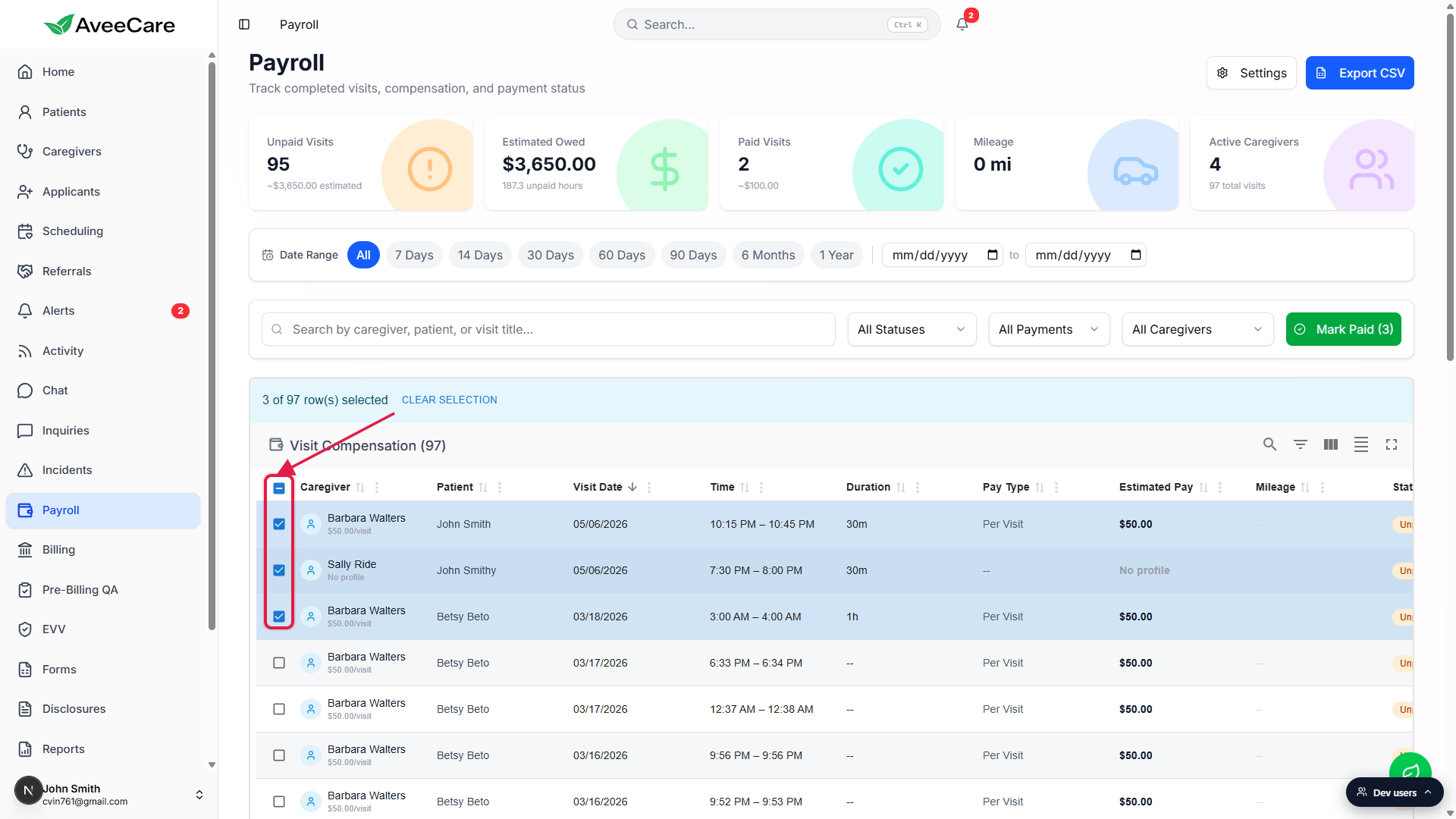
Selection survives scrolling and pagination.
You can scroll the table or page through batches and your checked rows stay checked. Clearing a filter that hides a selected row does not unselect it. Click Clear Selection to drop everything at once.
3. Click Mark Paid or Mark Unpaid
Find the bulk buttons in the filter bar above the table.
The button label always includes the count, so you can double-check before you click. Mark Paid (3) means three Unpaid rows in your selection will flip to Paid. If your selection had no Unpaid rows, the Mark Paid button would not be shown at all.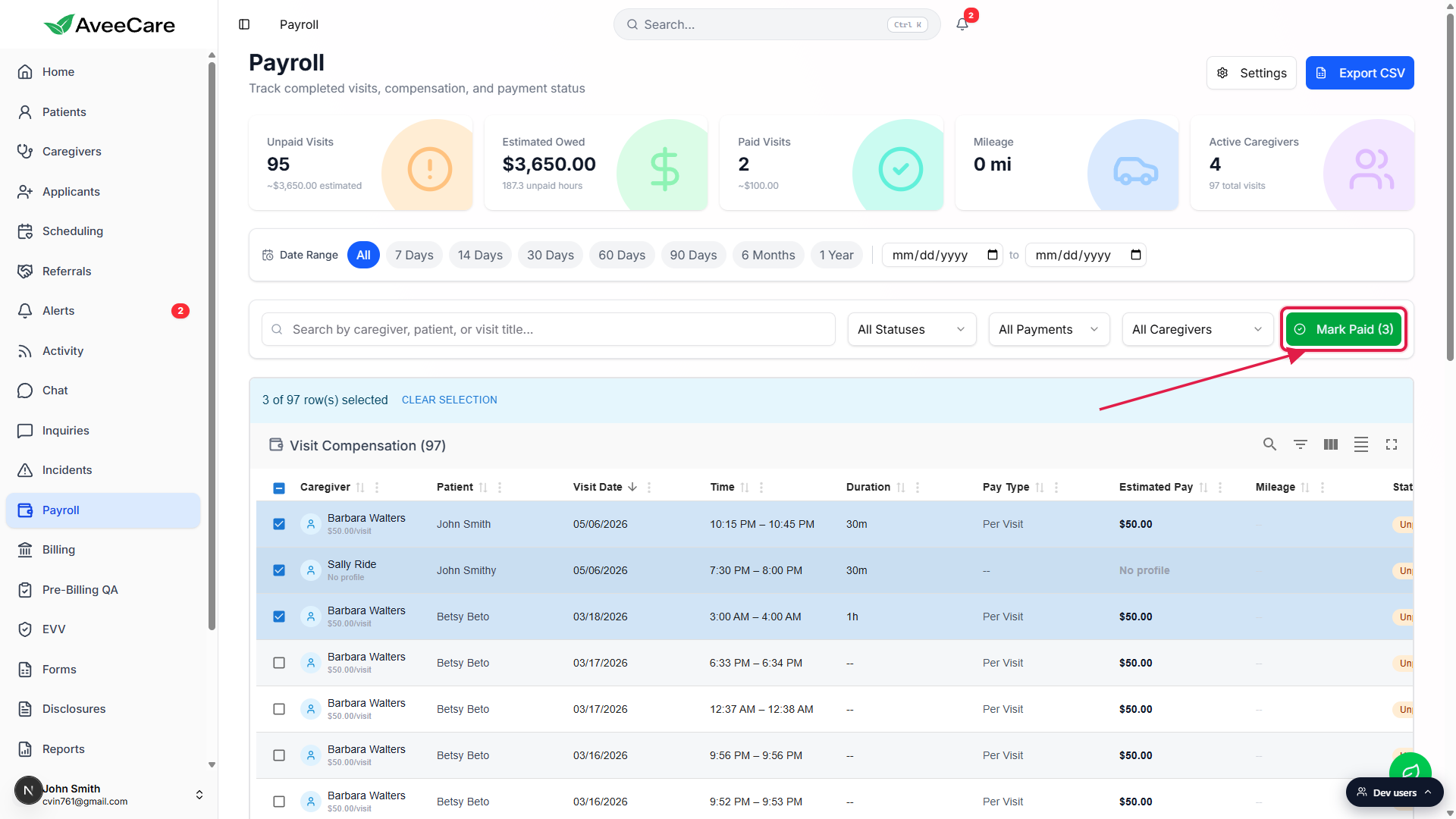
Click the button. A toast confirms the change.
A green toast appears at the bottom right reading something like 3 visits marked as paid. The button disappears once the selection is processed (the rows are removed from the selection set automatically), so you do not need to clear anything by hand.
4. Confirm the counts updated
Watch the stat tiles flip in place.
The Unpaid Visits tile drops by the count you marked. The Paid Visits tile lifts by the same number. Estimated Owed shrinks by the sum of those visits Estimated Pay. The page does not reload.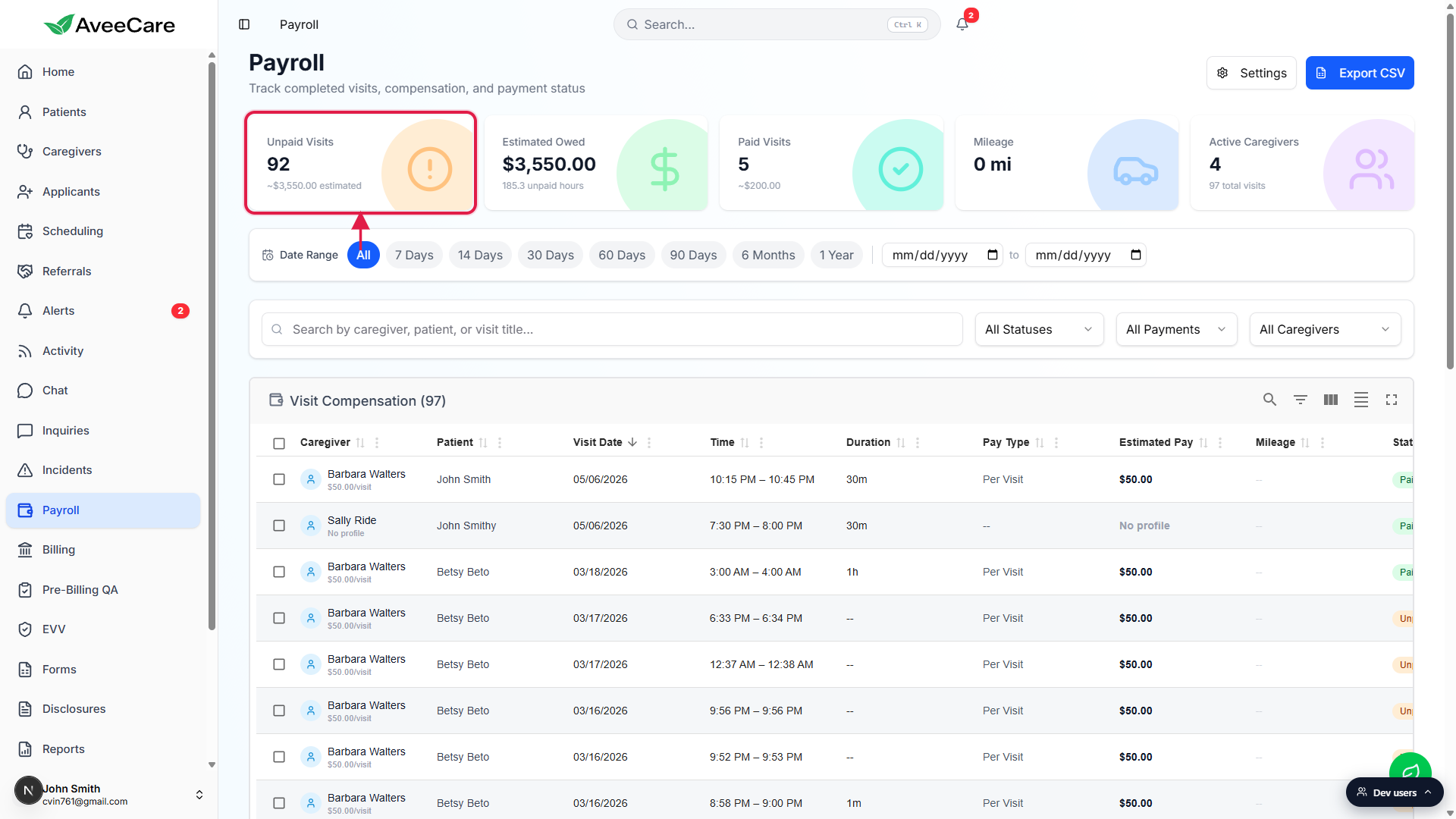
Status chips on the affected rows turn green.
Each row Status cell flips from an orange Unpaid chip to a green Paid chip. The Actions column button on the row also flips (the green check becomes an orange X) so you can still undo a single row inline. To undo many at once, see the FAQ below.
Common pitfalls
- Selecting rows then changing the filter. The selection set is by visit ID, not by what is visible. If you tick rows, then switch from Unpaid Only to Paid Only, your selection is still those original visits. Click Clear Selection before changing scope to avoid surprises.
- Header checkbox only covers the visible page. Ticking the header checkbox selects every row in the current page of the table, not every row that matches the filter. If your filtered list spans multiple pages, page through and tick the header on each, or scope the filter tighter first.
- Marking paid does not push to your payroll provider. Mark Paid is an internal flag that closes the visit on the AveeCare side. To send the pay run to QuickBooks, Paychex Flex, ADP, or Gusto, use Send to payroll provider before or after the bulk mark. The two actions are independent.
- Mixed selection hides what you expect. If your selection has both Paid and Unpaid rows, Mark Paid (N) and Mark Unpaid (N) appear together and each carries the count for its own subset. Clicking Mark Paid (3) when six rows are selected flips only the three Unpaid ones, the three Paid ones are untouched.
- Salaried caregivers still appear in the bulk count. A Salaried row shows Salaried or zero for Estimated Pay, but its Paid status flag is still flipped by the bulk action. That is intentional for tracking, but it means the Estimated Owed tile does not drop for those visits.