The Payroll page opens with a strip of five stat tiles across the top. They summarize whatever is in your active date range, so you can read the state of your next pay run at a glance before you touch the Visit Compensation table below.
Quick answer
Open Payroll. The five tiles are Unpaid Visits, Estimated Owed, Paid Visits, Mileage, and Active Caregivers. Two of them, Unpaid Visits and Paid Visits, are clickable and apply the matching payment-status filter to the table. Every tile recomputes when you change the Date Range bar.
The five tiles, left to right
- Unpaid Visits. Count of visits inside the active range that have not been marked paid. Subtitle shows the rough dollar amount owed for those visits (for example, ~$3,650.00 estimated). Clicking the tile sets Payment Status to Unpaid Only.
- Estimated Owed. Sum of estimated pay across the unpaid visits in the range. Subtitle reports the total unpaid hours (for example, 187.3 unpaid hours). This tile is read-only.
- Paid Visits. Count of visits inside the range that have already been marked paid. Subtitle shows the dollar amount of those paid visits. Clicking the tile sets Payment Status to Paid Only.
- Mileage. Total reimbursable miles across every visit in the range. Subtitle adds the dollar reimbursement when a mileage rate is set on the caregiver profiles. Read-only.
- Active Caregivers. Count of distinct caregivers with at least one visit in the range. Subtitle reports the total visit count in the range. Read-only.
1. Open Payroll and read the five tiles
Open Payroll from the left sidebar.
The five tiles sit just under the page header, above the Date Range bar and the Visit Compensation table. Each tile carries a large colored icon and a short subtitle.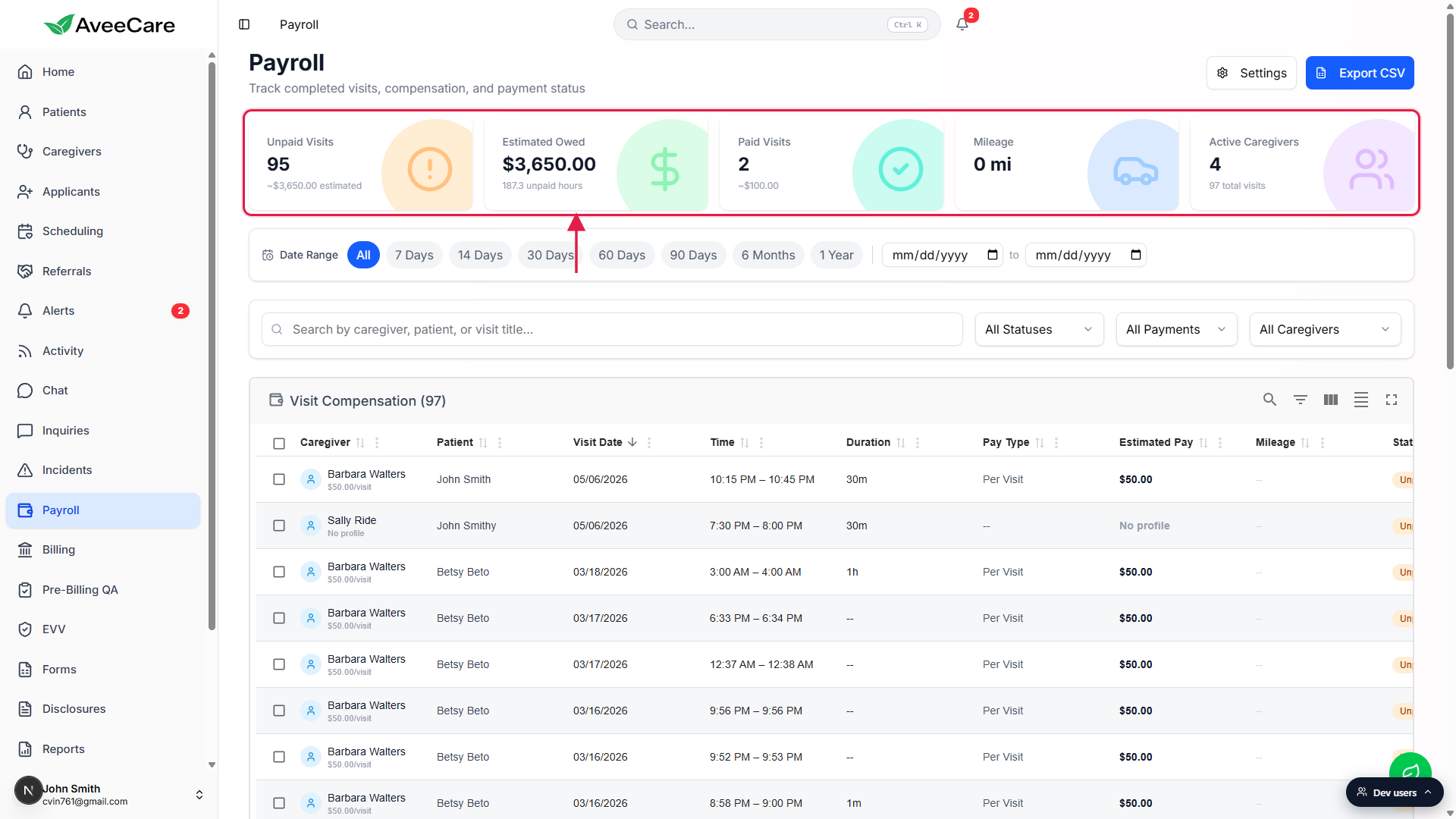
Read the labels and the values together.
Counts are integers. Estimated Owed is a dollar value rounded to two decimals. Mileage uses the mi unit. Active Caregivers is a count of unique caregivers, not a count of visits.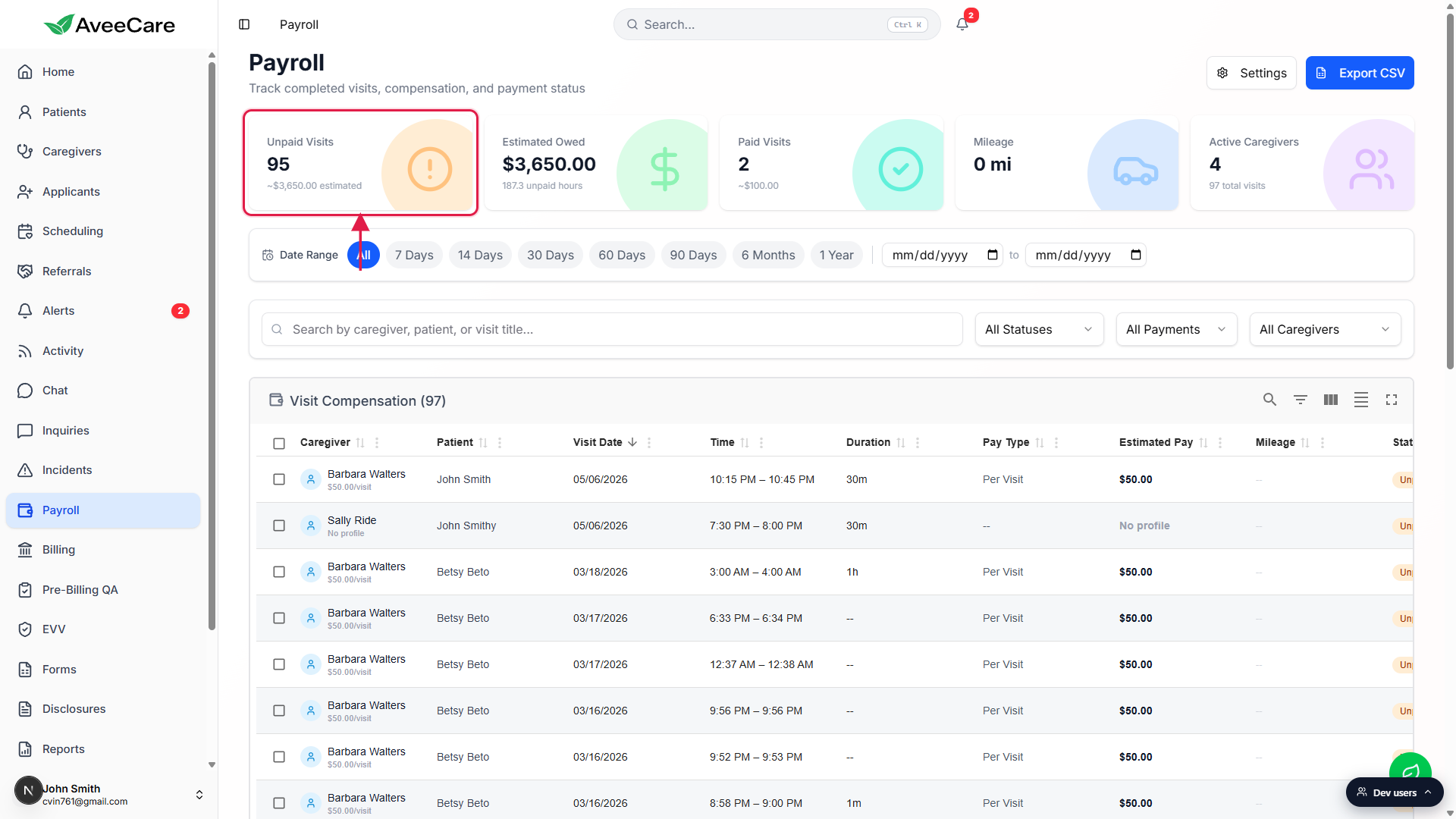
2. Use the clickable tiles to drill into the table
Click Unpaid Visits to scope the table to unpaid rows only.
The Payment Status dropdown below switches to Unpaid Only and the Visit Compensation table reloads to match. The other tiles keep their full-range values so you can still see what is paid and how many caregivers are involved.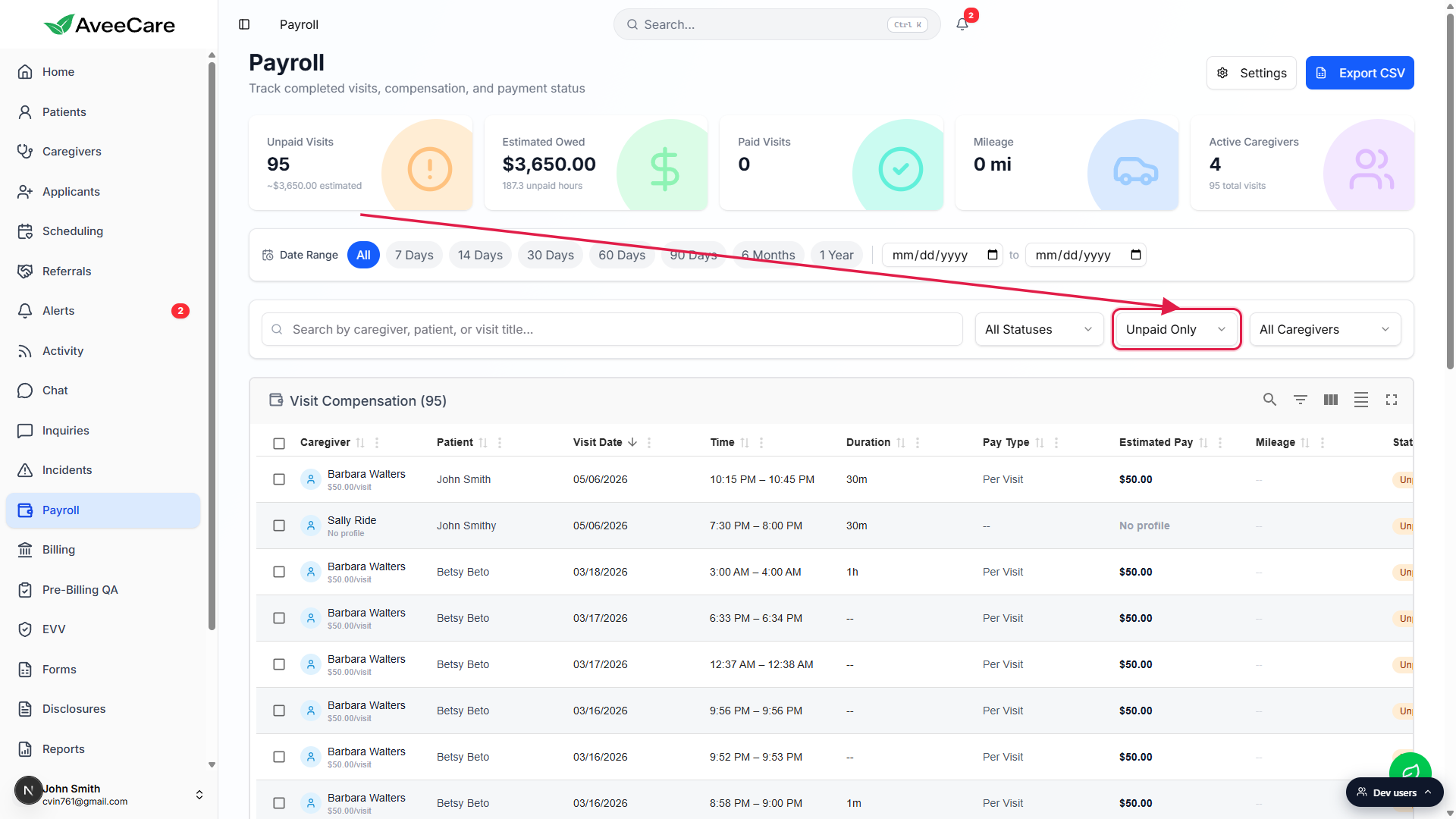
Click Paid Visits to scope the table to paid rows only.
Same idea, opposite direction. The Payment Status dropdown switches to Paid Only and the table reloads.To clear the drill, set Payment Status back to All Payments.
The Unpaid Visits and Paid Visits tiles do not toggle off when you click them a second time. Use the Payment Status dropdown to return to the full view.The other three tiles are read-only.
Estimated Owed, Mileage, and Active Caregivers do not navigate or filter when clicked. They are reference values only.
3. Change the date range and watch values update
Pick a Date Range preset like 7 Days, 30 Days, or 1 Year.
Every tile recomputes against the new window. Pick 7 Days right before a weekly run to see exactly what landed on your desk this week. Pick 1 Year for an annual reconciliation total.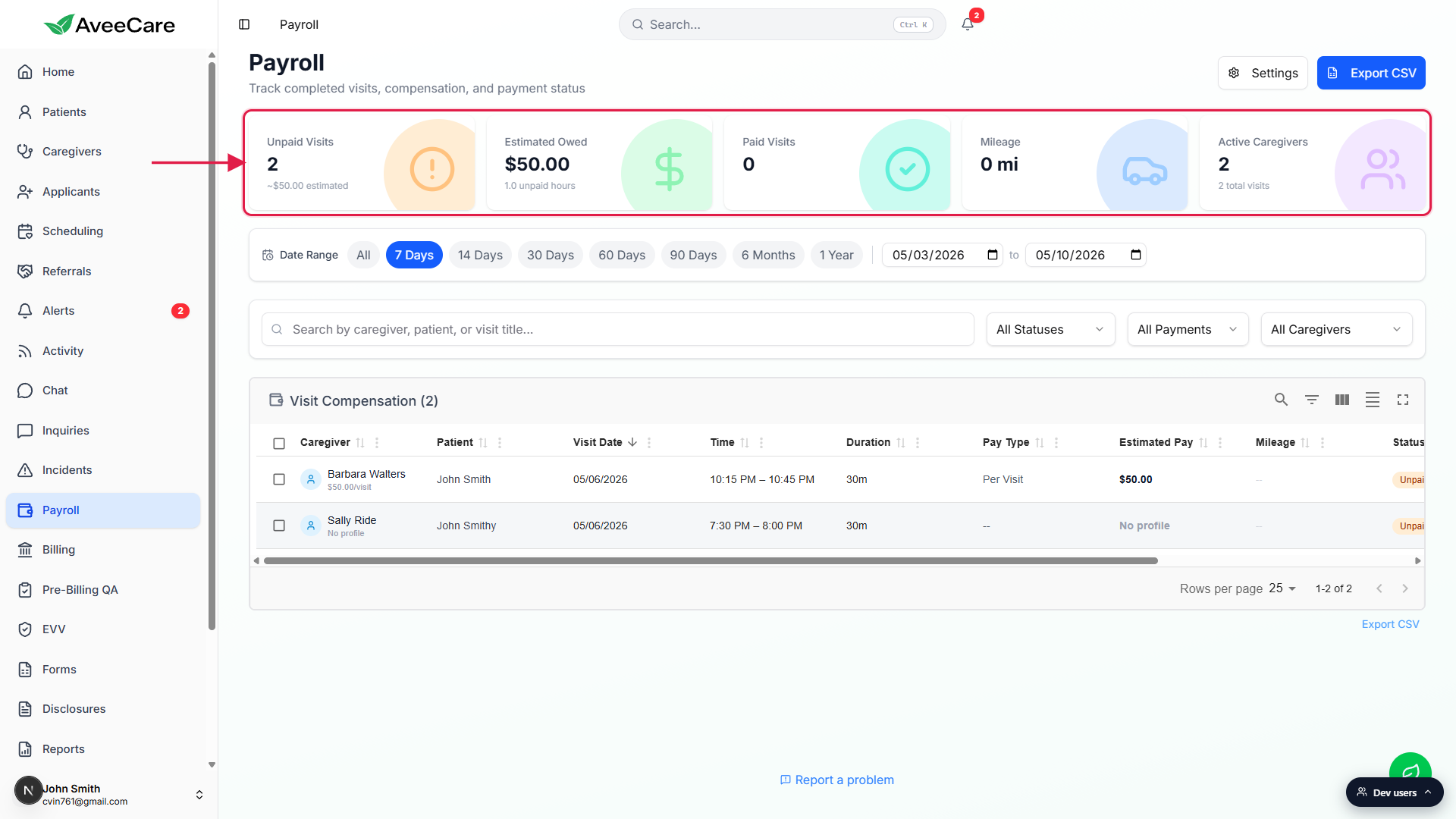
Confirm the window with the two date inputs.
The preset writes the calculated start and end into the date inputs next to the chip strip, so the active window is always visible. Switch to a custom range by typing into those inputs.Mark visits paid and watch the tiles update in place.
Marking a visit paid (or sending it to a provider) decrements Unpaid Visits and increments Paid Visits in real time. Estimated Owed drops by the same dollar amount.
Common pitfalls
- Forgetting the active date range. Tile values reflect whatever range is selected. If your Unpaid Visits count looks too small or too large, check the Date Range bar first. The default on page load is All.
- Expecting every tile to be clickable. Only Unpaid Visits and Paid Visits drill into the table. Estimated Owed, Mileage, and Active Caregivers are read-only.
- Clicking the tile a second time to clear the filter. A second click does not toggle the filter back to All. Use the Payment Status dropdown below the search box to reset.
- Reading Estimated Owed as a final paycheck. It is the sum of estimated pay across unpaid visits, computed from each caregiver Pay Type and rate. Overtime, deductions, taxes, and bonuses are not included.
- Confusing Mileage with travel time. The tile counts reimbursable miles, not travel minutes. A caregiver with long but local visits can show low mileage even with heavy travel time.
Related
- Payroll date-range filtering
- Visit-compensation table
- Bulk Mark Paid and Unpaid
- Send to payroll provider