Payroll opens with every eligible visit in view. The Date Range bar at the top of the page narrows that pool to a window you care about, like the last 7 days for a weekly run or the last year for an annual reconciliation. The stat cards, the Visit Compensation table, and the Export CSV all re-scope to whatever range is active.
Quick answer
Open Payroll. In the Date Range bar, click one of the eight preset chips (All, 7 Days, 14 Days, 30 Days, 60 Days, 90 Days, 6 Months, 1 Year), or type into the start and end date inputs for a custom window. The page reloads instantly.
The eight presets
The preset chip strip ships with these labels, left to right:
- All. No date filter. Default on page load. Shows every visit eligible for payroll.
- 7 Days. Today back to seven days ago. Best for weekly pay runs.
- 14 Days. Today back to fourteen days ago. Good for biweekly schedules.
- 30 Days. Today back to thirty days ago. Monthly view.
- 60 Days and 90 Days. Quarter-ish windows for catching unpaid backlog.
- 6 Months and 1 Year. Long windows for reconciliation and annual reports.
Clicking a preset writes the calculated start and end into the two date inputs next to the chip strip, so you can see the actual window the page is using. The active chip highlights in blue.
1. Open Payroll and read the Date Range bar
Open Payroll from the left sidebar.
The page header shows Payroll with Settings and Export CSV on the right. Below the five stat cards is a white bar labeled Date Range with eight preset chips and two date inputs.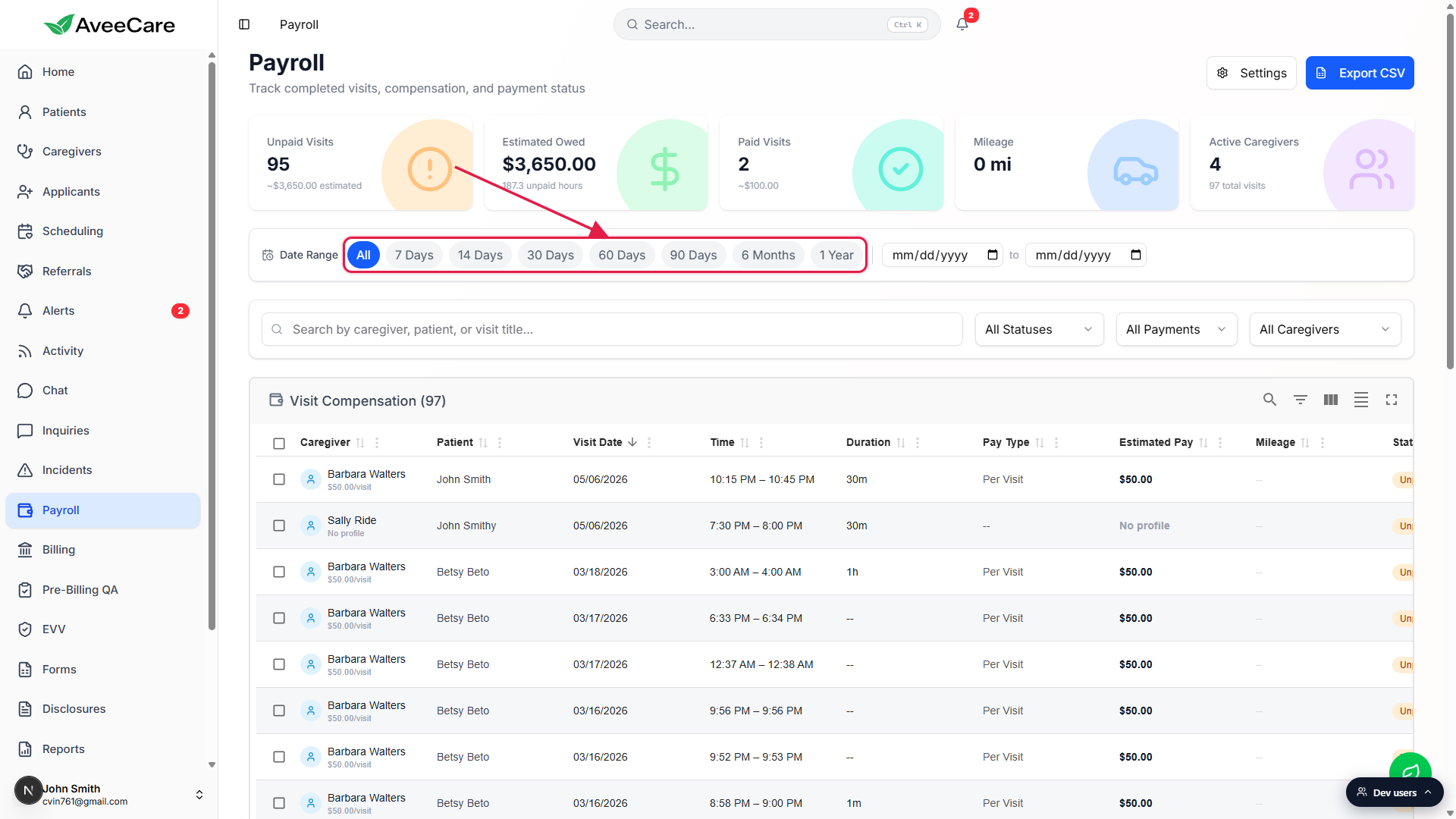
2. Click a preset to scope the page
Click any preset chip to set the window.
The chip turns blue when active. The two date inputs to the right fill in with the calculated start and end. The Visit Compensation count in the table title updates to match.The default is All. Click it again any time to clear the filter.
All means no date restriction. It is the only preset where the two date inputs stay empty.
3. Pick a custom start and end date
Type into the start date input or pick from the picker.
The two inputs sit to the right of the preset chips, separated by the word to. They are native browser date pickers, so you can type yyyy-mm-dd or click the calendar icon. Editing either input switches the preset row to a Custom state, no chip stays blue.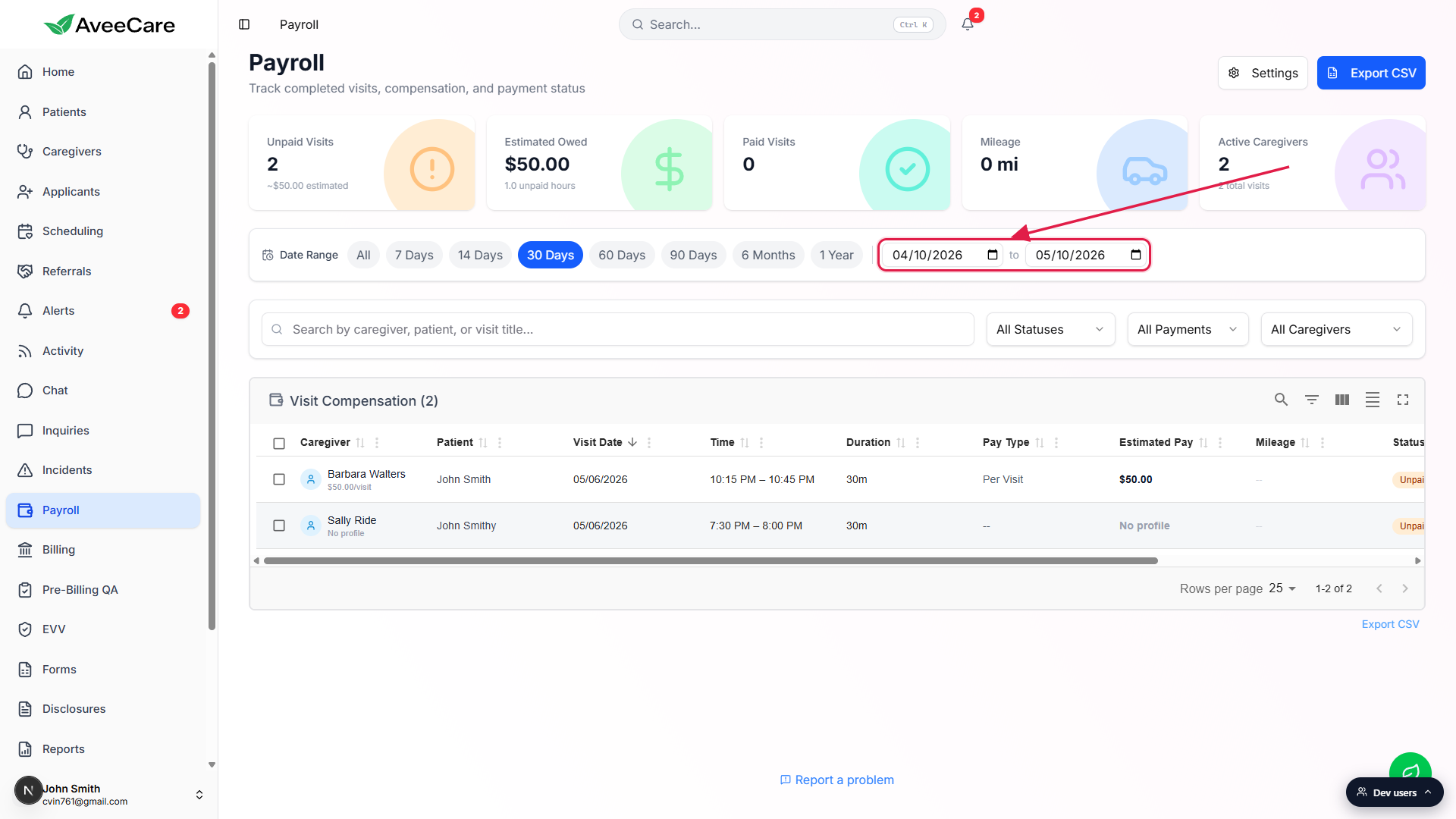
Type the end date.
Both endpoints are inclusive. A range of 2026-04-10 to 2026-05-10 covers everything from midnight on April 10 through end-of-day May 10.
4. Watch the stat cards and table respond
The five stat cards recompute in place.
Unpaid Visits, Estimated Owed, Paid Visits, Mileage, and Active Caregivers all reflect the active range. Estimated Owed sums the unpaid visits in the window, so it answers what do I owe right now for visits that landed in this window.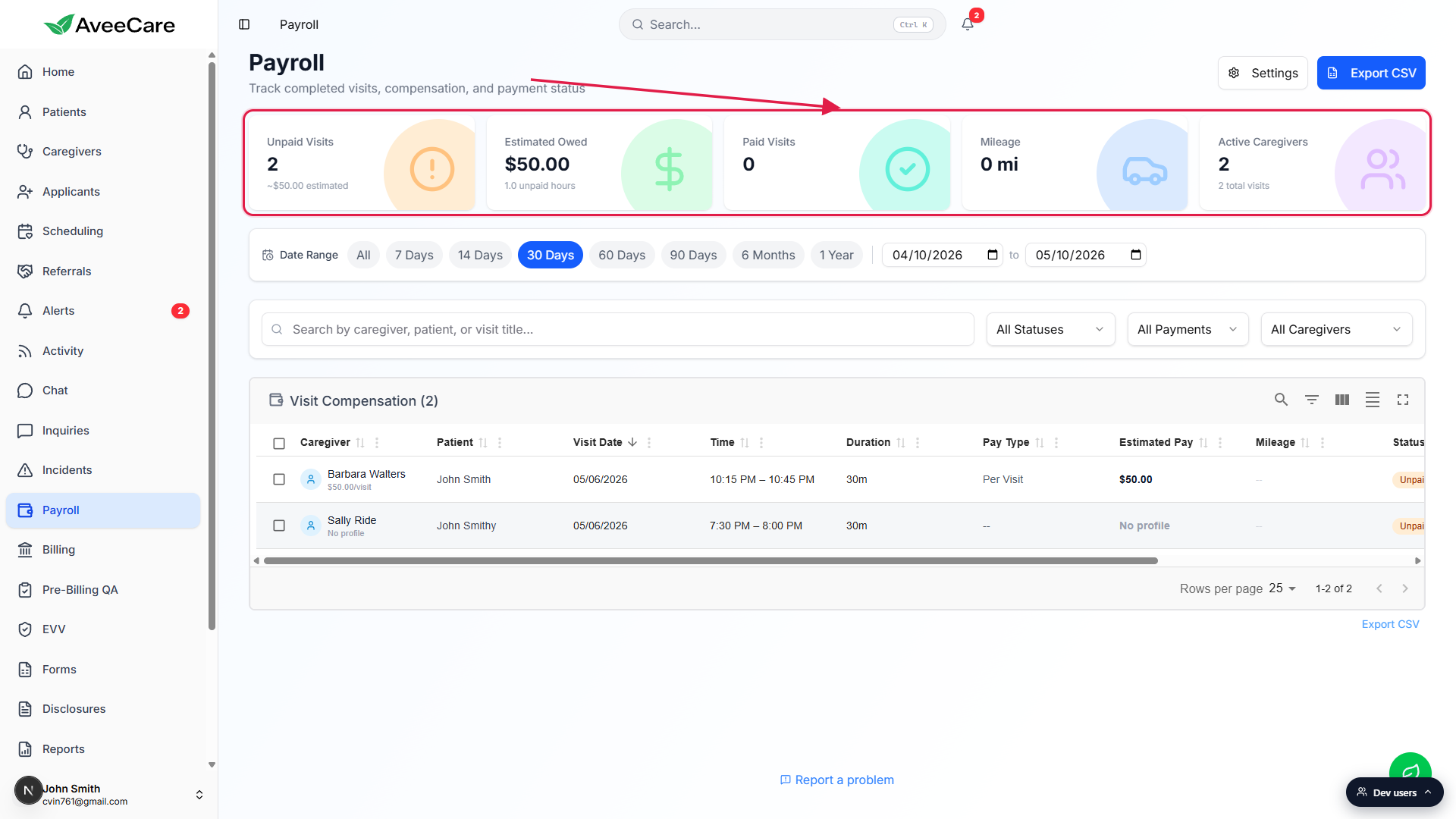
The Visit Compensation table reloads to the filtered rows.
The header reads Visit Compensation (N) where N is the row count inside the active window. Pair the date range with the All Statuses, All Payments, and All Caregivers dropdowns below to narrow further.Export CSV honors the range.
Clicking Export CSV writes a file named like payroll-visits-2026-04-10-to-2026-05-10-2026-05-10.csv. When the preset is All, the filename uses all-time. Only the visits in the active window land in the CSV.
Common pitfalls
- Forgetting that All is the default. Page loads show every eligible visit, including very old ones. If your Unpaid Visits count looks impossibly high, the range is probably still on All. Pick a tighter preset.
- Editing only one date input. The filter activates only when both start and end are set. If you type a start date and leave end blank, the filter behaves like All. Set both, or use a preset.
- Expecting a saved-view dropdown. The eight presets are fixed. There is no save-as-favorite at the moment. For a recurring custom window, type the dates each time or use the report builder for saved exports.
- Confusing visit date with paid-out date. The range filters on the visit start time (actualStartTime when present, otherwise startTime), not on when you marked the visit paid. A late payout still falls in the visit week, not the payment week.
- Clicking a notification with highlight resets the range. A notification deep link that lands you on Payroll with a highlighted entry intentionally clears all filters, including the range, so the highlighted row is visible. Re-apply your preset after.