Overview is the first tab on every patient record. It is the at-a-glance page for who this person is: demographics, contact, address, medical background, care details, supervisory visit cadence, and EVV compliance. The three buttons in the top-right (Make Inactive, Modify Patient, Remove Patient) cover the only edits that happen on this tab.
Quick answer
Open Patients, click any row. The page lands on the Overview tab by default at the URL /patients/<name>/<id>/overview. The body has Personal Information, Contact Information, Address Information, Medical Information, Care Details, Supervisory Visits, and EVV Compliance. To edit anything, click Modify Patient in the top-right.
Sections you see on Overview
The Overview body is one column of read-only cards, in this order:
- Personal Information. First Name, Last Name, Date of Birth (with age), Gender, Primary Language, Status, Office / Location.
- Contact Information. Mobile and Email Address.
- Address Information. Street Address, City, State, Zip Code, Building Number, Room Number.
- Medical Information. Service Type, Primary Diagnosis, Comorbidities, Mobility.
- Care Details. Collapsible header with the patient's care arrangement notes.
- Supervisory Visits. Collapsible header for the supervisory visit cadence.
- EVV Compliance. EVV Contingency Plan, EVV Designee, and EVV PIN Verification subsections.
Everything on Overview is read-only. To change a value, click Modify Patient in the top-right corner. The same form you used to add the patient opens, pre-filled with the current values.
1. Open the patient and land on Overview
On Patients, click the row for the patient you want.
The list shows Profile, Date Of Birth, Status, Location, Phone Number, Service Type, Last Visit, and Next Visit columns. Use Show/Hide search and Show/Hide filters above the table to narrow a long list before clicking.The patient page opens on the Overview tab by default.
The URL pattern is/patients/<name-slug>/<uuid>/overview. Overview is the leftmost tab in the strip just under the header. The same record carries Appointments, Forms, Files, Disclosures, Billing, ADLs, Care Goals, Medications, Allergies, Notes, Contacts, Incidents, Care Plans, Authorizations, Hospitalizations, and Progress.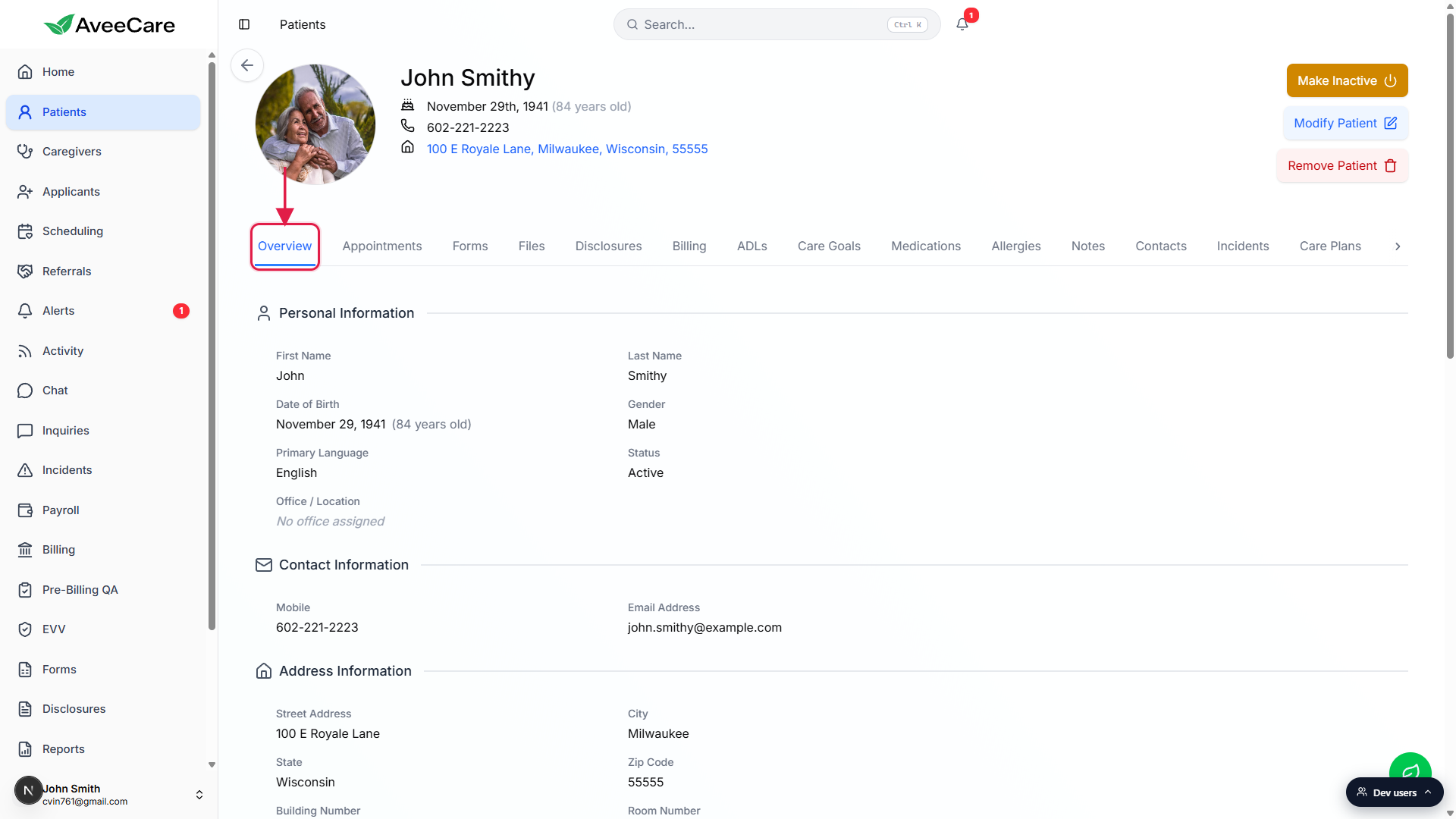
2. Read the patient header
The header carries avatar, name, DOB with age, and address.
The age is shown in parentheses next to the date of birth (for example, November 29th, 1941 (84 years old)). The address is a clickable link that opens the location in your map app. The three action buttons sit in the top-right corner of the header.
3. Walk the Overview body
Personal Information lists First Name, Last Name, DOB, Gender, Primary Language, Status, and Office.
Below it, Contact Information shows Mobile and Email Address. Address Information repeats the address with each component (Street, City, State, Zip Code, Building Number, Room Number) split out for legibility.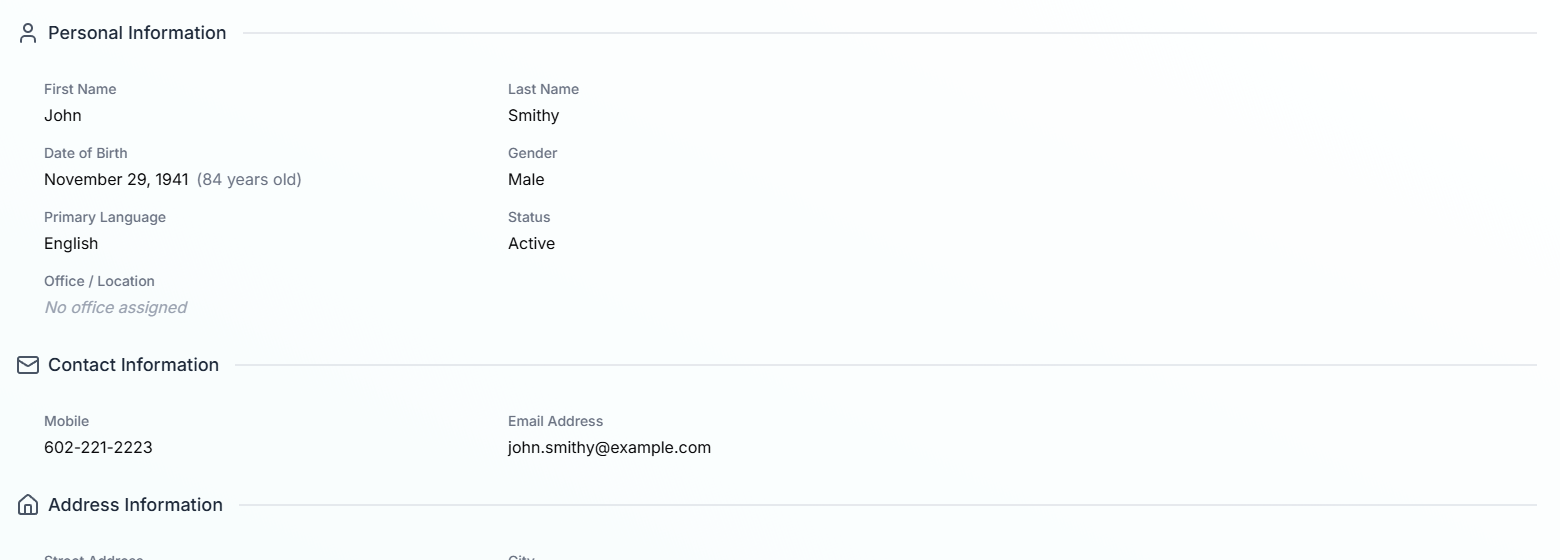
Scroll down for Medical Information, Care Details, Supervisory Visits, and EVV Compliance.
Medical Information shows Service Type, Primary Diagnosis, Comorbidities, and Mobility notes. Care Details and Supervisory Visits are collapsible. EVV Compliance has three subsections: EVV Contingency Plan (Contingency Preference, Last Reviewed, GPS Tracking Consent), EVV Designee (Designee Name, Attestation On File), and EVV PIN Verification (PIN Code).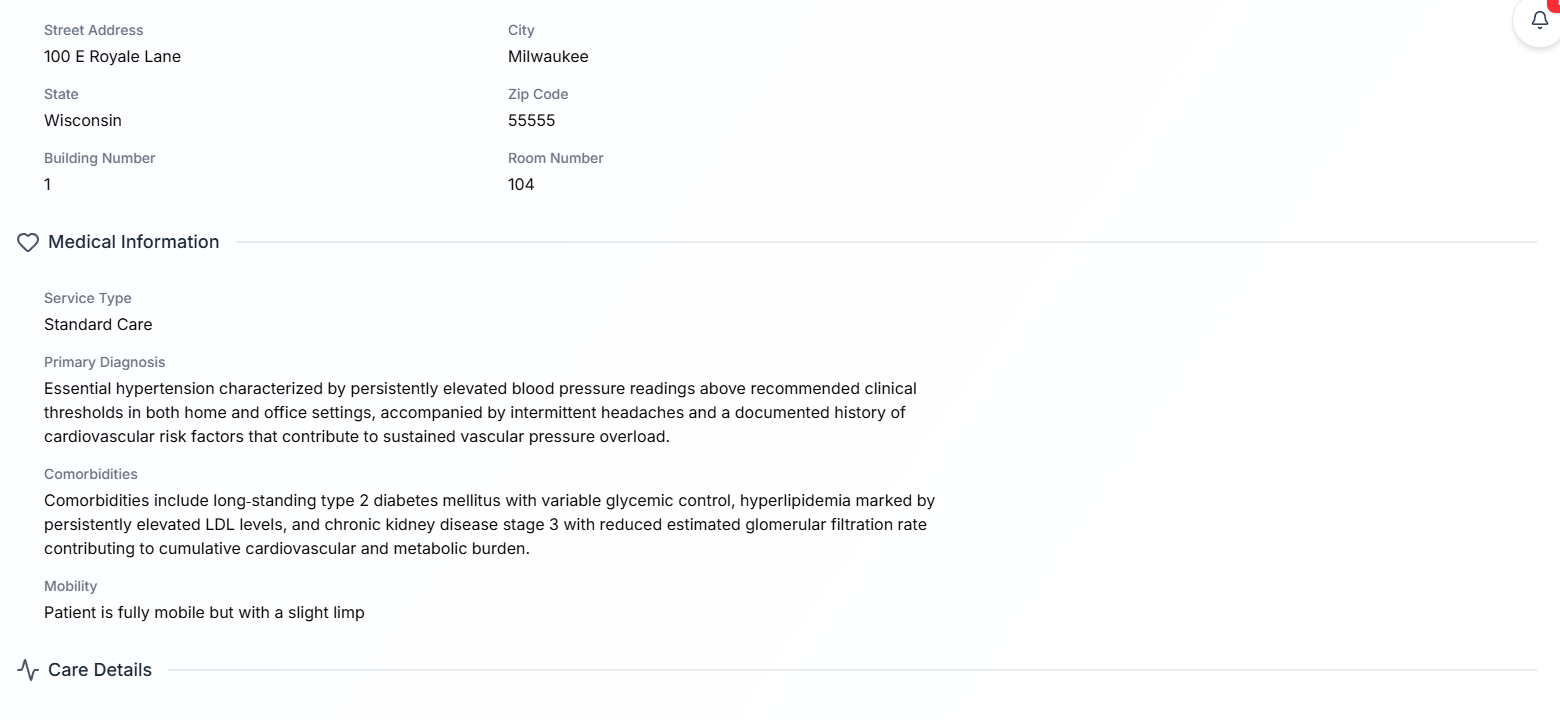
4. Use Make Inactive, Modify Patient, Remove Patient
Click Modify Patient to edit any field on Overview.
The Add Patient form reopens, pre-filled with the current values across every section (demographics, contact, address, medical, care details, EVV). Save to push the edits back to Overview.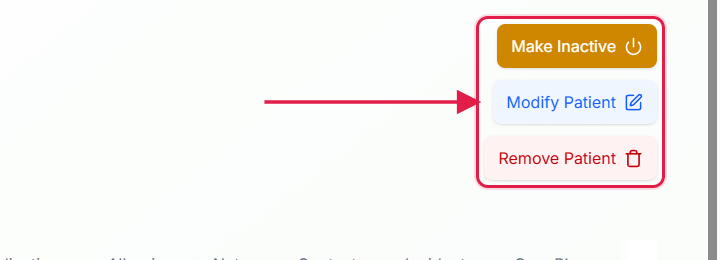
Click Make Inactive to retire the patient without losing history.
The patient moves to the Inactive tab on the Patients list and drops out of scheduling, alerts, and KPI counts. Visits, billing, and audit history stay intact. This is the right button 99 percent of the time.Click Remove Patient only when you need a hard delete.
Remove Patient permanently deletes the record from the user view. Use Make Inactive instead unless legal or compliance requires a hard delete.
Common pitfalls
- Confusing Make Inactive with Remove Patient. Make Inactive preserves the record (and all visits, billing, audit history). Remove Patient permanently deletes it. When in doubt, choose Make Inactive.
- Looking for fields that aren't on Overview. Insurance, billing rates, EVV state-level configuration, and care plans live on their own tabs (Billing, Care Plans) or inside the Modify Patient form. The Overview body is read-only.
- No office assigned. Patients without an office show up as No office assigned in the Office / Location field and can fall out of multi-office reporting. Open Modify Patient and set the office to keep reports clean.
- EVV PIN Code says “Not set.” The EVV Compliance card flags an unset PIN with Not set, configure in Edit mode for PIN-based EVV verification. Click Modify Patient to set a PIN if your agency uses PIN-based EVV verification at the door.
- Address link opens the wrong map app. The clickable address in the header uses the operating system's default map handler. On Windows that is usually Bing Maps; on macOS, Apple Maps. Change your default if you want it to open Google Maps instead.
Related
- Add Patient (manual onboarding)
- Patient contacts (emergency and primary)
- Patient billing tab
- Patient care plans