Care Plans are the patient's service blueprint, a documented set of goals, ADL tasks, medication tasks, and a review cadence the office and caregivers commit to. The Care Plans tab on every patient record is where you build, edit, and review them.
Quick answer
Open the patient and click the Care Plans tab. Click Create Care Plan, fill the basics, add goals and tasks, save. To start with a populated draft, hit AI Auto-Populate and edit from there. Active and Under Review plans show a green check button so you can mark them reviewed once the next review date comes up.
Statuses you can pick
The Status dropdown in the Create Care Plan modal has six values:
- Draft. In progress, not yet in effect.
- Active. The current plan caregivers should follow.
- Under Review. Being re-evaluated. Still appears in the dashboard review panel.
- Completed. Goals met and the plan ran its course.
- Discontinued. Stopped before completion (e.g., service change, hospitalization).
- Archived. Hidden from the active list, retained for audits.
Only Active and Under Review plans surface the Mark as Reviewed action and feed the dashboard's Care Plans Due for Review panel.
1. Open the patient and click the Care Plans tab
On the patient list, click the patient.
The Care Plans tab is per-patient. Open the right patient first, then look at the tab strip beneath the patient header.In the patient tab strip, click Care Plans.
Care Plans sits between Incidents and Authorizations. On a patient with no plans yet, the tab opens on an empty state with a centered Create Care Plan button.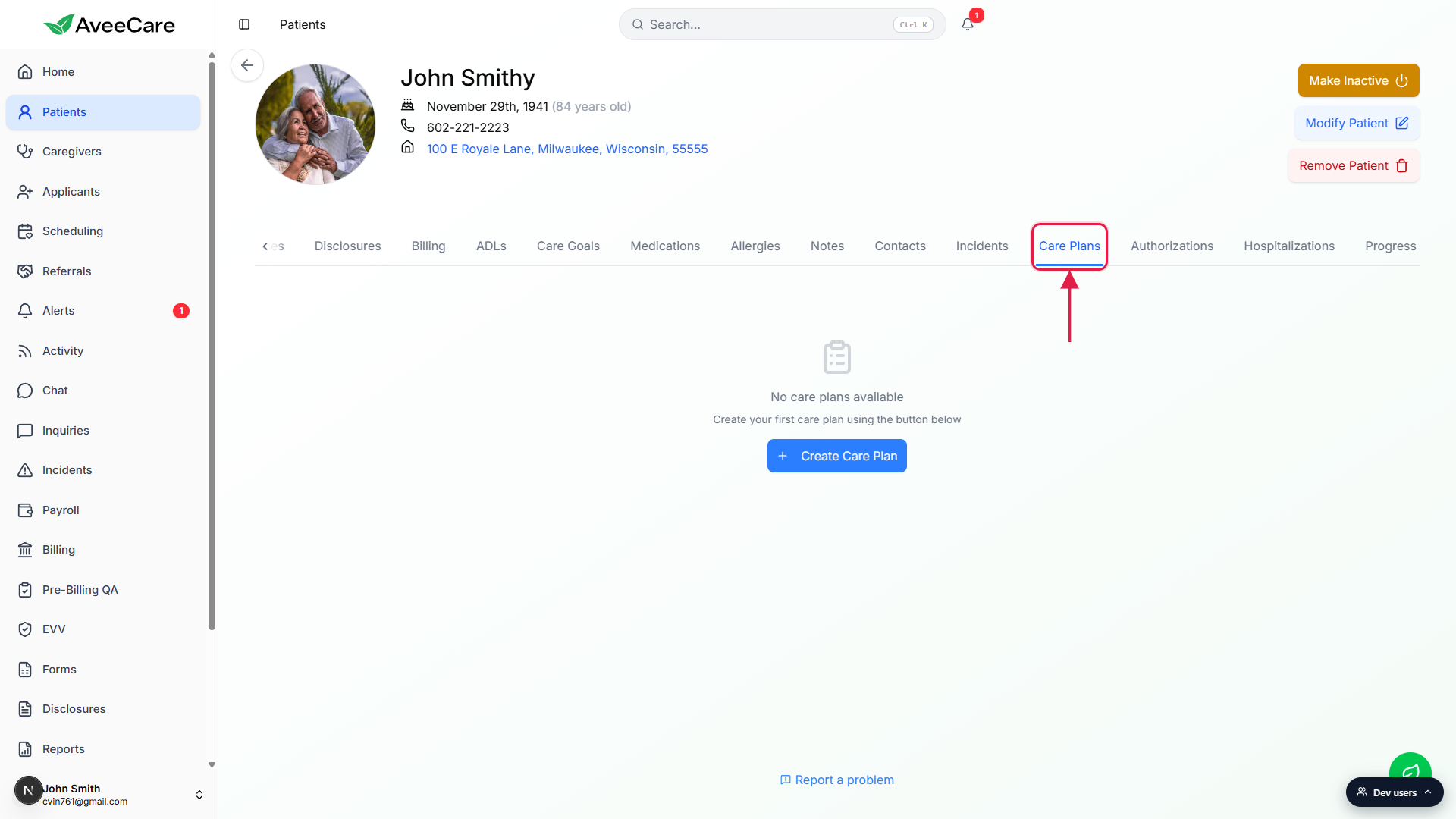
2. Click Create Care Plan from the empty state
Click Create Care Plan.
On the empty state, the centered Create Care Plan button opens the modal. Once the patient has any plans, the same button moves to the top right of the tab.The Create Care Plan modal opens.
The top half is the basics: Title, Status, Service Type, Start Date, End Date, Next Review Date, Review Interval (days), and Frequency. The bottom half is Care Plan Details with collapsible sections for Goals, ADL Tasks, Medication Tasks, and Custom Tasks.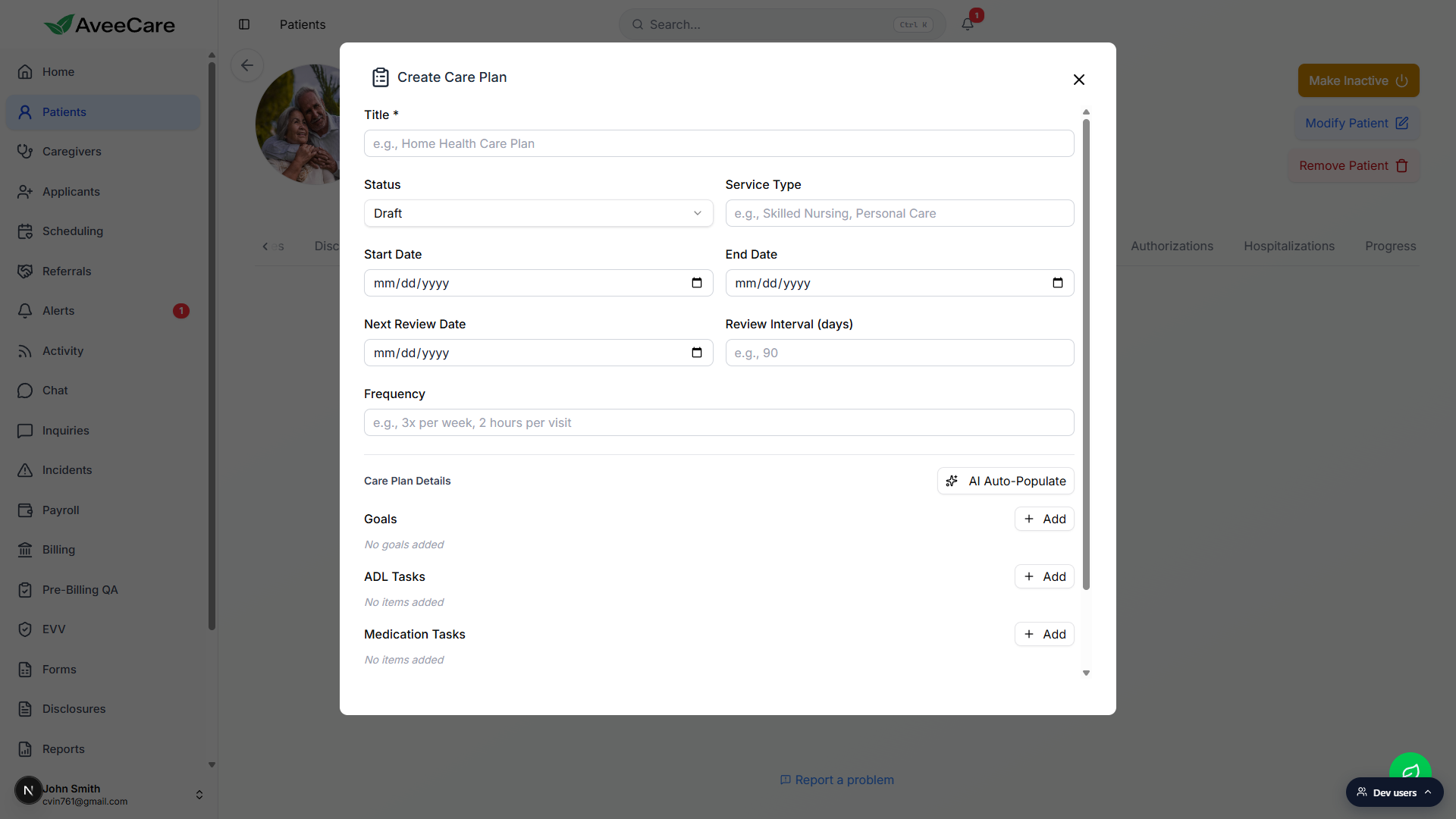
3. Fill the basics: title, status, dates, review interval
Type a Title (required).
Something staff and caregivers will recognize, e.g., Personal Care Maintenance Plan.Pick a Status. Draft until the plan is finalized; Active once it is in effect.
Active and Under Review plans count toward the patient's live plan list and trigger the Mark as Reviewed flow when their Next Review Date approaches. Completed, Discontinued, and Archived drop off the active view but stay readable for audits.Type a Service Type and Frequency.
Service Type is freeform text (e.g., Skilled Nursing, Personal Care). Frequency is also freeform: 3x per week, 2 hours per visit, daily, etc.Set Start Date, End Date, Next Review Date, and Review Interval (days).
Review Interval is what AveeCare uses to roll the next review forward when you mark the plan reviewed. A common cadence is 90 days; pick what fits your agency's policy.
4. Add goals, ADL tasks, medication tasks, and custom tasks
Click AI Auto-Populate to seed the plan from the patient record (optional).
The AI uses the patient's diagnoses, medications, allergies, ADLs, and contacts to draft an initial plan. Review and edit what it produces, do not ship it raw. If the model is offline you will see "AI auto-populate failed"; build the plan manually instead.In the Goals section, click Add and type a goal.
Each goal has a description (e.g., "Maintain safe ambulation with walker"), a measurable target (e.g., "Zero falls in 90 days"), a target date, and a starting status (Not Started / In Progress / Completed). Repeat for each goal.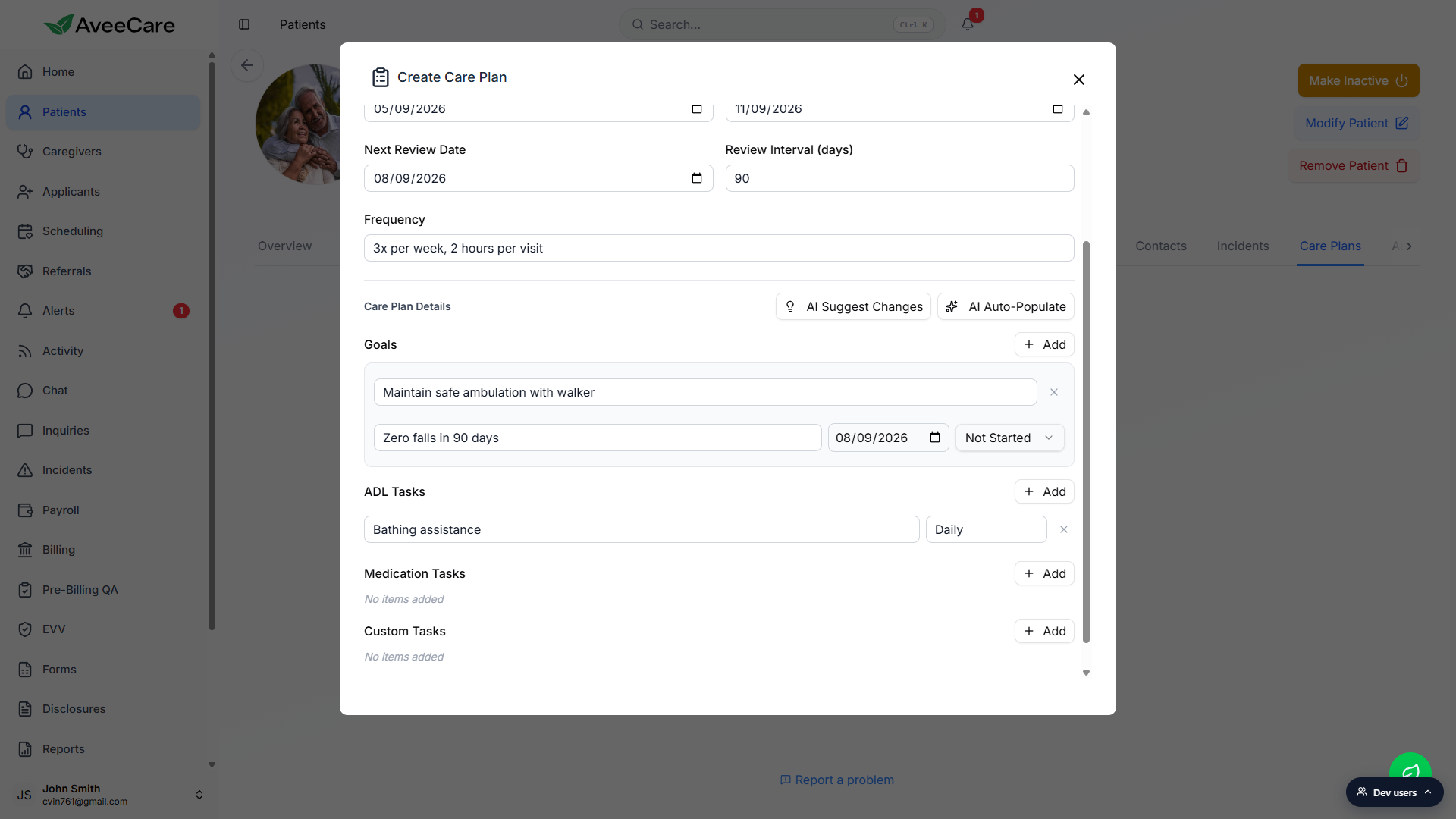
Add ADL Tasks for per-visit checklist items.
Each ADL task has a name and a frequency (e.g., Bathing assistance, Daily). These flow into Patient ADLs so caregivers can complete them during visits.Add Medication Tasks and Custom Tasks as needed.
Medication Tasks are for medication administration steps (e.g., Pre-pour AM meds). Custom Tasks are anything that does not fit the other buckets, like family-coordination steps or skilled observations.Click Create Care Plan at the bottom of the modal to save.
The plan lands on the Care Plans tab as a card showing title, status pill, service type, dates, and frequency.
5. Set the next review date and mark the plan reviewed later
Confirm Next Review Date is set on the plan.
Without a Next Review Date the plan does not surface in the dashboard's Care Plans Due for Review panel and will not roll forward when you mark it reviewed.When the review comes due, click the green check on the plan card.
The Mark as Reviewed action appears on Active and Under Review plans. Clicking it stamps the plan with the current reviewer and timestamp, writes a revision entry, and rolls the Next Review Date forward by the Review Interval (days) you set.Click the chevron on the plan card to expand and see goals, tasks, notes, and revisions.
The expanded card shows the full plan content, a notes thread, and a revision history with timestamps and reviewer names so you have an audit trail.
Common pitfalls
- No Next Review Date set. Without it, the plan does not surface on the dashboard review panel and Mark as Reviewed cannot roll the date forward. Always pick a date.
- Goals without tasks. Goals describe outcomes; ADL and custom tasks are what caregivers actually do on each visit. Pair every goal with at least one task that contributes to it.
- Editing an old plan instead of replacing it. When the patient's service changes meaningfully, create a new plan and mark the old one Completed or Discontinued. The revision log on the old plan stays intact for audits.
- Trusting AI Auto-Populate raw. The auto-populate drafts a plan from the patient record. Always read it before saving; the AI does not know your agency's clinical or compliance policies.
- Status stuck on Draft. Draft plans do not show the Mark as Reviewed action and do not feed the dashboard panel. Promote to Active once the plan is finalized.