Care Goals are the plain-language outcomes you want to drive for a patient: walk to the mailbox unassisted, take medications on time, keep up with bathing twice a week. The Care Goals tab gives you a focused list per patient, separate from the structured Care Plans tab where goals live alongside ADL tasks and a review cadence.
Quick answer
Open Patients, click a patient, then click the Care Goals tab. Click Add Care Goal in the top-right (or the centered button if the patient has no goals yet). Type a Goal Name and an optional Description, then click Add Goal. The new goal lands as a card in the list.
What the form captures
The Add Care Goal modal is intentionally short. It has two fields:
- Goal Name. A one-line title. Required. Examples in the placeholder: “Improve mobility, Maintain independence.”
- Description. A multi-line text area for the detail: how the goal is measured, how often, what counts as met. Optional but worth filling in.
There is no status field, no target date field, and no progress percentage on a Care Goal. Goals are free-form notes you revise over time. If you want a structured plan with status, review cadence, and ADL tasks attached, use the Care Plans tab instead.
1. Open the Care Goals tab on a patient
Open Patients in the sidebar and click the patient row.
The patient detail page opens on the Overview tab. The tab strip across the top shows Overview, Appointments, Forms, Files, Disclosures, Billing, ADLs, Care Goals, Medications, Allergies, Notes, Contacts, Incidents, Care Plans, Authorizations, Hospitalizations, Progress.Click Care Goals in the tab strip.
Care Goals sits between ADLs and Medications. The URL changes to /patients/<name>/<id>/care-goals. If the patient has no goals yet you'll see a centered target icon, “No care goals available,” and a centered Add Care Goal button. If goals exist, the Add button moves to the top-right and the goals render as cards below.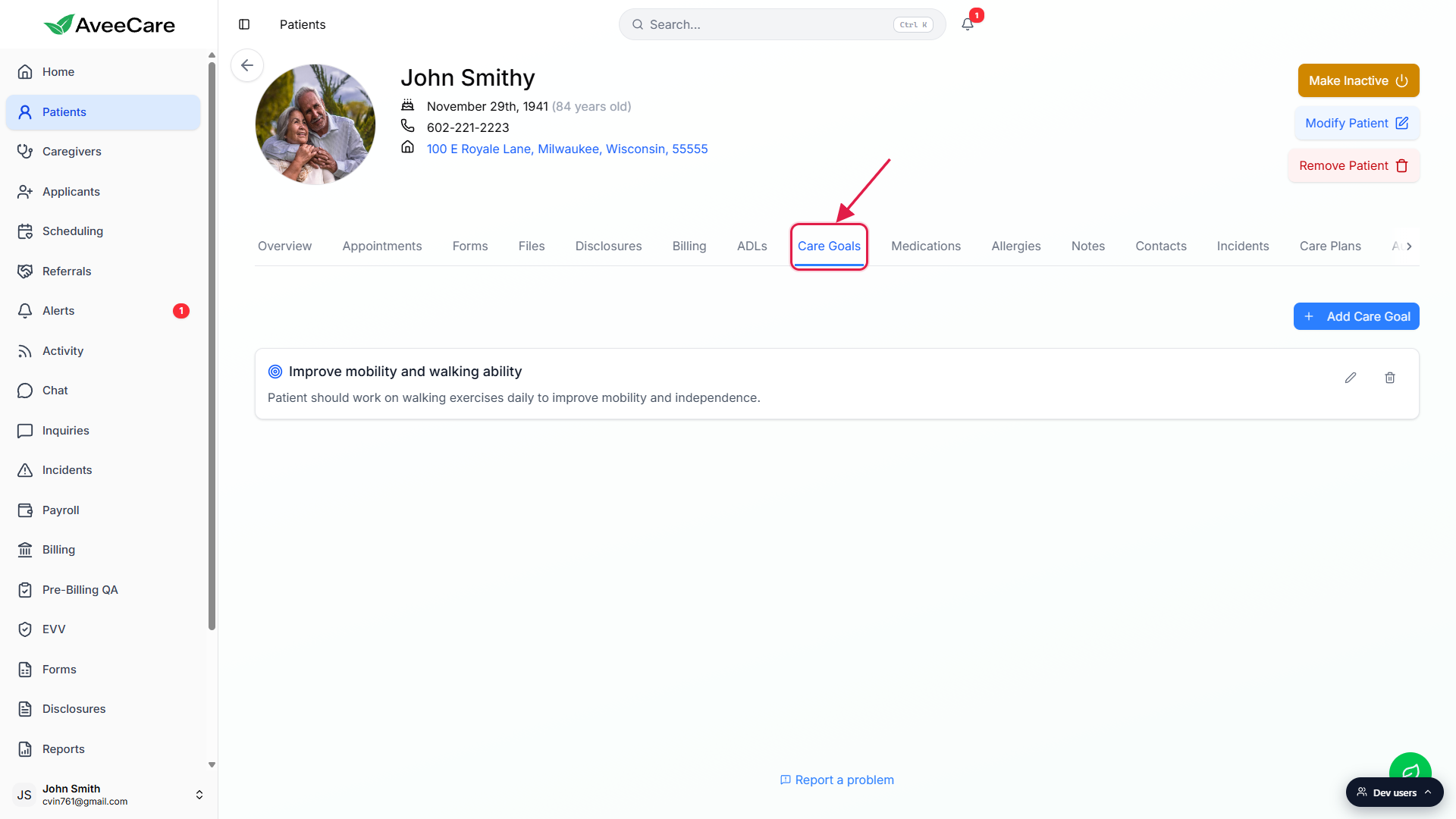
2. Click Add Care Goal
Click the + Add Care Goal button.
On a patient with no goals the button is centered under the empty-state message. Once at least one goal exists, the button lives in the top-right above the list.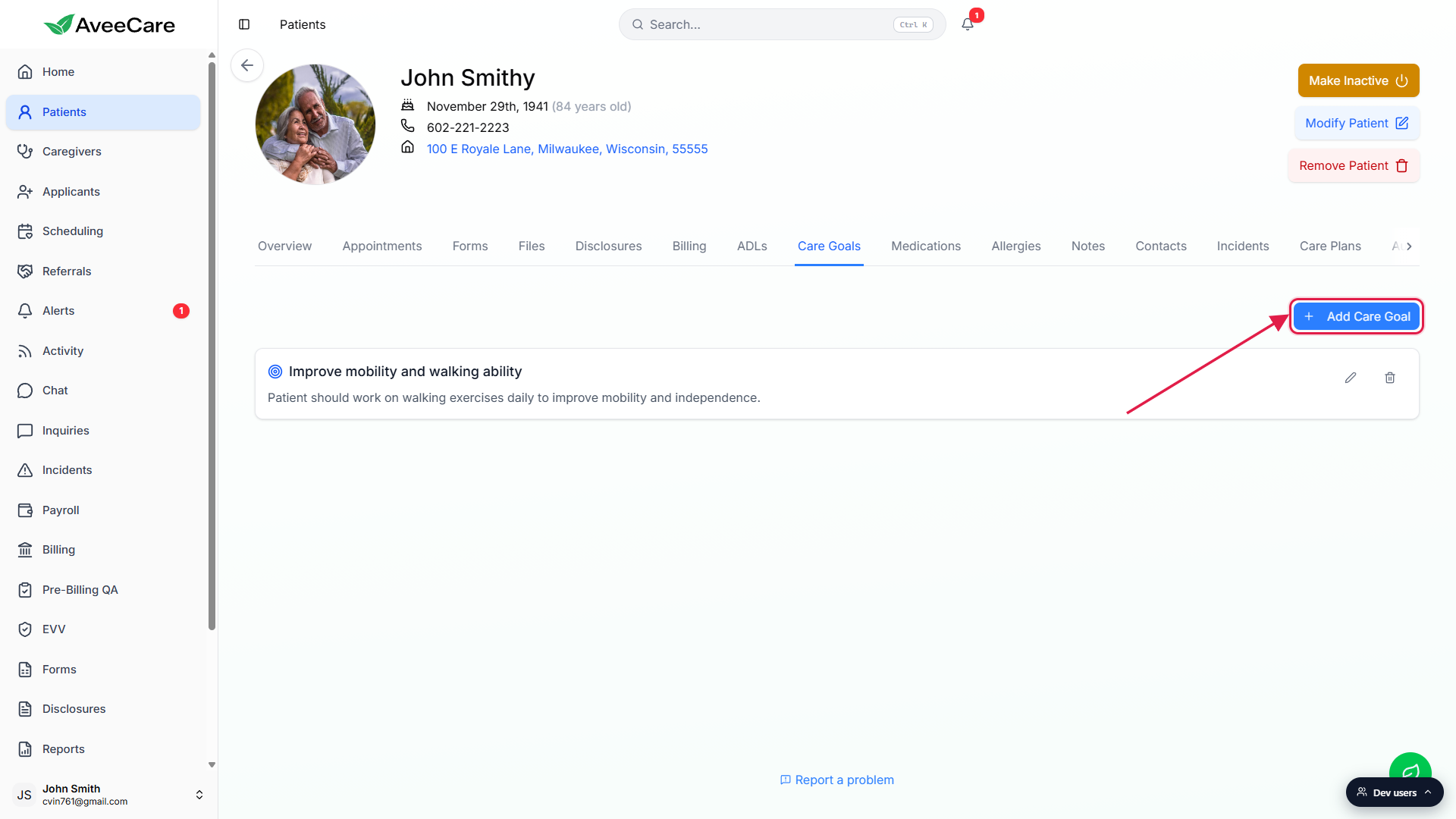
The Add Care Goal modal opens.
A target icon and the title “Add Care Goal” appear at the top. Two fields: Goal Name and Description. Cancel and Add Goal sit at the bottom. Add Goal stays disabled until Goal Name has at least one non-whitespace character.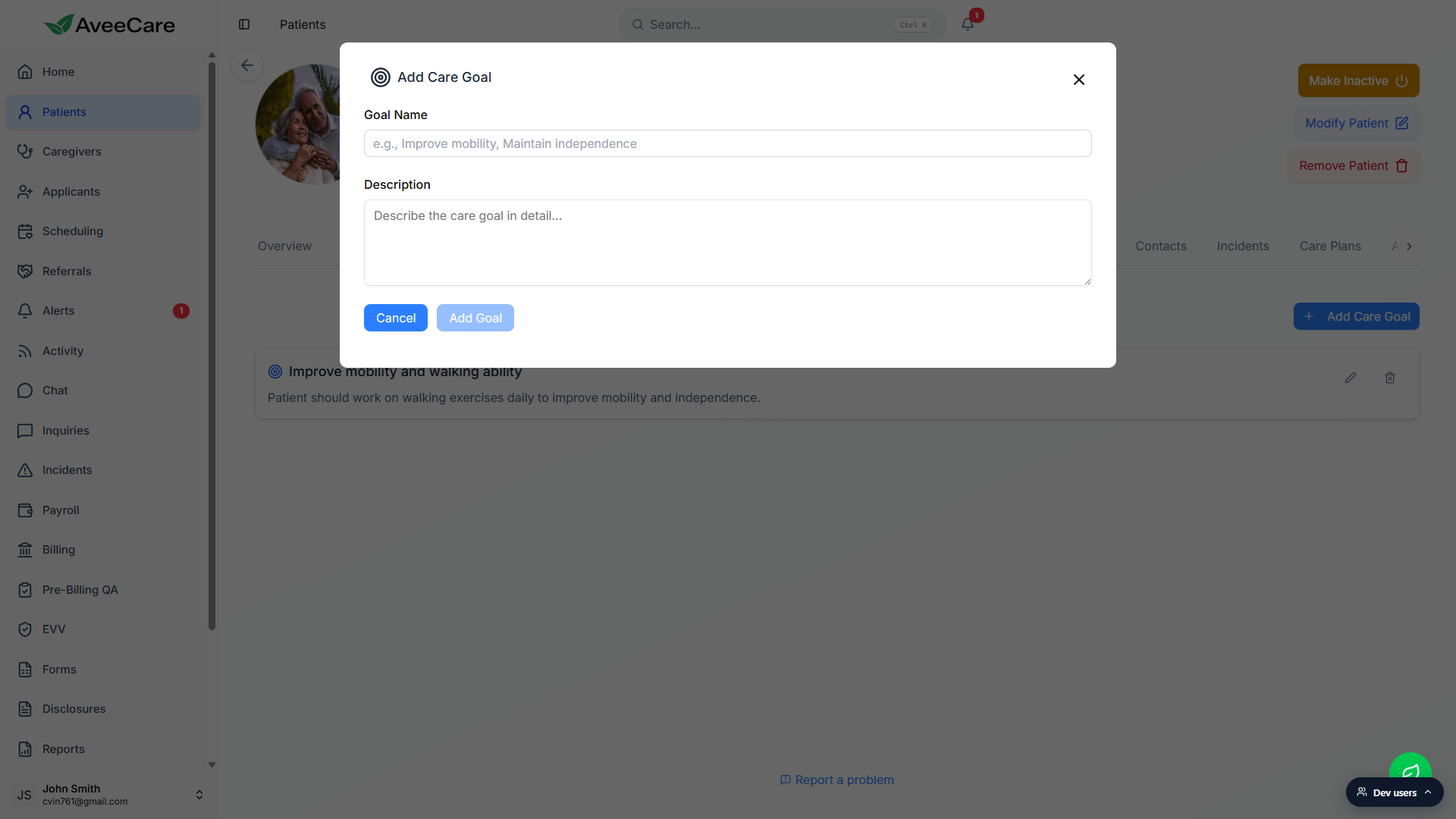
3. Fill in Goal Name and Description
Type a clear, measurable Goal Name.
Short and concrete beats long and aspirational. “Walk to the mailbox unassisted within 30 days” is easier to track than “Improve quality of life.”Add a Description that says how you will measure it.
There is no separate target-date field, so capture the target date and the how-we-will-know-it-is-met criteria in the Description. Caregivers see the goals on the visit detail, so write for them.Click Add Goal.
A toast confirms “Care goal added successfully” and the modal closes. The new goal appears as a card with a blue target icon, the Goal Name as the heading, and the Description below it.
4. Edit or delete a saved goal
Click the pencil (edit) icon on the right side of the goal card.
The Edit Care Goal modal opens with the existing Goal Name and Description prefilled. Change either field and click Save Changes. A toast confirms the update.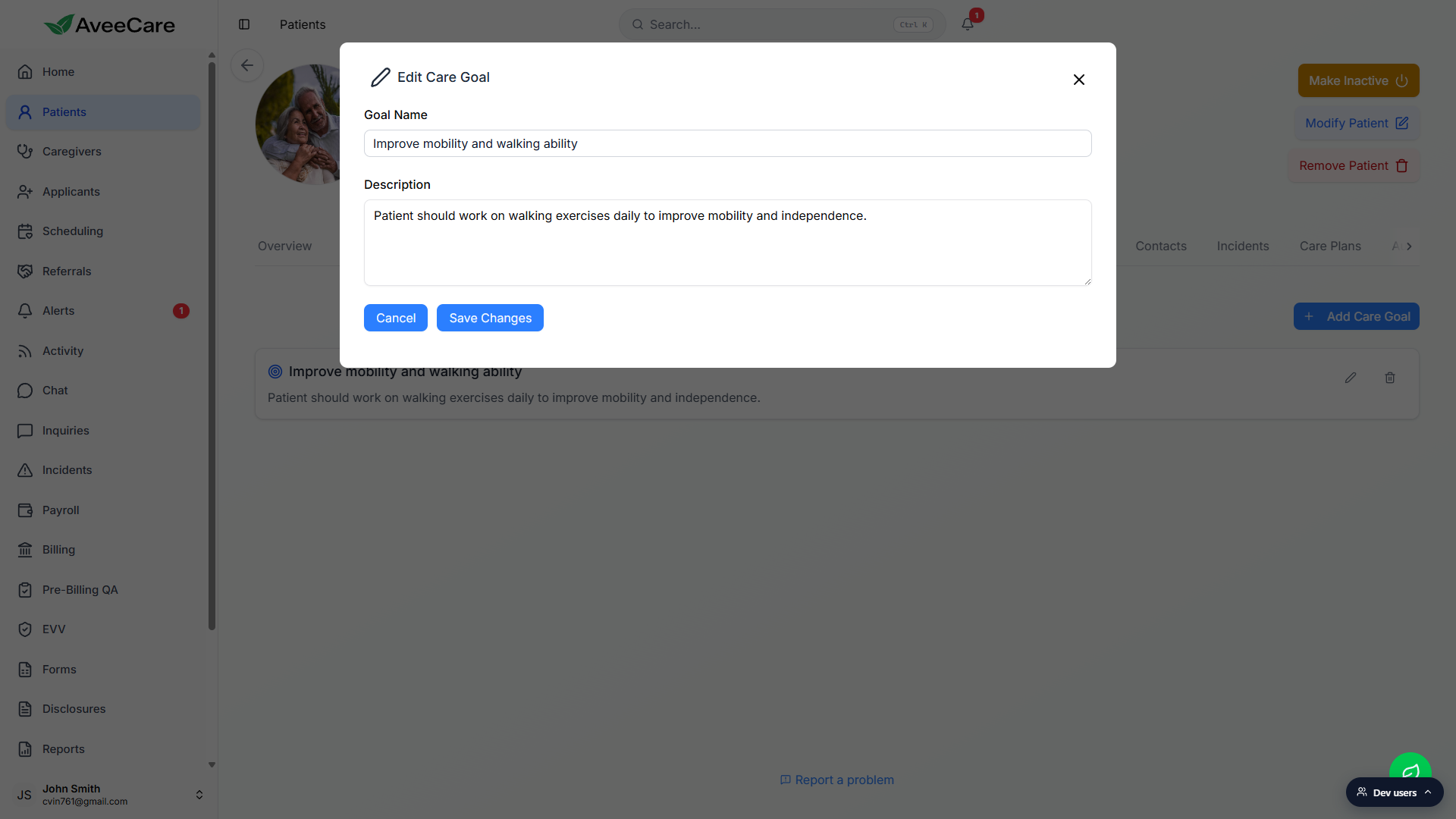
Click the trash (delete) icon to remove a goal.
A confirmation modal asks “Are you sure you want to delete <goal name>? This action cannot be undone.” Click Cancel to back out or the red Delete button to permanently remove the goal.
Common pitfalls
- Goal that is not measurable. “Improve quality of life” is hard to evaluate. Write goals you can check off, like “Walk to the mailbox unassisted within 30 days” or “Take morning medications without prompting for two weeks.”
- Skipping the Description. Goal Name alone tells a caregiver what the goal is, not how to know it is met. The Description is where you put the target date, the threshold, and any caveats.
- Too many goals at once. Three to five concrete goals beats a long aspirational list. Trim aggressively, then revise as the patient progresses.
- Confusing Care Goals with Care Plans. Goals on this tab are free-form outcome notes. Care Plans are the structured document that bundles goals, ADL tasks, medication tasks, a status enum, and a review cadence into one record. If you need a status field, due date, or Mark as Reviewed action, you want the Care Plans tab.
- Deleting instead of editing. Delete is permanent and there is no history. If a goal is met, prefer editing the Description to note the outcome, then revise toward the next goal.