The Progress tab on a patient is a chronological feed of progress check-ins authored by caregivers during visits. Each check-in covers five categories (General, Tasks, Pain, Safety, Changes) so the office can see, at a glance, how the patient is trending across visits.
Quick answer
Open the patient, click Progress on the tab strip. The page shows a Progress Trends summary across the last five check-ins on top, and a Progress Check-Instimeline below with the newest entry first. Empty patients display “No progress check-ins recorded” until a caregiver completes one during a visit.
What a check-in covers
The five fixed categories on every check-in are:
- General. The patient's overall condition this visit, compared with the last one. Same, Better, Worse, or N/A.
- Tasks. Whether all scheduled tasks were completed. Yes, No, or N/A.
- Pain. Pain level or absence of pain.
- Safety. Safety observations from the home environment.
- Changes. Any new changes the office should know about.
The Progress Trends bar at the top of the tab pulls the most recent value in each category from the last five check-ins so you can scan the patient's direction without opening every entry.
1. Open the patient and click Progress
Open the patient from the Patients list.
Click the row of the patient you want to review. The patient record opens on the Overview tab.Click Progress on the right side of the tab strip.
Progress sits at the far right of the row of tabs, after Hospitalizations. Scroll the tab strip horizontally if it is cut off on a narrower screen.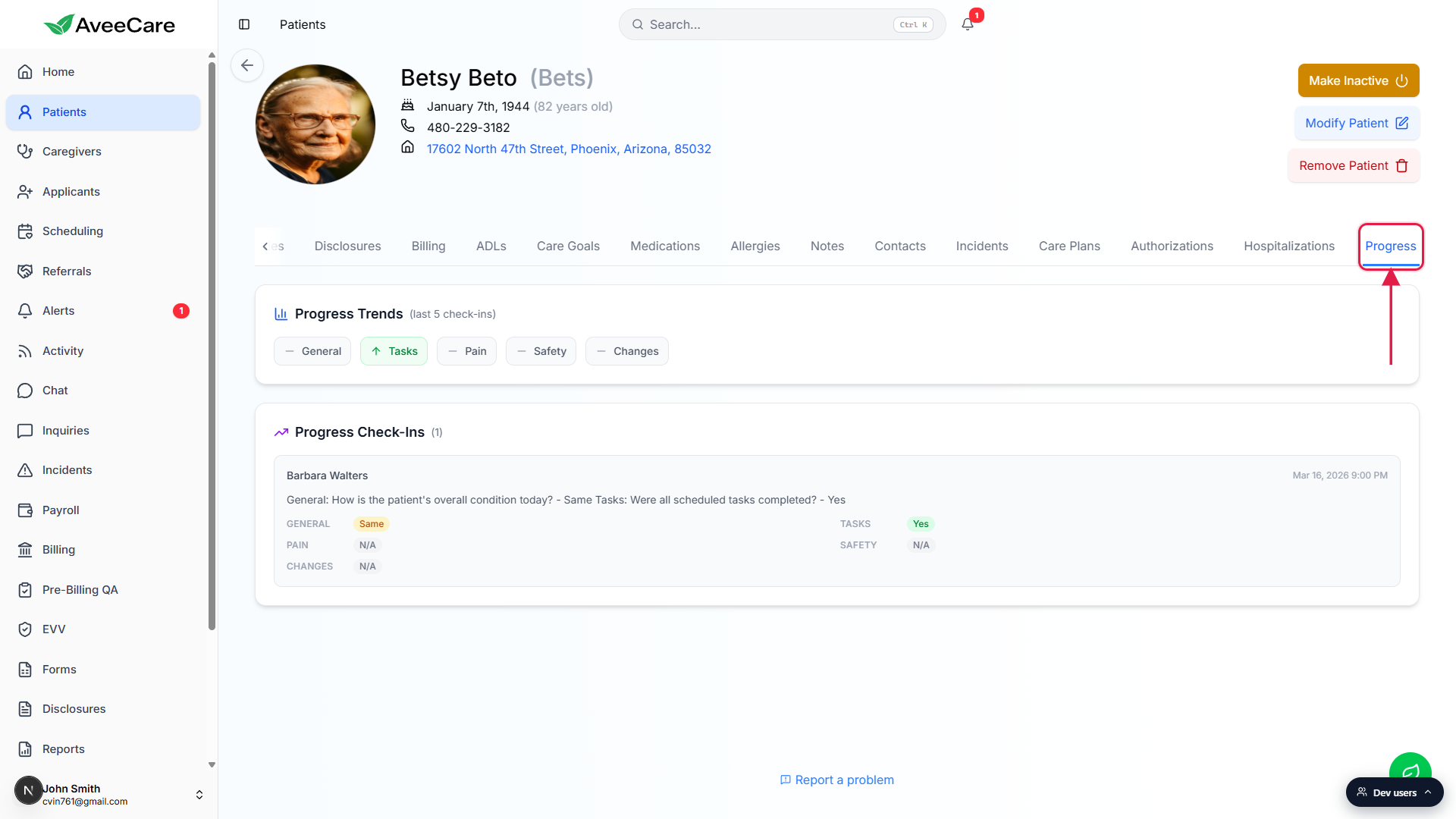
2. Read the Progress Trends summary
Look at the Progress Trends row across the top of the tab.
Five chips, one per category, labelled General, Tasks, Pain, Safety, and Changes. The chip shows the most recent value across the last five check-ins, so an up-arrow on Tasks means tasks have been getting completed, a flat dash means no meaningful change, and N/A means no caregiver has logged that category yet.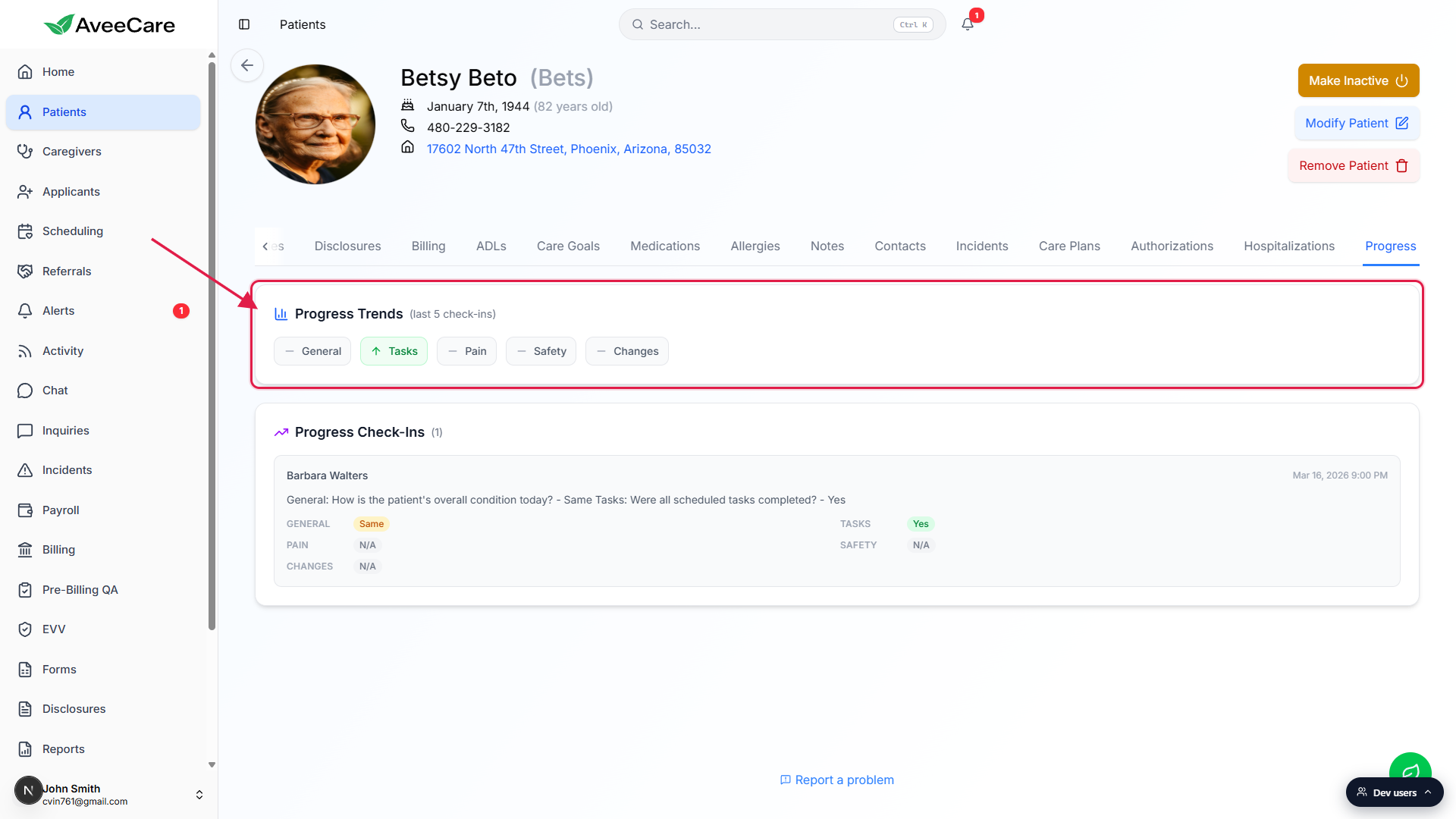
Use the trends row as a quick read before you open the timeline.
The trends bar disappears entirely when the patient has no check-ins yet. If you don't see it, that means the timeline below is empty too.
3. Read a Progress Check-In entry
Open the Progress Check-Ins panel below the trends row.
The header carries the running count in parentheses, for example Progress Check-Ins (1). Entries are listed newest first. Each entry shows the caregiver name on the left and the visit timestamp on the right.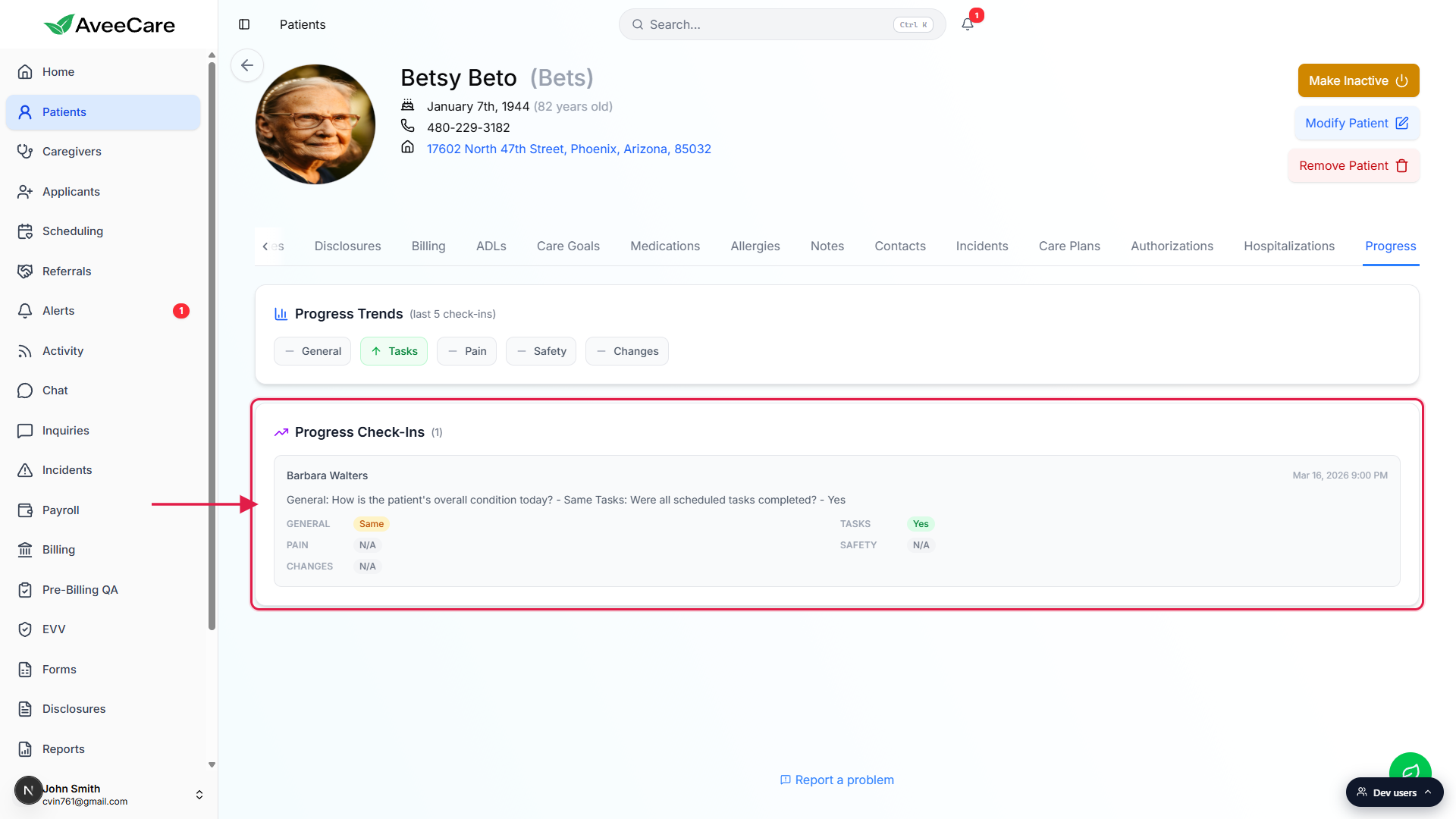
Read the narrative line and the category breakdown beneath it.
Below the caregiver and timestamp the entry shows a one-line narrative summary built from the caregiver's answers. Below that, a five-cell grid: GENERAL, TASKS, PAIN, SAFETY, CHANGES, each with the value the caregiver picked or N/A.Scroll the panel to walk back through earlier check-ins.
Older check-ins stack vertically below the most recent one. The timeline does not paginate, so on busy patients you scroll inside the page itself.
4. Add new check-ins from a visit
Have the caregiver complete a check-in inside the visit.
Progress check-ins are authored by caregivers from the visit detail screen, not from the patient record. The office cannot add a check-in directly to this tab. If you need office-side context on the patient, use the Notes tab instead.New check-ins flow into Progress as soon as the visit logs them.
Once the caregiver saves the check-in, the entry appears at the top of the Progress Check-Ins timeline, the count in the header increments, and the Progress Trends chips refresh to include the new values.
Common pitfalls
- Confusing Progress with Notes. Notes is for office-side context (preferences, intake details, free-text history). Progress is the caregiver's clinical and operational read from inside a visit. Different audiences, different tabs.
- Empty timeline on a brand-new patient. Until a caregiver finishes a visit and logs a check-in, the tab shows “No progress check-ins recorded.” That is normal, not a bug.
- N/A values everywhere. Caregivers can skip categories that are not relevant to a given visit. A column full of N/A means the caregiver opted out, not that the patient had no activity in that area.
- Adding a check-in from the office. There is no Add button on this tab. Check-ins are authored from inside the visit detail. Office staff who need to record information should use Notes or, for clinical concerns, log an Incident.
- Trends row missing. The Progress Trends row only renders when the patient has at least one check-in. On empty patients the tab jumps straight to the empty-state card.