Notes is the free-text scratchpad on every patient record. Use it for background context, family information, scheduling preferences, or any office-side observation that does not belong on a care plan, a medication, or a per-visit progress note. Each note is timestamped and searchable across the patient.
Quick answer
Open the patient and click the Notes tab on the patient tab strip. Click Add Note in the top-right, type your note in the modal, and save. Use Search notes... to filter, the pencil icon to edit, and the trash icon to delete.
What goes in Notes vs other tabs
Notes is plain office context. It is not the place for clinical detail, medications, or per-visit narrative.
- Notes. Office-side context. Family members, gate codes, scheduling preferences, communication quirks.
- Progress. Chronological per-visit narrative entered by caregivers and clinicians during a visit.
- Medications, Allergies, Care Plans, ADLs. Clinical fields with their own dedicated tabs. Do not duplicate that content in Notes.
- Files. Documents and uploads. Notes is text-only and does not accept attachments.
1. Open the Notes tab on a patient
Open the Patients page and click into a patient.
From the sidebar, click Patients, then click any row. The patient detail page opens on the Overview tab.Click Notes on the patient tab strip.
The Notes tab sits between Allergies and Contacts. The full tab order is Overview, Appointments, Forms, Files, Disclosures, Billing, ADLs, Care Goals, Medications, Allergies, Notes, Contacts, Incidents, Care Plans, Authorizations, Hospitalizations, Progress.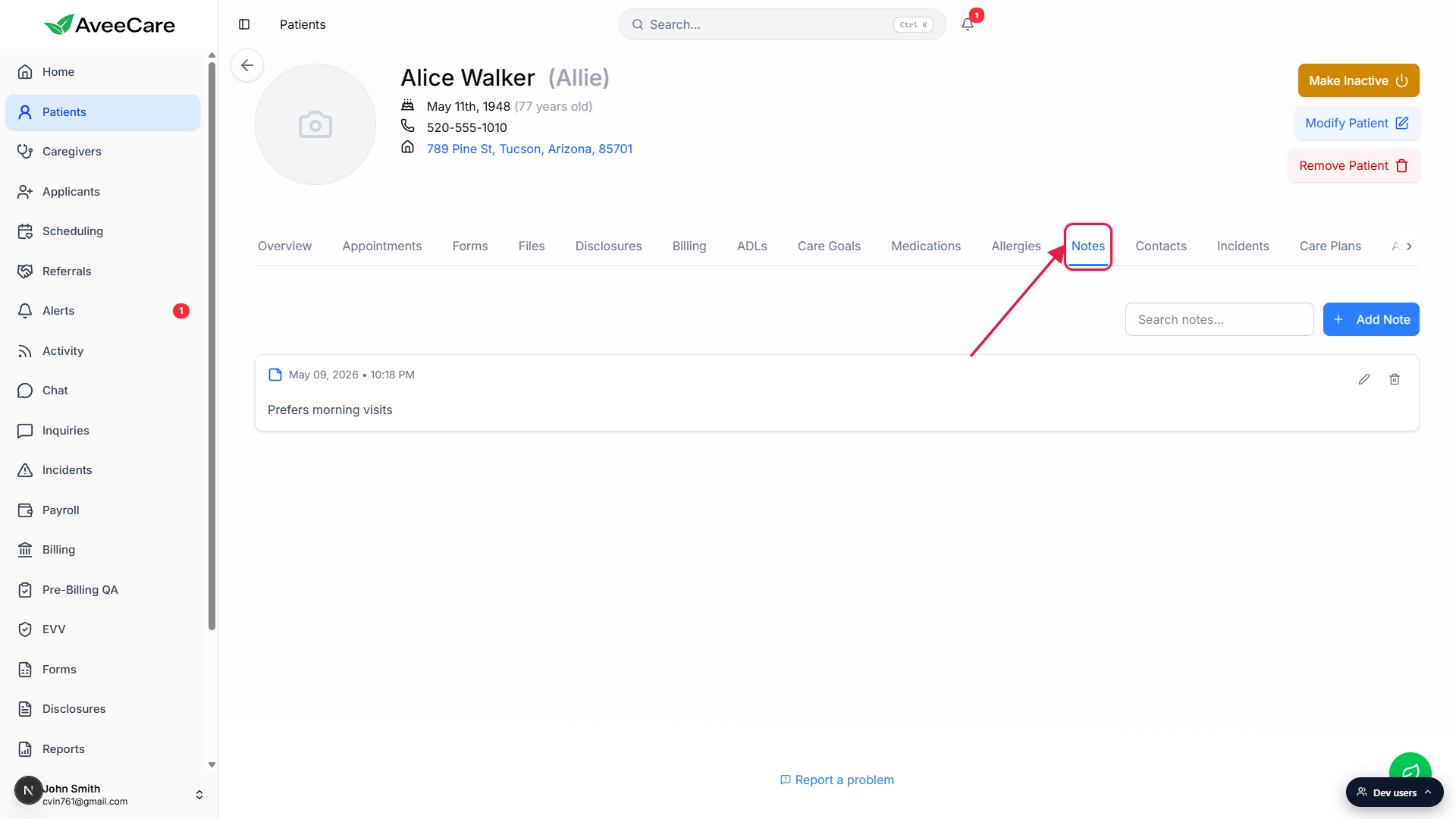
2. Add a note from the Add Note modal
Click Add Note in the top-right of the Notes feed.
The button sits next to the Search notes... input. If the patient has no notes yet, you will also see a centered Add Note prompt below an empty-state illustration.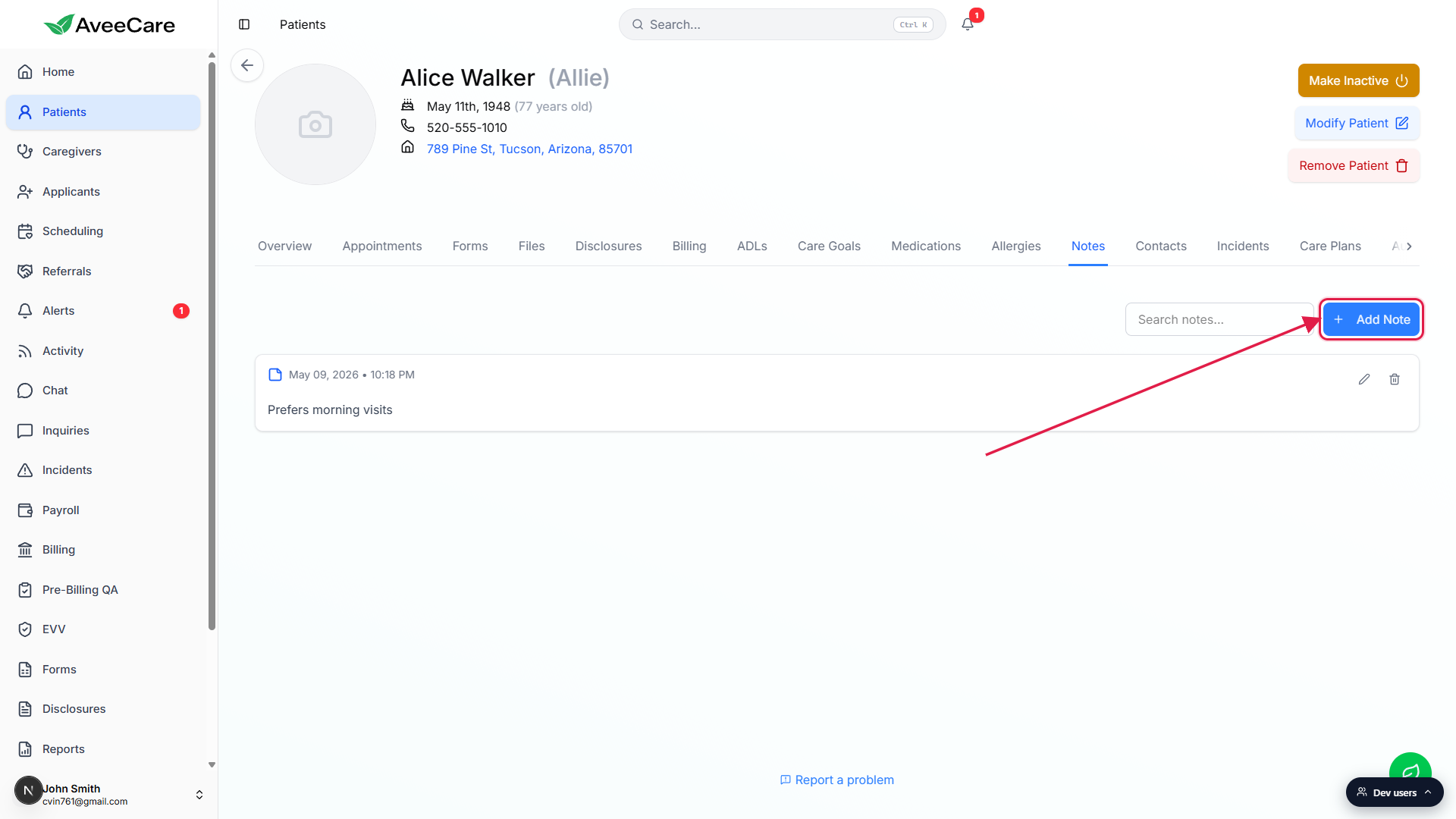
Type the note content in the modal that opens.
The Add Note modal has a single Note Content field. There is no title, category, or attachment. Notes are free text only. Cancel discards the draft. Add Note stays disabled until you type something.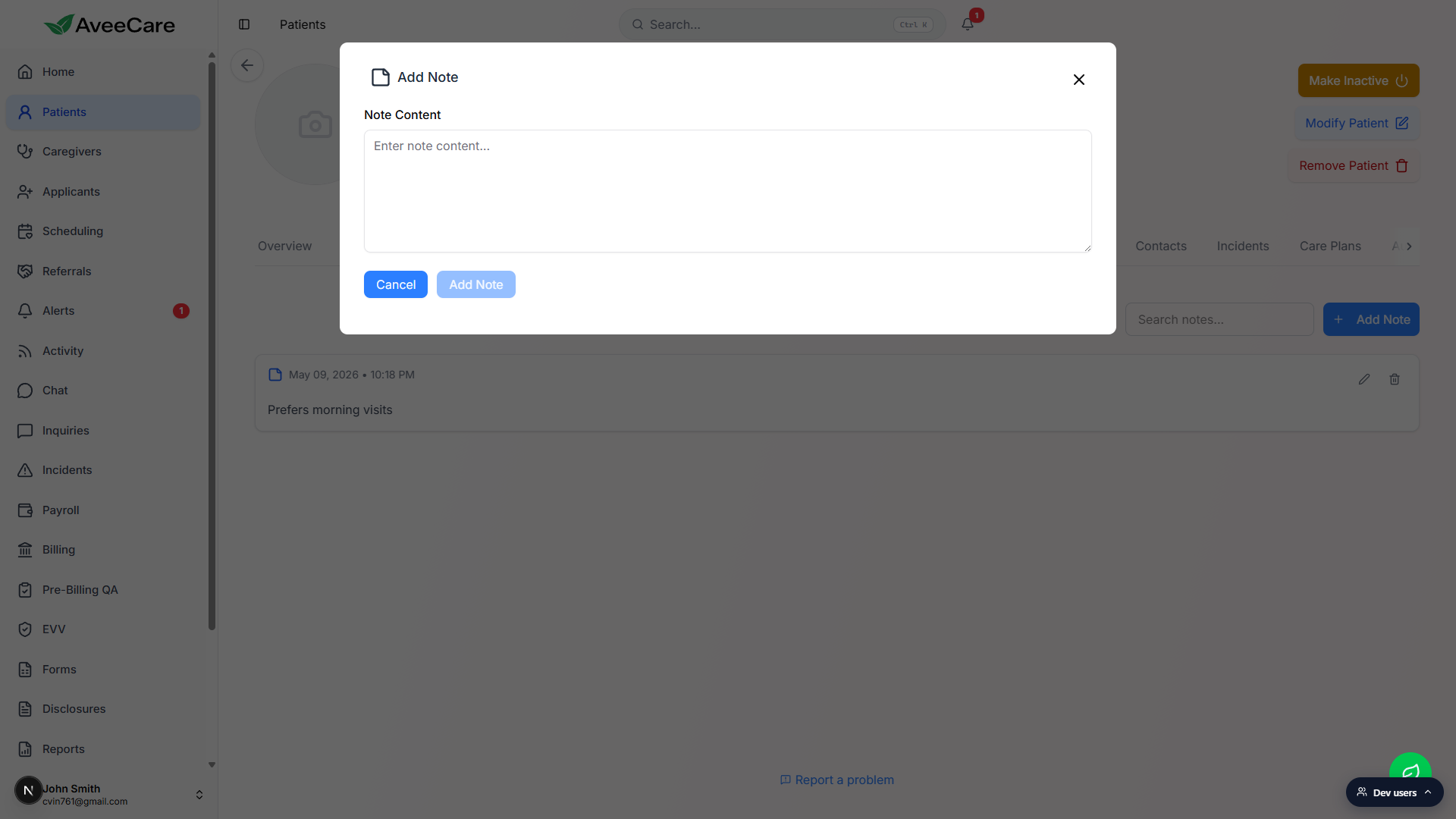
Click Add Note. The new note appears at the top of the feed.
Notes are sorted newest first by their created timestamp. Each card shows the date and time the note was created, formatted like May 09, 2026 - 10:18 PM.
3. Search, edit, or delete an existing note
Use Search notes... at the top to filter the feed.
Search is plain text and case insensitive. It matches against the body of every note on this patient. Clear the box to see the full feed again.Click the pencil icon to edit a note, the trash icon to delete it.
Both icons sit on the right side of every note card. Edit opens the same kind of modal as Add Note, pre-filled with the current content. Delete shows a confirmation modal that warns the action cannot be undone.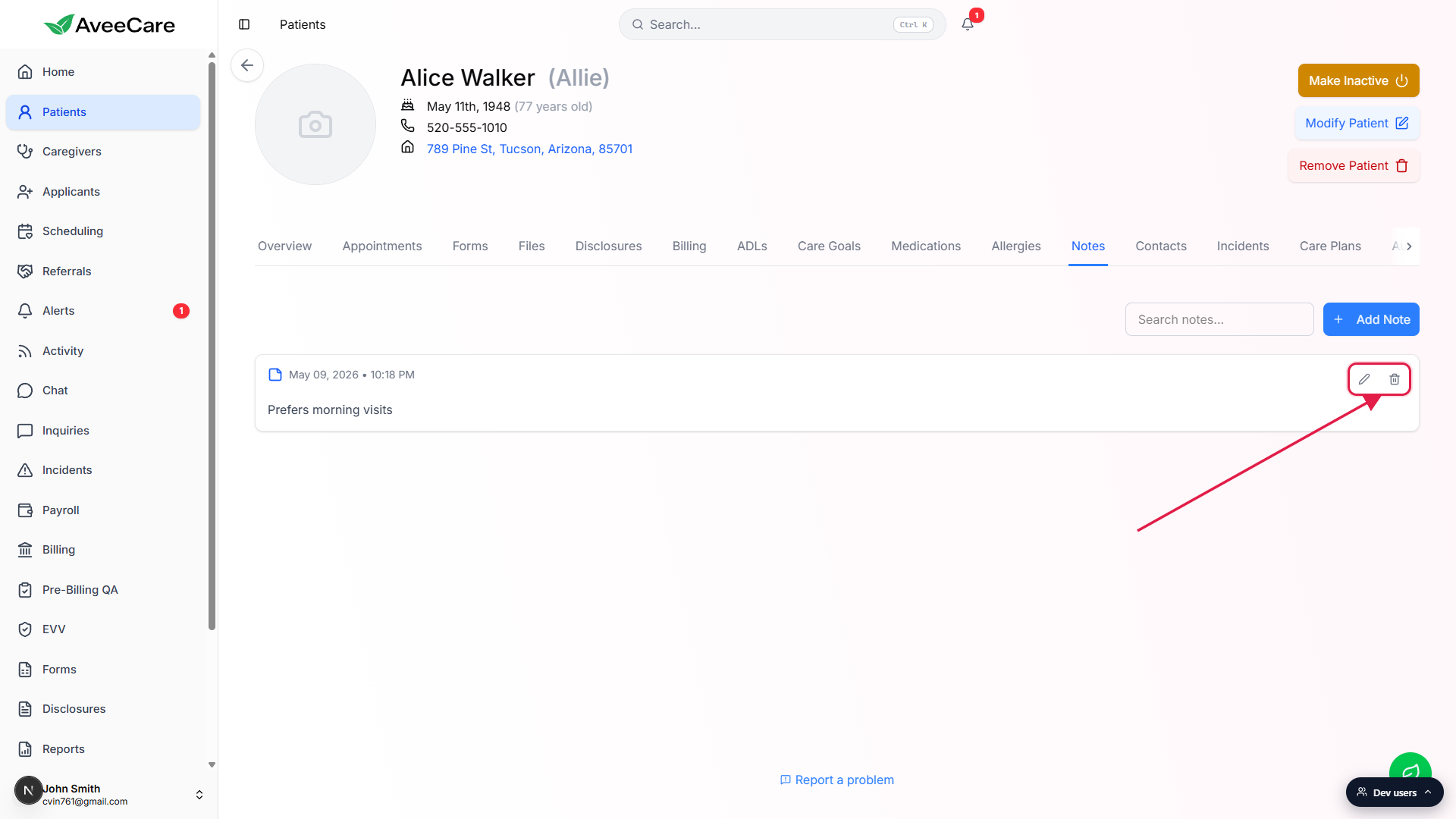
Confirm Delete to remove the note from the feed.
The destructive Delete button is red. The note is removed from the feed immediately. Notes follow the same retention policy as the rest of the patient record.
Common pitfalls
- Putting clinical detail in Notes. Diagnoses, medications, allergies, and vitals belong in their own dedicated tabs. Notes is for office context that has no other home.
- Trying to attach a file. Notes is text only. There is no upload control on the Add Note modal. Use the Files tab to attach documents to the patient record.
- Treating Notes as a visit log. Per-visit narrative belongs on the visit itself, captured by the caregiver during or after the appointment, and surfaced on the Progress tab. Notes is not a substitute for that record.
- Editing a note expecting the original to stay visible. The Edit modal replaces the body of the note. The card always shows the current text only. If you need to preserve a previous version, add a new note and reference the change instead of editing in place.
- Searching across patients. Search notes... only searches the current patient. To find a phrase across multiple patients, use the global Search button in the top header.