AveeCare does not have a single tab called Paperwork. Patient paperwork is split across three tabs that each handle a different format: Files for uploaded PDFs and scans, Disclosures for templated consents with signature evidence, and Forms for digital intake questionnaires the patient or your staff fills out in-app.
Quick answer
Open the patient. Use Files for ad-hoc signed PDFs, intake packets, ID scans, and hospital paperwork. Use Disclosures for templated consents like the HIPAA Privacy Notice with an Agreed-At timestamp and signature on file. Use Forms for digital questionnaires built from your form library, like a custom intake sheet.
1. Map paperwork to the right tab
Open Patients in the sidebar and click the row of the patient you want.
You land on the patient's Overview tab.Pick the right tab for the document type.
The three paperwork tabs sit next to each other on the tab strip: Forms for in-app questionnaires, Files for uploaded documents, and Disclosures for templated consents with signature tracking. There is no separate Paperwork tab.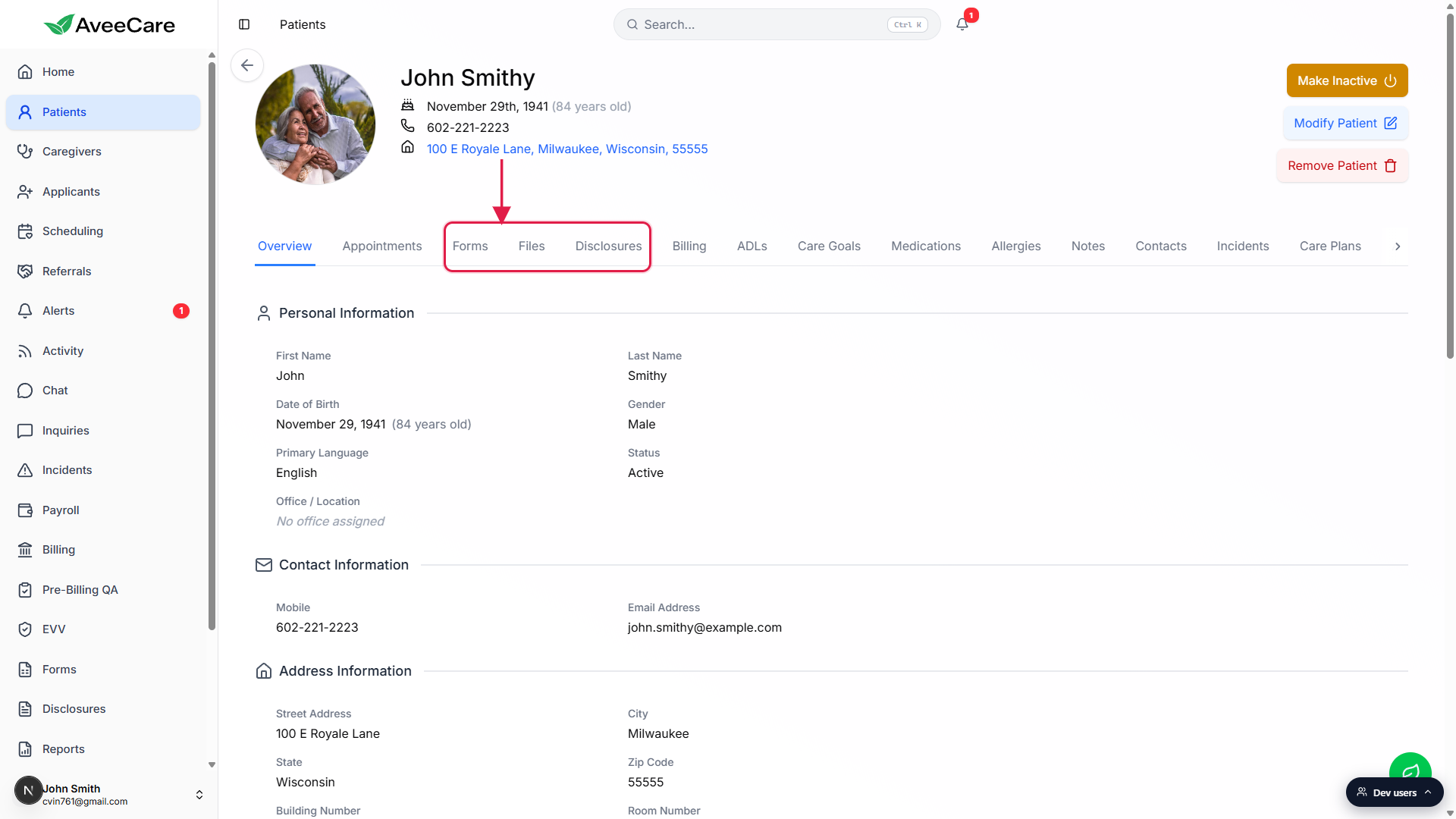
2. Upload a signed PDF or scan to Files
Click Files on the patient tab strip.
You see a yellow Protected Health Information (PHI) banner reminding you the upload may carry PHI, an Upload New Files card, and a Patient Files table of everything already attached.Click Select Files and pick the PDF, image, or scan from your computer.
Use Files for an intake packet the patient handed you on paper, a signed admission agreement, an ID scan, an insurance card, discharge instructions, or any document you want pinned to that one patient. Each upload lands in the Patient Files table with a category tag you can edit later.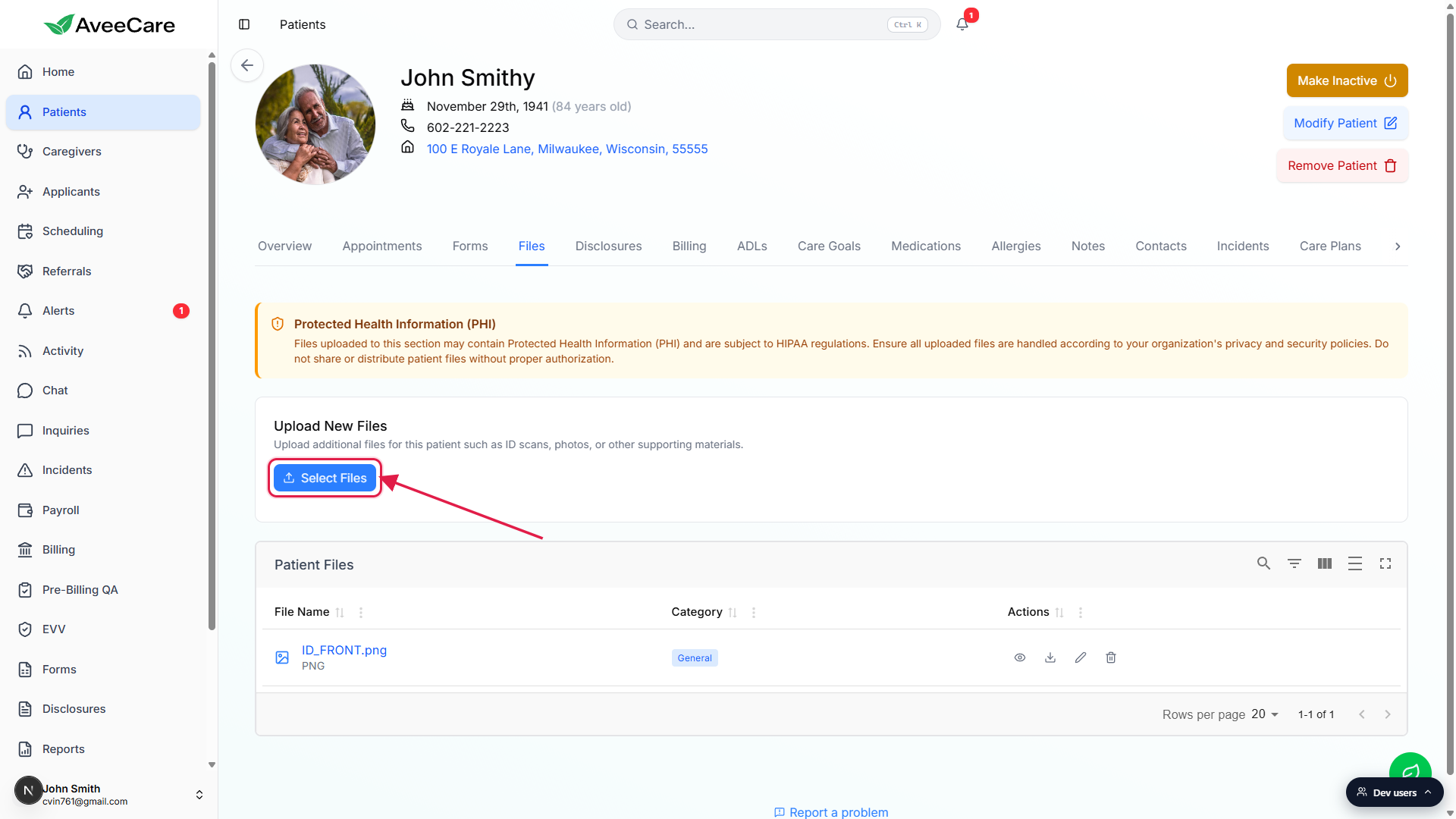
See the full Files reference for view, download, rename, and delete actions.
Each row in the Patient Files table has View, Download, Rename, and Delete controls on the right. The full per-action walk-through lives in Patient files.
3. Record a templated consent in Disclosures
Click Disclosures on the patient tab strip.
The Patient Disclosure Agreements table shows every consent already on file with columns for Disclosure Name, Agreed At timestamp, Agreed By, and Has Signature. Pre-existing rows like HIPAA Privacy Notice come from the templates assigned during intake.Click Add Disclosure Agreement in the top right to record a new consent.
Pick a disclosure template from your library, attach the signed copy, and AveeCare stamps the Agreed At timestamp and signature evidence onto the row. Disclosures is the right place for the HIPAA Privacy Notice, BAA, arbitration agreement, telehealth consent, or any consent your agency tracks against the disclosure library, because those rows feed compliance exports.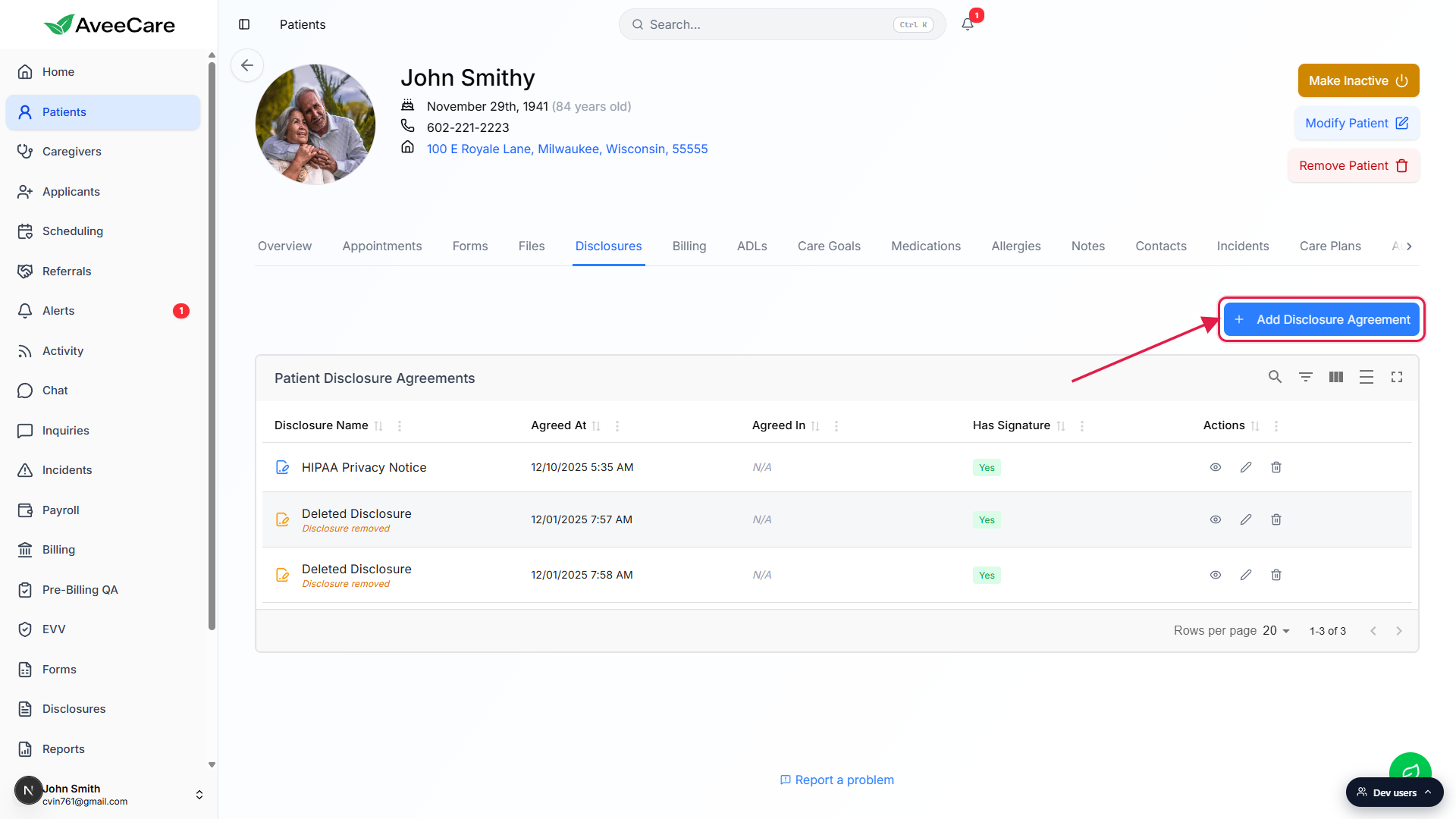
See the full Disclosures reference for the assignment workflow.
The detailed walk-through, including how to assign disclosures from your library and what the audit columns mean, lives in Patient disclosures.
4. Capture a digital intake response in Forms
Click Forms on the patient tab strip.
The Forms tab shows a New Form card and a Patient Forms table of every form already started or completed for this patient. Each row carries Name, Description, Field Count, Status, Created At, Updated At, and Controls.Click + New Form to start a fresh response from a preset.
Forms is the right surface for in-app questionnaires you want filled out structured: custom intake sheets, ADL baseline, falls risk assessment, anything from your form library. Use Forms when you want field-level data back, not a flat scanned PDF.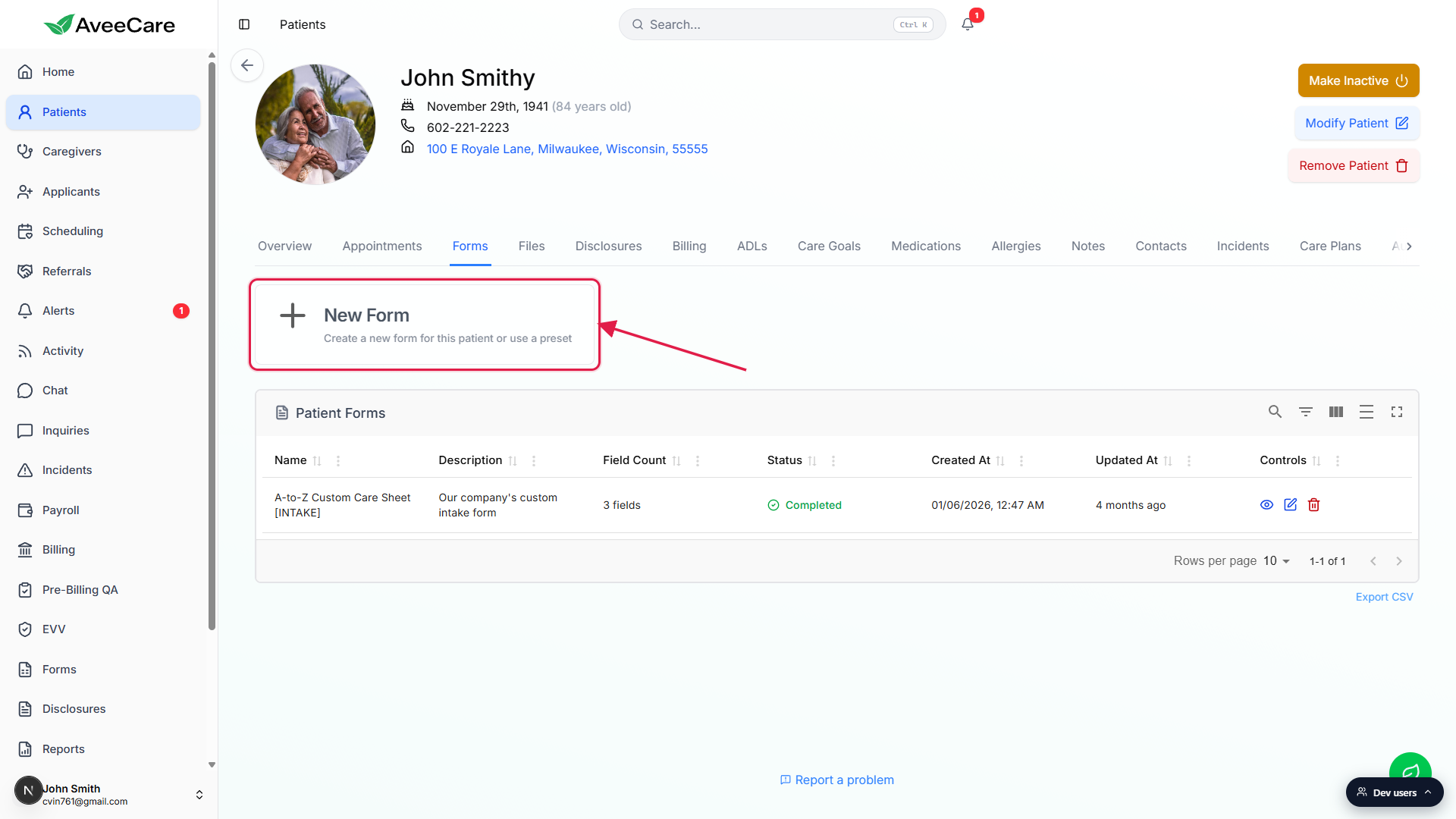
See the full Forms reference for assignment, completion, and export.
The full walk-through, including how to send a form to a patient or family member to fill out themselves, lives in Patient forms.
Common pitfalls
- Putting templated consents in Files. A signed HIPAA Privacy Notice or BAA dropped into Files will not show up on compliance exports. Record it in Disclosures so the row carries the Agreed At timestamp and signature evidence.
- Treating Forms like a file vault. Forms is for structured digital questionnaires that return field-level data. If you have a flat PDF you just want stored against the patient, that belongs in Files.
- Looking for a Paperwork tab. There is none. The work splits across Forms, Files, and Disclosures by document type.
- Skipping the file category. Files lets you tag each row with a category like Insurance, ID, or Hospital paperwork. Skipping the tag means future-you cannot filter the Patient Files table by category.