ADLs (Activities of Daily Living) capture the ongoing assistance a patient needs across daily-life domains: bathing, dressing, mobility, feeding, toileting, transferring. Each ADL written on a patient flows into the caregiver visit detail as a checklist so the caregiver knows exactly what to do and the office can confirm it was done.
Quick answer
Open the patient and click the ADLs sub-tab (it sits between Billing and Care Goals). Click Add ADL, enter a short Name and a Description of the assistance needed, save. Each saved ADL renders as a card on the tab and as a checkbox row on every visit detail.
What goes in an ADL
An ADL has two fields. That is on purpose. The shape forces you to write things a caregiver can actually do.
- ADL Name. Short, recognizable, one or two words. Examples from the placeholder: Bathing, Dressing, Feeding. Use names your agency already trains caregivers on.
- Description. Multi-line. Describe the level of assistance needed and any setup details. The caregiver reads this on the visit, so write it for them, not for charting.
ADLs are free text. There is no clinical taxonomy, no severity scale, no scheduled-days picker. Each ADL applies to every visit for the patient until you edit or delete it.
1. Open the ADLs tab on the patient
From Patients, open the patient and click the ADLs sub-tab.
The ADLs sub-tab sits between Billing and Care Goals on the patient tab strip. The URL ends in/adls. Empty patients show an No ADLs available message and a centered Add ADL button.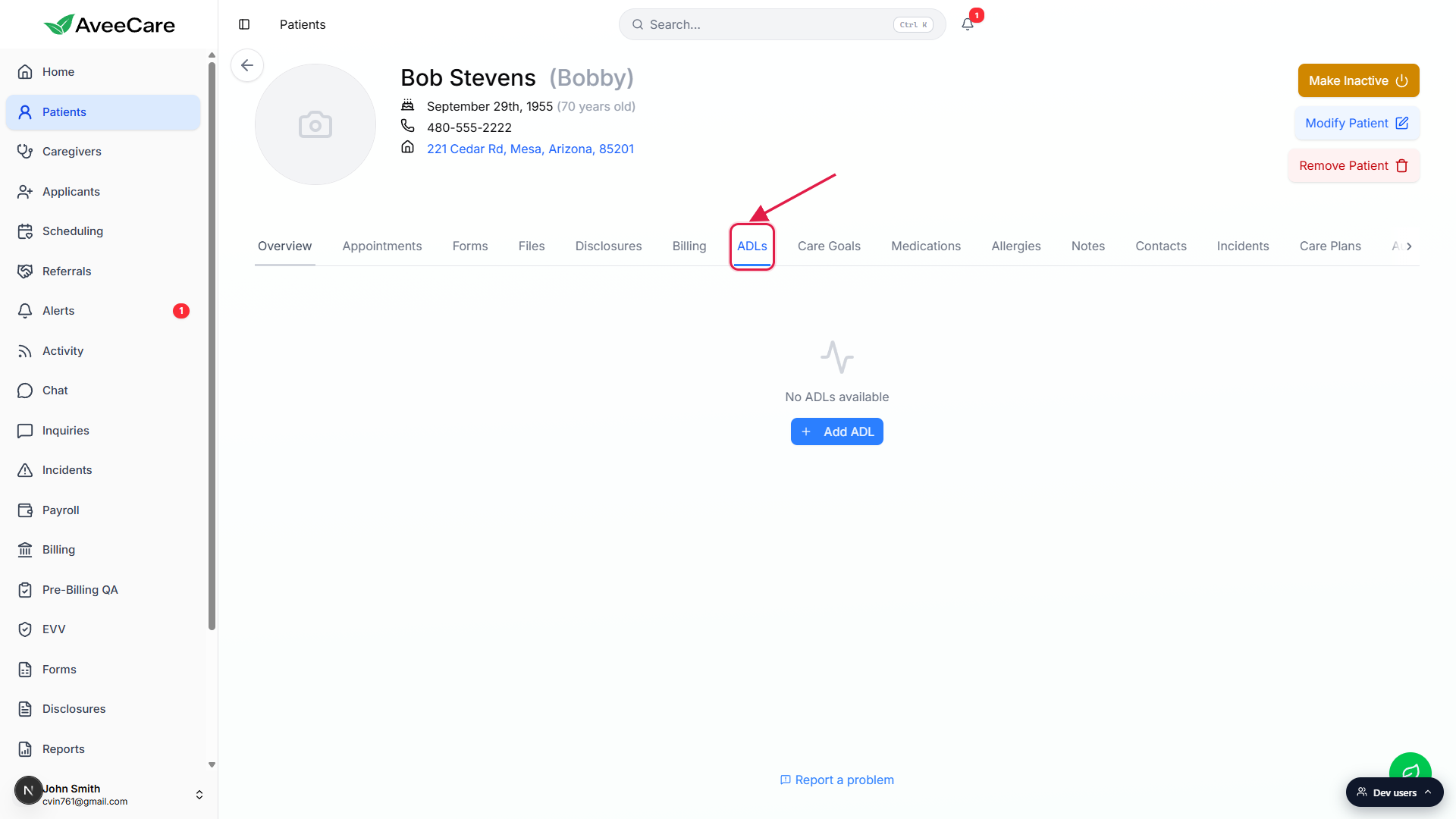
2. Click Add ADL and fill the modal
Click Add ADL.
Empty patients show one centered Add ADL button. Once the list has one or more ADLs, the same button moves to the top-right of the tab.Type a short Name in the ADL Name field.
The placeholder reads e.g., Bathing, Dressing, Feeding. The submit button stays disabled until the name has content. Use a name your team will recognize at a glance.Type the Description of the assistance needed.
The Description placeholder reads Describe the level of assistance needed... Treat it like a note to the caregiver. Specifics beat clinical language: Walks short distances with a rollator. Stand-by assist on stairs. beats Mobility deficit, requires assistance.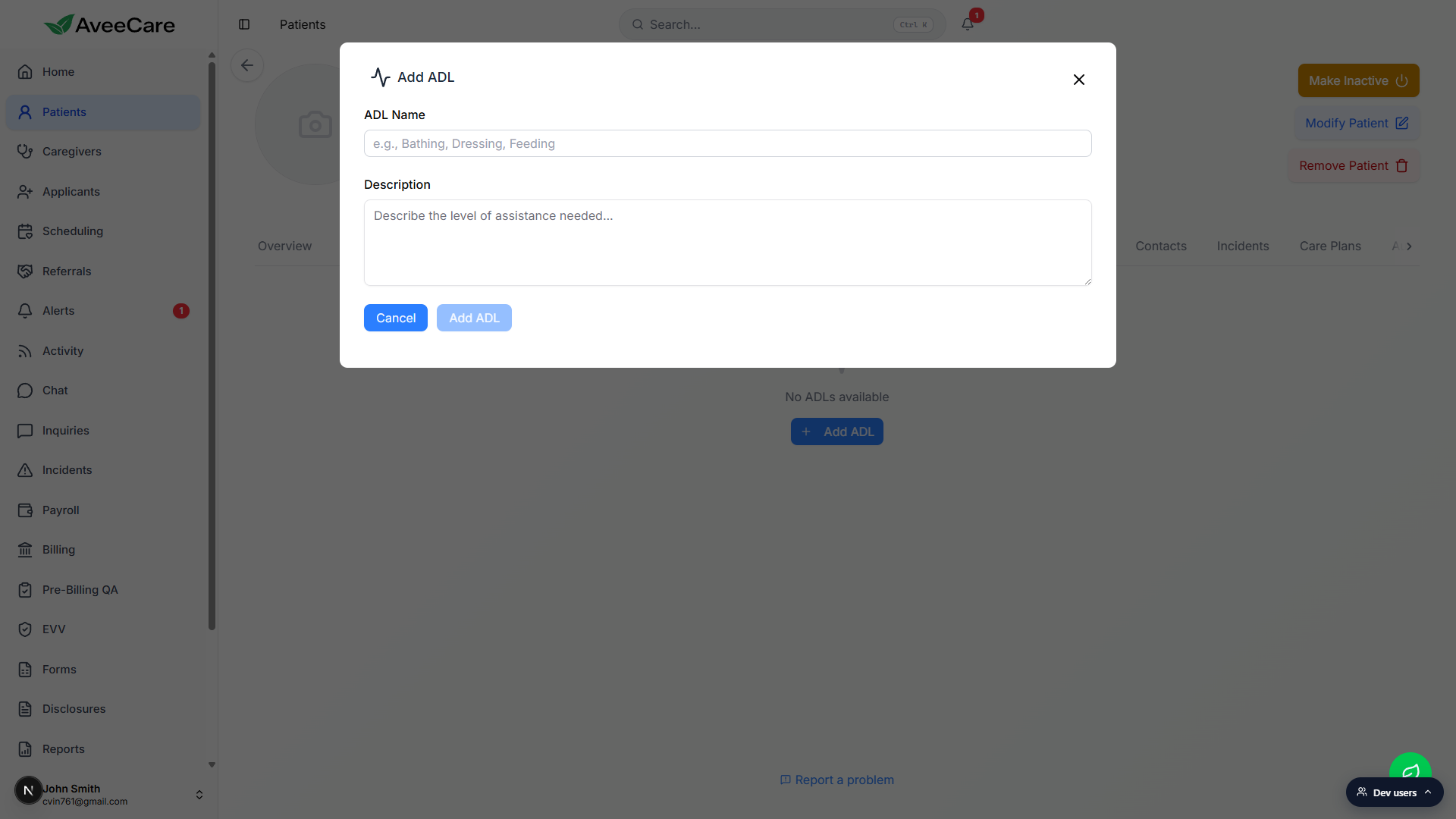
Click Add ADL inside the modal to save.
The new ADL renders as a card on the tab and the modal closes. A toast confirms ADL added successfully.
3. Edit or delete an ADL from the list
Each saved ADL is a card with the name, description, and pencil and trash icons.
The icon buttons sit on the right of the card. Hover labels read Edit and Delete. Newer ADLs appear at the top of the list.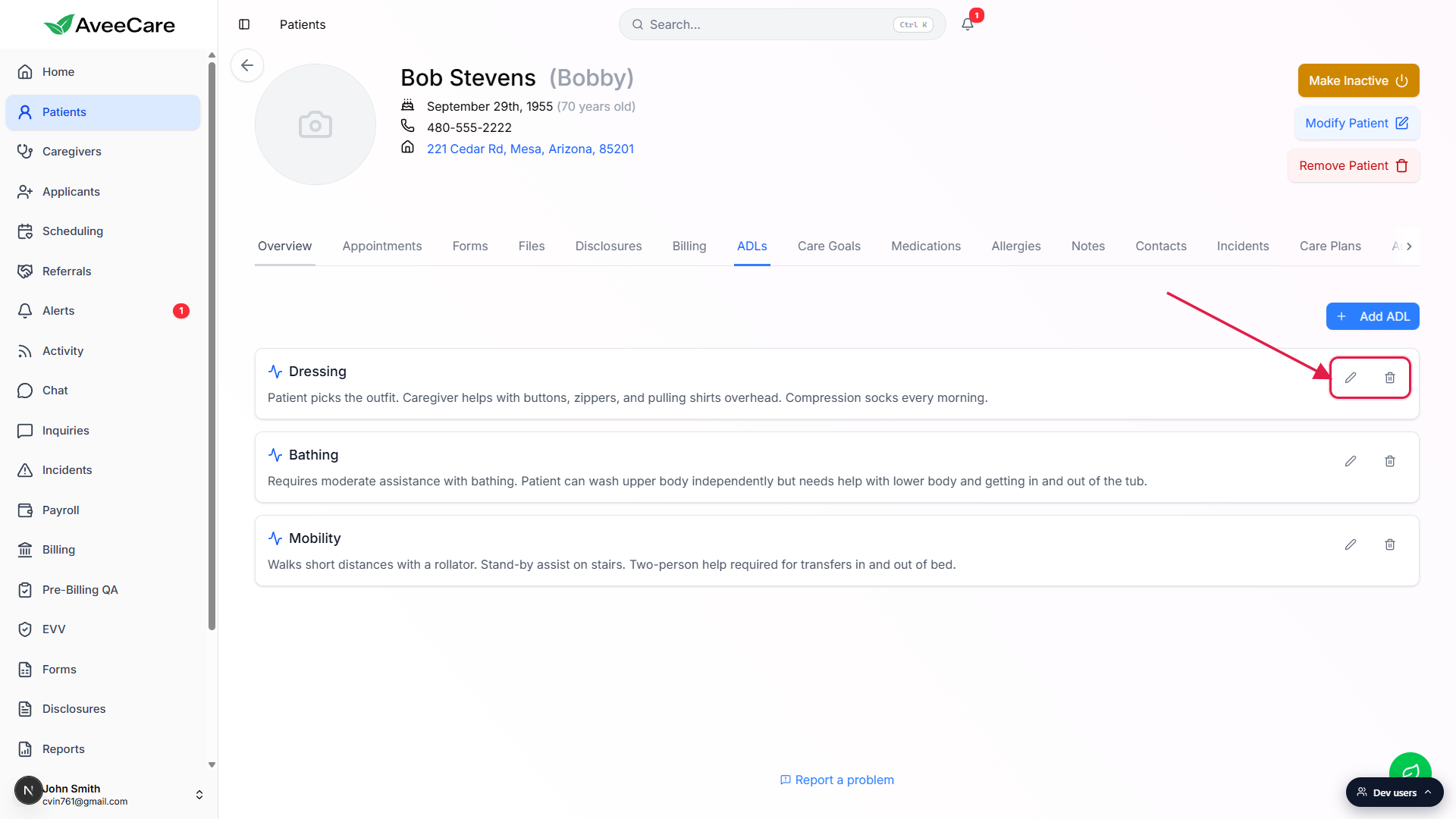
Click the pencil to open Edit ADL.
Edit uses the same two-field modal but pre-filled. The submit button is labeled Save Changes. Editing an ADL changes what every future visit shows. Past visits keep whatever the caregiver checked at the time.Click the trash icon to delete.
A confirmation modal asks Are you sure you want to delete Name? with a Cancel button and a red Delete button. Deleting an ADL removes it from the patient and from future visit checklists.
4. How ADLs flow into each visit
The visit detail surfaces the patient ADL list as a checklist.
On any visit for this patient, the caregiver sees an ADLs section with a checkbox per ADL. Each row shows the ADL name (the description is on the patient profile, not duplicated on every visit).Caregivers tick each ADL they completed during the visit.
Completed ADLs land in the visit record ascompletedADLs. The caregiver can also add ad-hoc items in the same section that did not exist on the patient profile, those go inadditionalADLs.Pre-Billing QA reviews the ADL completions before invoicing.
The Pre-Billing QA queue shows the ADL checklist alongside clock-in, EVV, and notes for every visit, so a coordinator can catch missed items before the visit is invoiced.
Common pitfalls
- Generic names. “Help around the house” is not actionable. Light housekeeping (kitchen and bathroom, weekly) is. The caregiver sees the name on the visit, the description below it.
- Mixing ADLs with care goals. ADLs are recurring per-visit assistance. Care Goals are measurable outcomes. Use both, not one for the other. See Patient care goals for the goal side.
- Stale ADLs after a status change. If the patient's mobility improves or a procedure changes the assistance needed, edit the relevant ADL. Caregivers default to the description in front of them.
- Deleting an ADL mid-week. Deleting an ADL removes it from future visit checklists immediately. Past visits keep whatever the caregiver actually ticked at the time. If the change is temporary, edit the description first and consider deleting later.
- Empty Description. Name only is allowed but not recommended. The caregiver checking the box on a visit only sees the name; the description is one tap away on the patient profile.