Adding a patient by hand takes about a minute. AveeCare asks for a first name, a last name and the platform agreements. Everything else can wait until you know it.
Quick answer
- Patients → Add Patient
- Manual Add → Just the basics
- Type the name, pick the address, tick the agreements
- Finish → Submit
That is three screens and two required fields. The patient is live on your Patients list the moment you submit.
1. Open Patients and click Add Patient
Click Add Patient, the first button above the Patient List.
It is always available. The buttons next to it (Make Inactive, Send Schedule, Delete) stay greyed out until you tick a row.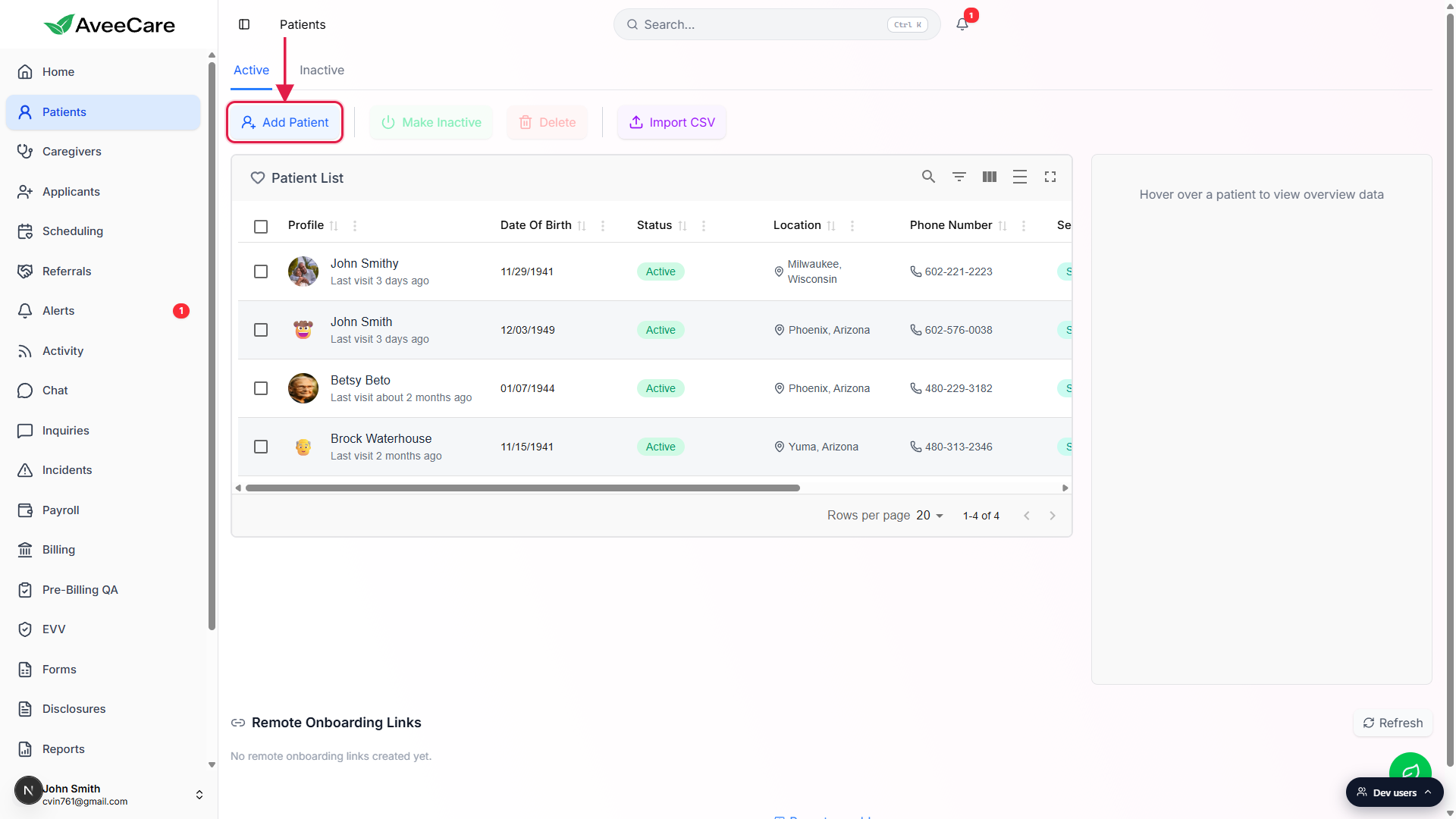
2. Choose Manual Add
Pick Manual Add to fill the form in yourself.
Remote Add is the other option: it sends a secure link so the patient or a family member fills it in instead. See Remote Onboarding for that path.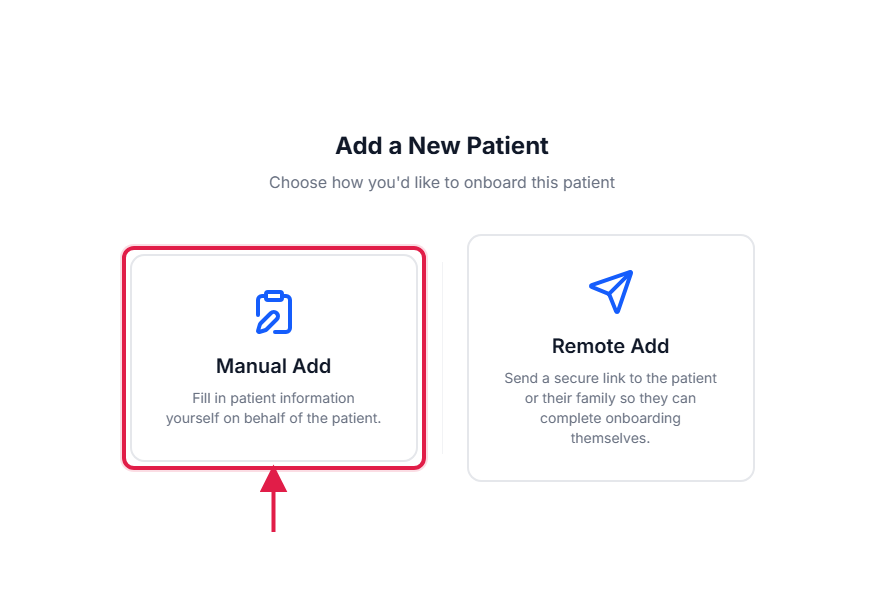
3. Choose Just the basics
Click Just the basics.
Three steps instead of twelve: General Information, Platform Consents, Review. Nothing is locked in. Anything you skip can be added later from the patient record.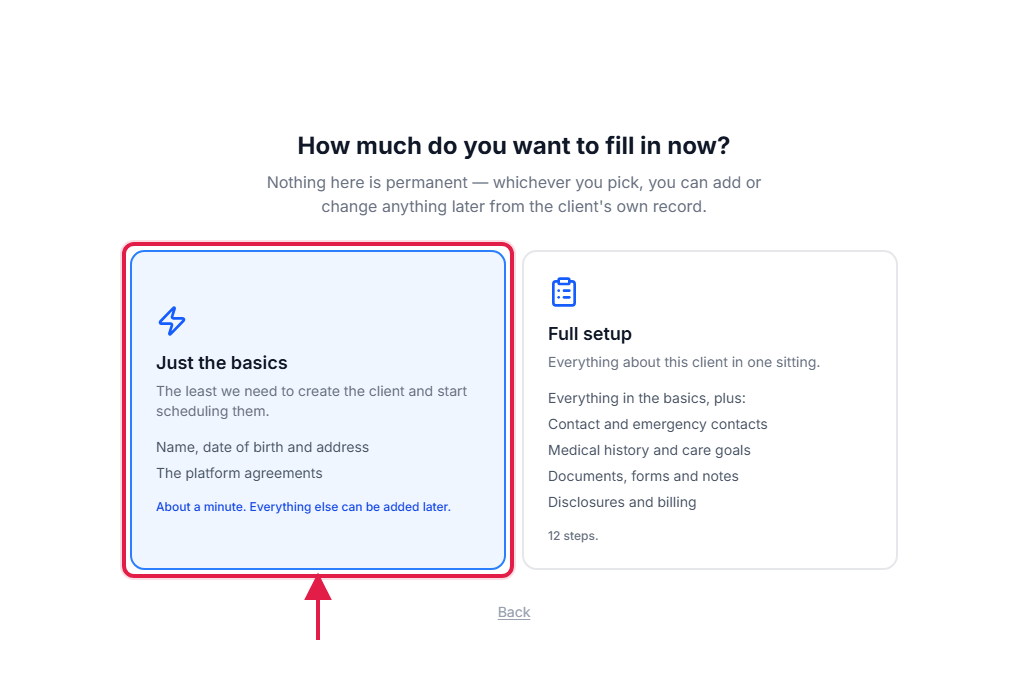
The rail on the left shows the whole job: three steps.
You can click any step in the rail to jump straight to it. The wizard does not block you until you submit.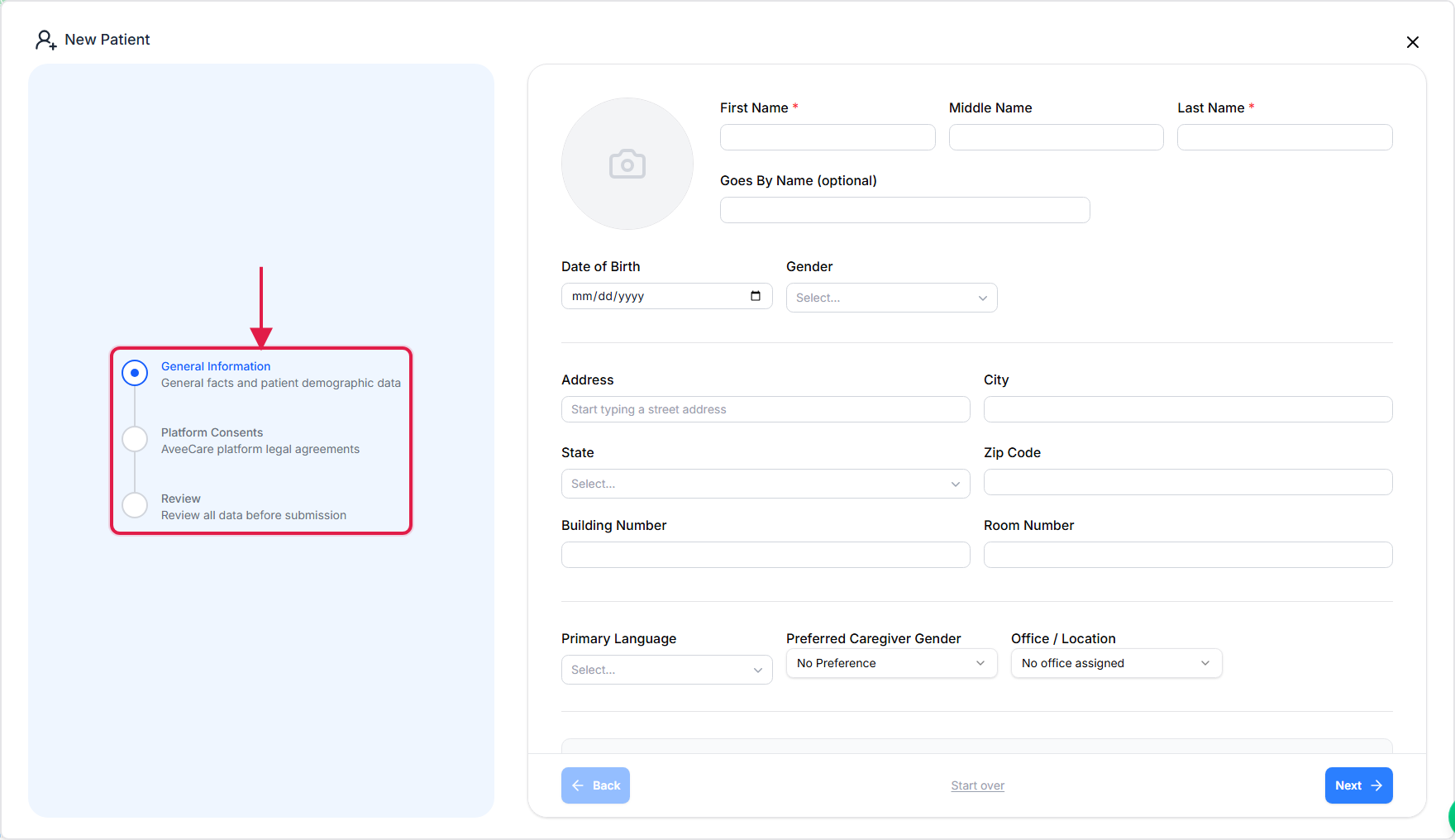
4. Type a first and last name
Fill the two fields with a red star. That is all AveeCare requires.
First Name and Last Name. Middle Name, Goes By Name, Date of Birth, Gender, Primary Language and Office are all optional here, so leave anything you do not have yet.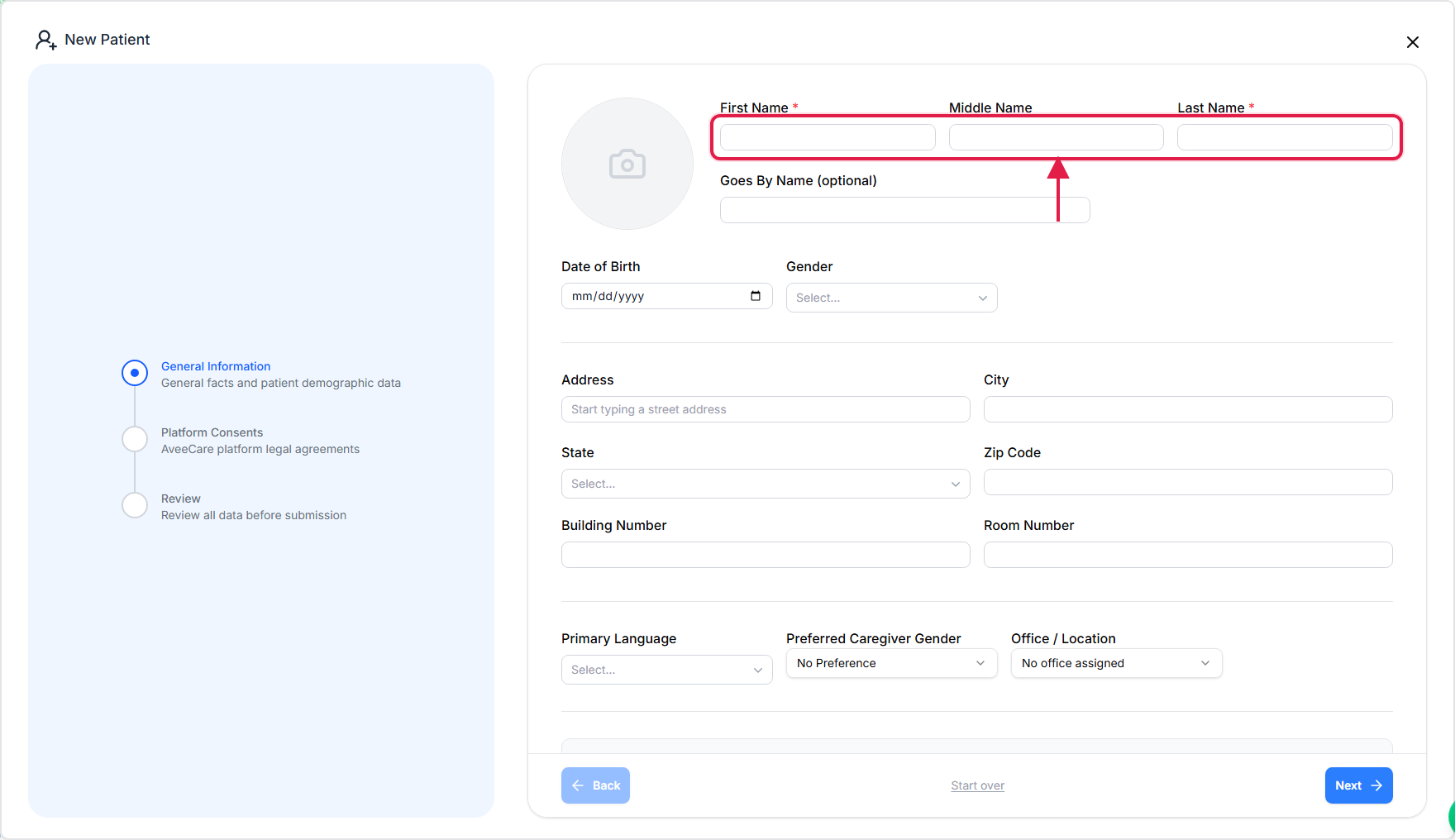
5. Let the address fill itself in
Start typing the street address and click the match.
Suggestions appear as you type. Picking one is worth the extra second: mileage and EVV geofencing are both measured from this address.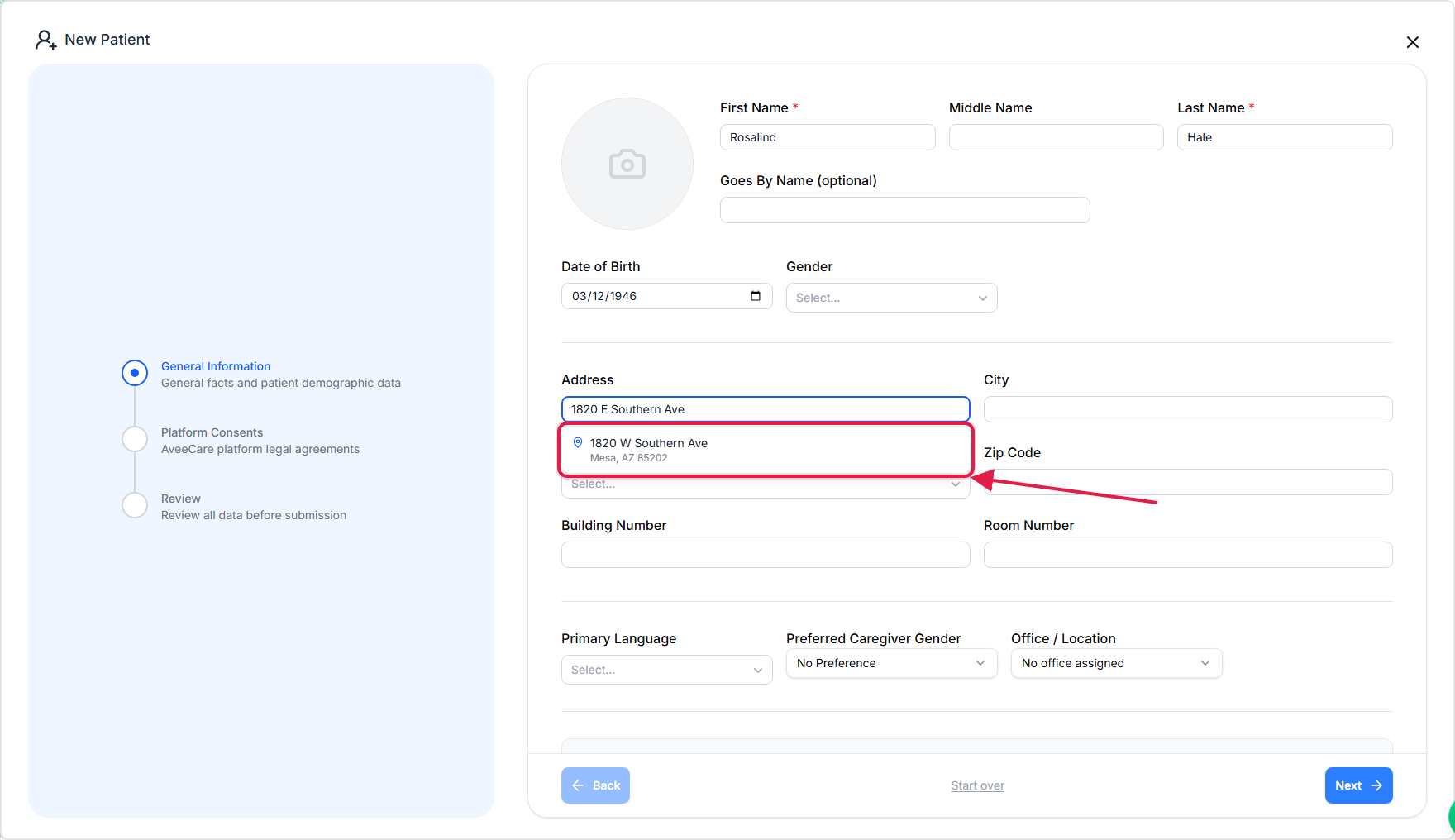
City, State and Zip Code fill themselves.
They stay editable, so correct anything the geocoder gets wrong. Building Number and Room Number are there for an apartment or a facility room.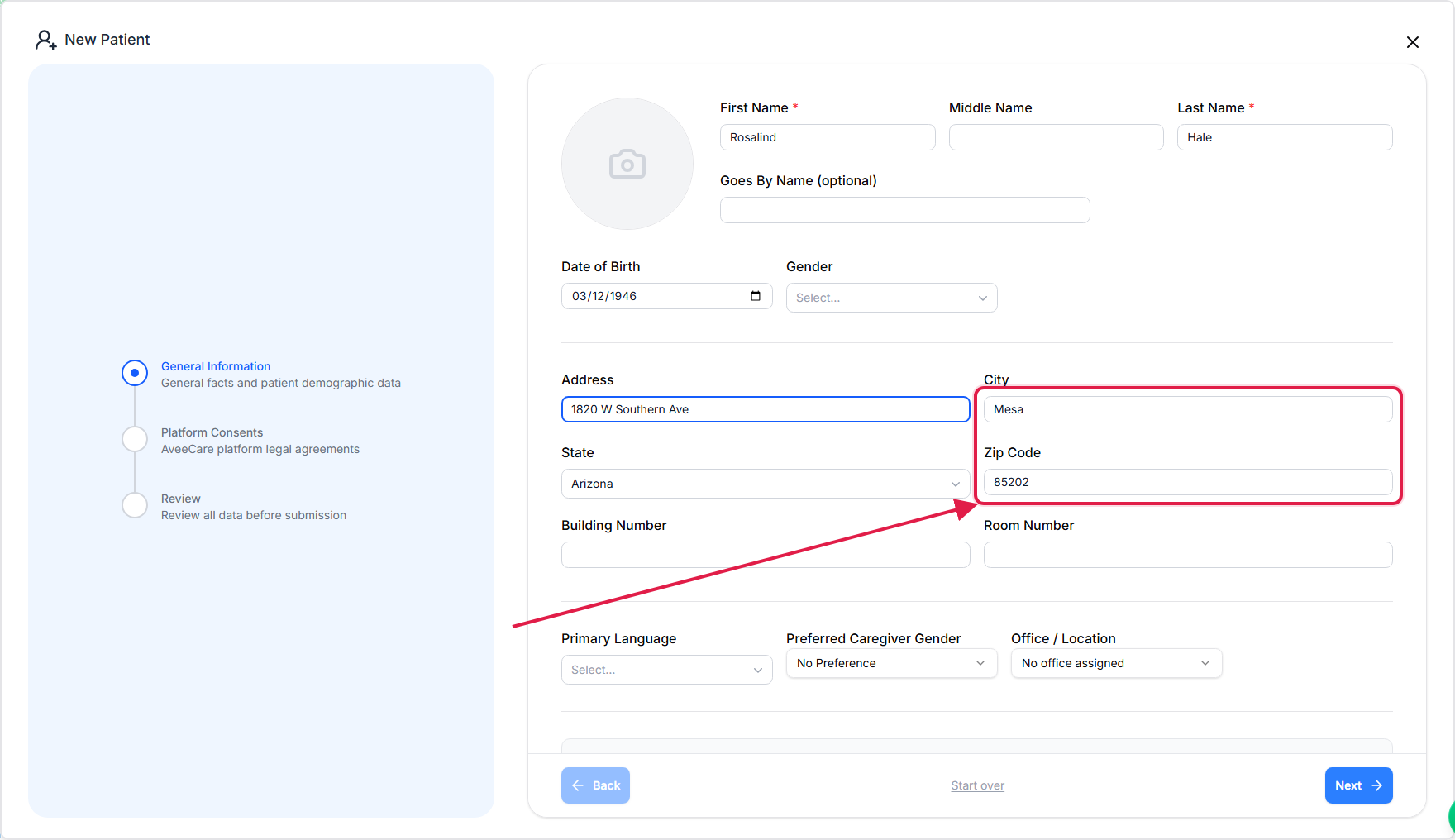
6. Tick the platform agreements
Click Agree to all of the agreements below.
One click covers all five: Privacy Policy, Terms of Service, Data Processing, Electronic Signature and AI Processing. Each document is still linked if the patient or family wants to read it. This is the one step the short path keeps, because it is a legal record rather than a convenience.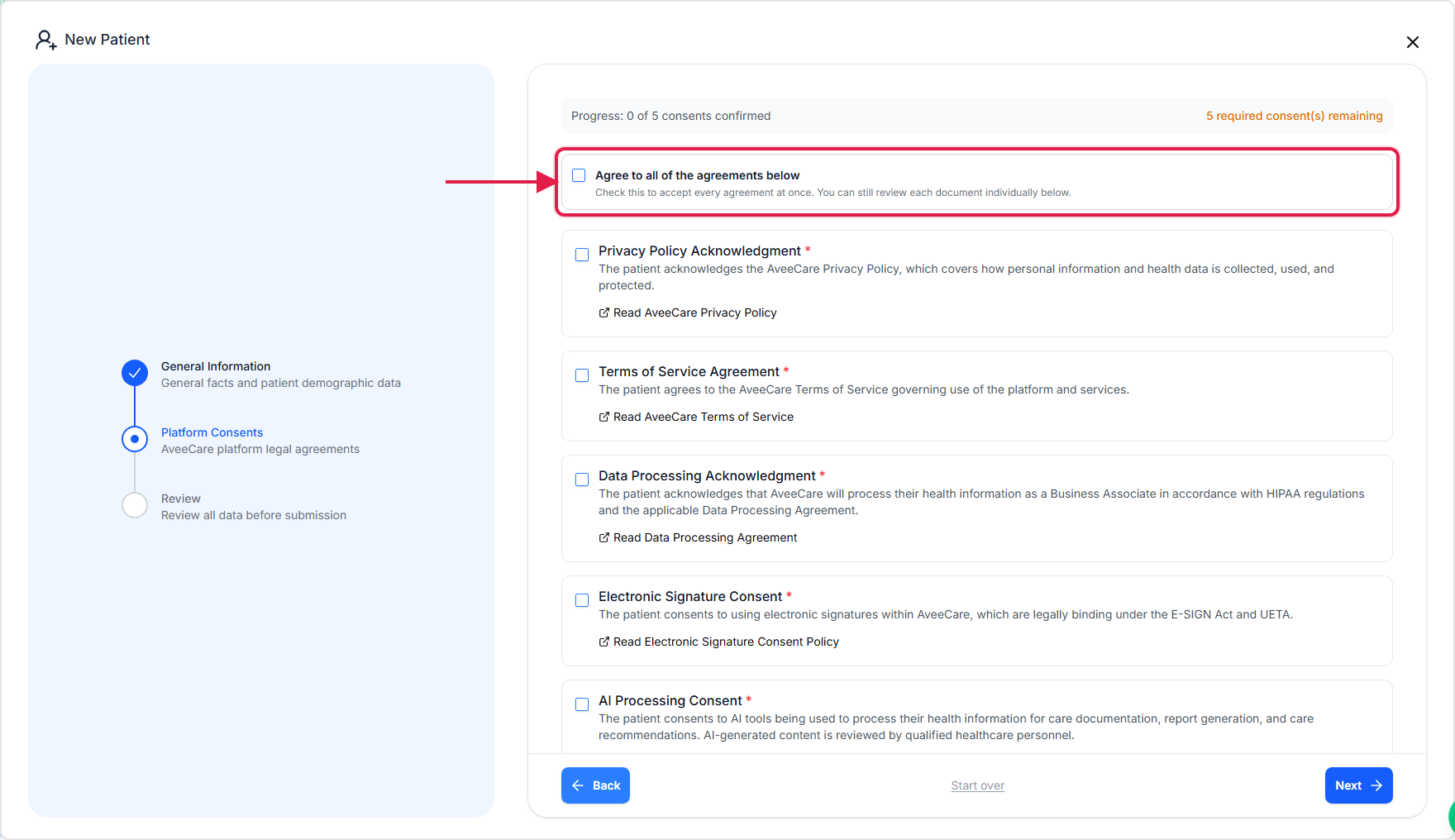
7. Review, Finish, Submit
Scan the Review summary, then click Finish.
Anything you left blank shows as Not Provided in red. That is expected on the short path and it does not block you. Use the rail on the left to jump back if something is wrong.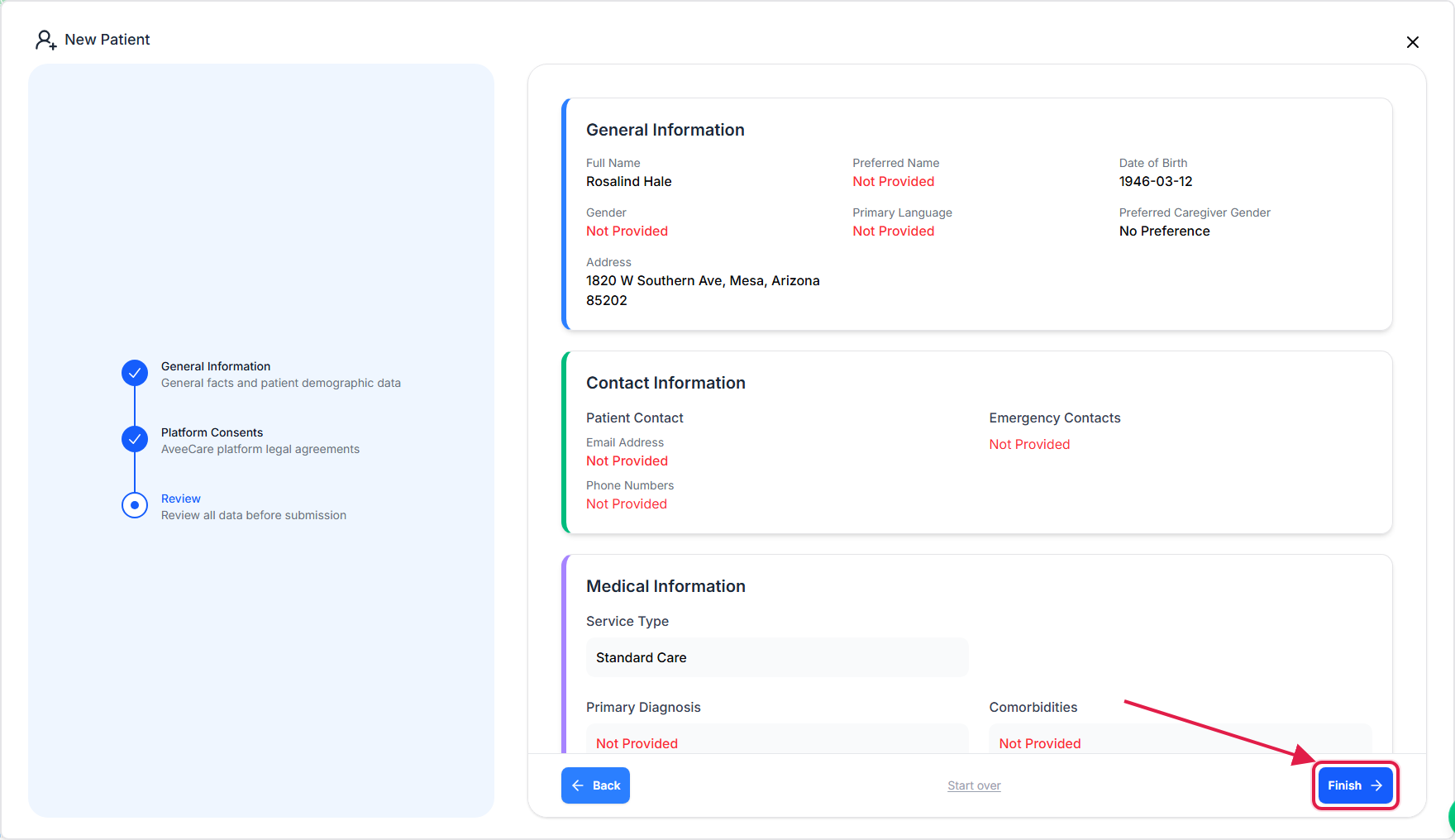
Click Submit on the confirmation.
Nothing is written until you confirm here. Cancel takes you back to Review with everything intact.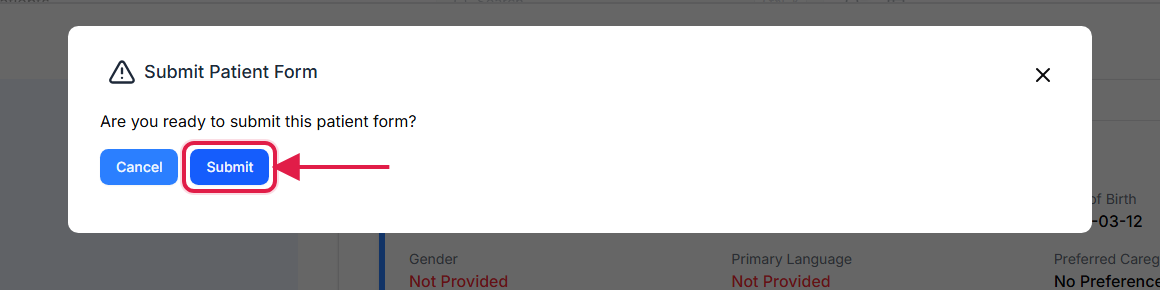
8. Find the patient on Patients
The new patient is on the Active tab straight away.
A yellow Incomplete setup badge sits next to the name while anything on the profile checklist is still blank: date of birth, gender, address, city, state, ZIP, email or primary language. It is a reminder, not a block. You can schedule visits for this patient today and fill the rest in from the patient record whenever you have it.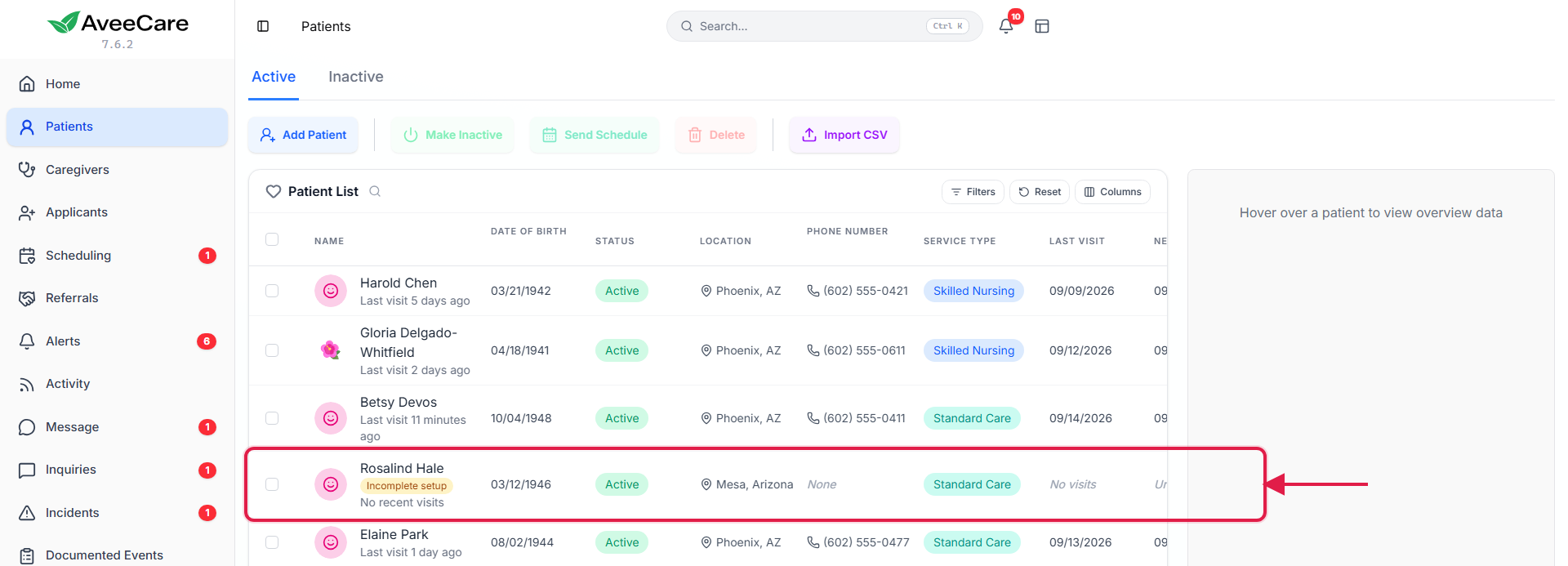
When to use Full setup instead
Full setup is the same wizard with all twelve steps turned on. Pick it when you already have the intake paperwork in front of you and want it all in one sitting.
- Contact Information. Email, phone numbers, family and emergency contacts.
- Medical Information. ADLs, diagnoses, medications, allergies, mobility, fall risk, Service Type.
- Care Goals. Plain-language treatment objectives caregivers will read.
- Documents & Files, Forms, Notes. Intake paperwork, assessments, care notes.
- Disclosures. Your own agency agreements, separate from the platform ones.
- Billing Information. Optional payment method and billing contact.
- Other Information. Custom fields and caregiver preferences.
There is also a checkbox at the bottom of General Information, Include insurance, billing, and compliance information, which adds payer, subscriber, prior authorization and EVV fields. Turn it on for Medicaid, Medicare or long-term care insurance patients.
Full setup lists exactly what it adds before you commit to it.
You are never stuck with the choice. Start on the short path, submit, and fill the rest in from the patient record later.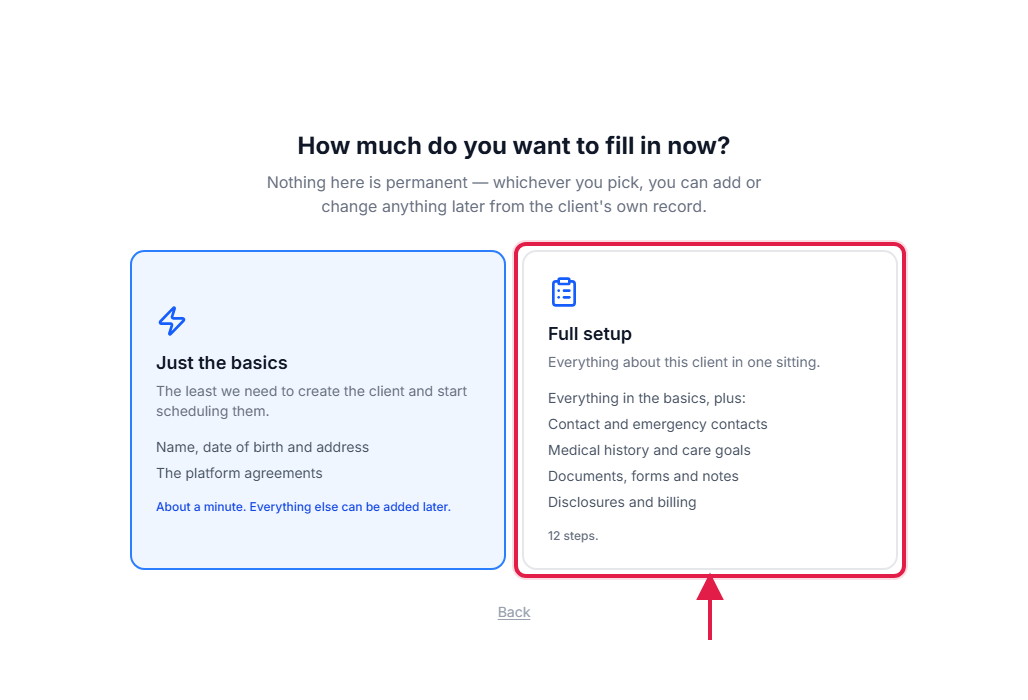
Common pitfalls
- Typing the address instead of picking it. A typed address is not geocoded, so mileage and EVV geofencing have nothing to measure from. Click a suggestion.
- Treating Incomplete setup as an error. It is a to-do badge for the profile fields that are still blank. The patient is real, schedulable and searchable while it is showing.
- Closing the wizard mid-way. AveeCare offers to save a draft, but the cleanest habit is to submit with a name and fill the rest in from the patient record.
- Forgetting the insurance checkbox. Payer, prior authorization and EVV fields only appear once Include insurance, billing, and compliance information is ticked on General Information.
- Retyping a whole roster. If you are moving from another system, do not do this one patient at a time. Use Import Patient Records instead.
Related
- Import Patient Records brings a whole roster over from your old system.
- Remote Onboarding sends a secure link so the family fills it in.
- Patient Contacts tab is where emergency contacts go after the patient exists.
- Patient Billing tab handles payment method and invoicing later.