Remote Onboarding is the link-based path for adding a new patient. Your office generates a short-lived secure URL, the patient or family fills in their own demographics from a phone or laptop, and the answers land as a new patient record on your Patients page once they submit.
Quick answer
Open Patients, click Add Patient, pick Remote Onboarding on the picker, set how long the link should be valid, tick the legal acknowledgment, and click Generate Secure Link. Share the URL by Copy Link, QR code, or Send via Email. Watch the status from the Remote Onboarding Links panel below the patient table.
1. Open Patients and click Add Patient
Click Add Patient at the top-left of the action bar.
Same Add Patient button you use for staff-driven intake. The difference is what you choose on the picker that opens next.
2. Pick Remote Onboarding on the picker
Choose the Remote Onboarding card on the Add a New Patient picker.
Two cards appear: Remote Onboarding (send a secure link the patient fills in) and Manual Onboarding (you fill the form yourself). Click Remote Onboarding to open the link configuration screen.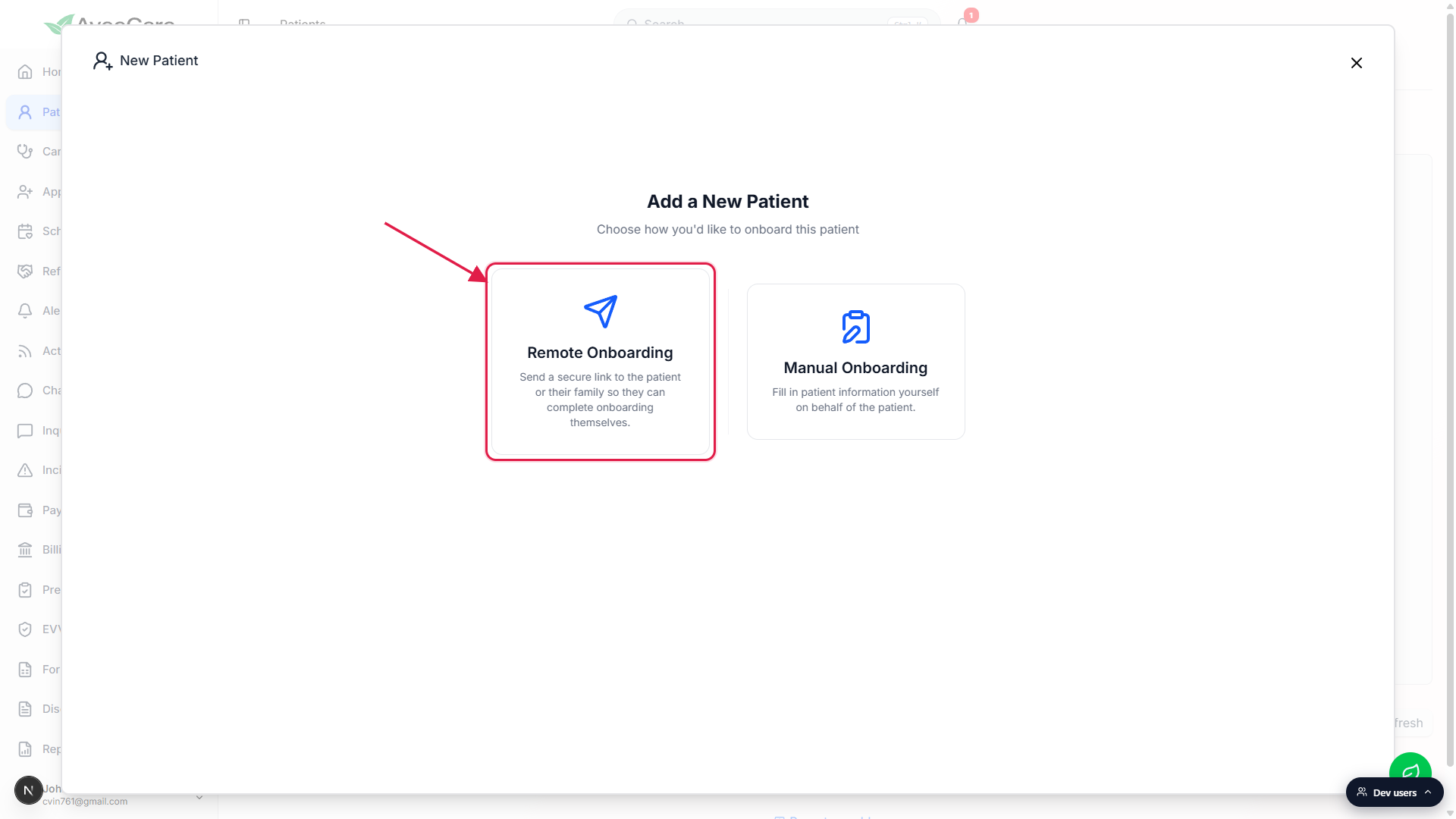
3. Set the link expiration and acknowledge
Set Link Expiration to a number plus Minutes, Hours, or Days.
Minimum is 15 minutes, maximum is 72 hours. Default is one hour. A short window is safer if you are handing the link off in person; a longer window is better if you are emailing it and the family may take a day or two to fill it in.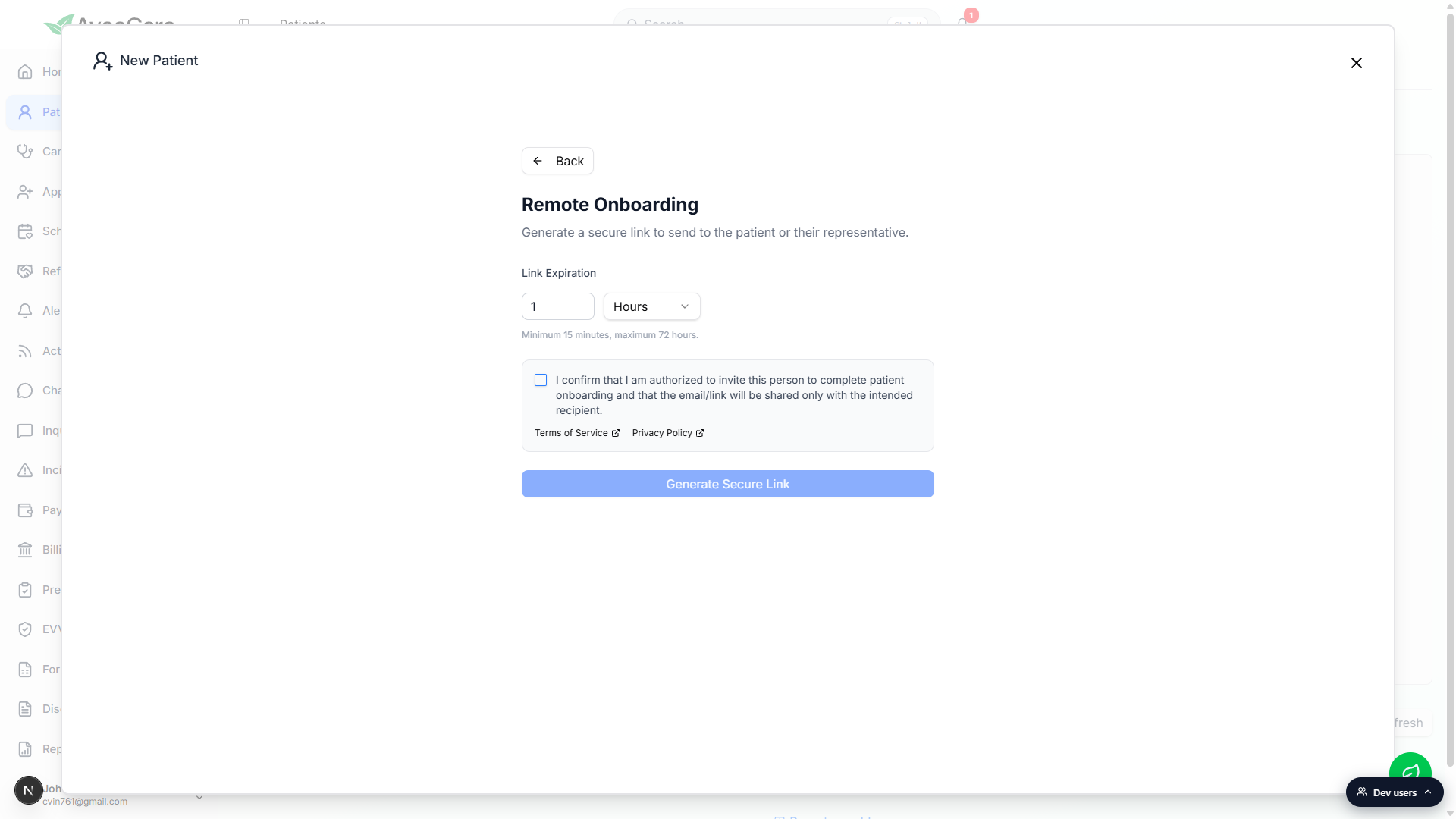
Tick the legal acknowledgment checkbox.
The checkbox confirms that you are authorized to invite this person and that the link will be shared only with the intended recipient. The Generate Secure Link button is disabled until this is checked. Terms of Service and Privacy Policy links sit next to it for reference.
4. Generate the secure link
Click Generate Secure Link.
AveeCare creates a one-time URL that points to/onboard/<long-token>on your tenant. The token is unique per link, so even if two families get a link on the same day, neither can see the other's submission. The screen flips to a Link Generated view as soon as the token is issued.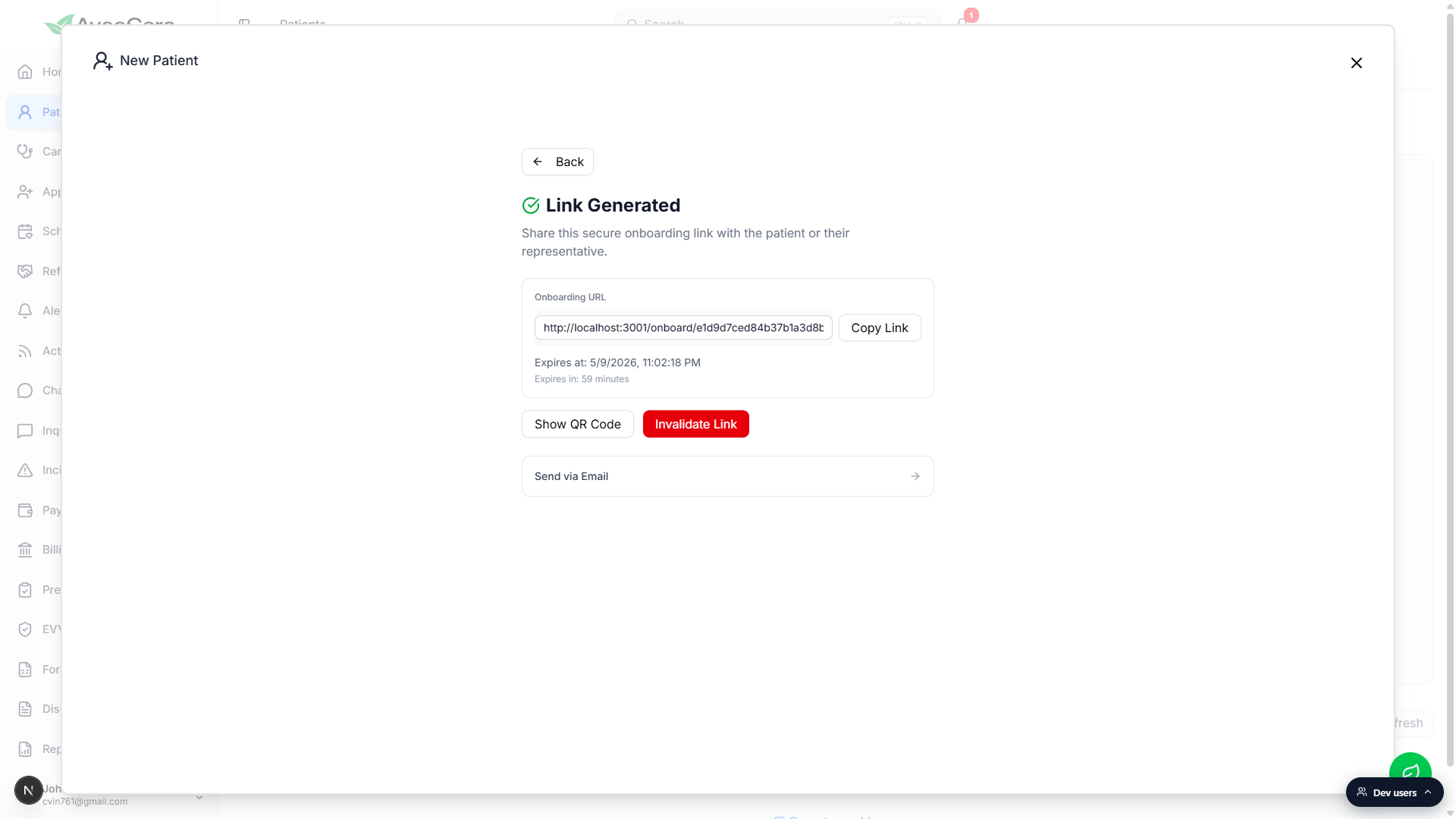
5. Share the link by copy, QR, or email
Click Copy Link to put the URL on your clipboard.
Use this when you want to text the link, drop it into your own email client, or paste it into the chat thread you are already using with the family.Click Show QR Code to print or hand off in person.
A modal pops up with the QR. Print it for an office handout, or just hold the screen out so the patient can scan with their phone. The full URL prints under the QR for fallback.Click Send via Email and enter the recipient address.
Sending from AveeCare uses your tenant's sender identity and tags the link with the recipient email so it shows up in the tracking panel. The button reads Send once an email is typed in. Need to pull the link back? Use Invalidate Link on the same screen.
6. Track the link from the Patients page
Scroll to Remote Onboarding Links below the patient table.
The panel lists every link with its status (Active, Used, Expired, Invalidated), who created it, the recipient, the created and expires timestamps, time left, and the resulting Patient row once the link is used. Click Refresh to pull the latest state.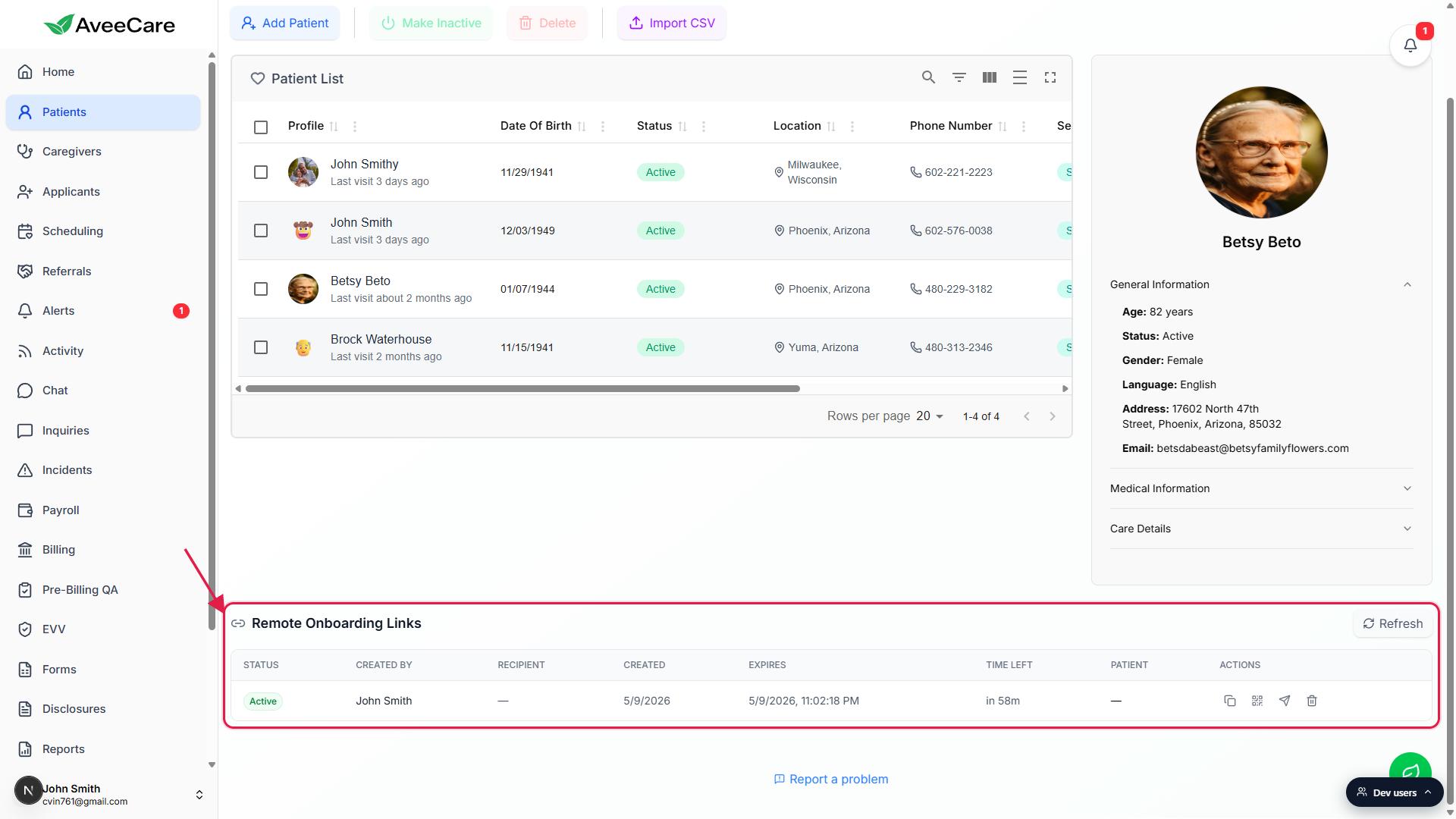
When the patient submits, the row flips to Used and a View Patient link appears.
Click View Patient to jump into the new record. Onboarding submissions create the patient record directly so you can review demographics, set up billing, and schedule a first visit from the normal patient profile.
Common pitfalls
- Setting the expiration too short. Fifteen minutes is fine for an in-office handoff but unrealistic if the patient is going to fill it in at home. Default to a few hours, or up to the 72 hour cap, when emailing the link to a family.
- Skipping the legal acknowledgment. The Generate Secure Link button stays disabled until you tick the checkbox. If the button looks dead, scroll up and check the box.
- Reusing one link across families. Tokens are per-link. Anyone with the URL can submit on it. Generate a fresh link for each new patient so you do not mix submissions.
- Letting an Active link sit past the expiration. Once Time Left ticks past zero, the row flips to Expired and the patient cannot submit. Generate a new link if the family needs more time, and Invalidate the old one.
- Only checking the Patients page once a day. The Remote Onboarding Links panel does not auto-refresh. Click Refresh when you come back to the page so a Used link does not sit unprocessed.
- Forgetting to follow up on Sent emails. The tracking panel records the Recipient address, so glance at the Status column for any link older than a day. If it still shows Active and the family has gone quiet, a quick text or call beats generating yet another link.