AveeCare doesn't make you copy a client's details from a phone call. Generate a secure onboarding link from the Patients page, send it by email (or copy/SMS/QR it yourself), and the patient fills out their own intake. When they submit, a new patient record is created automatically.
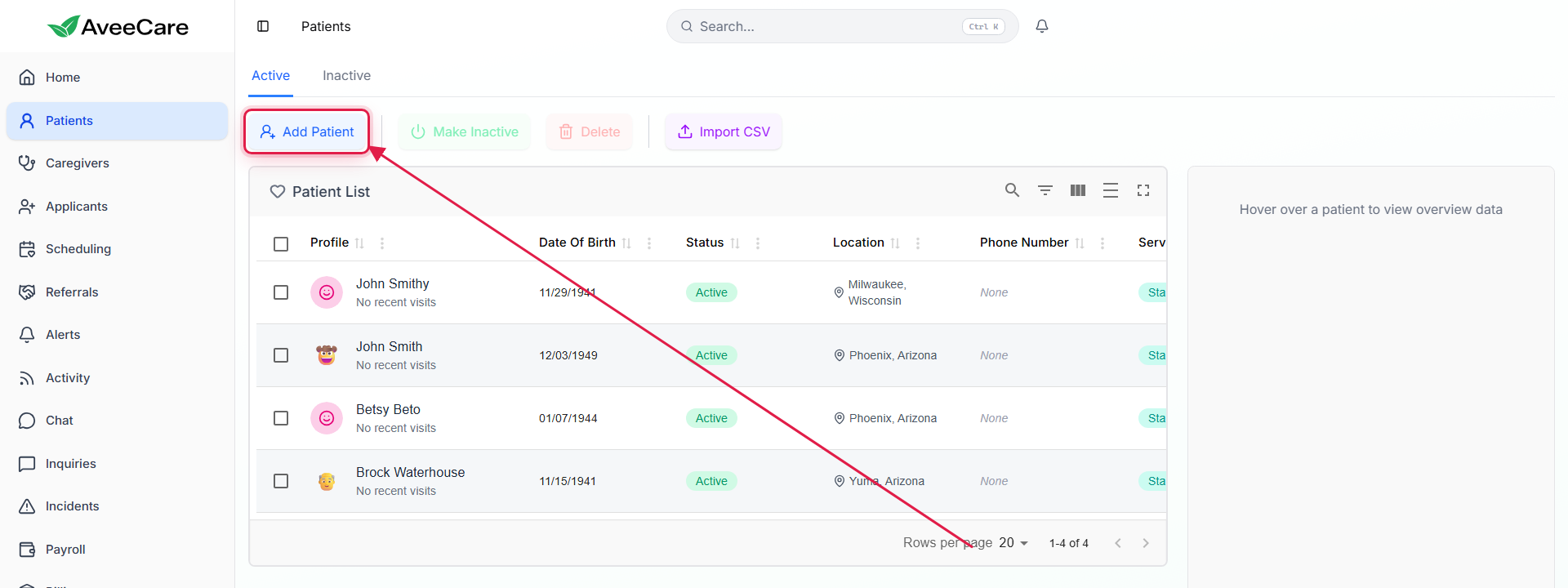
1. Open Patients and start a new patient
On the Patients page, click Add Patient (top-left of the table).
2. Pick Remote Onboarding
The first thing the modal asks is how you want to onboard. Manual is for when you have the info already. Remote is the email/link path covered here.
Click the Remote Onboarding card.
The card description: “Send a secure link to the patient or their family so they can complete onboarding themselves.”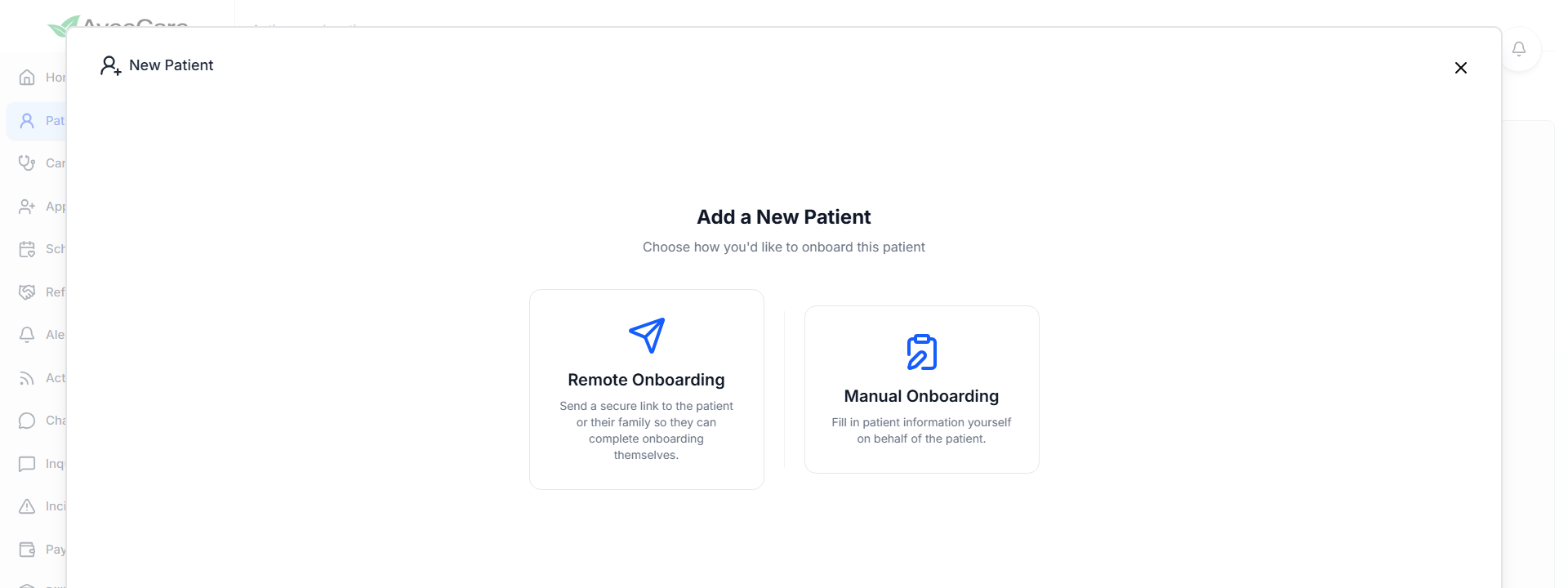
3. Set the link expiration and confirm
Pick how long the link should stay valid.
Range is 15 minutes to 72 hours. Default is 1 hour. Pick a window the client can realistically fill the form in. Short windows are safer (less risk of an old link being shared); long windows are kinder if they're going to do it later in the day.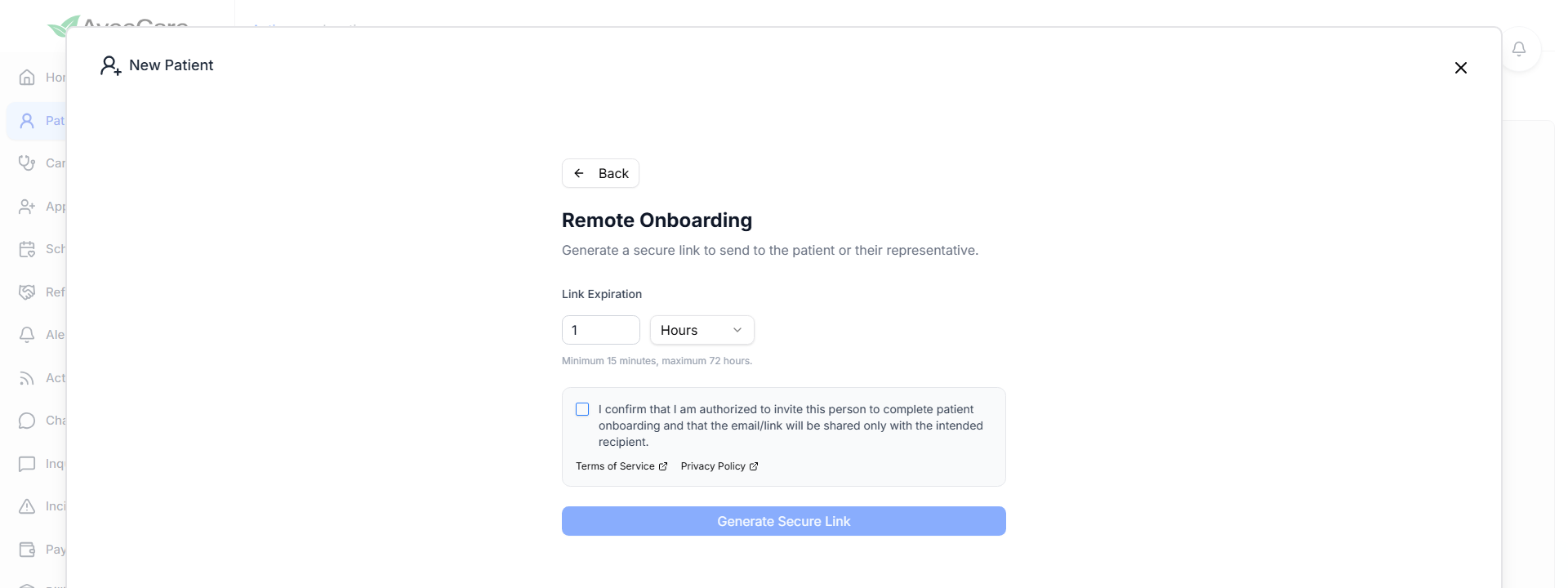
Tick the authorization checkbox.
You're confirming you have permission to invite this person. The Generate Secure Link button stays disabled until this is checked.Click Generate Secure Link.
The platform creates a unique, single-use URL bound to the expiration you set.
4. Send the link or share it your way
Once the link is generated you have four options: copy it, show a QR code, send it by email from inside AveeCare, or invalidate it (revoke before expiration).
Copy Link puts the URL on your clipboard so you can paste it into your own email, SMS, or messenger.
Show QR Code displays a scannable code for in-person handoff.
Useful when the client is sitting with you at intake.Send via Email expands a recipient field and sends the link from AveeCare directly.
Type the recipient address and click Send. The email comes from your agency's configured sender.Invalidate Link revokes the link immediately if you sent it to the wrong person or want to redo it.
5. Track and manage active links
Every active link shows up in the Remote Onboarding Links table at the bottom of the Patients page. You can see who created it, when it expires, how much time is left, and which patient (if any) has been created from it. Each row has icon actions for copy, QR, send-email, and delete.
Scroll down on Patients to find Remote Onboarding Links.
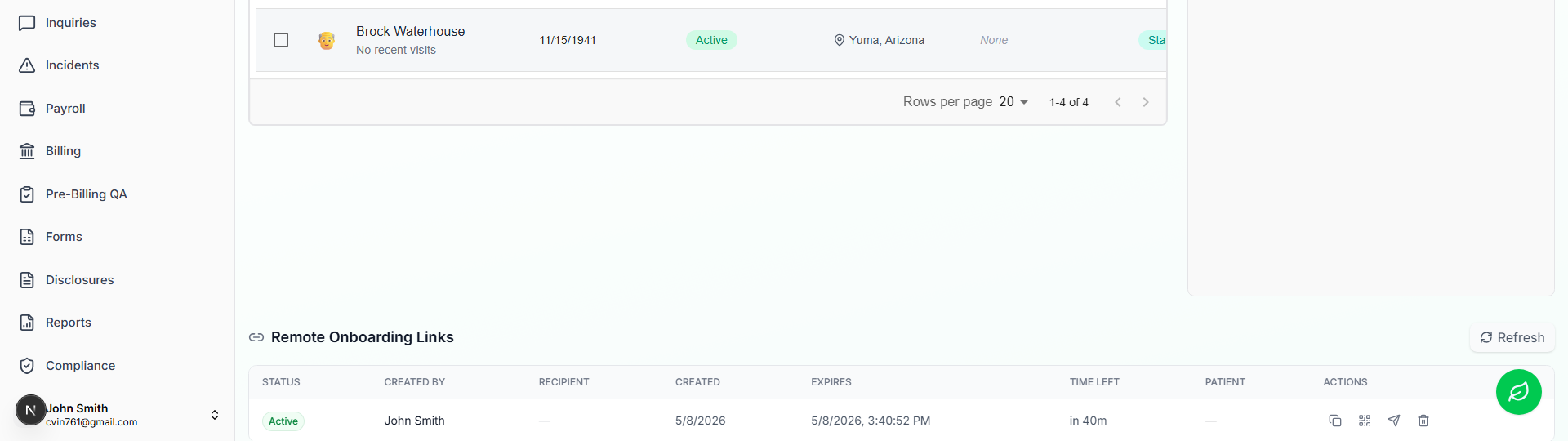
When the patient submits the form, a new patient row appears in the table above and the link entry shows the linked patient.
You don't convert anything manually. AveeCare turns the submission into a patient record automatically and you can then schedule visits for them right away.