The Contacts tab on a patient holds the people you call when something happens. Family members, designated representatives, durable power of attorney, anyone the agency or a caregiver might need to reach. Each contact carries a name, phone, email, free-text relationship, a notification policy, and an optional Emergency badge.
Quick answer
Open the patient, click the Contacts tab, then click Add Contact in the top-right. Fill name, phone, email, relationship, and notification policy. Check Emergency Contact if they should be flagged for emergency outreach.
1. Open the patient and click Contacts
Open Patients in the sidebar and click the patient row.
The patient detail page opens on the Overview tab. The tab strip runs across the page and includes Overview, Appointments, Forms, Files, Disclosures, Billing, ADLs, Care Goals, Medications, Allergies, Notes, Contacts, Incidents, Care Plans, Authorizations, Hospitalizations, and Progress.Click Contacts on the tab strip.
Contacts sits between Notes and Incidents. The tab opens to a table with an Add Contact button in the top-right. If no contacts have been added yet, you see “No contacts available” with a hint to use the Add Contact button.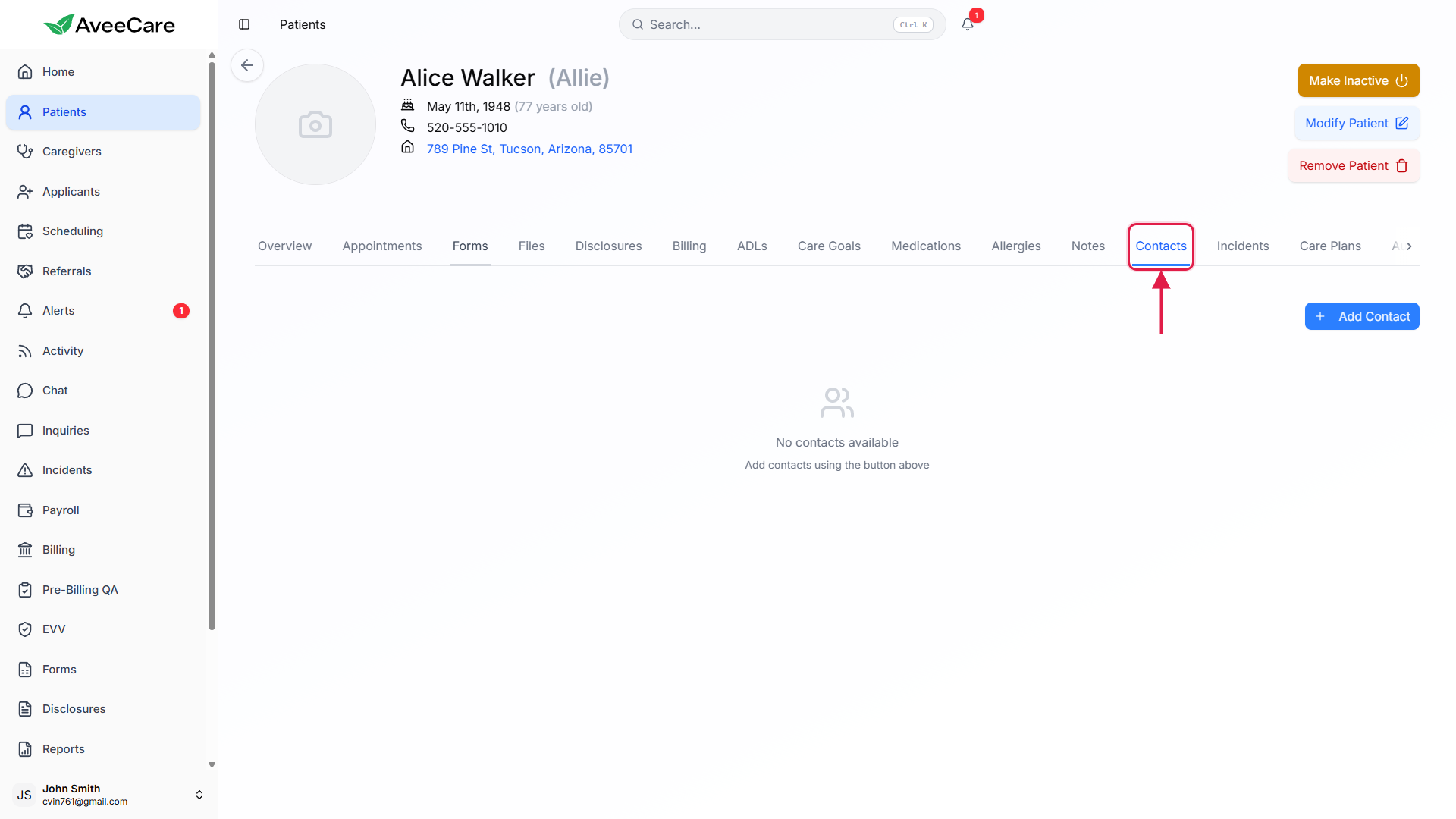
2. Click Add Contact
Click + Add Contact in the top-right of the tab.
The Add Contact modal opens. The header reads Add Contact with the Close X in the top-right of the dialog.
3. Fill the modal and pick a notification policy
Type Contact Name, Phone Number, Email, and Relationship.
Relationship is a free-text field. The placeholder hints at Son, Daughter, Spouse, or Friend, but you can type anything that makes the row scannable later. Power of Attorney, Neighbor, Pastor, and Case Worker all work.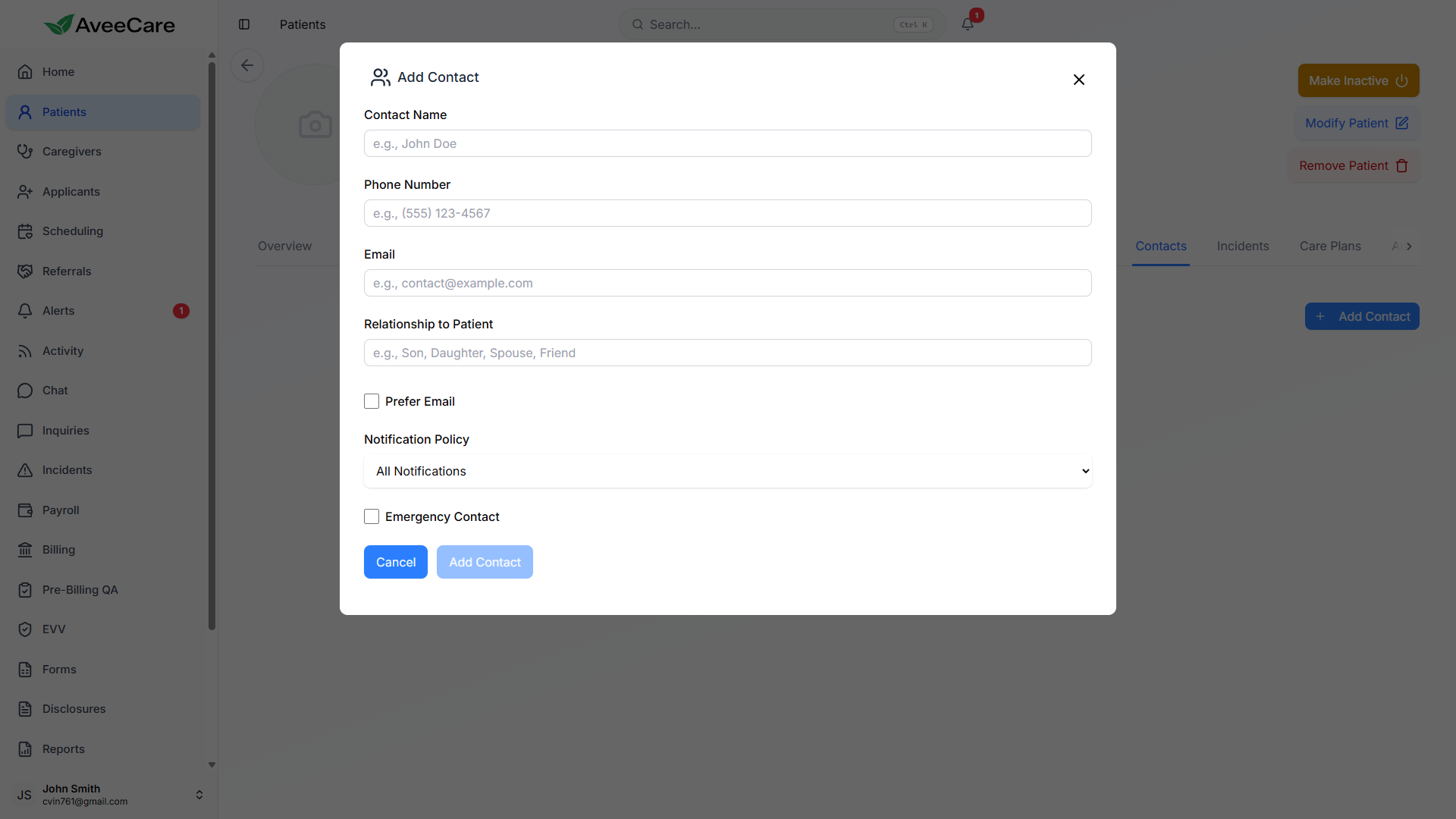
Pick a Notification Policy from the dropdown.
Two options ship today: All Notifications and Emergencies Only. Emergencies Only is the common pick for family who do not want a ping for every routine visit but should hear about incidents and missed visits.Check Prefer Email if email beats phone for this contact.
Prefer Email tells AveeCare which channel to try first when automated notifications go out for this contact. Phone stays as the fallback.Check Emergency Contact for the people you call when things go wrong.
The Emergency Contact flag adds an orange Emergency badge next to the contact name in the table and surfaces this contact in emergency outreach lists during incident workflows. Multiple contacts on the same patient can be flagged Emergency.
4. Save, edit, or delete from the contacts table
Click Add Contact at the bottom of the modal.
The button stays disabled until the required fields have values. The new contact lands in the Contacts table on the tab.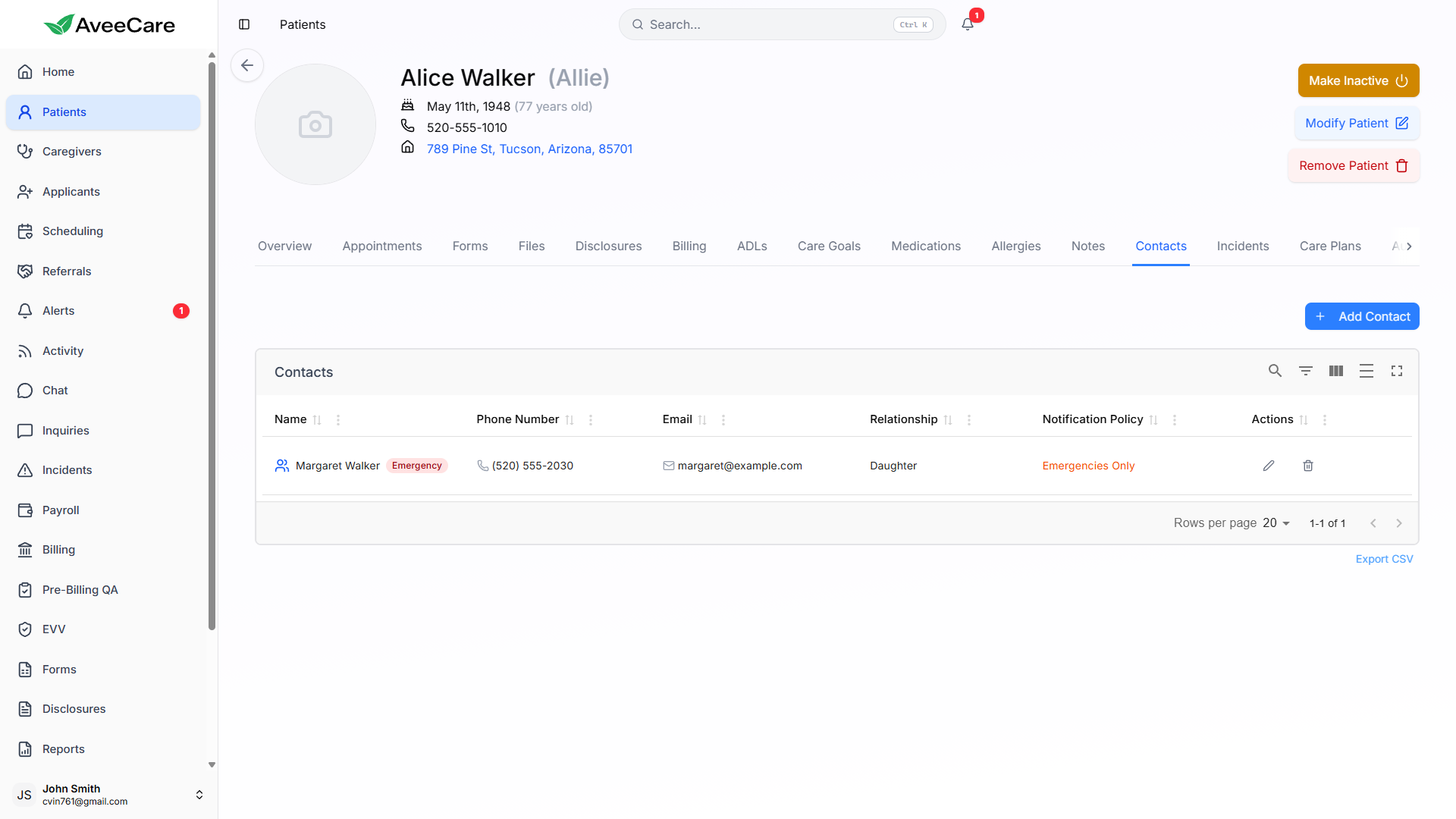
Use the pencil icon to edit, or the trash icon to delete.
The pencil opens the same modal pre-filled, with Save Changes in place of Add Contact. The trash icon prompts for confirmation before removing the row. The bottom-right Export CSV link pulls the patient's contacts out as a flat file.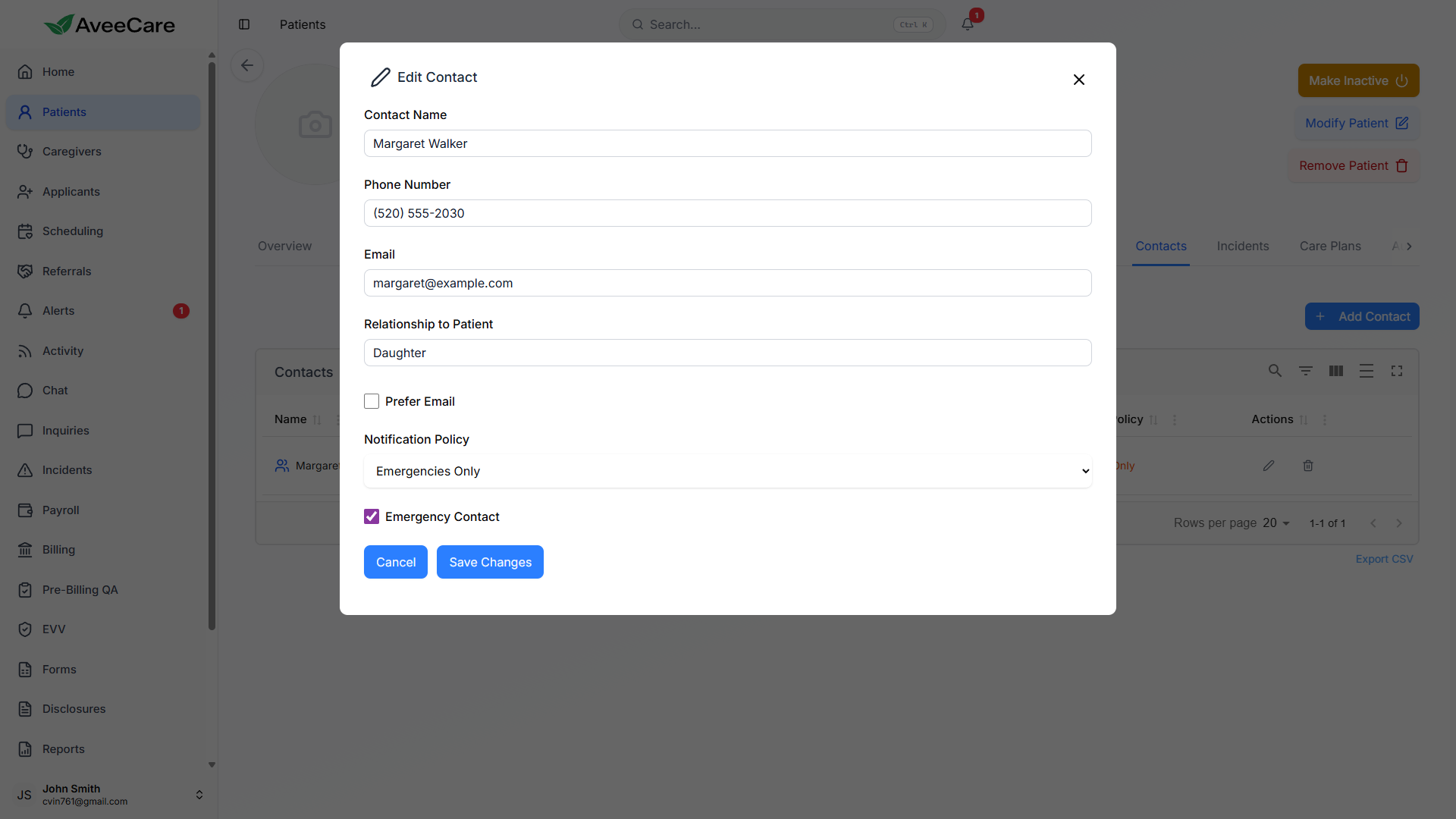
Common pitfalls
- Forgetting the Emergency Contact flag. Without it, this contact will not surface in the emergency contact list during incident workflows even if the relationship is “Daughter” or “Spouse.” The flag is a separate toggle from relationship.
- Picking All Notifications for a family contact. All Notifications fires this contact for every notification the patient generates, not just emergencies. Family contacts almost always want Emergencies Only so they are not paged for routine activity.
- Treating Relationship as an enum. It is a free-text field. Pick a label that scans fast at 3 AM, like “Daughter (POA)” or “Neighbor with key,” instead of an ambiguous tag.
- Skipping email and relying on phone alone. Email is the cheapest fallback when a phone goes to voicemail. If the contact has email, add it and toggle Prefer Email when email is the better channel.