The Incidents tab on a patient record is a filtered slice of the agency-wide incident log, showing only the reports linked to this one patient. Falls, behavioral events, medication issues, and any other incident filed against this patient land here for the case manager and clinical lead to review.
Quick answer
Open the patient, click Incidents on the tab strip. Existing reports show in the Patient Incident Reports table with columns for Incident, Caregiver, Severity, Category, Reported, and Status. Click the orange Create Incident Report button to file a new one prefilled with this patient.
1. Open the patient and click Incidents
Click the patient row on the Patients page to open their record.
The patient page opens on the Overview tab. The tab strip below the patient header has Overview, Appointments, Forms, Files, Disclosures, Billing, ADLs, Care Goals, Medications, Allergies, Notes, Contacts, Incidents, Care Plans, Authorizations, Hospitalizations, and Progress.Click Incidents on the tab strip.
It sits between Contacts and Care Plans. The URL becomes/patients/<name>/<id>/incidents.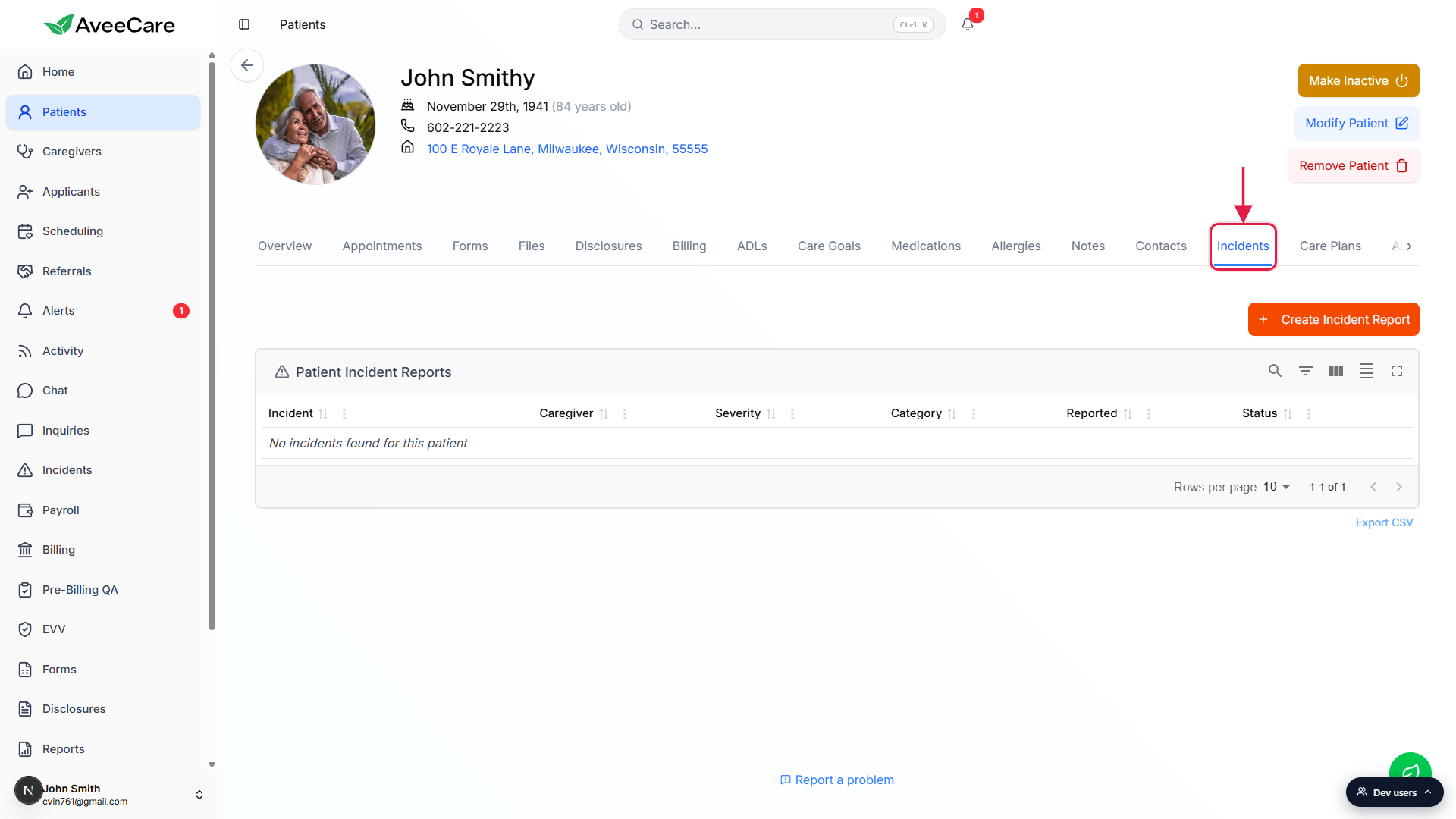
2. Read the Patient Incident Reports table
Scan the six columns: Incident, Caregiver, Severity, Category, Reported, Status.
Each column header sorts ascending or descending on click. The small icons in the top-right of the card toggle search, filters, column visibility, density, and full-screen mode. Empty patients show a single row, No incidents found for this patient.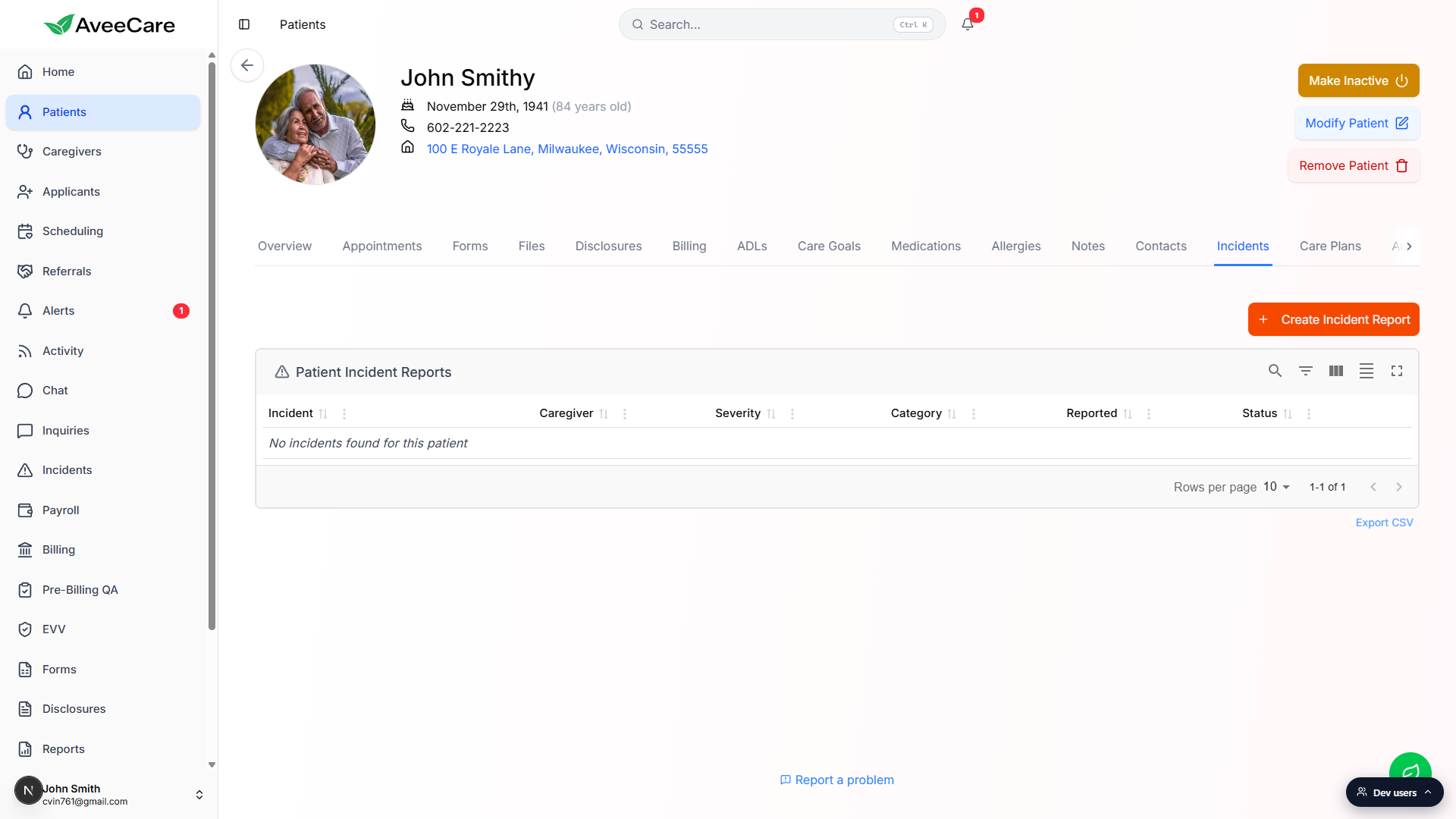
Use the filter and search icons to narrow the list on patients with a long history.
Search matches incident title text. Filters scope the table by severity, category, or status. The Export CSV link at the bottom-right exports whatever the current filtered view shows.
3. Click Create Incident Report to file a new one
Click the orange Create Incident Report button above the table.
It sits in the top-right of the tab content, just above the Patient Incident Reports card. The same incident page on the agency-wide Incidents section also has this button.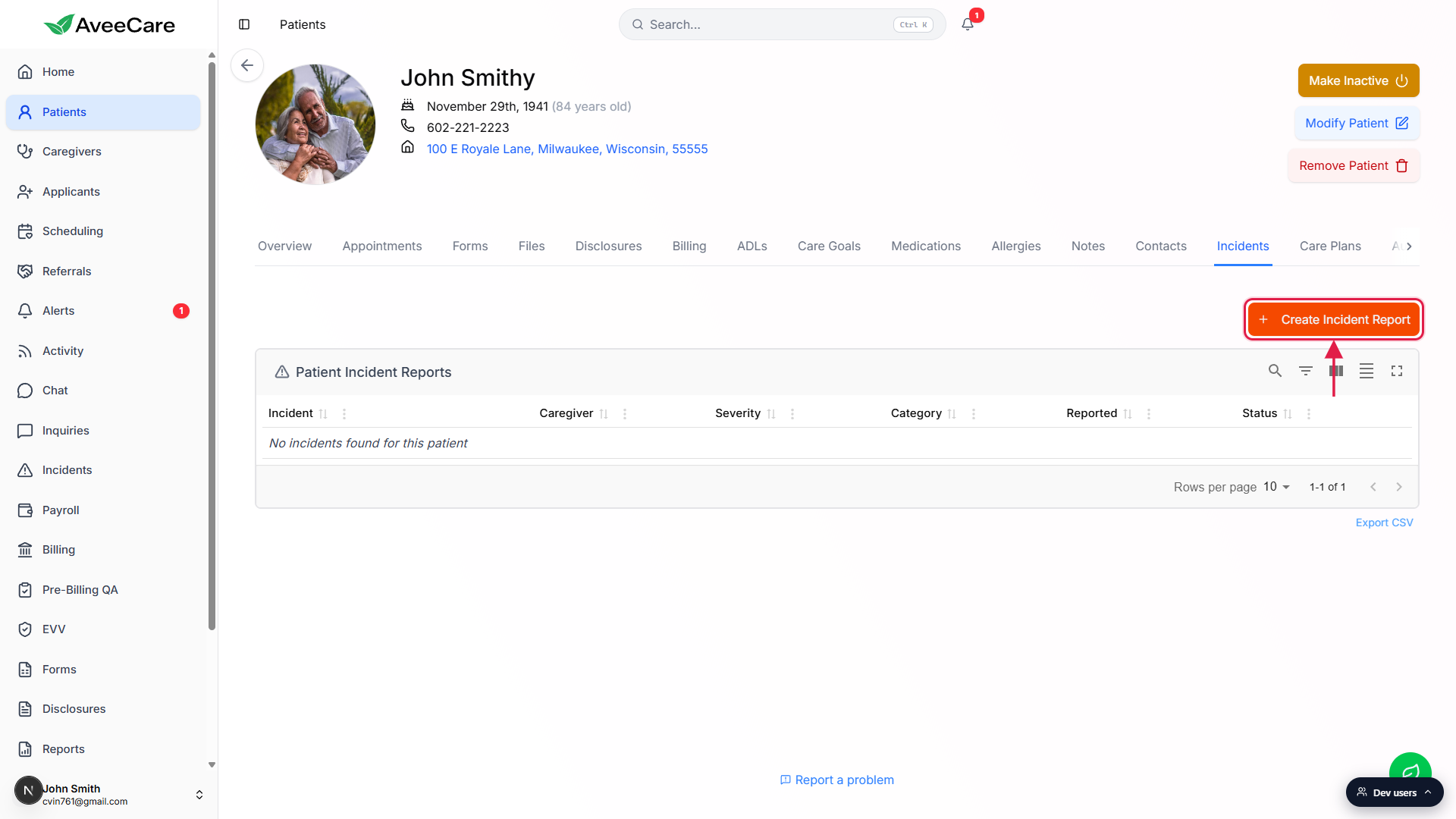
4. Fill out the form and submit
Fill the Incident Information block: Title, Severity, Category, Date and Time, Description, Actions Taken.
Severity has four options: Low (Minor issue, no harm), Medium (Moderate concern), High (Significant risk/harm), Critical (Immediate attention required). Category has six fixed options: Fall, Medication Error/Issue, Behavioral, Injury (non-fall), Equipment Failure, Other. Date and Time defaults to right now. Description and Actions Taken are free text.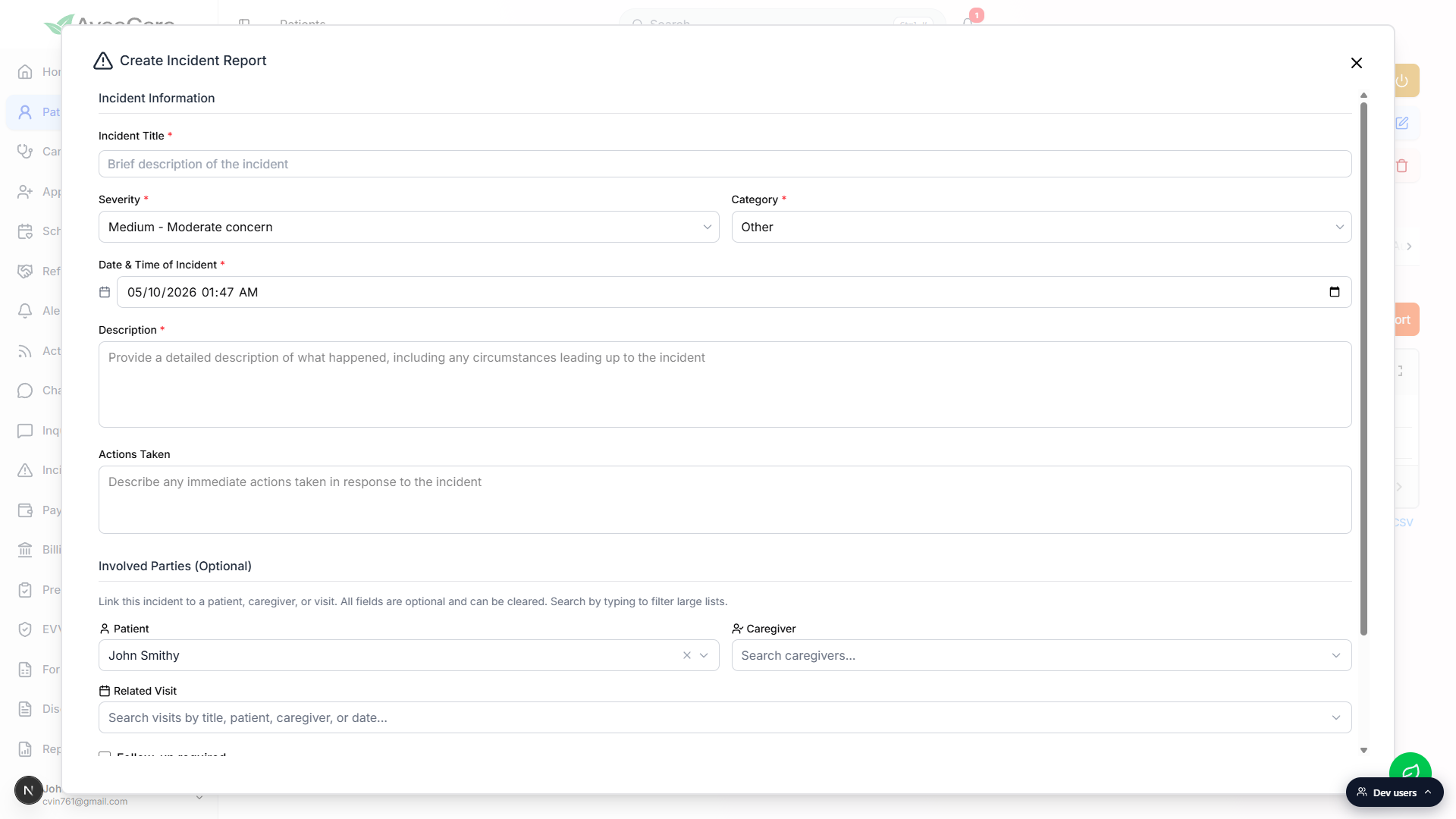
Confirm the Involved Parties section. Patient is prefilled with the patient you opened.
Because you opened the form from the patient record, the Patient field is already filled in. You can add a Caregiver and Related Visit if the incident happened during a known shift. All three fields support type-to-search for large agencies.Toggle Follow-up required if the incident is not closed yet, then submit.
The Regulatory Compliance and Additional Details panel below expands for state-required fields when applicable. Click Submit Incident Report to file. The new report appears in this table and on the agency-wide Incidents page at/incidents.
Common pitfalls
- Vague descriptions. Future-you, an auditor, or the state surveyor will read this. Note the time of day, the room, who was present, what was tried, and how the patient responded.
- Wrong severity. Severity drives sort order, dashboard alerts, and Critical incidents page banners. Low for a near-miss, Critical for anything that needs immediate clinical attention.
- Skipping the caregiver field. If a caregiver was on shift, link them. The same report shows on the caregiver record under their Incidents tab so supervisors see the full picture.
- Leaving Status on Open. When the situation is closed, mark it resolved with notes so it stops surfacing in open-incident counters and compliance reports.
Related
- Incidents overview (agency-wide)
- Create an incident report
- Resolve an incident with notes
- Caregiver incidents tab