Office staff and caregivers file incident reports from the same modal. Title, severity, category, date and time, description, and actions taken are required up front. Patient, caregiver, and related visit are optional links you can attach so the report shows up on the right records. The new row lands in the agency Incident Reports table the moment you submit.
Quick answer
Open Incidents. Click the blue Create Incident Report button at the top right. Fill the Incident Information block (title, severity, category, date and time, description, actions taken), optionally link a Patient, Caregiver, and Related Visit, then click the orange Submit Incident Report button at the bottom of the modal and confirm.
Severity and categories
The Severity dropdown has four options, labeled with a short hint:
- Low. Minor issue, no harm.
- Medium. Moderate concern. This is the default.
- High. Significant risk or harm.
- Critical. Immediate attention required.
The Category dropdown has six options:
- Fall. Adds an Injury Details panel with a Body Part(s) Affected field.
- Medication Error/Issue. Adds a Medication Details panel with a Medication(s) Involved textarea.
- Behavioral. No extra panel.
- Injury (non-fall). Also adds the Injury Details panel.
- Equipment Failure. No extra panel.
- Other. Default. No extra panel.
High and Critical incidents fire an alert for office staff and bump the report into the High/Critical stat card on the Incidents page. Low and Medium reports go in quietly.
1. Open Create Incident Report from the Incidents page
Click Incidents in the left sidebar.
The page header reads Incident Reports. The blue Create Incident Report button sits at the top right next to the page title.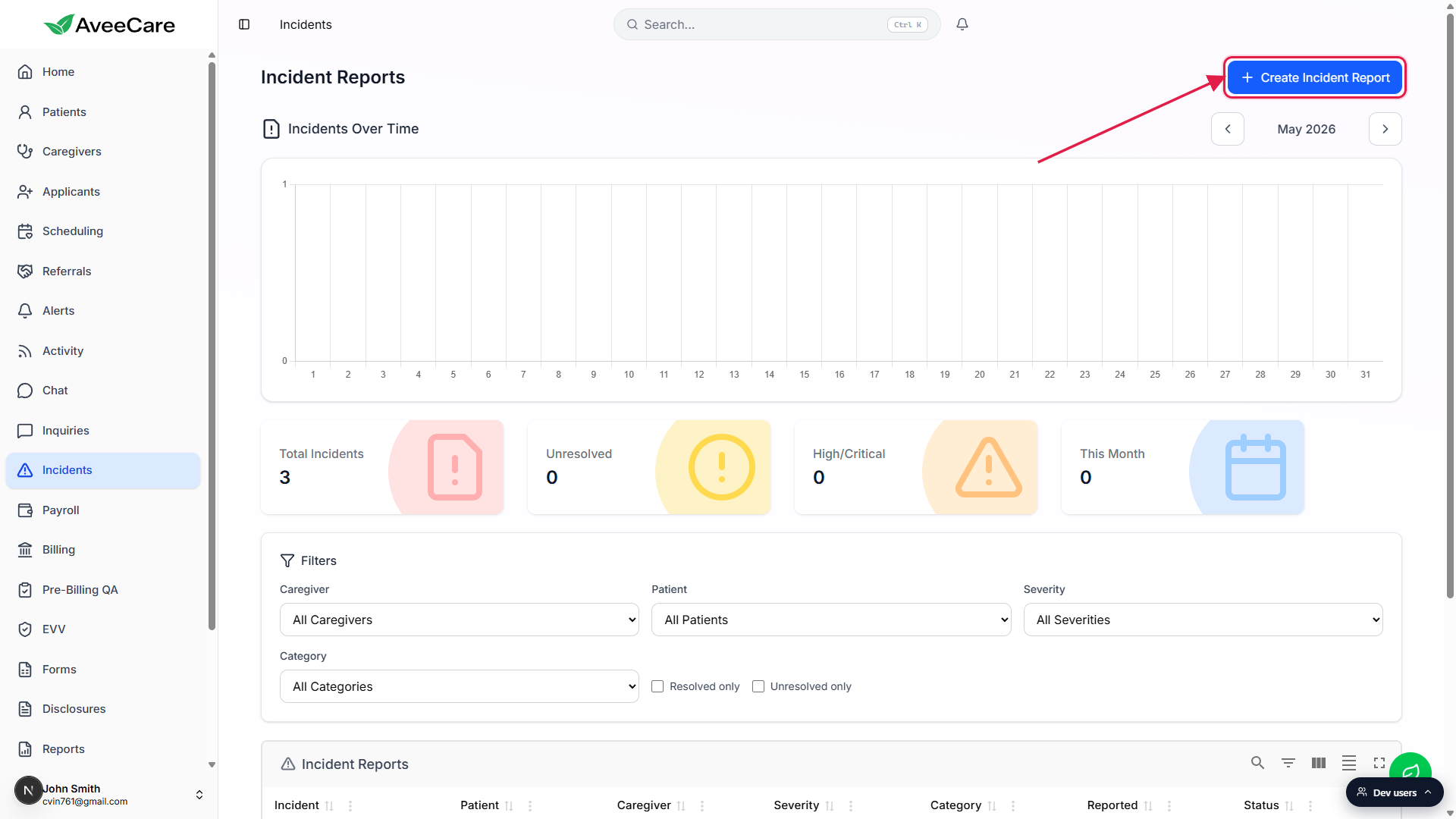
Click Create Incident Report to open the full-screen modal.
The same modal opens from a patient's Incidents tab, a caregiver's Incidents tab, and the caregiver visit detail screen. The form fields are identical in every entry point.
2. Fill the Incident Information block
Type a short Incident Title.
Something a coordinator can scan in a list, like “Patient fell in living room while transferring from chair”. This is the headline shown in the agency table and on the patient and caregiver Incidents tabs.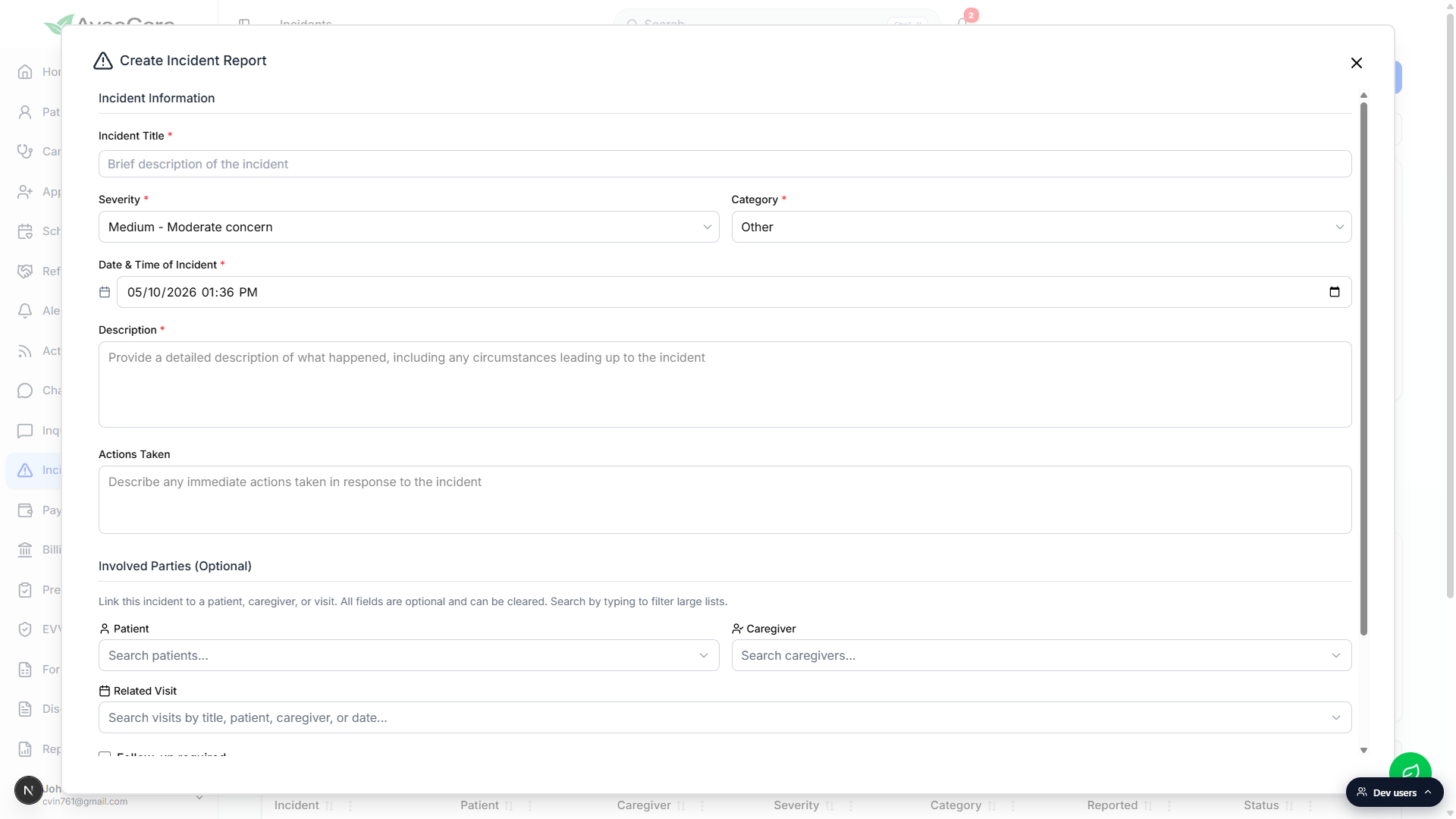
Pick a Severity and a Category from the two dropdowns.
Severity defaults to Medium, Category defaults to Other. Picking Fall or Injury reveals an extra Injury Details panel below the Involved Parties section. Picking Medication reveals a Medication Details panel.Set Date and Time of Incident.
The field is a datetime picker that defaults to the current date and time and is capped at “now” (you cannot file an incident in the future). Adjust the value to when the incident actually happened, which is often earlier than when you are filing.Write the Description and Actions Taken.
Description is required and asks for what happened, including any circumstances leading up to the incident. Actions Taken is optional and is for any immediate response, like first aid, family notification, or a call to 911.
3. Link the Involved Parties
Scroll to the Involved Parties (Optional) section.
Three searchable selects sit there: Patient, Caregiver, and Related Visit. All three are optional, so you can file an incident without linking anything if the report is purely operational (e.g., a piece of equipment).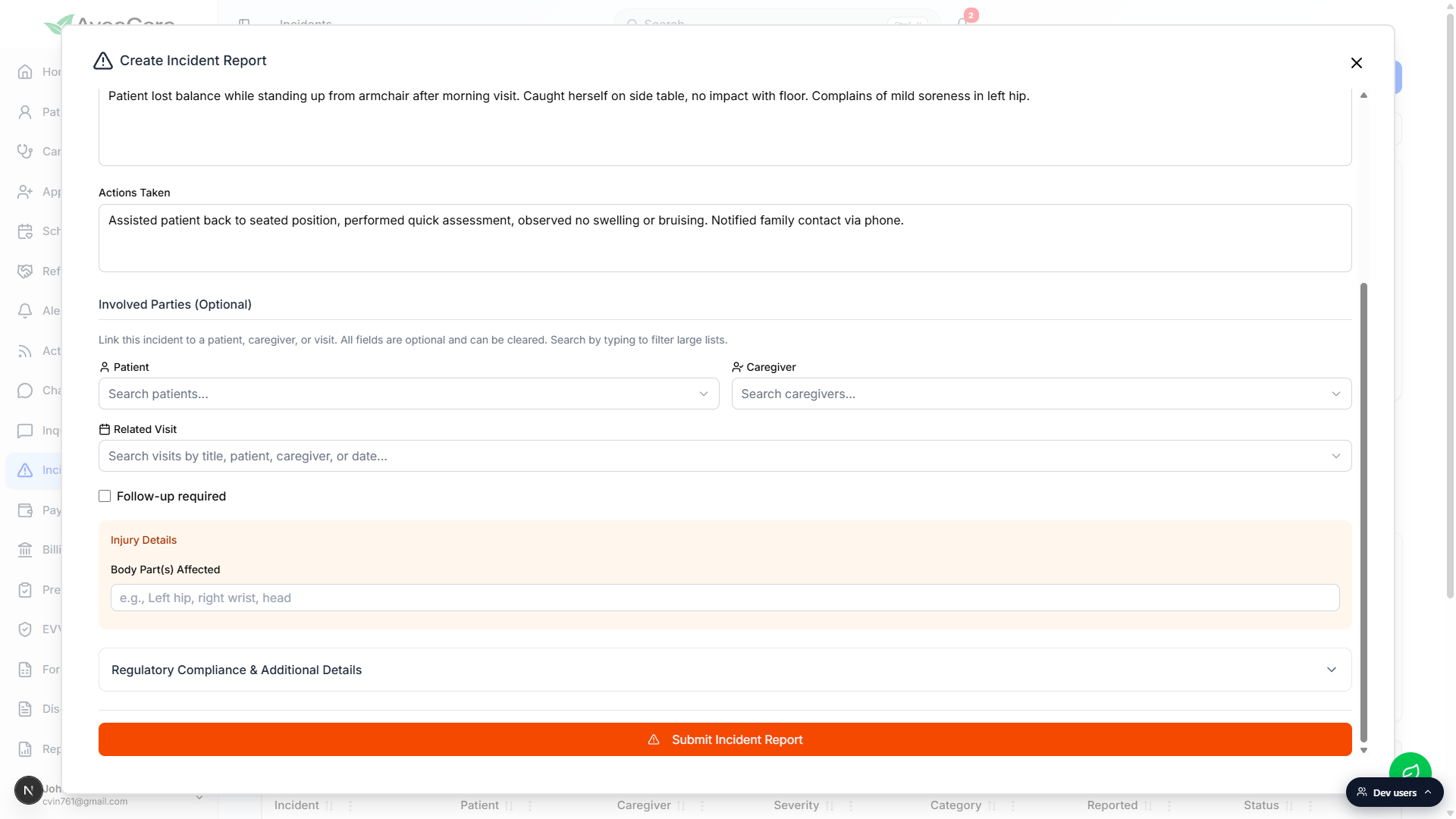
Search Patient and Caregiver by typing.
Each select opens a search field. Type the first letters of a name to filter. Picking a Patient or Caregiver narrows the Related Visit list to visits involving that person.Pick a Related Visit if the incident happened on a scheduled visit.
The Related Visit picker shows the most recent visits with title, date and time, patient, and caregiver in each row. Selecting a visit auto-fills Patient and Caregiver if they were not already set.Flip Follow-up required if a follow-up action is needed.
Checking the box reveals a Follow-up Notes textarea. Anything you write there shows on the resolution side of the incident detail so whoever closes the case has context.Open Regulatory Compliance and Additional Details if it applies.
The collapsible section under Involved Parties has fields for witness name and contact, emergency services contacted, hospital transport and hospital name, physician and family notification timestamps, regulatory report requirements, and patient condition before and after. All of these are optional and only relevant on the heavier incidents.
4. Submit and confirm
Click the orange Submit Incident Report button at the bottom of the modal.
The button is full-width orange and pinned to the bottom of the scroll area, so you do not have to scroll to find it.Confirm the submission in the pop-up.
AveeCare asks “Are you sure you want to submit this incident report? This will notify administrators and create an audit trail.” Click Submit Report. The modal closes and the new row appears at the top of the Incident Reports table.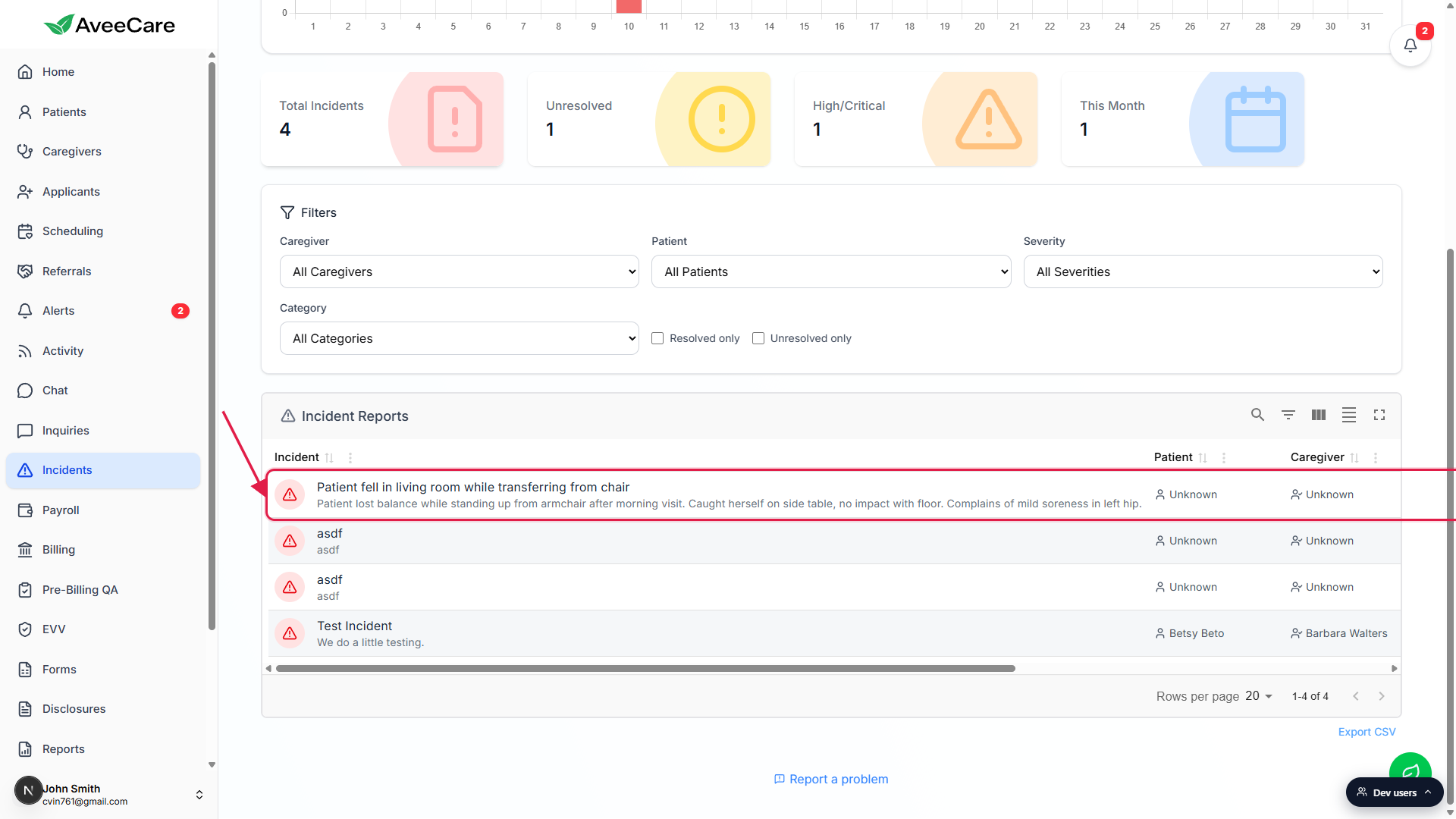
Common pitfalls
- Date and time of incident vs reported time. Date and Time of Incident is when the incident actually happened. Reported is the timestamp the system records when you submit. The chart on the Incidents page bins by Reported, not by incident date, so a late-filed report shows on today's bar.
- Severity defaults to Medium. If the incident is High or Critical, change the dropdown before submitting. Otherwise the alert does not fire and the High/Critical card does not bump.
- Forgetting to link the patient or caregiver. The Patient and Caregiver selects are optional, but if you leave them empty the incident does not show on either person's Incidents tab and the agency table reads “Unknown” for those columns. Pick at least one when an actual person is involved.
- Picking a Related Visit also fills Patient and Caregiver. The visit's patient and caregiver auto-fill into those two fields. If you intentionally need to leave one blank, clear it after selecting the visit.
- Category Fall or Injury hides an extra panel. The Injury Details panel only appears when Category is Fall or Injury. If you have body-part information to record, set the Category first so the field exists.
- The submit confirmation matters. Clicking Submit Incident Report only opens the confirmation. You still need to click Submit Report in the pop-up. Cancelling there leaves the form open and nothing is saved.