Resolving an incident closes the case and stamps it with a timestamp, the resolver's name, and an optional resolution note. The record stays on the Incident Reports table and on the linked patient and caregiver profiles for compliance review, but it stops counting against the Unresolved stat card and drops off the Unresolved-only filter.
Quick answer
Open Incidents, click the incident row to open the detail, click the green Mark Resolved button in the bottom action bar, type an optional resolution note, and click Mark Resolved on the confirmation panel. The Status chip flips to Resolved and a green Resolution block appears on the detail.
What resolving an incident actually does
- Status chip flips from Unresolved to Resolved. The same change shows on the agency Incident Reports table, the patient Incidents tab, and the caregiver Incidents tab.
- Resolution panel appears on the detail. Green box with the resolved-at timestamp, the resolver's full name, and the resolution note if one was provided.
- Unresolved stat card decrements. The Unresolved card at the top of the Incidents page drops by one.
- Audit log entry is written. An entry tagged with the resolver, the timestamp, and the resolution note text shows up in the Change History dropdown on the incident detail.
- Mark Resolved button disappears. The action bar on a resolved incident shows only Delete, Edit, and Close. There is no Reopen action in the current build.
1. Open the incident from the table
Click Incidents in the left sidebar.
The page header reads Incident Reports. The Status column on the table shows each row as Unresolved or Resolved with a small icon, so you can spot the open cases at a glance.Click the row of the incident you want to resolve.
The full-screen Incident Details modal opens with the title, Severity, Category, Status chip, Description, Patient, Caregiver, Actions Taken, Preventive Measures, and Change History sections. The green Mark Resolved button sits in the bottom-left action bar.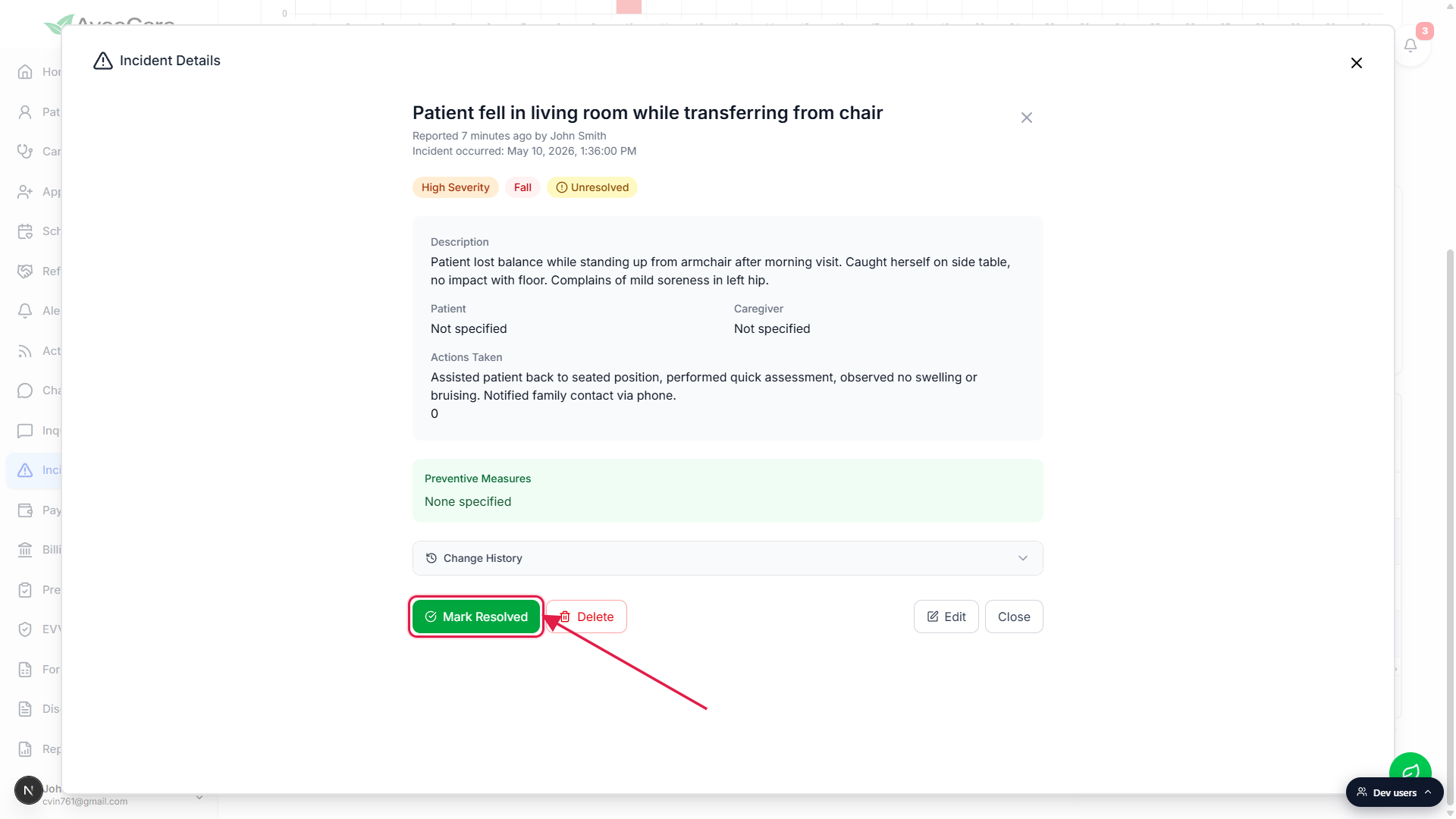
2. Click Mark Resolved
Click the green Mark Resolved button at the bottom of the modal.
The button only shows on an Unresolved incident. If you opened a Resolved record by mistake, the bottom bar shows only Delete, Edit, and Close, and you cannot mark it again.A small Mark as Resolved confirmation panel opens.
It floats over the detail with a green check icon, a heading that reads Mark as Resolved, and the prompt Please provide any resolution notes (optional):. A multi-line textarea sits below.
3. Write resolution notes and confirm
Type the resolution narrative in the textarea.
What was done, who did it, when, and any follow-up arrangements. The notes are optional, but anything you write here lands on the audit log verbatim, on the green Resolution panel of the detail, and on the patient and caregiver Incidents tabs. Write for the surveyor who finds this in three years.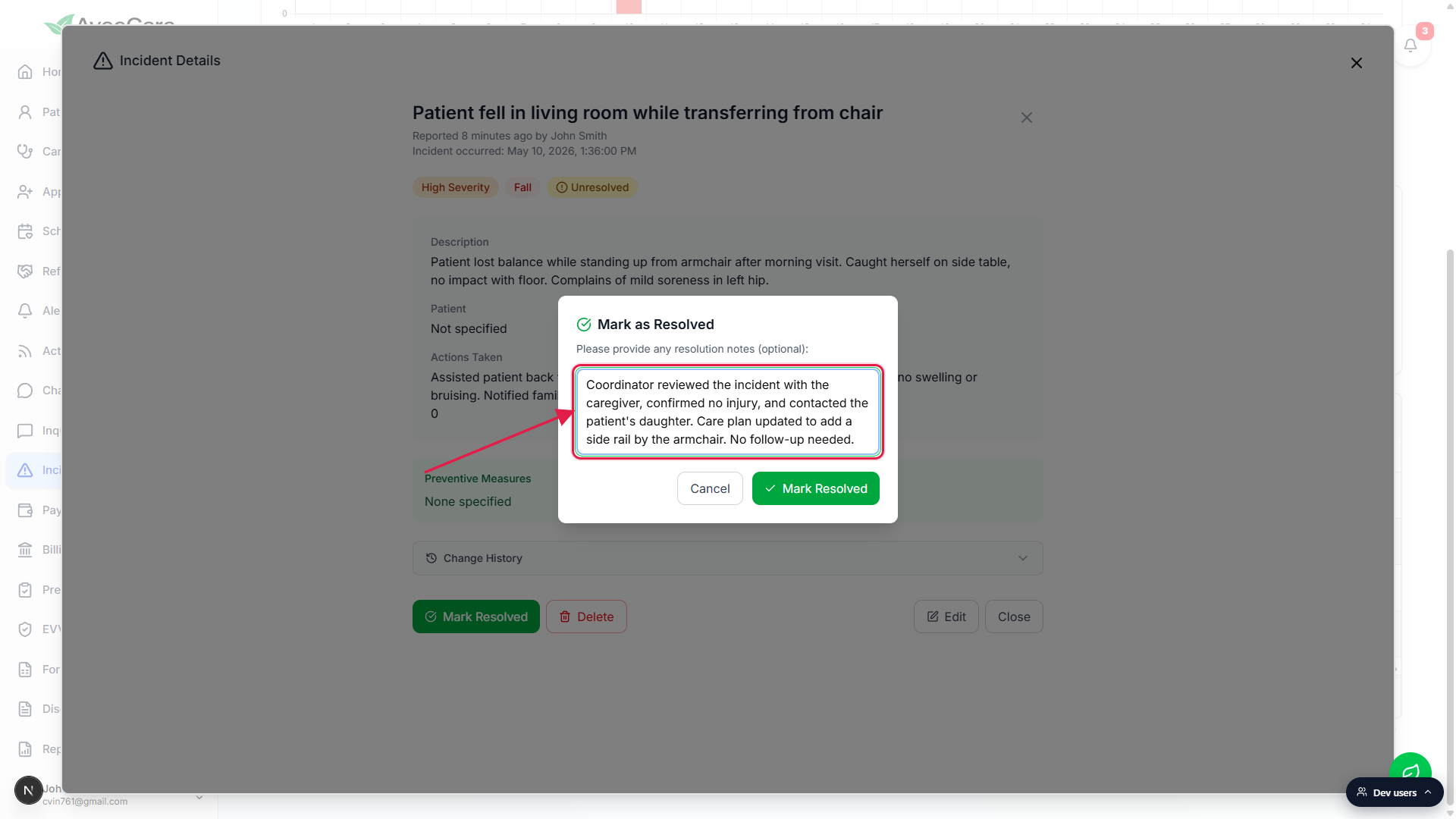
Click the green Mark Resolved button inside the confirmation panel.
Cancel closes the panel without saving and leaves the incident Unresolved. Clicking Mark Resolved writes the record, fires a Incident marked as resolved toast, refreshes the detail, and refreshes the Change History.
4. Verify the Resolution panel and audit entry
Confirm the Status chip now reads Resolved.
The pill at the top of the detail flips from amber Unresolved to green Resolved. The same chip change shows in the Status column on the Incident Reports table behind the modal.Read the green Resolution block on the detail.
It shows the resolved-at date and time, the resolver's full name, and the resolution note text if one was provided. If the notes field was left blank, the block still shows the timestamp and resolver. The Unresolved stat card at the top of the Incidents page also drops by one.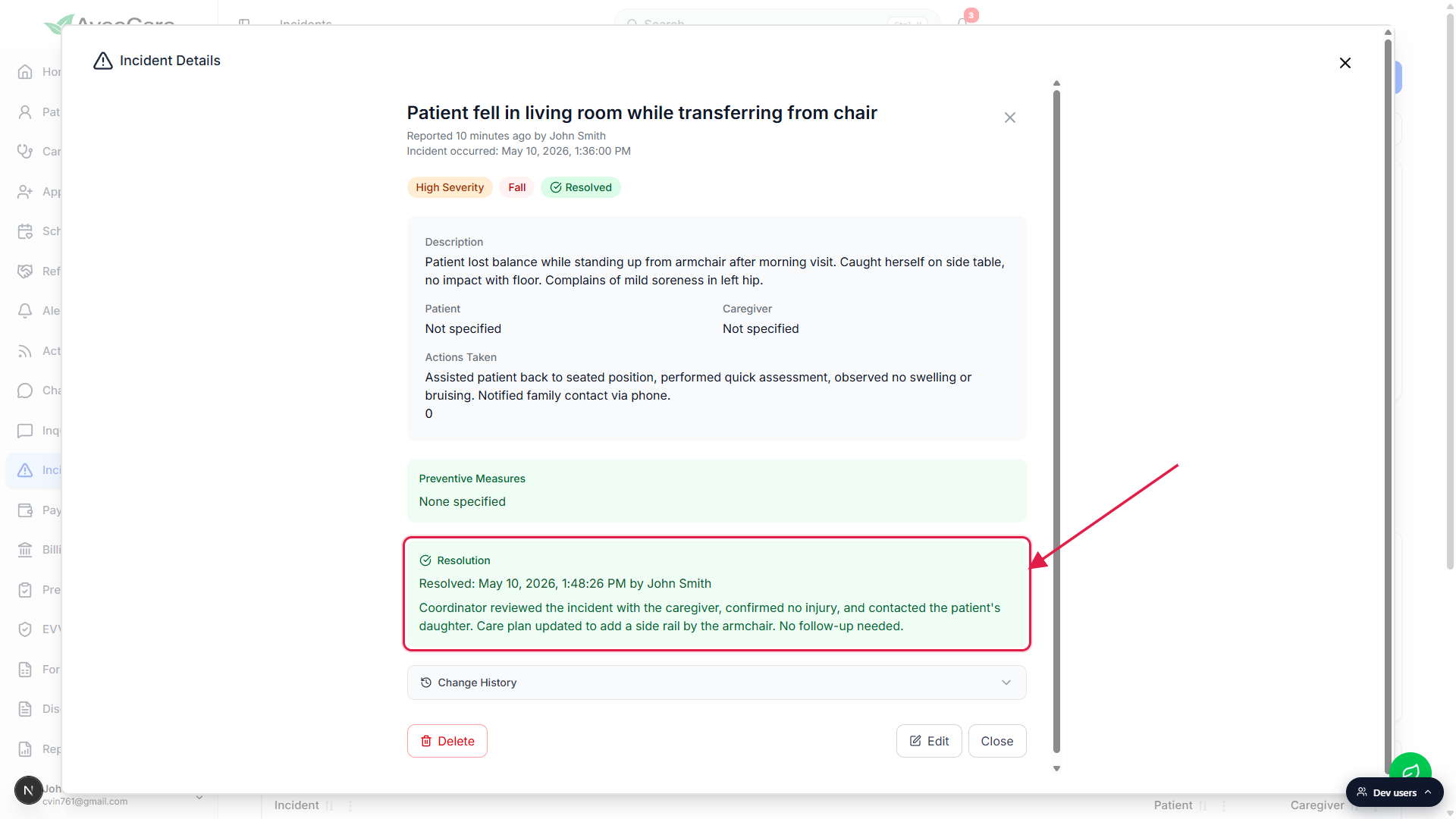
Open Change History to verify the audit log entry.
Expand the Change History dropdown at the bottom of the detail. A new entry reads Incident report marked as resolved by with the resolver's full name and the resolution note in quotes. The chain of creation, edits, and the resolution stays attached to the record forever.
Common pitfalls
- Two Mark Resolved buttons, two different jobs. The first Mark Resolved (in the modal's bottom action bar) only opens the confirmation panel. The second Mark Resolved (inside the green confirmation card) actually writes the record. Cancelling on the second one leaves the incident Unresolved.
- Notes are optional, but plan to write them. The textarea is labeled (optional), so an empty submit is accepted. Surveyors, family complaints, and state reviews all hinge on the resolution narrative, though, so an empty resolution note is almost always a missed opportunity.
- There is no Reopen control today. Once an incident is Resolved, the action bar on the detail shows only Delete, Edit, and Close. If a case needs to be reopened, use Edit to append new information to the description or actions-taken fields, or file a new incident with a reference back to this one.
- Resolved incidents stay on every count except Unresolved. Total Incidents, High/Critical, and This Month all still include resolved cases. Only the Unresolved card decrements. Use the Resolved-only or Unresolved-only filters under the chart to narrow the table.
- Patient and Caregiver tabs reflect the change immediately. If you linked a Patient or a Caregiver when filing the incident, their Incidents tab now shows the row as Resolved. There is no separate notification to either of them.