The bell in the top-right of every AveeCare page is the notification center. It pulls together missed visits, unassigned shifts, unreviewed alerts, unread inquiries, and unresolved incidents into one panel so you do not have to bounce between pages to know what needs attention.
Quick answer
Click the bell at the top-right of any page. The panel opens grouped by urgency: Requires Immediate Action, Needs Attention, and For Your Awareness. Click a card to jump to the underlying record, use the per-card icons to snooze or dismiss, or press Clear all at the top to wipe everything in one click.
The three severity groups
The panel always renders notifications in three collapsible groups:
- Requires Immediate Action. Red severity. Missed visits, unreviewed critical alerts, payroll items waiting on you. The card has a red left border on a pink background.
- Needs Attention. Yellow severity. Unassigned visits, unresolved incidents, lower-priority alerts. Yellow left border on a pale yellow background.
- For Your Awareness. Blue severity. Family inquiries, unread chat messages, informational signals. Blue left border on a pale blue background.
Empty groups are hidden, so if everything is calm you only see the group headers that have at least one card.
1. Find the bell in the header
Look at the top-right of the header on every page.
The bell sits between the global search bar and your profile area. When you have unread notifications, a small red circle badge with the count sits on the top-right of the bell. The badge shows99+when the count exceeds 99. No badge means no active notifications.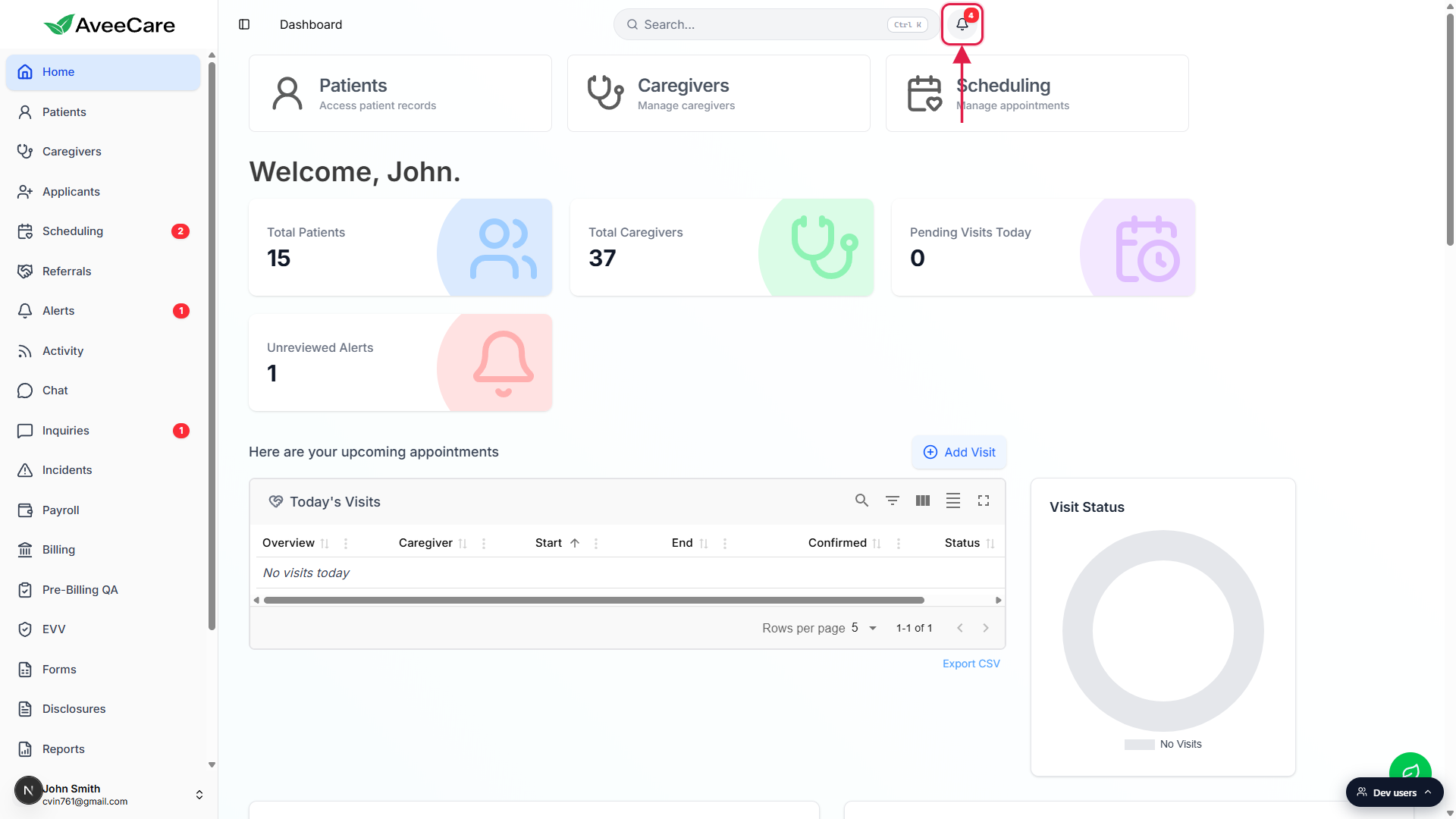
2. Open the panel and read the groups
Click the bell. The panel anchors right under the icon.
The header reads Notifications followed by a count chip with the total number of cards. To the right are the View dismissed history icon and the Clear all button.A summary bar shows counts per source page.
Right below the header you will see something like 2 Scheduling, 1 Inquiries, 1 Alerts. The bell badge always equals the sum of these.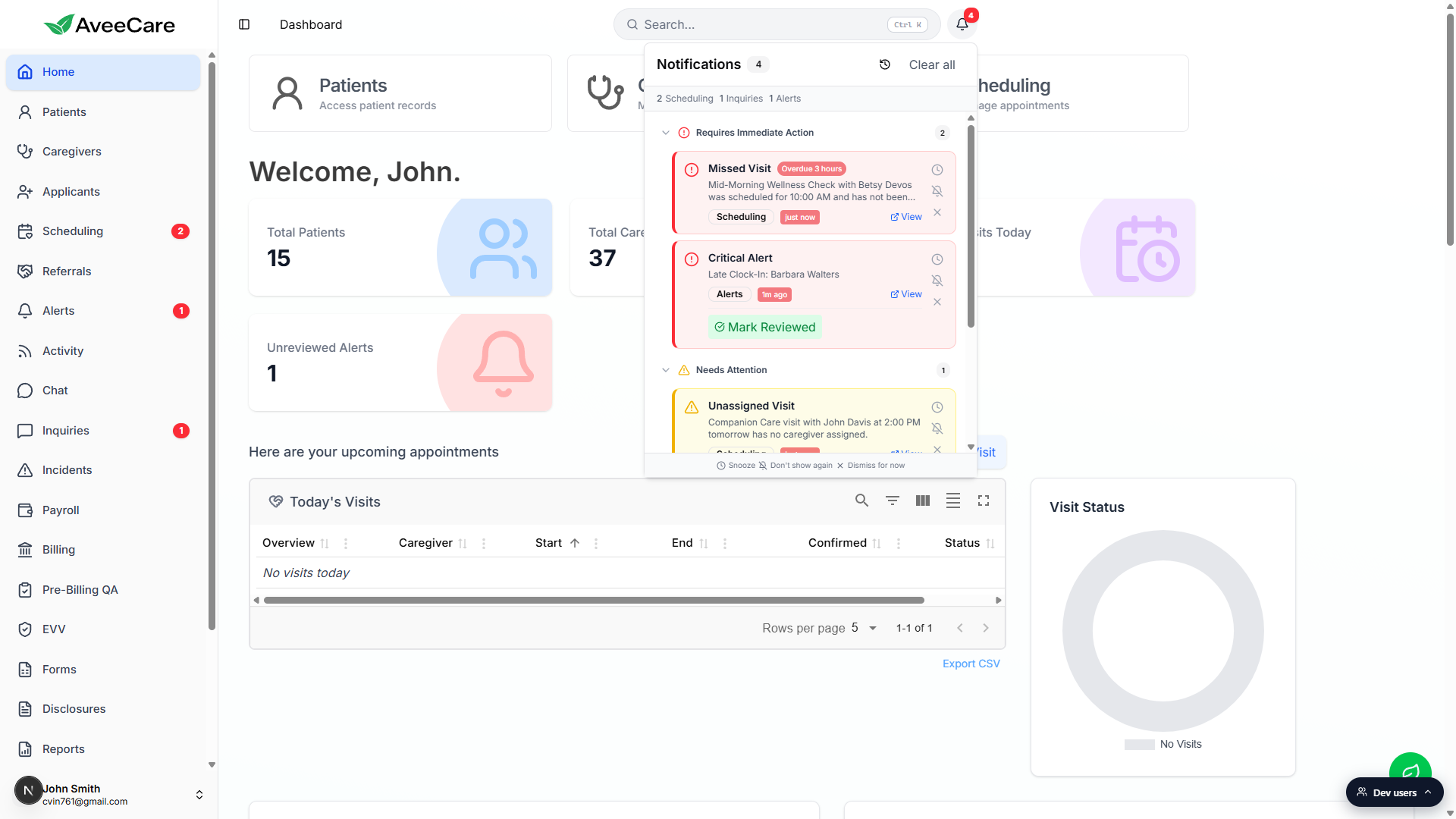
Each card has the same shape across types.
A severity icon on the left (red circle, yellow triangle, blue info), the title in bold, an optional overdue chip such as Overdue 3 hours, the description, the source page badge (Scheduling, Alerts, Inquiries), a colored relative-time chip (just now, 2m ago, yesterday), and a View link on the right that jumps to the underlying record.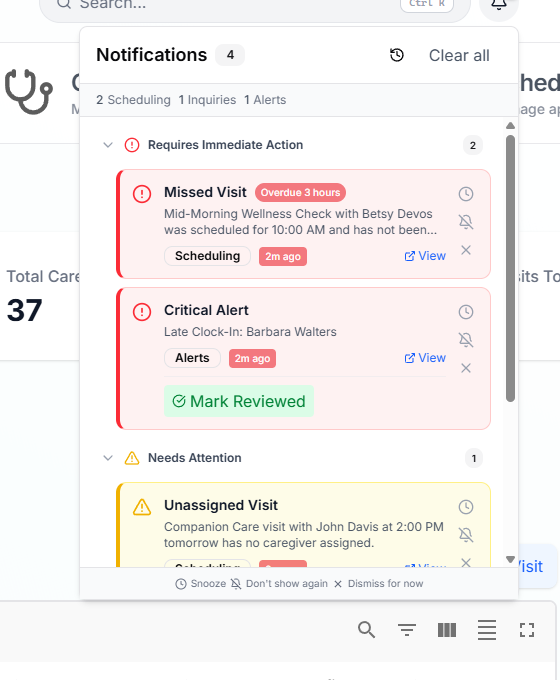
3. Act on a card or send it away
Click anywhere on the card to jump to the source record.
A Missed Visit card opens that visit on the calendar, an Alert card opens the alert detail page, an Inquiry card opens the inquiry thread. Clicking also removes the card from your panel (the underlying record is unchanged).Use the inline quick action button when one is offered.
Critical alerts get a green Mark Reviewed button right inside the card, unassigned visits get a blue Assign Caregiver dropdown, unresolved incidents get Mark Resolved, payroll cards get Approve, Confirm, or Retry. Acting on the quick button stamps your name and timestamp on the record and removes the card.Use the icons on the right to snooze or dismiss.
Clock icon (Snooze): hide this card for an hour, until tomorrow, or for a week. Bell-off icon (Don't show again): permanently dismiss this exact notification. X icon (Dismiss for now): remove the card from the current session only. It comes back on refresh if the underlying condition is still true.Use Clear all in the panel header to wipe every card at once.
Clear all only clears the in-session view, the same as pressing the X on every card individually. Anything that re-fires (like a still-late clock-in) will reappear.
4. Restore something you dismissed
Click the clock-with-arrow icon next to Clear all.
The panel switches to View dismissed. The history shows everything you permanently dismissed or snoozed in the last three months, with a label for each (Permanently dismissed, Snoozed until date, Snooze expired).Click the restore arrow on a row to bring it back.
The dismissal record is removed and the matching notification will reappear in the active panel on the next sync. Useful when you Don't-show-again'd something by accident, or you want to revisit a snoozed item before its snooze expires.Click the same icon (now labeled View active) to switch back.
Common pitfalls
- Confusing Dismiss for now with Don't show again. The X icon (Dismiss for now) is session-only, the card returns on refresh if the underlying condition still holds. The bell-off icon (Don't show again) writes a permanent dismissal that survives for three months.
- Notifications coming back after you dismissed them. Some signals re-fire as long as the underlying condition is still true. A Late Clock-In notification will keep returning until either the caregiver clocks in, the visit is marked done, or you permanently dismiss it. Resolve the source instead of dismissing.
- Mark Reviewed vs Mark Resolved vs Dismiss. Mark Reviewed and Mark Resolved are audit-trail actions that stamp your name and timestamp on the underlying alert or incident. Dismiss only hides the card from your panel.
- Clear all is broader than you think. It clears every card in the panel, not just the visible group. Use the per-card X if you only want to remove a single card.
- Push notifications missing. In-app notifications and push notifications are separate. The in-app bell will fire even with push disabled, so if push is silent on your phone but the bell shows a badge, check your device notification settings and the Settings to Notifications page in AveeCare.