The Alert Details modal is the per-alert drill-in. Click any row in the All Alerts table and a fullscreen panel opens with the alert title, severity chip, full description, who created it, when it fired, and whether it has been reviewed. Opening the modal also stamps the alert as Reviewed in the background.
Quick answer
Open Alerts and click a row in the All Alerts table. The Alert Details modal opens with the four standard sections (Description, Created By, Time, Review Status) plus a Close button. The act of opening flips the alert from Needs Review to Reviewed, and the Review Status line updates to show the timestamp.
What is inside the modal
The modal body always shows four labeled sections in this order:
- Description. The full alert text. Late clock-ins include the visit ID, the assigned caregiver, the scheduled start time, and how many minutes late the visit is.
- Created By. The name of the staff or system actor that produced the alert. System-generated alerts (late clock-ins, open-shift broadcasts, inquiry replies) show Unknown when there is no human author.
- Time. The wall-clock timestamp the alert was created, formatted as Month DD, YYYY at hh:mm AM/PM.
- Review Status. Either Not yet reviewed or Reviewed on Month DD, YYYY. Opening the modal as an admin flips this to Reviewed automatically.
Shift-swap alerts get an extra Shift Swap Actionsection between Review Status and Close, with Approve Swap and Deny Swap buttons. That flow lives in its own help article.
1. Open Alerts and click a row in the table
Click any row in the All Alerts table.
Each row is a single alert. Clicking anywhere on the row opens the Alert Details modal. Critical rows pulse with a Needs Review label until you open them, then they show Addressed and the date you reviewed them.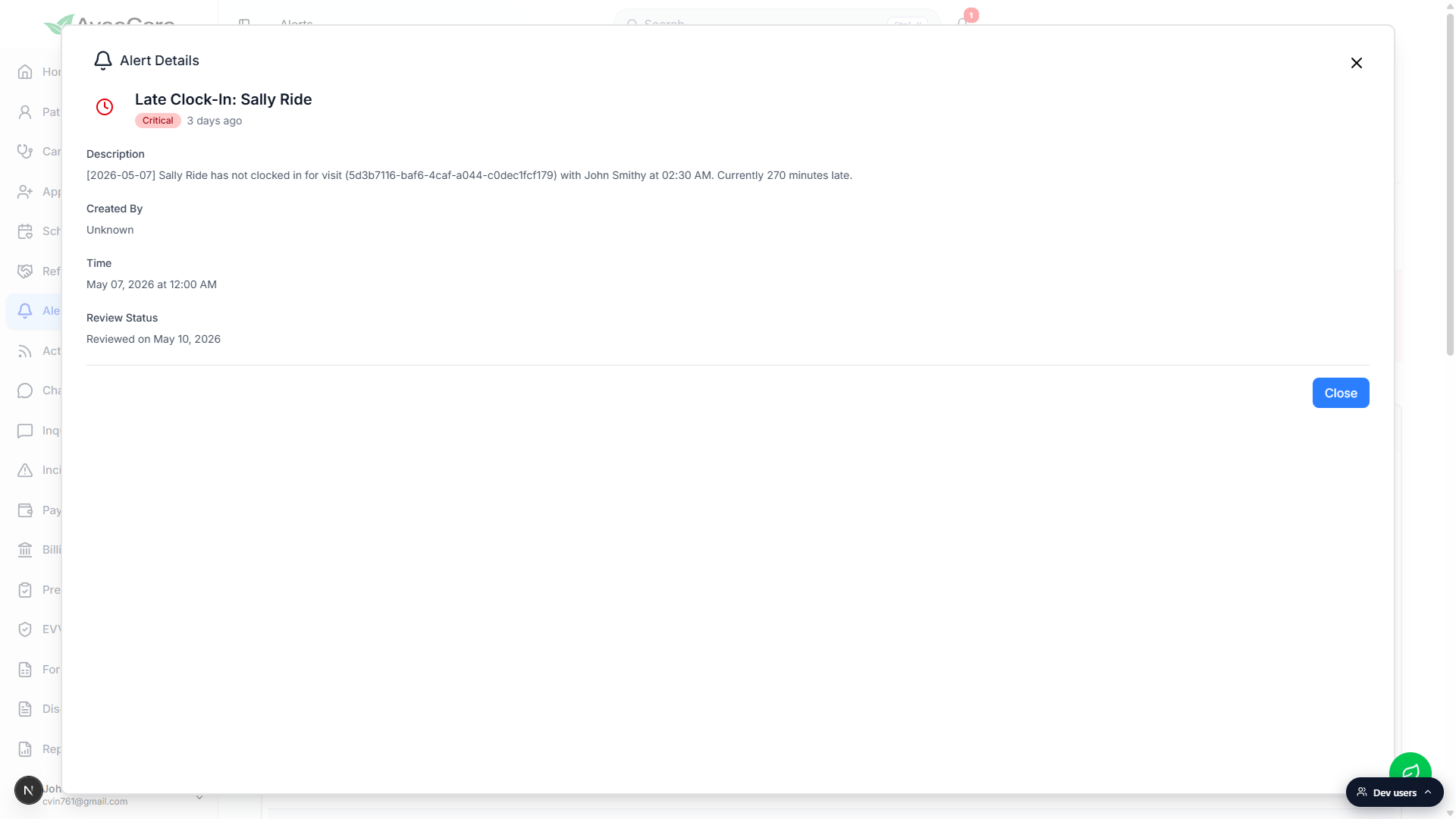
2. Read the Description, Created By, Time, and Review Status
Scan the four sections from top to bottom.
The header is the alert title and severity chip with a relative time label like 3 days ago. The body is four short blocks: Description, Created By, Time, Review Status. There is no separate action log inside the modal. The audit trail lives in the alert record on the server.Confirm the Review Status line.
If the alert was previously unreviewed, opening the modal flips it. The Review Status line updates from Not yet reviewedto Reviewed on followed by today's date, and the row in the All Alerts table flips from Needs Review to Addressed once you close the modal and the table refreshes.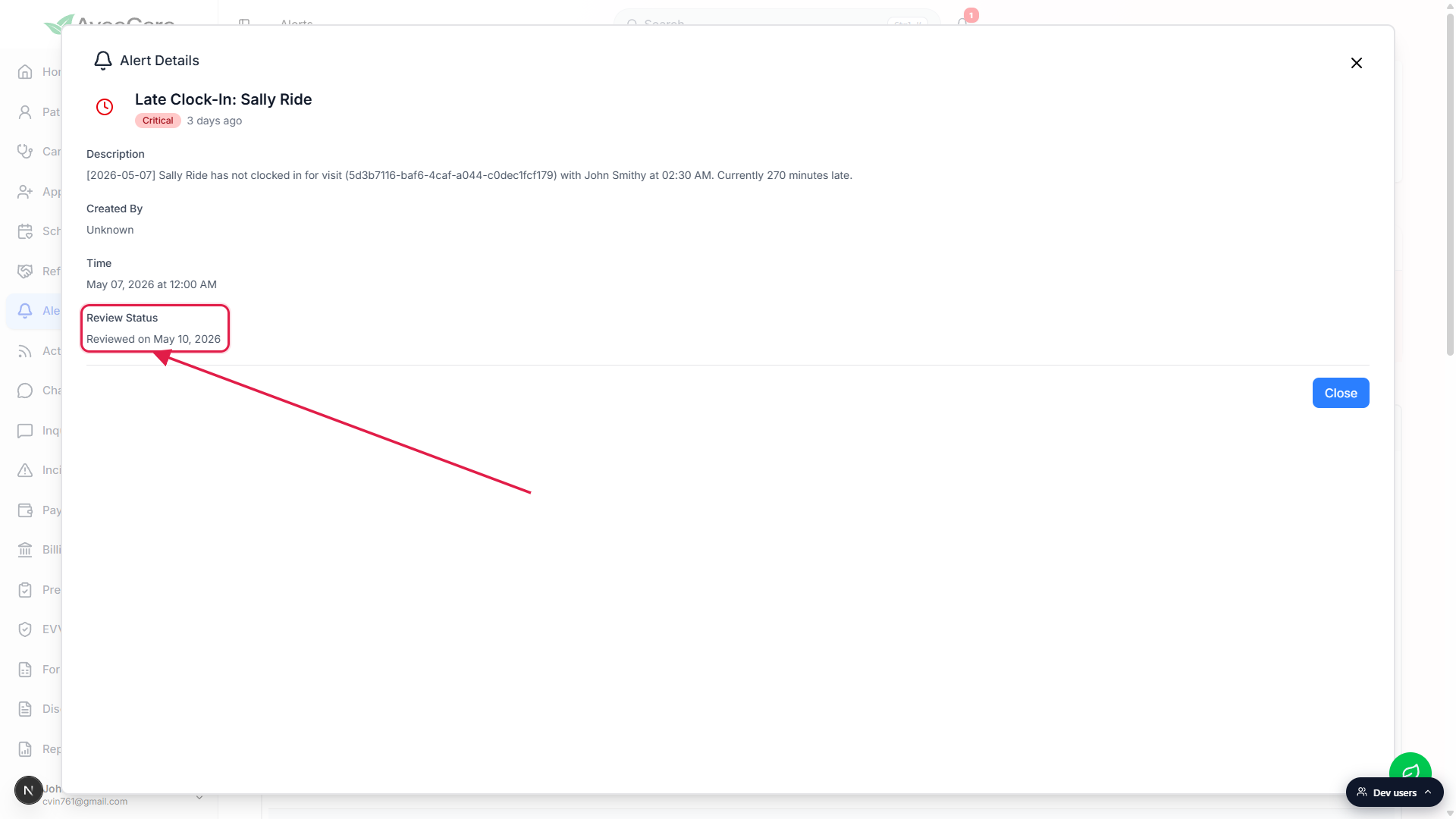
3. Close the modal once you are done
Click the blue Close button at the bottom right.
The X icon in the top-right corner does the same thing. Closing the modal returns you to Alerts with the All Alerts table now showing the row as Addressed. The Critical, Important, and Notice progress bars at the top of the page recompute the open count.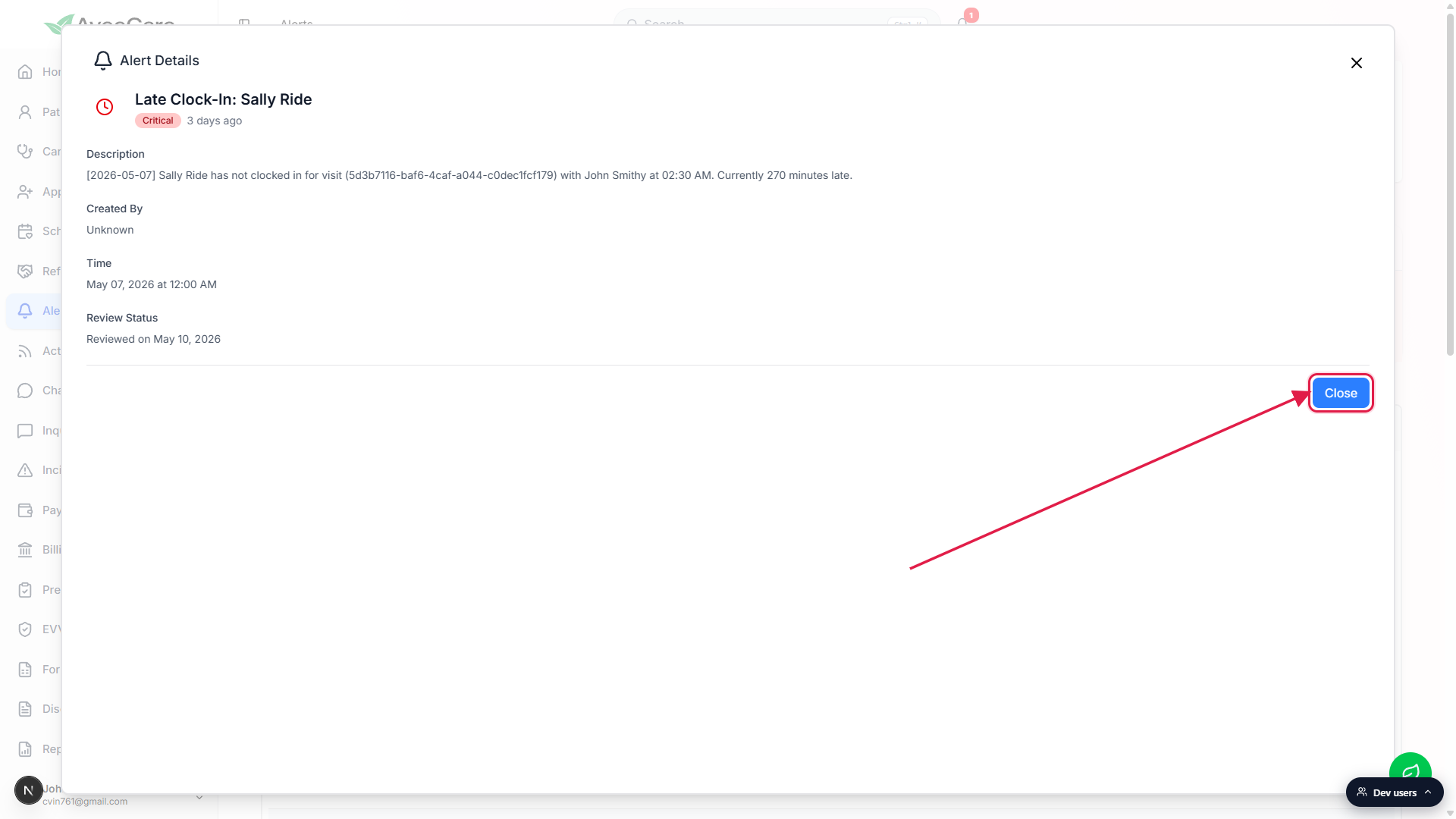
Common pitfalls
- Created By says Unknown. That is expected for system-generated alerts (late clock-ins, open-shift broadcasts, patient-inquiry replies). Only alerts authored by a staff user list the actual name.
- You opened it just to peek and now it is Reviewed.The dashboard marks alerts reviewed on open, not on a separate Mark Reviewed click. There is no Reopen toggle in the current modal. If you need a record of who saw it first, the All Alerts table shows the review date once it has been opened.
- Description is dense and ID-heavy. Late-clock-in alerts include the visit ID, the assigned caregiver, the start time, and how many minutes late the caregiver is. The visit ID is the same one you can paste into the Scheduling search to jump to the visit.
- Approve and Deny buttons are missing. Those only appear on shift-swap alerts. Late clock-ins, open shifts, and inquiry alerts are notice-only inside the modal. The actual remediation (calling the caregiver, reassigning the visit) happens on Scheduling or in Chat.
- Closing the modal does not delete the alert. The row stays in the All Alerts table and now reads Addressed. Use the table filter to hide reviewed alerts if the list gets noisy.