The Alerts page sorts every alert into one of three severity tiers, and the top of the page is dedicated to those three counts. At a glance you see how many open Critical, Important, and Notice alerts the agency has right now, and how much of the recent queue is still unreviewed.
Quick answer
Open Alerts. Three colored cards across the top show Critical (red, “Requires immediate attention”), Important (yellow, “Needs attention today”), and Notice (sky blue, “For your information”). Each card shows an unreviewed / recent fraction and a colored progress bar. Click a card to narrow the Recent Alerts panel below to just that tier. Click it again to clear the filter.
What each tier means
The tier of an alert is set by its alert type, not by the user. A few examples of what falls where:
- Critical (red). Late clock-in, missed visit, EVV failure that is blocking billing. These need a coordinator to act now, not later in the day.
- Important (yellow). New patient inquiry, a reply to an inquiry, an open shift that has not been claimed. The kind of thing you want a human to read today.
- Notice (sky blue). Informational only. Open shift available reminders are the most common Notice alerts.
1. Open Alerts and read the three tier cards
The three cards sit at the very top of the Alerts page.
Critical is on the left with a red left border. Important is in the middle with a yellow left border. Notice is on the right with a sky-blue left border. Each card has the tier name, a one line description, and a N New pill in the top-right showing how many alerts in this tier are still unreviewed.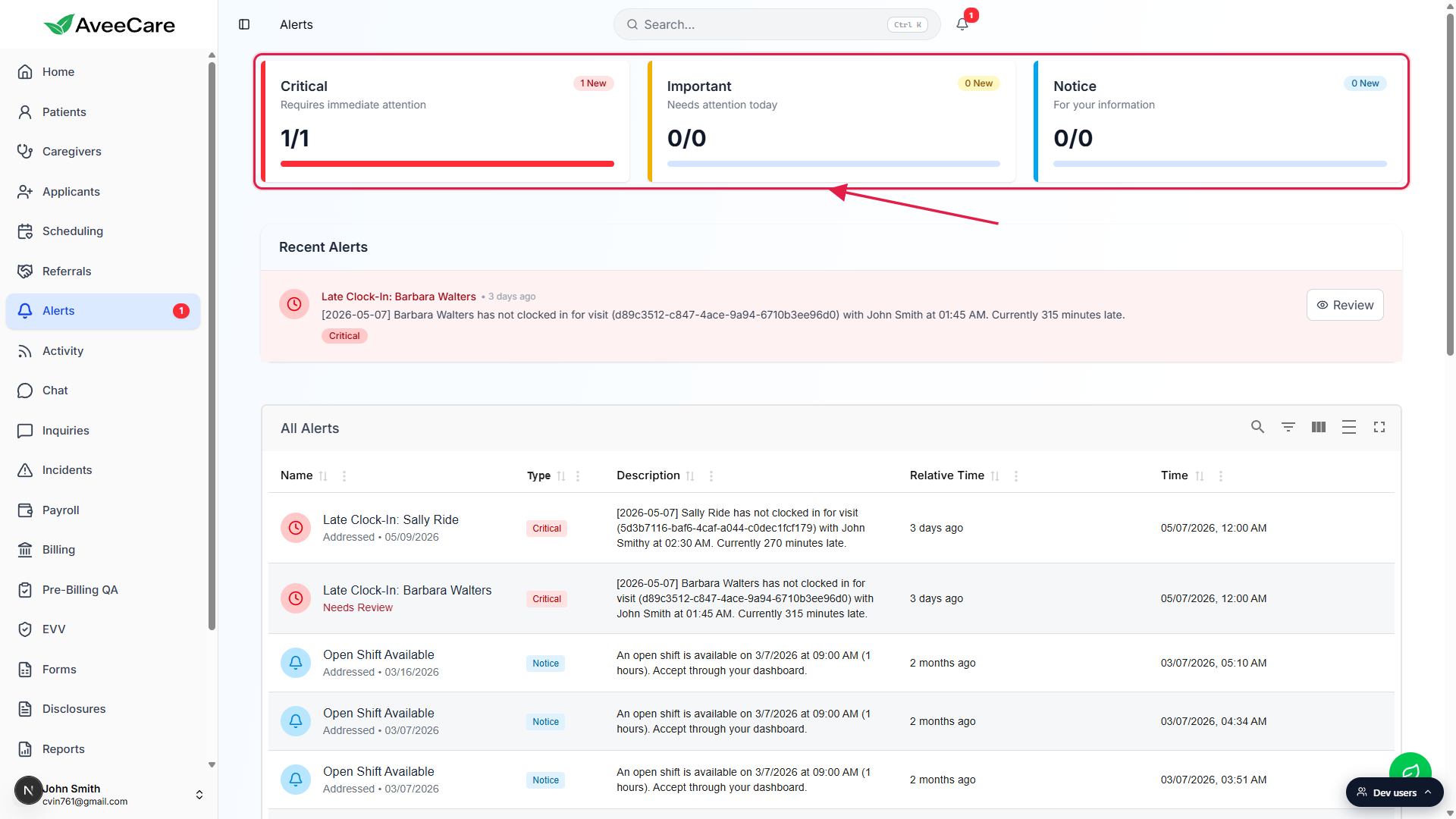
2. Read the count fraction and the progress bar
The big number on each card is unreviewed over recent.
The numerator is the count of alerts in this tier that have not been reviewed yet. The denominator is the size of the recent queue: every unreviewed alert plus any reviewed alert from the last 24 hours. So 1/1 on Critical means one Critical alert exists in the recent window and it is still unreviewed. 0/1 would mean one Critical alert is in the recent window but somebody already reviewed it.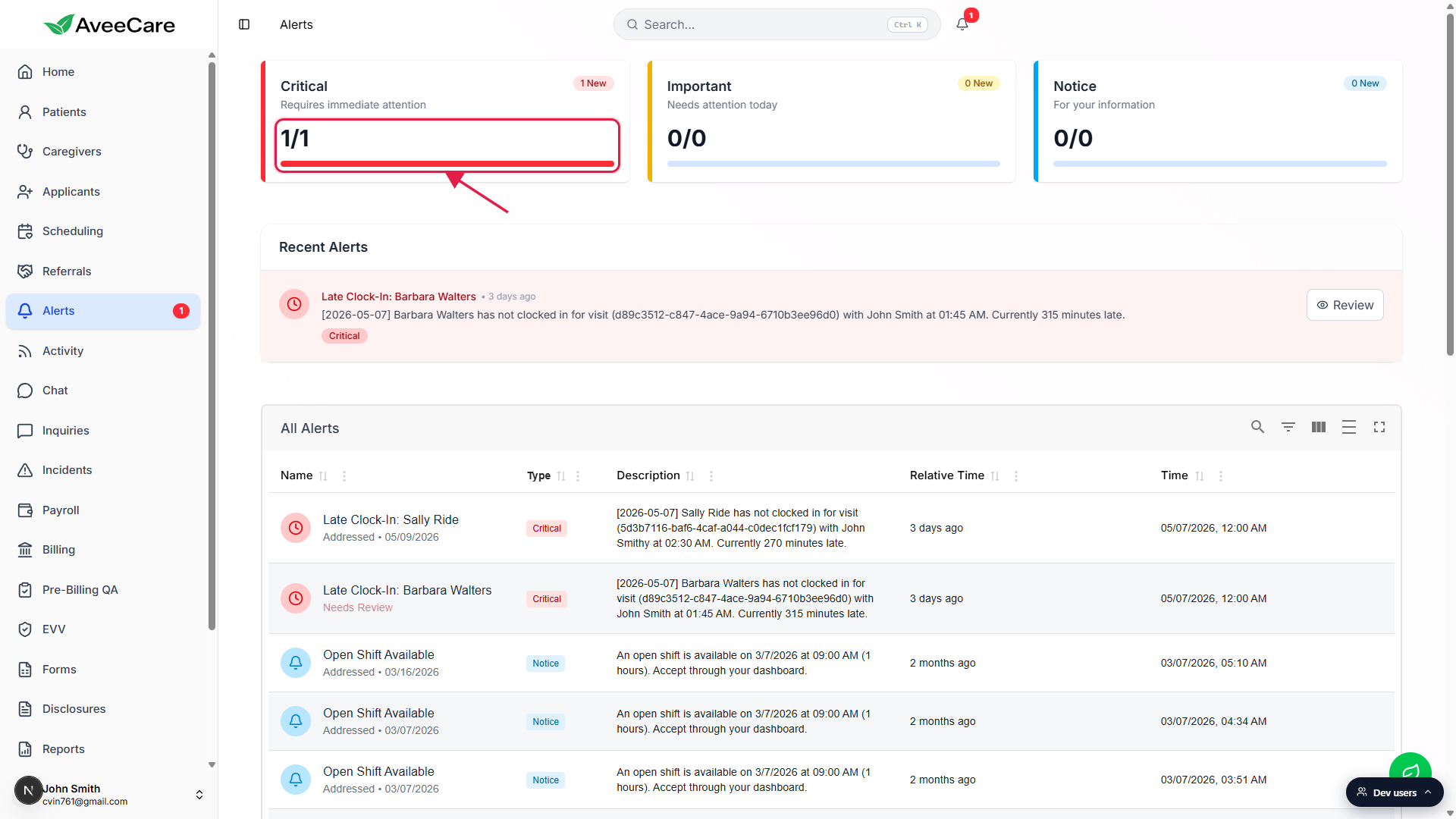
The colored bar mirrors the percentage of unreviewed.
The bar fills based on numerator divided by denominator. A full bar means everything in the recent window is still untouched. An empty bar means everything in the recent window has been reviewed. The bar color matches the tier (red, yellow, sky).
3. Click a tier card to filter Recent Alerts
Clicking the Critical card narrows Recent Alerts to Critical only.
The selected card picks up a colored ring so you can see which filter is active. The Recent Alerts panel directly below the cards then only shows alerts of that tier. Click the same card again to clear the filter and see all tiers in Recent Alerts.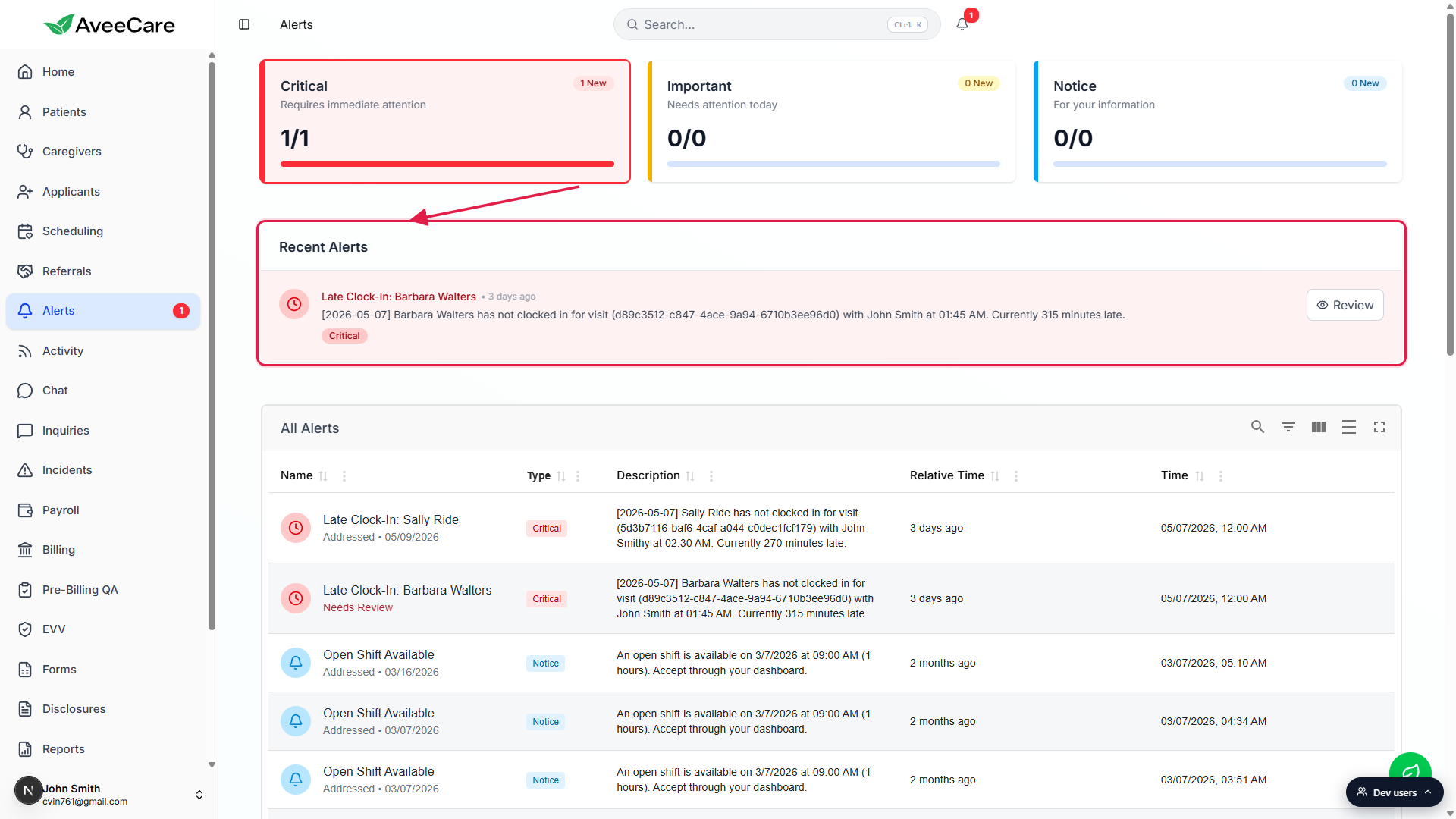
The All Alerts table below is independent of the tier filter.
Clicking a tier card does not change the All Alerts table. That table has its own search, filter, columns, and density toggles in its toolbar. To narrow the table by severity, use the filter button on the All Alerts toolbar and pick a Type value.
Common pitfalls
- Reading the fraction as open over total. It is not the lifetime total. The denominator is the recent queue: unreviewed alerts plus reviewed alerts from the last 24 hours. The lifetime count lives in the All Alerts table at the bottom of the page.
- Expecting the All Alerts table to filter when you click a tier. Tier card clicks only filter the Recent Alerts panel between the cards and the table. The table has its own filter toolbar.
- Trying to change which alert types fall under each tier. Tier mapping is fixed by alert type and is not user configurable today. Tune which alerts fire in Settings, not the tiers themselves.
- Leaving Critical at a non-zero fraction overnight. A persistent 1/1 on Critical means a coordinator never actioned the alert. Open the alert, take action, and mark it reviewed so the count drops to 0/1.
- Confusing the New pill with the fraction. The pill counts unreviewed alerts in the tier across the whole filtered dataset, not just the recent queue. The fraction below it scopes the numerator to the recent window. They will usually match, but they can diverge if there are old unreviewed alerts older than 24 hours.